PureCutCNC User Guide
PureCutCNC is a 2.5D and 3D CAD/CAM program for CNC routers. You draw or import a part, assign machining operations to it, check the toolpaths in 3D and in simulation, and export G-code for your machine. It runs in a desktop or tablet browser and as a desktop app for macOS, Windows, and Linux. It needs no account, and your projects stay on your own computer.
This guide describes the current app. Pages and sections marked Preview Build cover features that are not in a stable release yet.
Start here
Section titled “Start here”Install and open PureCutCNCChoose the web app or a desktop build, and open a first project.
Quick StartGo from a blank project to exported G-code in about ten minutes.
Working safelyWhat the preview cannot tell you, and what to check before cutting.
Find your way
Section titled “Find your way”| If you are | Start with | Then read |
|---|---|---|
| New to PureCutCNC | Install and open and the Quick Start | Working safely, then the Fundamentals pages in order, starting with The workspace |
| Looking up a tool, operation, setting, or shortcut | Search, or the section in the sidebar | The operation, strategy, or reference page, and its settings table |
| Coming from another CAM program | The Glossary | Features, roles, and depth, Choosing an operation, and Advanced strategies |
| Fixing a problem with an import, toolpath, simulation, or an export | Troubleshooting | Warnings and messages to interpret the type of message shown |
| Getting ready to cut | Working safely | Simulation and Exporting G-code |
Workflow
Section titled “Workflow”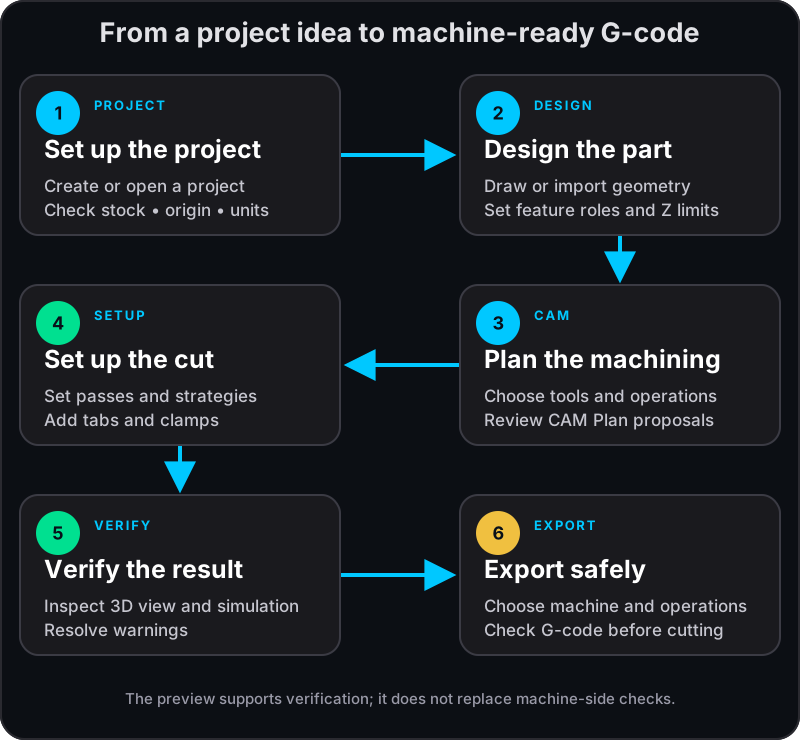
A typical job goes through these steps. You can return to any of them at any time: toolpaths are generated again whenever the design or the machining settings change.
- Set up the project. Create or open a project, then check its stock, origin, and units.
- Design the part. Draw features or import SVG, DXF, STL, OBJ, or STEP files, and give each feature its role and its Z top and Z bottom.
- Plan the machining. Add tools, then add operations to the features they should cut, or let CAM Plan propose a set of operations for you to review.
- Set up the cut. Choose each operation’s settings and strategies, and add tabs and clamps.
- Verify. Check the toolpaths in the 3D view and the simulation, and resolve any warnings.
- Export. Choose the machine, check which operations are exported, save the G-code, and check it on the machine before cutting.
Guide sections
Section titled “Guide sections”FundamentalsThe workspace, projects, features and their roles, stock, origin, units, and regions.
DesignDrawing, editing, snapping, dimensions and constraints, text, and importing.
CAM SetupTools, operations, CAM Plan, machines, tabs, and clamps.
Machining OperationsOne page per operation, with its requirements and settings.
Advanced StrategiesClearing patterns, trochoidal cutting, entries, corners, feed reduction, rest machining, and 3D finishing.
Verify and ExportToolpath preview, 3D view, simulation, G-code export, and setup booklets.
Reference and TroubleshootingShortcuts, file formats, machine definitions, themes, languages, warnings, and fixes.