Text
Text in PureCutCNC is a single feature that stays editable: you can change the words, the style, and the font at any time without drawing it again. You can move, copy, resize, rotate, and mirror it like any other feature, and machine it with engrave, V-carve, and pocket operations.
Before you start
Section titled “Before you start”- Open the Sketch view.
- Decide how the text will be cut. Engraved text uses the skeleton style; carved, pocketed, or raised text uses the outline style. See Machining text.
Placing text
Section titled “Placing text”-
Open the shape drawer and choose text (Add feature text). The Add text dialog opens.
-
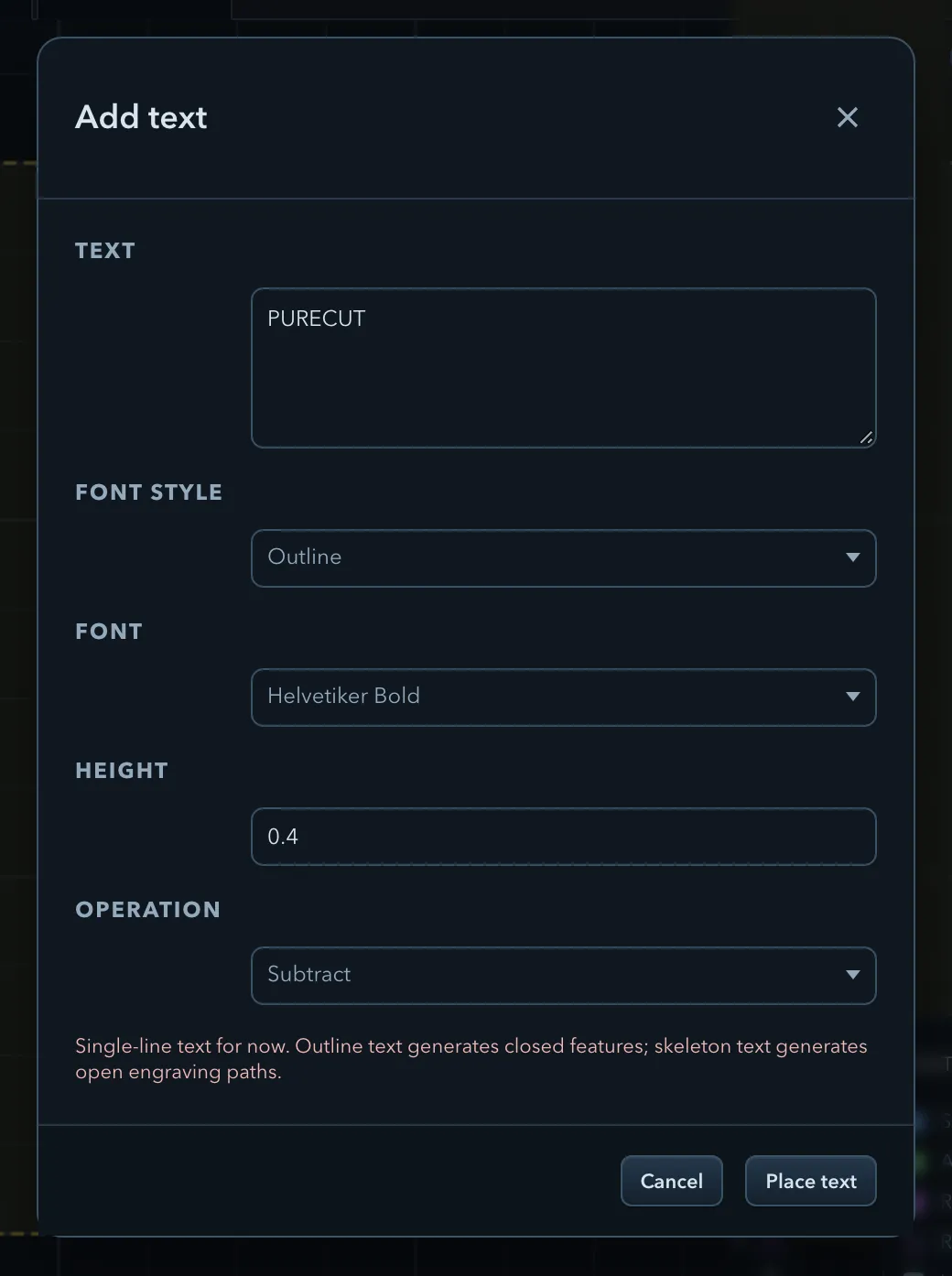
Fill in the dialog:
Field Description Text The words to place. Text is a single line: line breaks become spaces. Font style Skeleton or Outline. Default Skeleton. Font The fonts available for the chosen style. Height The text height in project units. Default 0.4 in or 10 mm. Operation Subtract (the default) or Add. -
Click Place text.
-
At Tap the sketch to place the text., click where the text should go.
Like the other drawing tools, text placement stays armed after the first click, so each further click places another copy. Press Esc or click Cancel when you are done.
The text becomes a feature in the feature tree. Its Z range starts like any new feature’s; set Z top and Z bottom in its properties. See Features, roles, and depth.
Text styles
Section titled “Text styles”| Style | What it produces | Fonts |
|---|---|---|
| Skeleton | A single centreline stroke for each letter: open paths for engraving. | Simple Stroke, in regular, italic, condensed, and condensed italic (4 fonts). |
| Outline | The closed outline of each letter: shapes to carve, pocket, or cut. | Helvetiker, Optimer, Gentilis, Droid Sans, Droid Sans Mono, and Droid Serif. Every family has regular and italic faces, all but Droid Sans Mono have bold, and Helvetiker also has condensed faces (26 fonts). |
The Font list shows only the fonts of the selected style.
Editing text
Section titled “Editing text”Select a text feature to edit it in the properties panel:
- Text: the words.
- Style: Skeleton or Outline. Changing the style resets the font to that style’s default.
- Font: a font of the current style.
- Operation, under Shape, and Z top and Z bottom, under Instance, as for any feature.
To change the size of text, use the resize tool (see Selecting and transforming). Text cannot be opened in a sketch-editing session: Edit sketch is unavailable for text features. To reshape individual letters, expand the text first.
Text layout
Section titled “Text layout”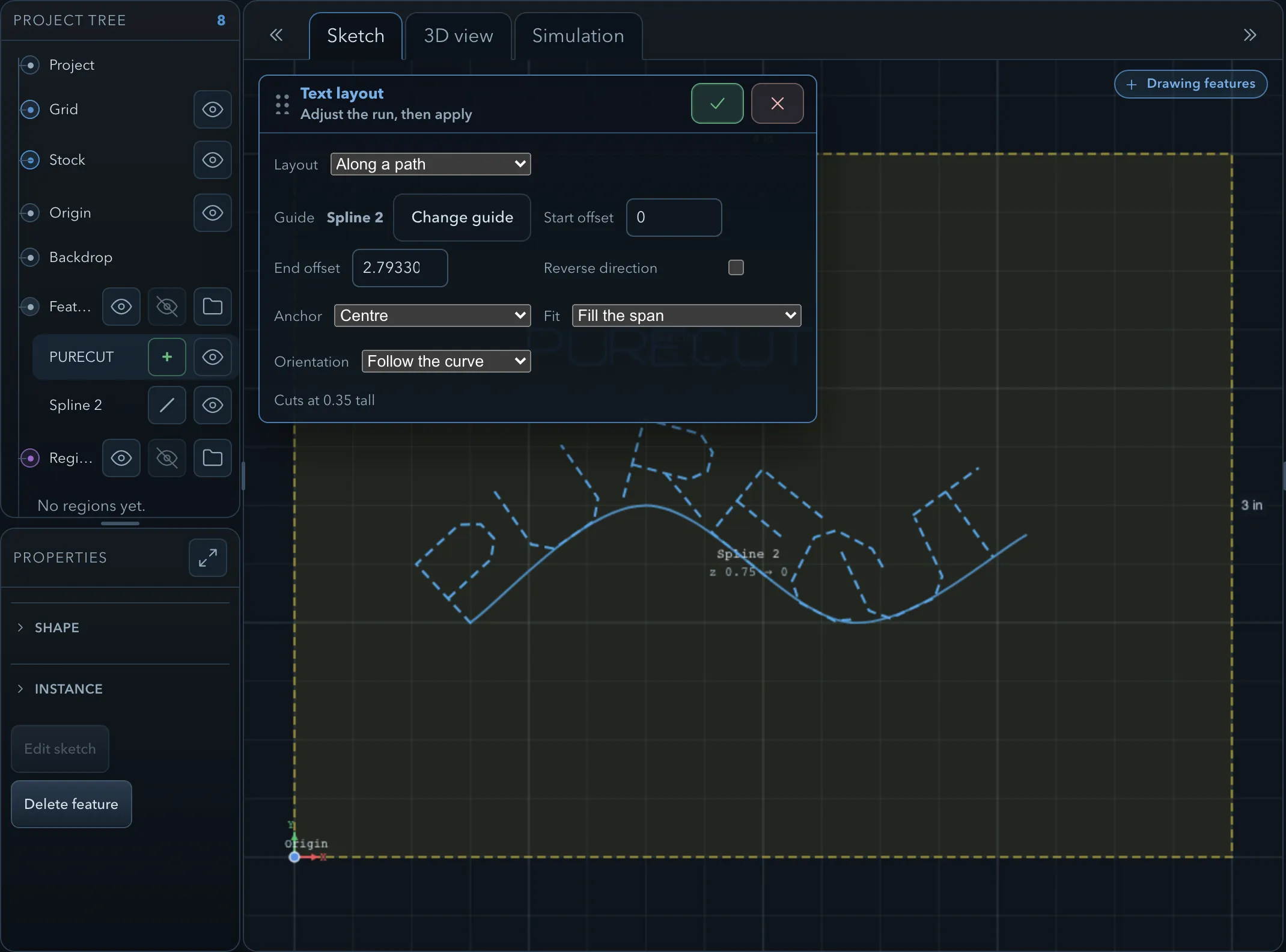
Text is placed on a straight baseline. Text layout bends it onto a circle or along a guide shape.
-
Select one text feature. It must not be locked.
-
In the tool rail, open Distribute selected features and choose Text layout.
-
Choose a Layout: Horizontal, On a circle, or Along a path. Text that already follows a circle or path opens with its current layout.
-
Set up the layout (see the tables below). The canvas previews the result.
-
Click Apply.
For On a circle:
| Setting | Description |
|---|---|
| Center | Click Pick center, then click the circle’s centre on the sketch. The panel then shows Point selected. |
| Radius | Read-only: the distance from the centre to the text. |
| Angle | Where on the circle the text sits, in degrees. |
| Sweep | How much of the circle the text spans, in degrees. |
| Direction | Clockwise (over the top) or Anticlockwise (under the bottom). |
For Along a path:
| Setting | Description |
|---|---|
| Guide | Click Pick guide, then click another outline on the sketch, open or closed. Click directly on the outline, not inside it. |
| Start offset, End offset | How far along the guide the text starts and ends. |
| Reverse direction | Runs the text the other way along the guide. |
For both:
| Setting | Description |
|---|---|
| Anchor | Which part of the text sits at the layout position: Start, Centre, or End. |
| Fit | Keep text size keeps the height and lets the span follow. Fill the span scales the whole text to fill the span, and the panel shows the resulting height (Cuts at … tall). |
| Orientation | Fixed keeps every letter upright. Follow the curve turns each letter to follow the baseline. |
Apply is unavailable until a centre or guide is picked. If the text is longer than the span, the panel warns you; widen the span or set Fit to Fill the span.
To straighten text again, open Text layout, choose Horizontal, and click Apply. The layout belongs to that one text feature: if the text is a linked copy, the other copies stay as they are. See Linked features.
Expand text
Section titled “Expand text”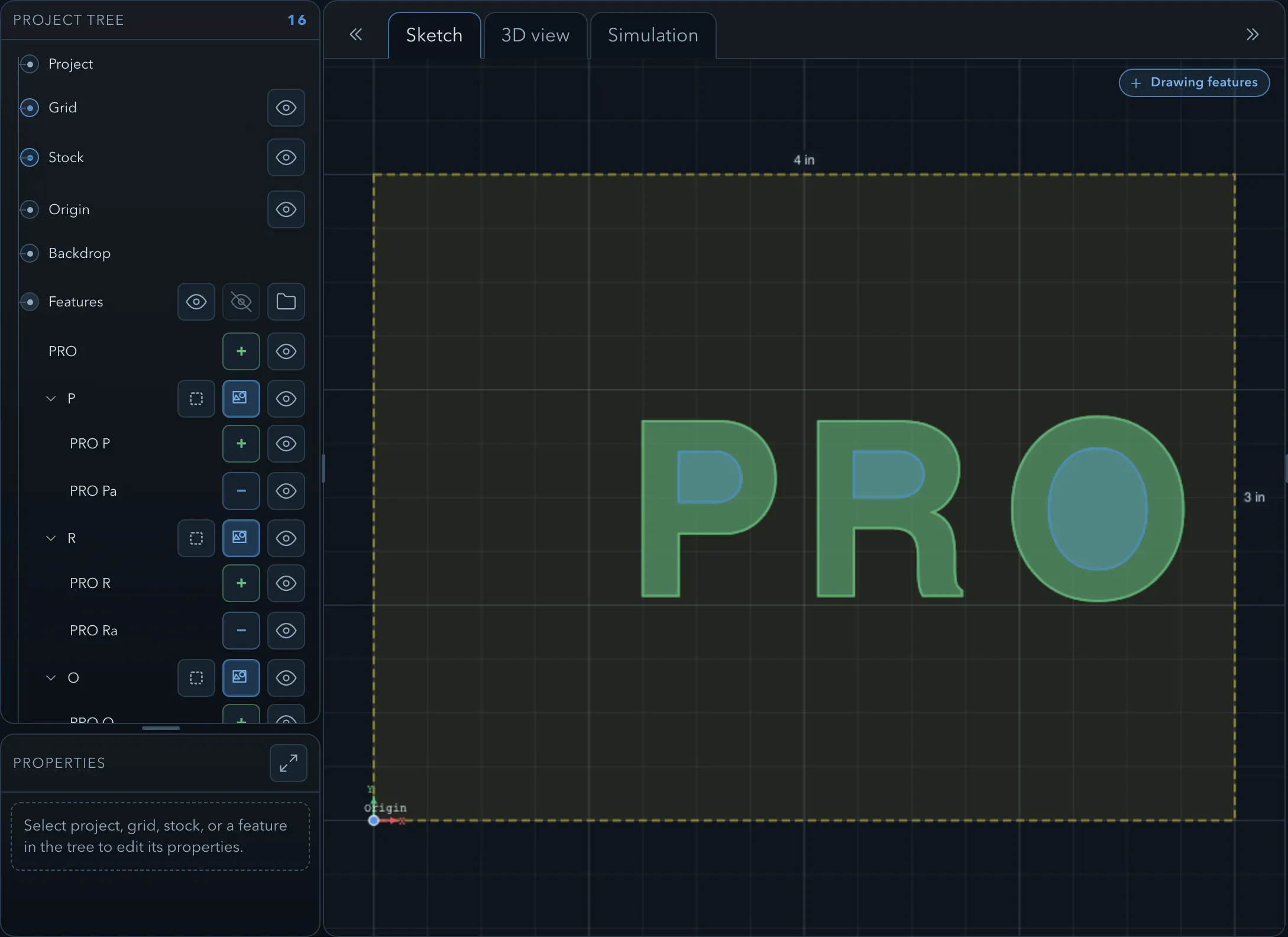
Expand text to features, in the properties of a text feature, turns the text into ordinary features that you can edit one letter at a time:
- each letter becomes its own group in the feature tree;
- outline text becomes closed features, one for each outline, so a letter such as O gives an outer and an inner outline;
- skeleton text becomes open line features along each stroke.
The new features keep the text’s role, Z range, visibility, and lock state. The original text feature stays in the project, so you can still edit the words; hide or delete it if you no longer need it. Expanding is a single undo step.
The expanded features are independent of the text: changing the text afterwards does not change them.
Machining text
Section titled “Machining text”Choose operations by style:
| Text | Operation | Result |
|---|---|---|
| Skeleton | Engrave | The cutter follows each stroke’s centreline. |
| Outline, Subtract | V-carve offset or V-carve medial | A V-bit carves the letters, with sharp inside corners. |
| Outline, Subtract | The letters are cleared to a flat floor. | |
| Outline, Subtract | Edge route inside | The cutter follows the inside of each letter’s outline. |
| Outline, Add, with counters | Pocket or Edge route inside | Cuts only the enclosed counters of letters such as O, B, and D. |
| Outline, Subtract, with islands | Edge route outside | Routes around the enclosed islands inside the letters. |
| Outline, Line | V-carve offset or V-carve medial | Carved letters without subtracting them from the model. |
| Outline, Add | Operations that clear around raised features | Raised letters. See Choosing an operation. |
You can target these counters and islands directly from the CAM Add menu, Use current selection, or the feature context menu. You do not need to expand the text first. An Add text feature with no counter, such as L, has no subtract shape for Pocket or Edge route inside, so those operations refuse it. Expand text only when you need to edit the individual letter geometry.
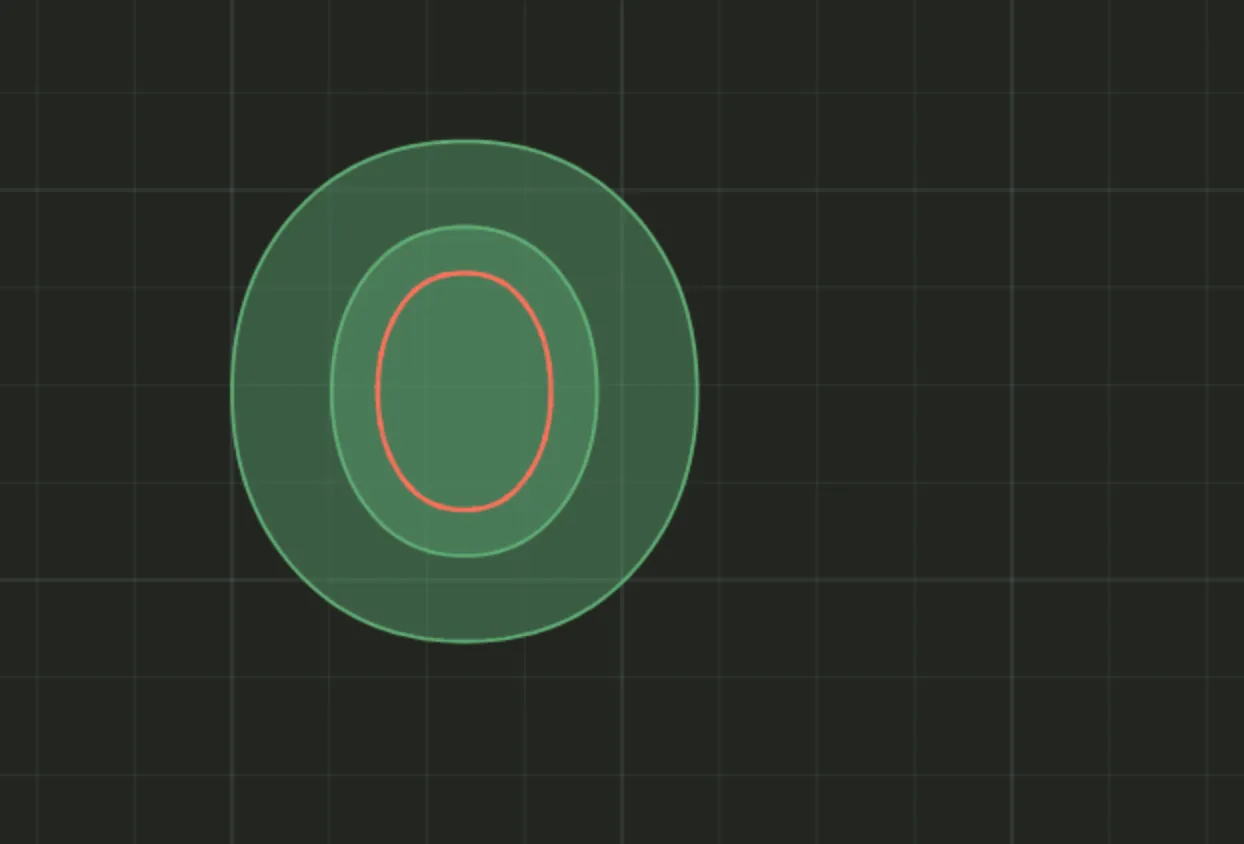
To use the Line role, change the text’s Operation to Line in its properties. V-carving accepts closed line features as well as closed subtract features.
Related pages
Section titled “Related pages”- Engrave, V-carve offset, and V-carve medial: the operations text is most often cut with.
- Aligning and distributing: the menu that holds Text layout.
- Drawing tools: creation targets and the shape drawer.
- Linked features: copies of text that share one definition.