Drawing tools
The drawing tools in the tool rail add shapes to the Sketch canvas. Every shape you draw becomes a feature in the feature tree; its role and Z range decide what it does in the model, as Features, roles, and depth explains. This page covers the basic shapes. Slots, regular polygons, gears, and rectangles with shaped corners are on Slots, polygons, and gears, and text is on Text.
Before you start
Section titled “Before you start”- Open the Sketch view.
- Snapping is on by default, so points you click snap to the grid and to existing geometry. See Snapping and the grid.
Draw a shape
Section titled “Draw a shape”-
Choose a creation target at the top of the tool rail (see below).
-
Open the shape drawer and choose a shape. See Shape drawer below.
-
Follow the step shown in the shape’s workflow panel: click points on the canvas, or click Dimensions (or press Tab) to type exact values.
-
When the shape is complete, the tool re-arms for another shape of the same kind, with the same settings. Press Esc or click Cancel when you are done.
Tools stay armed so that you can place a row of circles or a set of slots without returning to the tool rail. Per-shape settings such as a polygon’s side count or a rounded rectangle’s corner radius carry over to the next shape.
Shape drawer
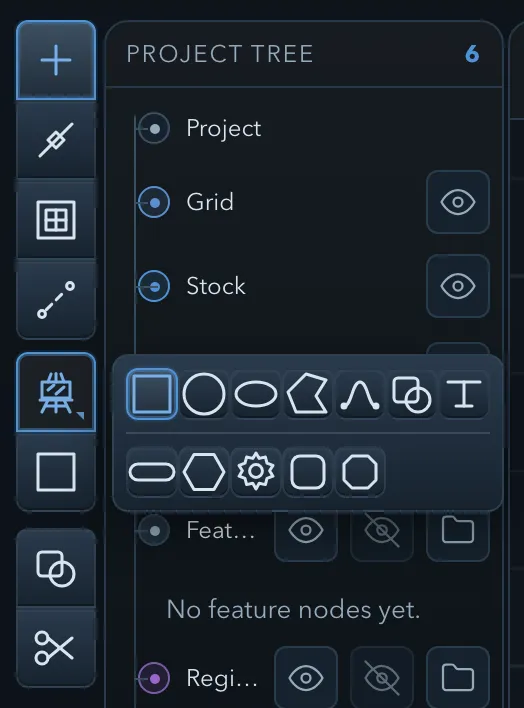
Section titled “Shape drawer”The tool rail’s Choose feature shape button opens the shape drawer. Its top row holds the shapes on this page — rectangle, circle, ellipse, polygon, spline, and composite — together with text; its second row holds the parametric shapes: slot, regular polygon, gear, rounded rectangle, and chamfered rectangle. Each button’s tooltip names the creation target and the shape, for example Add feature rectangle.
The button directly below the drawer button repeats the last shape you used, so you can re-arm that shape without opening the drawer again.
Creation target
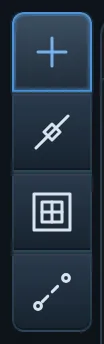
Section titled “Creation target”The four buttons at the top of the tool rail decide what the next shape becomes. The drawing tools are the same for every target.
| Button | New shapes become |
|---|---|
| Create features | Closed shapes become add or subtract features; open paths become line features. This is the default. |
| Create lines | Line features, open or closed, for engraving and V-carving. |
| Create regions | Region masks that limit where operations cut. Regions must be closed. |
| Create construction geometry | Construction geometry for reference only. It is never machined. |
A status label on the canvas shows the current target, for example Drawing features.
With Create features, PureCutCNC chooses add or subtract for each closed shape: the first solid in a project is always an add feature, and a shape drawn inside an add feature becomes a subtract feature. Change the role afterwards in the feature’s properties if you need to. See Regions and Construction geometry for what those targets are for.
Typed dimensions
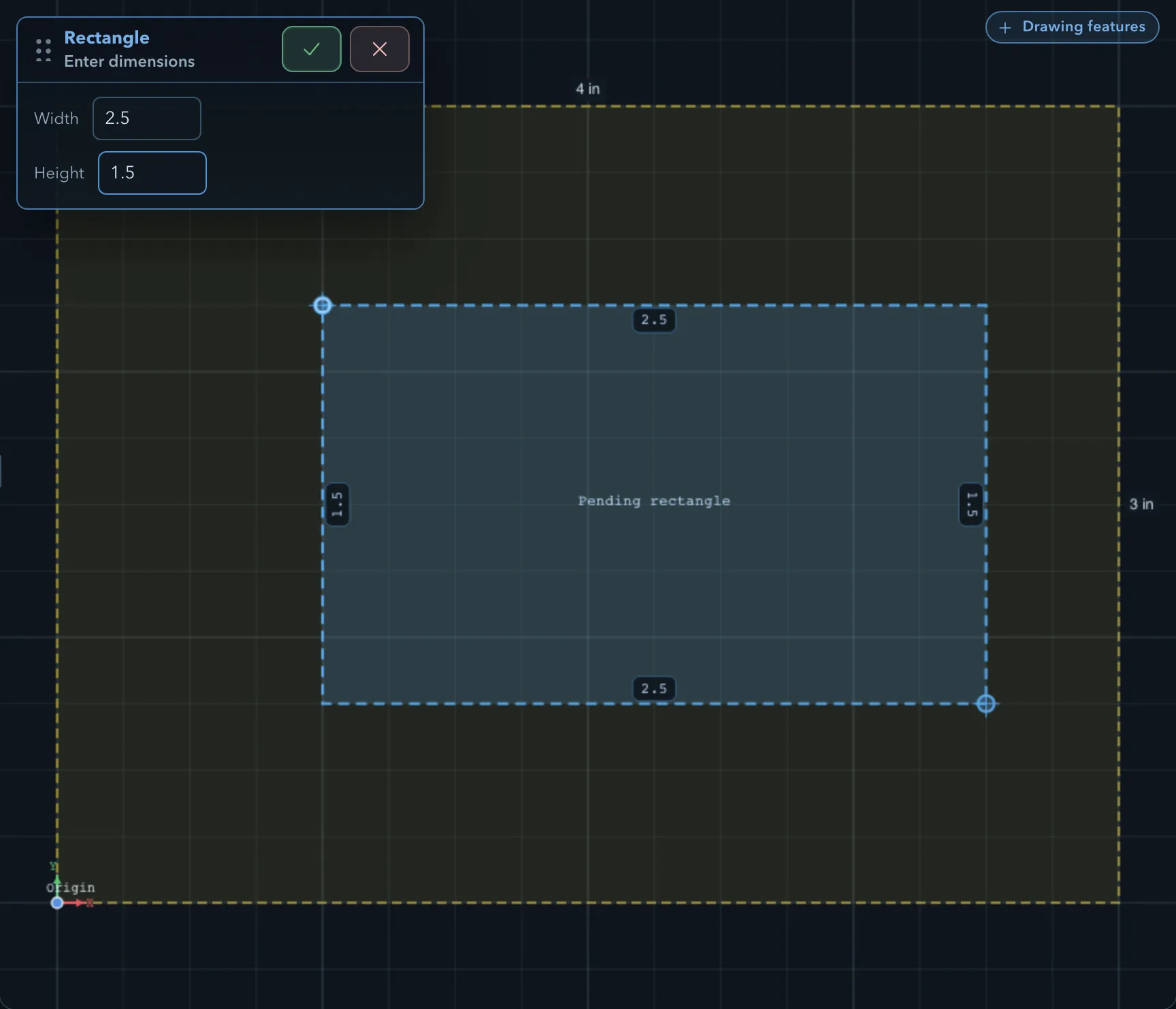
Section titled “Typed dimensions”Every drawing tool takes typed values instead of a second click. Press Tab, or click the panel’s typed-entry button, and the workflow panel becomes a small form. The button names what it will ask for: Dimensions (Tab) on the basic shapes, Radius (Tab) on a gear or regular polygon, Width (Tab) at a slot’s width step.
The pending shape follows the numbers as you type them, so you can check the size before you confirm. Confirm places the shape; cancel returns you to clicking.
Rectangle
Section titled “Rectangle”-
Choose the rectangle in the shape drawer.
-
At Click first corner, click one corner.
-
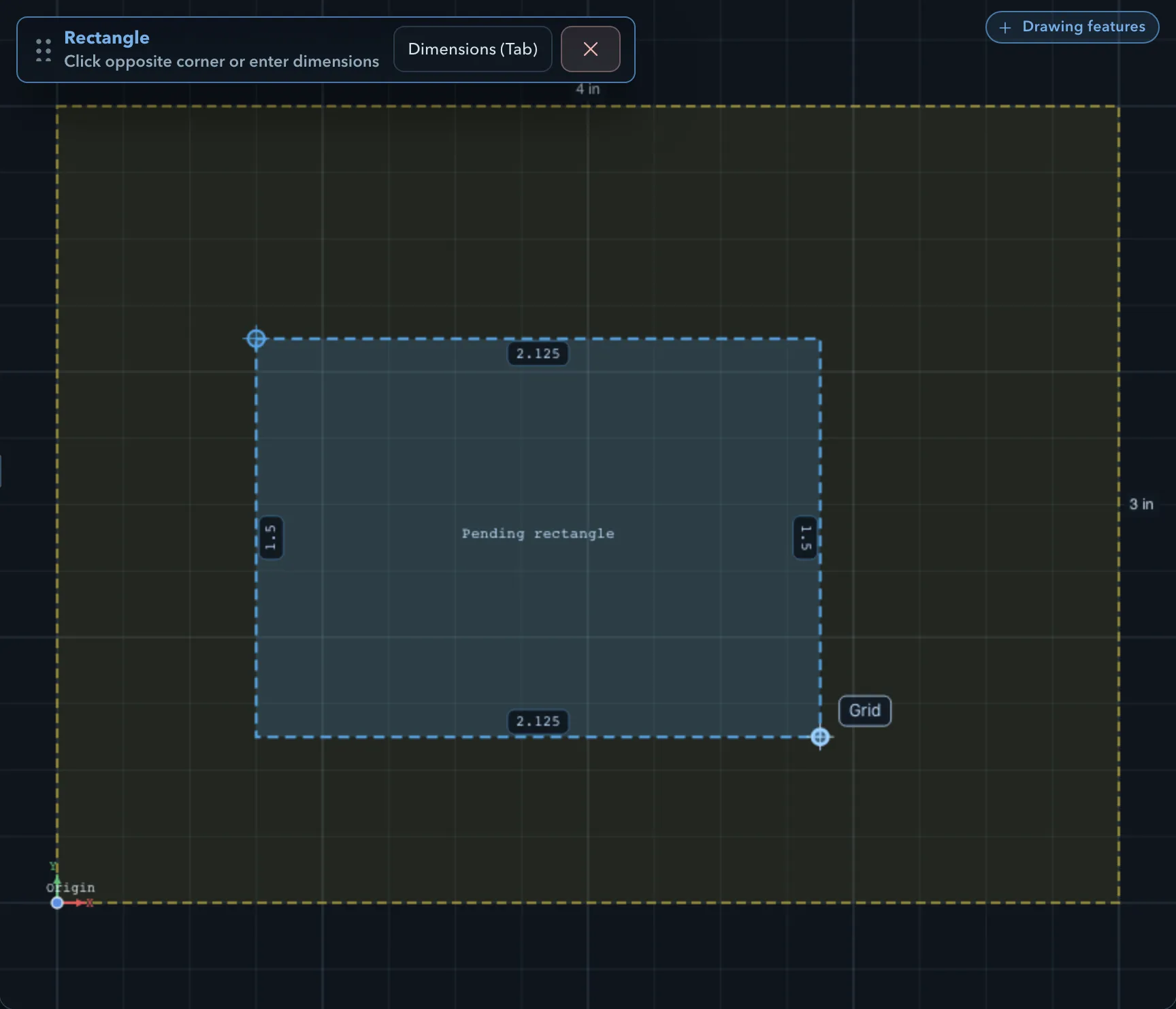
At Click opposite corner or enter dimensions, click the opposite corner, or click Dimensions and enter the Width and Height.
Rectangles are drawn aligned with the X and Y axes. Rotate one afterwards with the rotate tool; see Selecting and transforming.
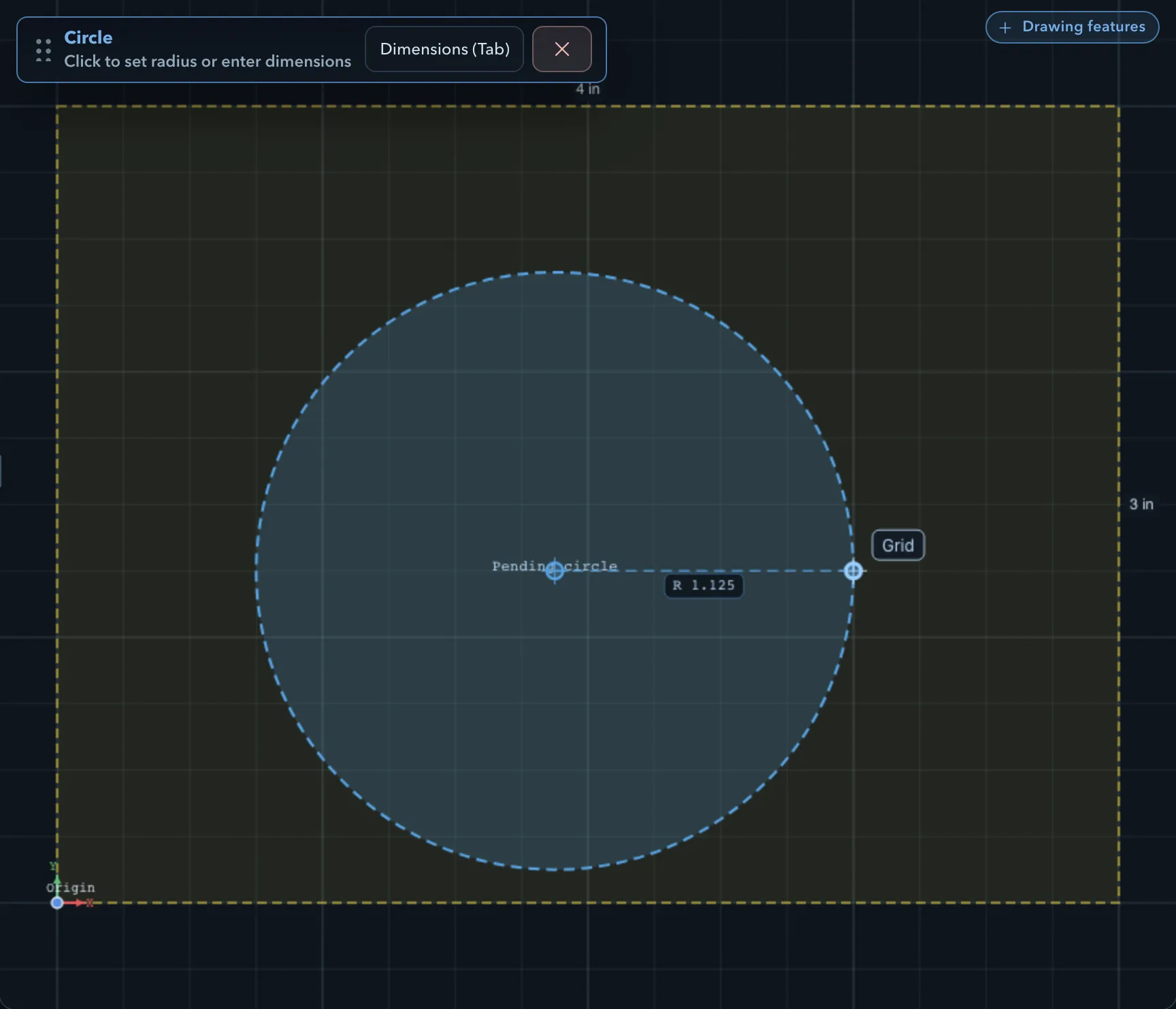
Circle
Section titled “Circle”-
Choose the circle in the shape drawer.
-
At Click center point, click the centre.
-
At Click to set radius or enter dimensions, click a point on the circle, or click Dimensions and enter the Radius.
Circles are stored as true circles, not as polygons, so pocket, edge route, and drill operations follow the exact curve. The drill operation accepts only circle features.
Ellipse
Section titled “Ellipse”-
Choose the ellipse in the shape drawer.
-
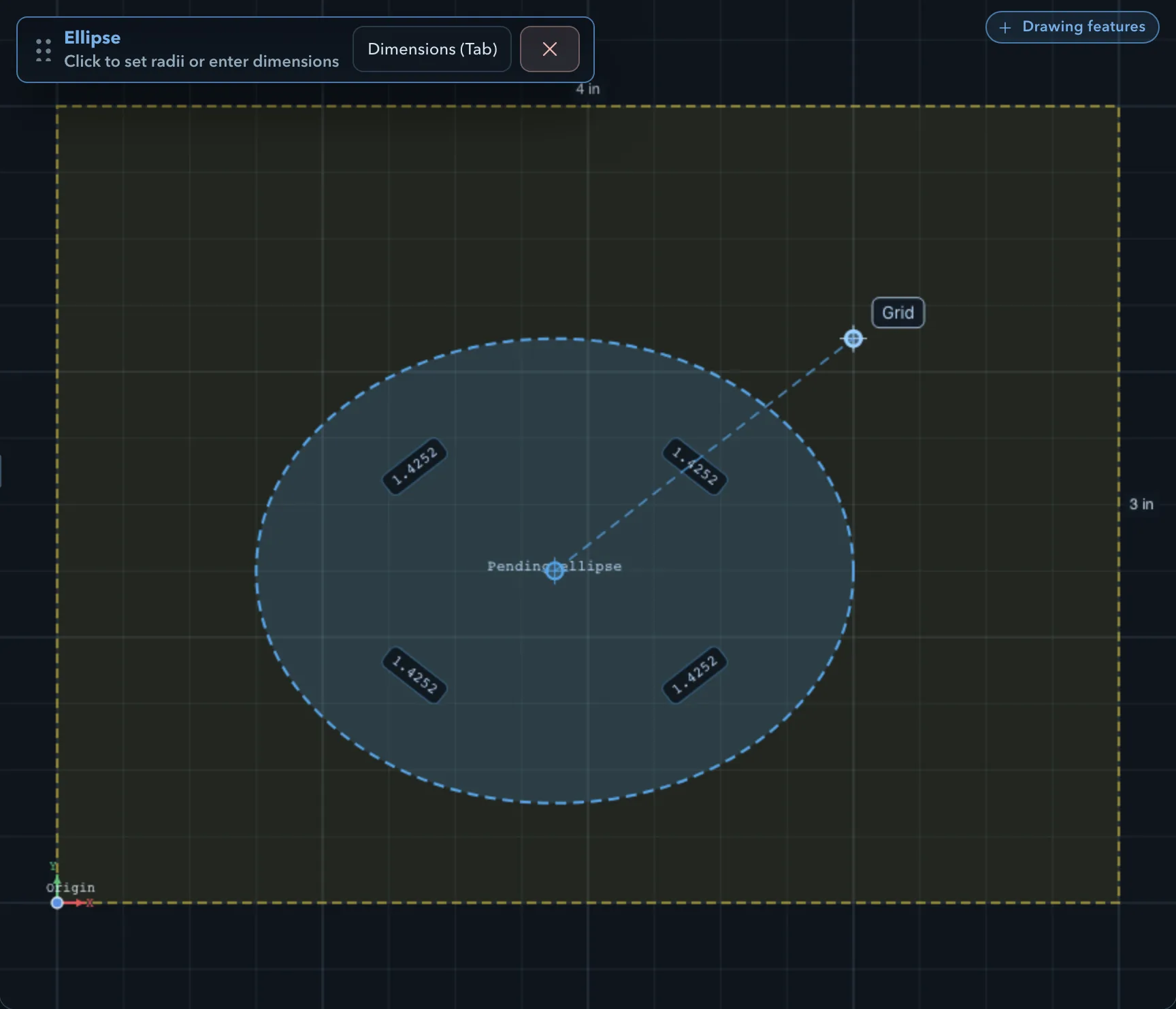
At Click center point, click the centre.
-
At Click to set radii or enter dimensions, click a point to set both radii, or click Dimensions and enter the ellipse’s Width and Height.
Ellipses are stored as true curves, and toolpaths follow the curve.
Polygon
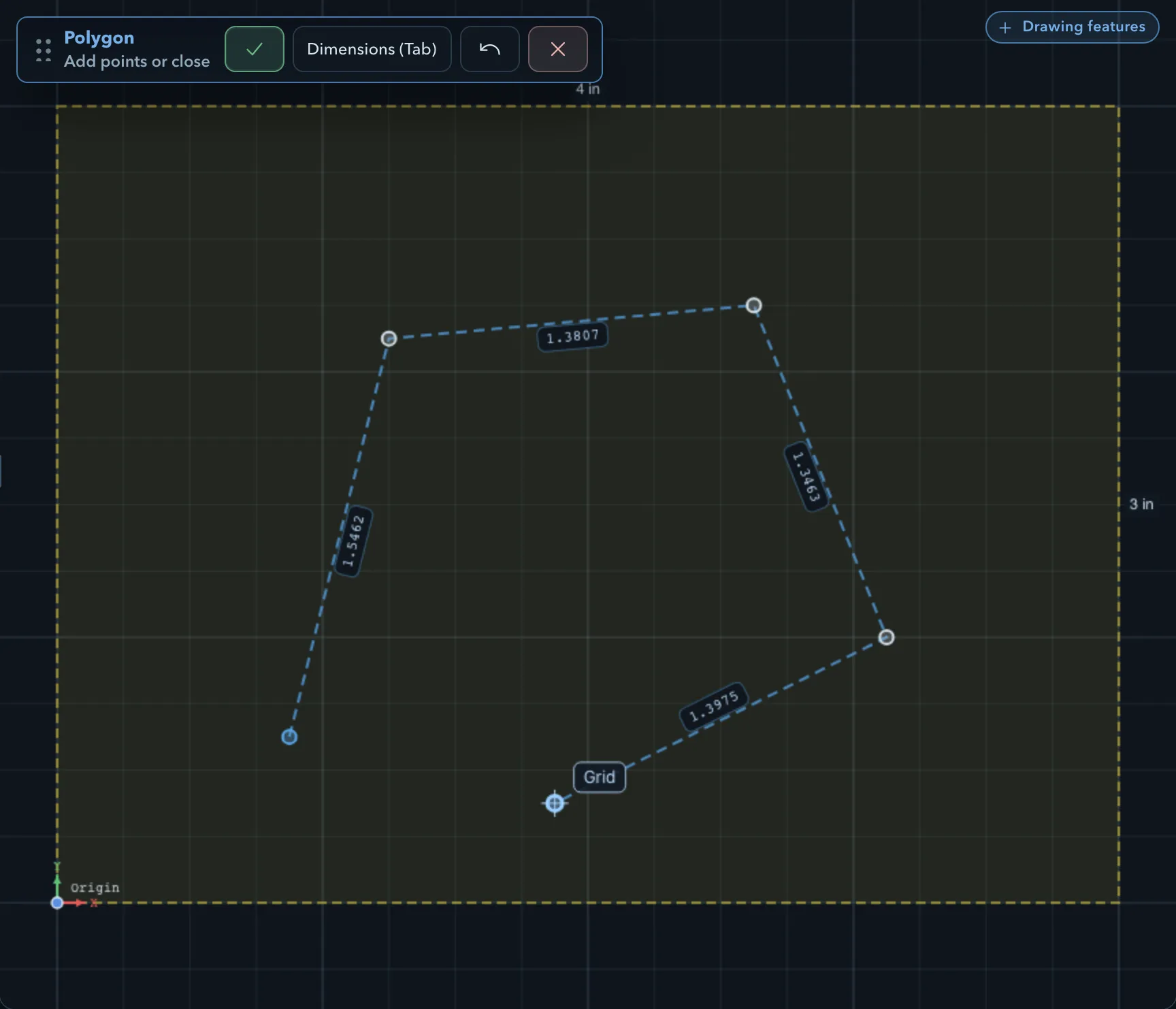
Section titled “Polygon”A polygon is a path of straight segments through the points you click.
-
Choose the polygon in the shape drawer.
-
At Click first point, click the first point, then keep clicking to add points (Add one more point, then Add points or close).
-
Finish the shape:
- click the first point again to close it;
- or click Finish (or press Enter) to keep it as an open path.
While you draw, Undo (Backspace) removes the last point, and Dimensions (Tab) sets the next segment’s Length and Angle. Finish needs at least two points, and it is not offered when drawing regions, which must be closed.
A closed polygon can be pocketed, routed, V-carved, or surface-cleaned. An open path becomes a line feature that the engrave operation can follow.
Spline
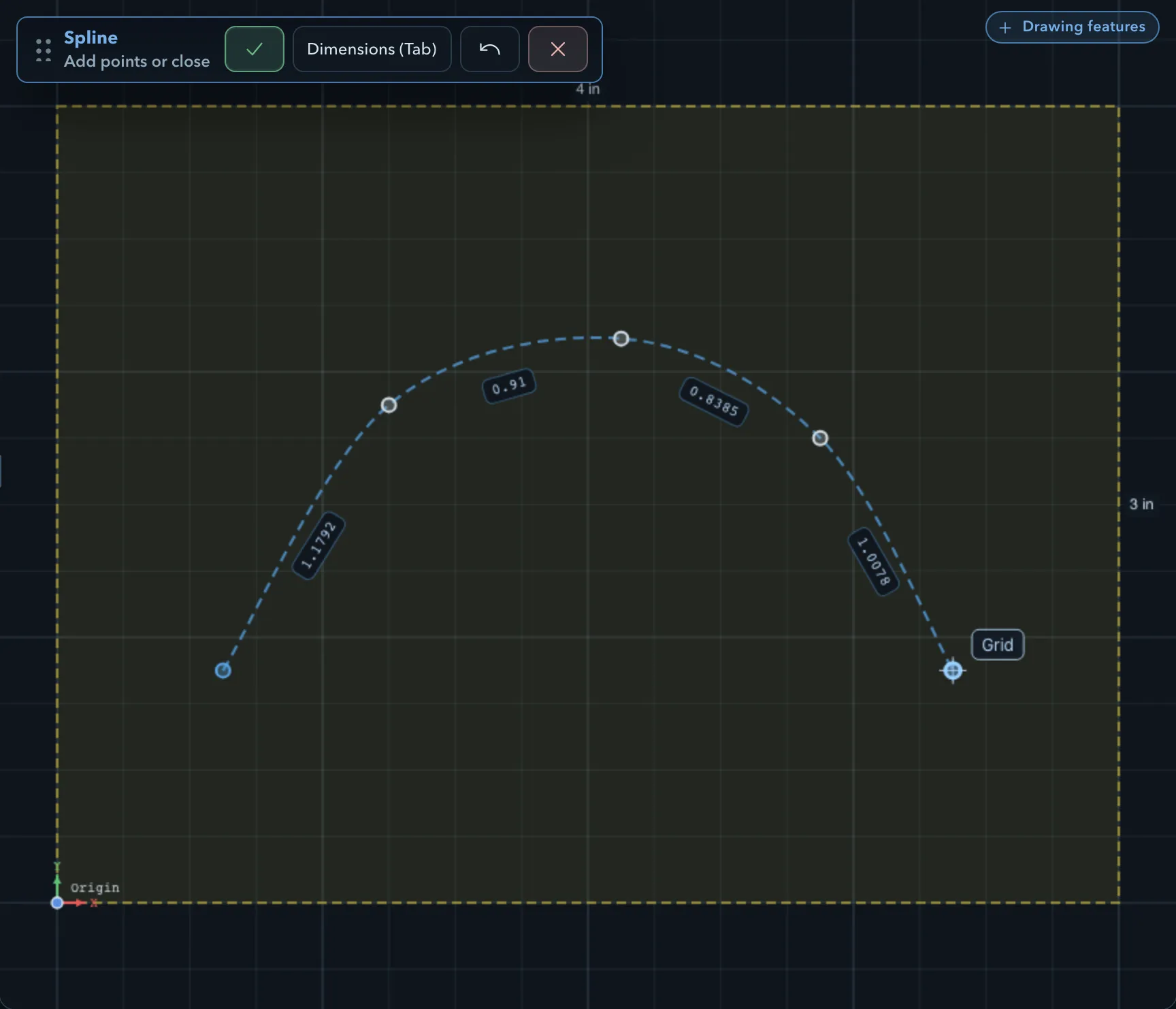
Section titled “Spline”A spline is a smooth curve that passes through every point you click. Draw it like a polygon: click the first point again to close it, or click Finish (Enter) to keep it open. Undo (Backspace) removes the last point.
To change the curve afterwards, edit it in a sketch-editing session; see Editing sketches.
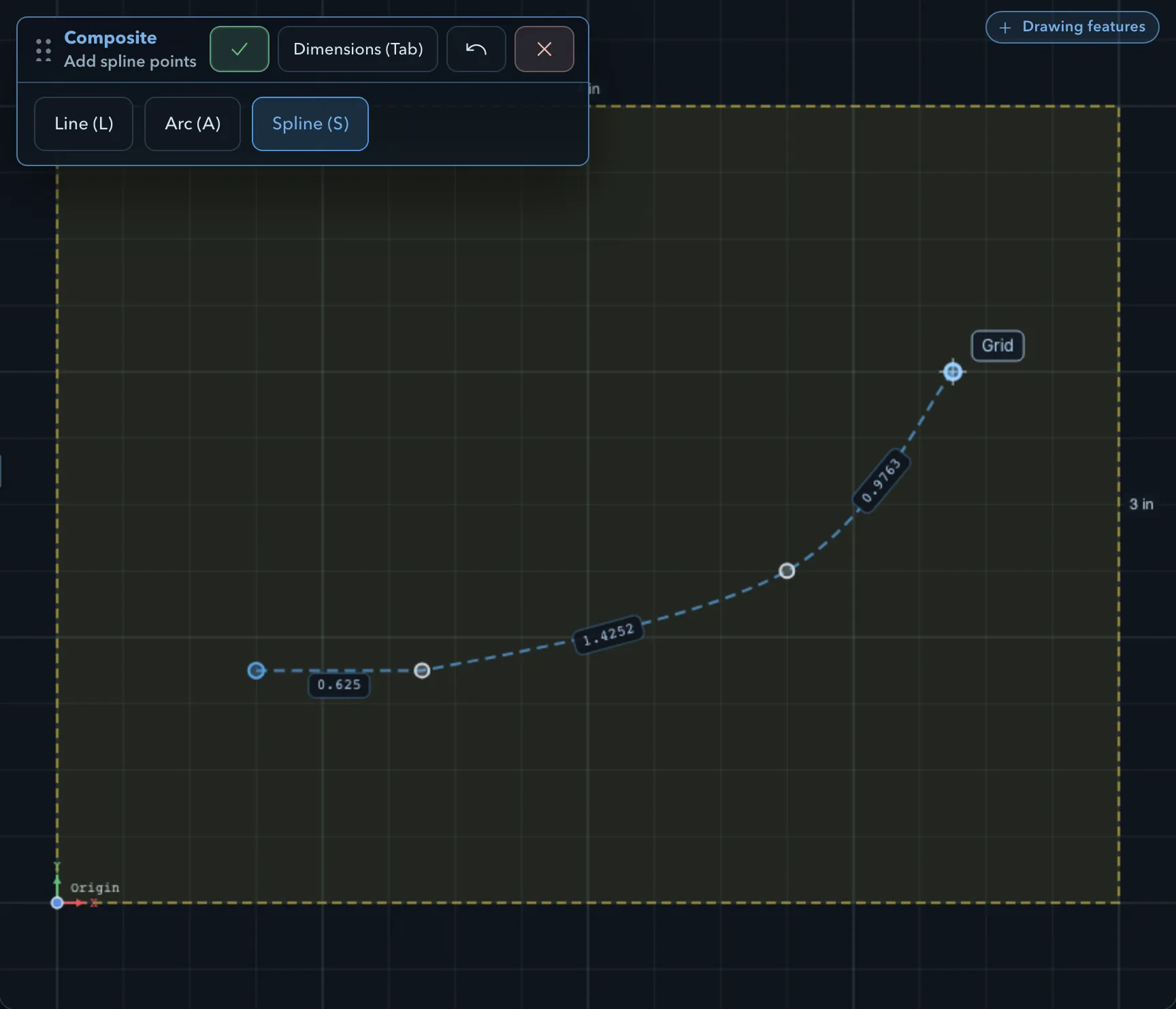
Composite
Section titled “Composite”A composite path mixes straight lines, arcs, and spline curves in one feature.
-
Choose the composite shape in the shape drawer, then click the first point.
-
Choose the kind of the next segment with the panel’s Line (L), Arc (A), and Spline (S) buttons. The step reads Add line points, Add arc points, or Add spline points.
-
Click to add segments. An arc takes two clicks: its end point, then a point that sets its curvature (Click arc curvature point).
-
Click the first point to close the path, or click Finish (Enter) to keep it open. Finish needs at least one segment.
Undo (Backspace) removes the last segment. Dimensions (Tab) sets the next segment’s Length and Angle, and for an arc also its Radius.
Related pages
Section titled “Related pages”- Slots, polygons, and gears: the other shapes in the drawer.
- Snapping and the grid: place points exactly, and lock an axis while drawing.
- Editing sketches: change a shape’s points and segments after you draw it.
- Features, roles, and depth: what the new feature’s role and Z range mean.
- Keyboard shortcuts: every key the drawing tools accept.