Dimensions and constraints
PureCutCNC has three ways to work with sizes on the sketch:
- the tape measure reads a distance and leaves nothing behind;
- dimensions are labels saved with the project that follow the geometry, and some of them can resize it;
- constraints keep a feature at a fixed distance from another point.
Dimensions and the tape measure never affect machining. Constraints move features, and so the toolpaths of those features.
Measuring tools
Section titled “Measuring tools”The top toolbar holds Tape measure, Add dimension (a menu of six types), Delete dimension, and Show/hide dimensions. On a tablet they are in the measure popover.
| Dimension | Measures |
|---|---|
| Aligned dimension | The straight distance between two points. |
| Horizontal dimension | The X distance between two points. |
| Vertical dimension | The Y distance between two points. |
| Radius dimension | The radius of a circle or arc. |
| Diameter dimension | The diameter of a circle or arc. |
| Angle dimension | The angle between two lines that meet at a point. |
Tape measure
Section titled “Tape measure”-
Click Tape measure.
-
At Click the first point and Click the second point, click two points. Snapping works as it does when drawing.
-
Read the distance, the X and Y distances (Δx, Δy), and the angle next to the measurement.
-
Click again to start a new measurement. Click Done or press Esc when you have finished.
The measurement follows the pointer until the second click, then stays until your next click. Tape measurements are not saved and are not part of undo.
Placing dimensions
Section titled “Placing dimensions”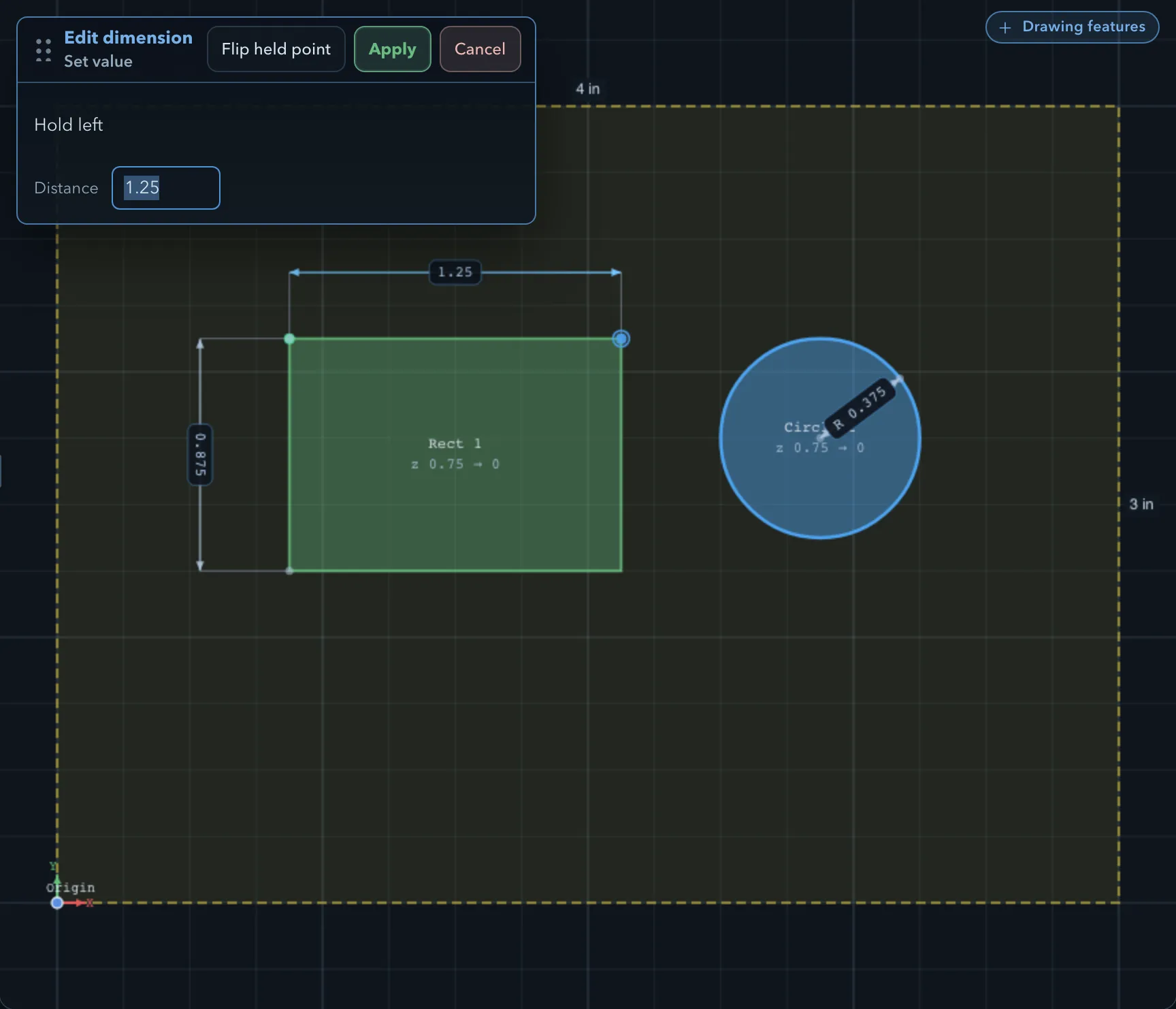
-
Open Add dimension and choose a type.
-
Click the points the panel asks for:
Type Clicks Aligned, horizontal, vertical Click the first point, Click the second point, then Click to set the offset to place the dimension line. Radius, diameter Click the circle / arc center, then Click a point on the edge. Angle Click the vertex, Click the first ray point, Click the second ray point, then Click to place. -
The dimension appears and is saved with the project. Press Esc at any step to cancel.
Each click snaps to a feature corner, midpoint, centre, or edge, to the stock, or to the origin. The dimension remembers what it is attached to, not the position: when you move or edit the geometry, its value, lines, and label update.
If a feature a dimension is attached to is deleted, the dimension stays in the project and is marked with a warning sign where it was attached, until you delete it.
Editing dimensions
Section titled “Editing dimensions”- Select a dimension by clicking its line or label. Drag an aligned, horizontal, vertical, or angle dimension to move its line; radius and diameter labels stay where they are.
- Delete a selected dimension with Delete or Backspace. To delete several, click Delete dimension (Delete dimension (click one)) and click each one; click Done or press Esc to stop.
- Drive a size: click the label of a dimension that can change the geometry. The Edit dimension panel opens.
-
At Set value, type the new value.
-
Check which end stays in place. The panel says which point is held; Flip held point holds the other end instead.
-
Click Apply. The feature is resized to the new value.
A dimension can drive the geometry when:
- both its points are on the same feature and the moving point is a corner you could drag; or
- it is a radius or diameter of a circle or arc; or
- it is the width or height label of rectangular stock (this opens Resize stock).
Other dimensions only measure. A dimension also cannot drive while it is hidden or while the feature it measures is missing.
Visibility
Section titled “Visibility”Show/hide dimensions shows or hides every dimension at once; its tooltip counts them (for example Hide dimensions (3)). Hidden dimensions cannot be clicked, so clicks reach whatever is under them. The setting is saved with the project. The tape measure is not affected.
Limits
Section titled “Limits”- Dimensions appear in the Sketch view, and in printed designs and exported SVG files while they are shown. They are not in the 3D view, the simulation, or the G-code.
- Dimensions attach only to features, the stock, and the origin. They do not follow tabs or clamps.
- To set a size exactly without a drivable dimension, use the feature’s properties, the drawing tools’ Dimensions entry, or a sketch-editing session.
Constraints
Section titled “Constraints”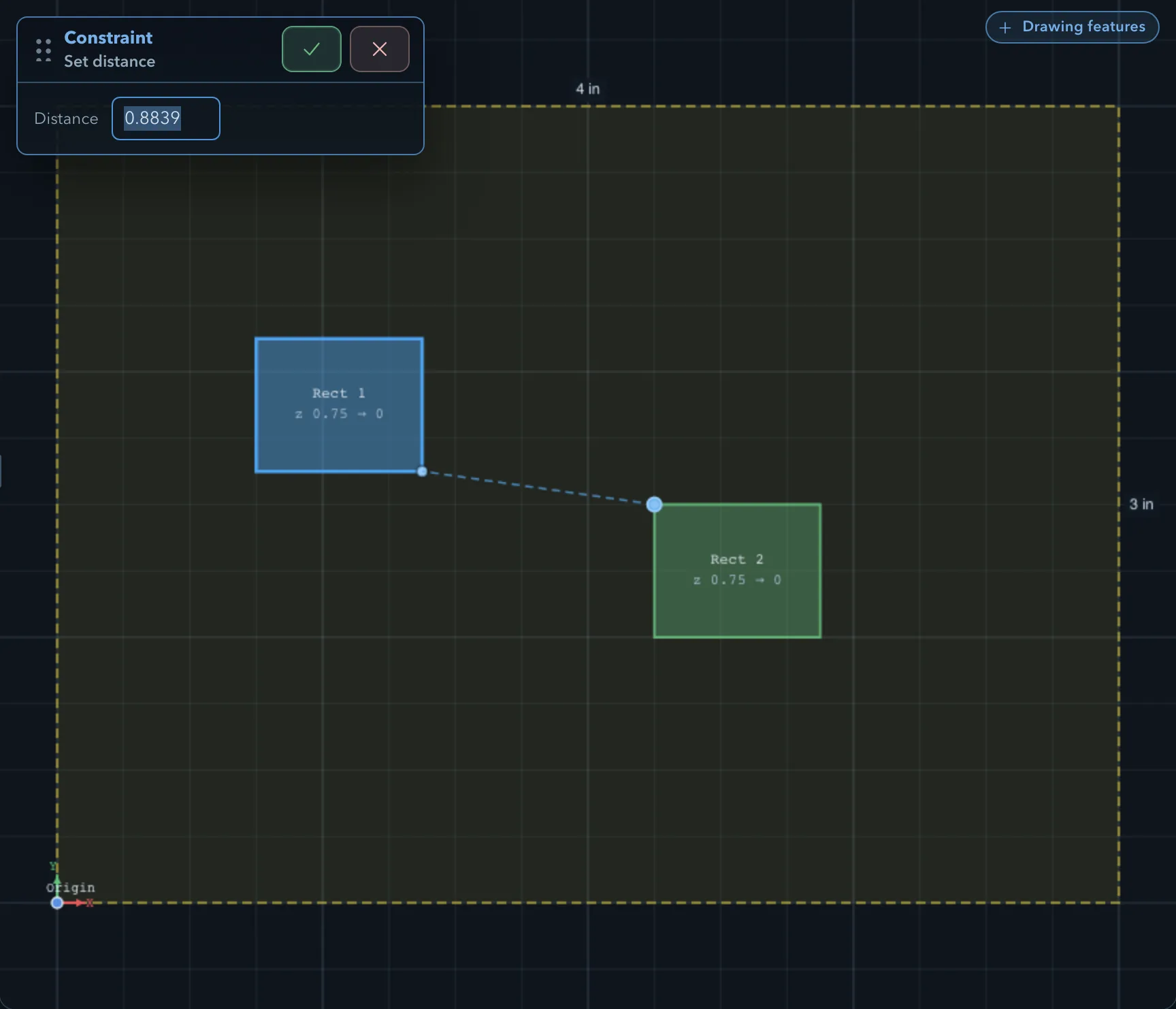
A constraint keeps a point on a feature at a fixed distance from another point. PureCutCNC moves the feature to keep that distance, and moves it again when the other point moves.
-
Select the feature to position.
-
Click Add constraint in the tool rail, or choose Add constraint in the context menu. In a sketch-editing session, press C.
-
At Pick anchor point, click a snap point on the selected feature (Tap a snap point on this feature.).
-
At Pick reference point, click a snap point on another feature (Tap a snap point on another feature.).
-
At Set distance, type the distance and click Confirm.
The feature moves along the line between the two points until the distance matches.
The constraint is listed under Constraints in the feature’s properties, with its value, what it refers to, and a short type:
| Type | Distance to |
|---|---|
| point | a corner of the other feature |
| center | the centre of the other feature |
| midpt | the midpoint of a segment |
| line | a point part-way along a segment (the tooltip gives the percentage) |
| perp | the nearest point on a segment, measured at a right angle |
| intersect | the point where two segments cross |
A reference that is not on a feature is shown as World. To change a constraint’s value, click its label on the canvas and type the new distance in the Edit constraint panel. The × button next to a constraint (Delete constraint) removes it.
A constraint that cannot be met, for example because its reference feature was deleted, is marked with a warning; hover over it to see why.
Related pages
Section titled “Related pages”- Snapping and the grid: the snap points all three tools use.
- Editing sketches: change segment lengths and angles directly.
- Stock, origin, and units: resizing the stock from its labels.
- Exporting models and printing: dimensions in printed designs.