Construction geometry
Construction geometry is reference geometry for drawing: centrelines, symmetry axes, bolt circles, and layout guides. You can snap to it, mirror against it, and dimension to it, but it never becomes part of the part.
Main idea
Section titled “Main idea”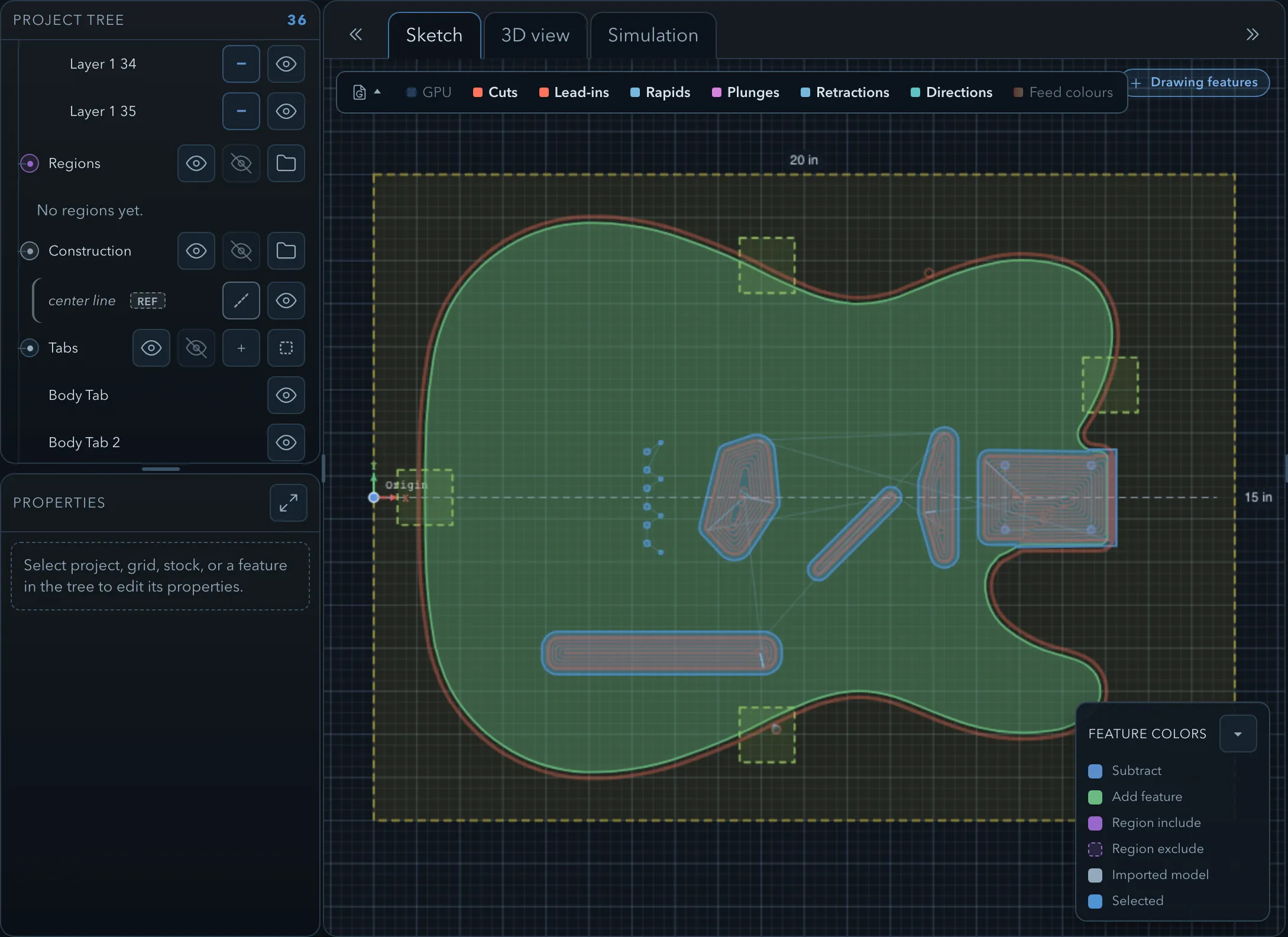
- Create construction geometry with the Create construction geometry target in the tool rail. Any shape can be construction geometry, open or closed. New items are named Construction with a number.
- Convert an existing feature by changing its Operation to Construction in its properties, or in the role menu on its tree row.
- Find it in the Construction section of the feature tree, marked with a ref badge. It has its own folders and can only be grouped with other construction geometry.
Construction geometry:
- adds no material to the 3D model and has no Z range (Not machined);
- cannot be an operation target: the Add menu says Construction geometry is never machined — deselect construction features first;
- is not simulated and is left out of exported models;
- is drawn as dashed reference lines on the canvas and in printed designs.
Typical uses
Section titled “Typical uses”- Draw a centreline or symmetry axis first, then mirror the finished features across it.
- Draw a circle as a bolt circle, then snap hole centres to it or use it as the guide for Feature distribution along a path.
- Trace the outline of an imported drawing as a reference while you draw the real features separately.
- Dimension from construction geometry to the features that depend on it.
To tidy the view once the design is done, hide construction geometry with Hide all construction geometry on its tree row, or with the Construction toggle in the status bar. Hiding it changes nothing in the model or the toolpaths.
Related pages
Section titled “Related pages”- Features, roles, and depth: construction among the other roles.
- Drawing tools: the creation targets.
- Snapping and the grid: snapping to reference geometry.
- Aligning and distributing: copies along a guide.