Tool library
Tools overview
Section titled “Tools overview”The Tools tab in the CAM panel manages the project’s tool library. Tools are stored
per-project in the .camj file. Each operation references a tool from this library.
You need at least one tool defined before you can assign it to an operation. The quickest way to get started is to import a tool from the bundled library.
Managing
Section titled “Managing”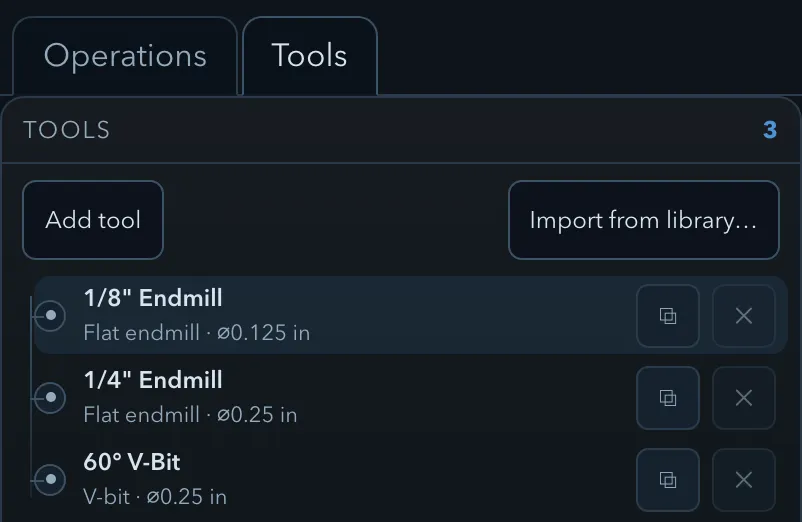
Use the tools list to add, duplicate, and remove the project’s cutters. Select a tool to edit its properties in the panel beside the list.
Adding tools
Section titled “Adding tools”Import from library
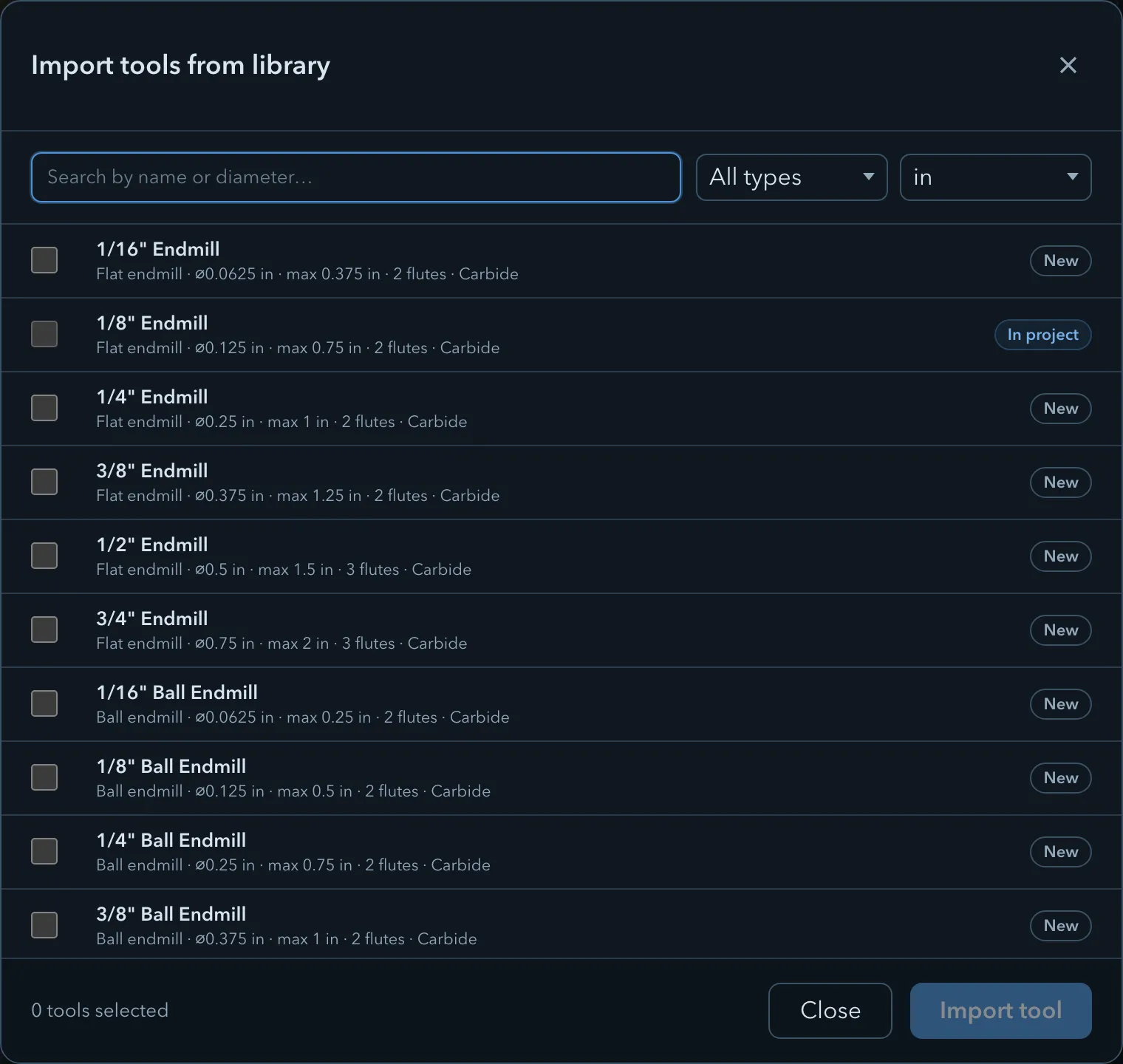
Section titled “Import from library”Click Import from library… in the Tools tab. The Import tools from library dialog opens over the app, so you browse the library in a full-width space instead of the narrow side panel.
The bundled library ships 34 tools:
- Imperial: flat endmills from 1/16″ to 3/4″, ball endmills from 1/16″ to 1/2″, V-bits of 30°, 60°, 90°, and 120°, and an 82° countersink.
- Metric: flat endmills from 1 mm to 12 mm, ball endmills from 1 mm to 8 mm, and V-bits of 30°, 60°, 90°, and 120°.
Finding what you want:
- Search by name or diameter. The field is focused as soon as the dialog opens.
- Type filter: All types, Flat endmill, Ball endmill, V-bit, or Drill.
- Units filter: All units, mm, or in.
- Each row shows flute count and the tool’s usable depth, and is badged In project or New so you can see at a glance what you already have.
Selection is multi-pick and survives filter changes: search for one thing, tick it, clear the filters, search for another, and both stay selected. The action button counts what you picked — Import 4 tools — and imports them in one go. Tools already in the project can’t be imported twice.
Add a tool manually
Section titled “Add a tool manually”Click Add tool to create a new tool with default values. Edit the tool properties in the right panel. This is useful when your specific tool is not in the bundled library.
Duplicate a tool
Section titled “Duplicate a tool”Click the duplicate icon (⧉) next to a tool in the list to create a copy. Useful for creating variants of an existing tool with different feeds and speeds.
Properties
Section titled “Properties”Select a tool in the list to edit its properties in the right panel.
| Property | Description |
|---|---|
| Name | A descriptive name for the tool, shown in operation dropdowns. |
| Type | Flat endmill, Ball endmill, V-bit, or Drill. V-carve operations only accept V-bits. |
| Units | The unit system for this tool’s dimensions (Millimeters or Inches). Tools can be used in projects with a different unit; values are converted automatically. |
| Diameter | The cutting diameter of the tool. |
| V angle | The included angle of a V-bit in degrees (V-bits only). |
| Flutes | Number of cutting flutes. Used for chip load calculations. |
| Material | Carbide or HSS. Informational only. |
| Default RPM | Spindle speed used as the default when this tool is assigned to an operation. |
| Default feed | Cutting feed rate used as the default when assigned to an operation. |
| Plunge feed | Plunge (Z-axis) feed rate used as the default. |
| Stepdown | Default depth per pass. |
| Max cut depth | Maximum total cutting depth. Set to 0 for no limit. Used by V-carve operations to limit carve depth. |
| Stepover ratio | Default stepover as a fraction of the tool diameter (0.01–1.0). For example, 0.4 = 40% of diameter. |
Deleting tools
Section titled “Deleting tools”Click the ✕ button next to a tool to delete it. Tools that are currently assigned to one or more operations cannot be deleted — the delete button is disabled and shows a tooltip explaining why. Remove the tool from all operations first, then delete it.
Related pages
Section titled “Related pages”- Quick Start imports a tool as part of a first project.
- Pocket shows how a tool’s defaults carry into an operation.