Importing 3D models
An imported 3D model becomes a feature with the Model role. The 3D surface operations machine it, the 3D view shows its mesh, and the Sketch view shows its outline seen from above. 2D files are on Importing SVG, DXF, and projects.
Before you start
Section titled “Before you start”- Make sure the model’s top is the side you want to machine. You can turn it after importing, but a model that arrives the right way up needs no correction.
- STL and OBJ files carry no units, so know what the model was drawn in.
Import a model
Section titled “Import a model”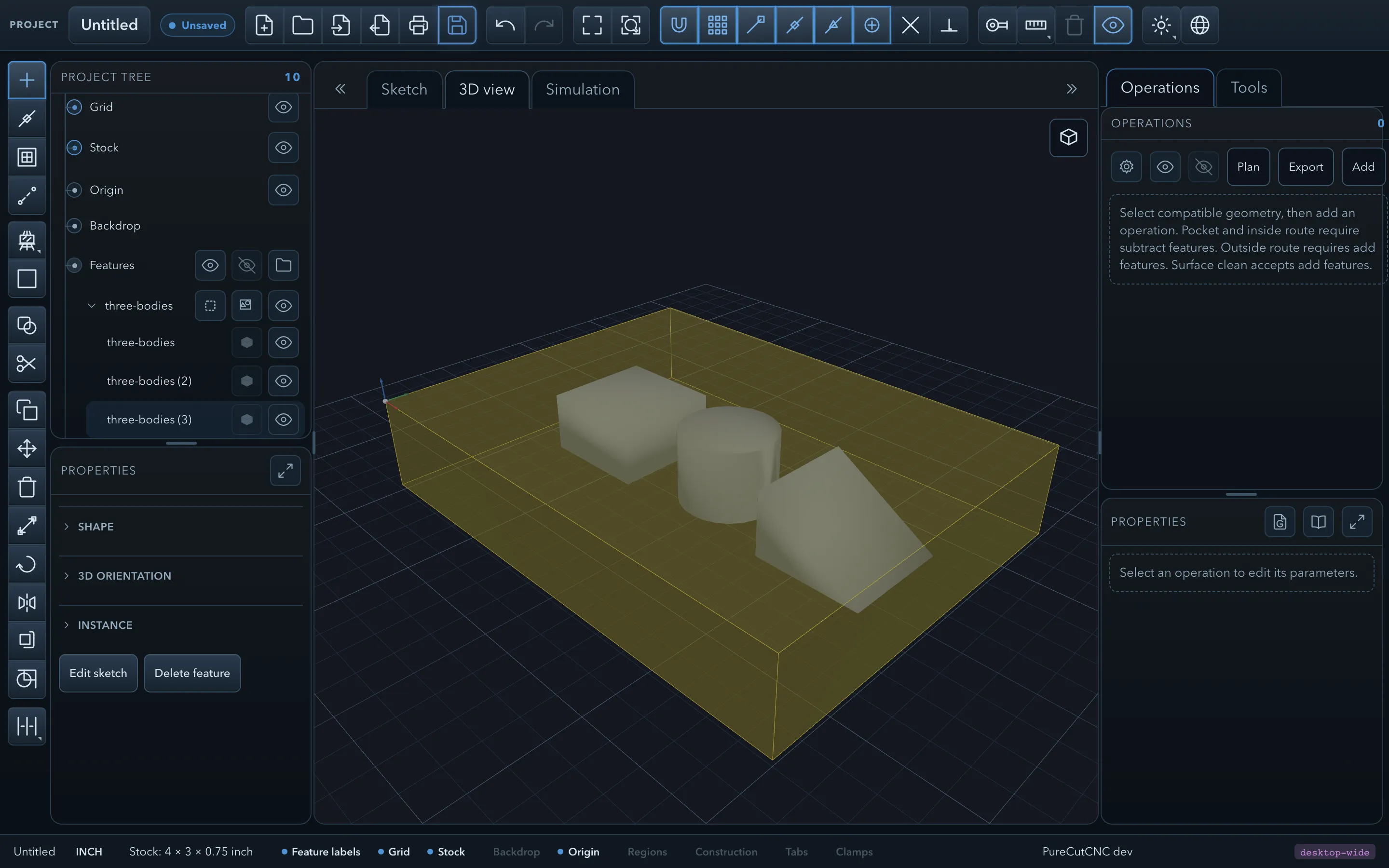
-
Click Import geometry, then choose the
.stl,.obj,.step, or.stpfile. -
Set Source units (a STEP file states its own; the dialog shows Units declared in the file).
-
Set Axis orientation if the model does not use Z as up:
Choice Use for Original (Z-up) Files already drawn with Z up. Swap Y / Z (Y-up) Files from programs that use Y as up. Swap X / Z, Swap X / Y Other axis conventions. -
Leave Silhouette Z steps on Auto unless the outline in the Sketch view misses detail; see below.
-
For a STEP file, check Surface tolerance. It is the largest gap allowed between the surfaces and the triangles that approximate them: smaller values give a finer model and more triangles. The default is 0.0005 in or 0.01 mm.
-
Click Import.
The model keeps the size and position it has in the file, converted to project units, and its Z top and Z bottom come from the model’s own height.
Silhouette Z steps
Section titled “Silhouette Z steps”The outline drawn in the Sketch view is built by slicing the model at a number of heights and combining the slices. Auto chooses the number from the model’s height. Raise it if an undercut or a narrow step is missing from the outline; lower it if importing is slow.
Several bodies in one file
Section titled “Several bodies in one file”A file that contains separate bodies is split into one model feature per body, in a folder named after the file, so you can machine, hide, or move each body on its own. A file with more than 64 bodies is imported as a single feature instead, with a warning.
STEP files
Section titled “STEP files”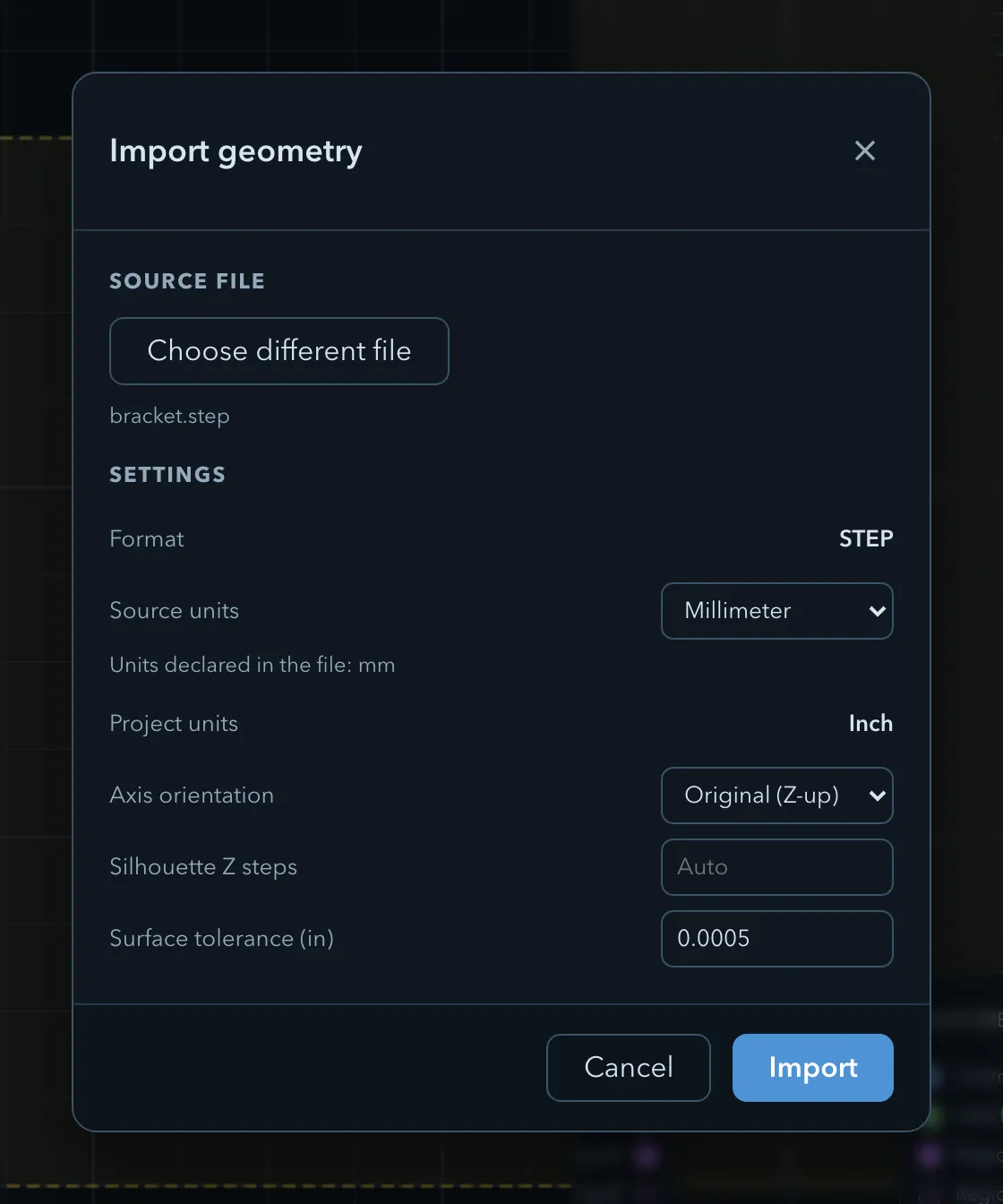
STEP files (.step, .stp) are solid models rather than meshes. PureCutCNC converts each solid in
the file into a body, using the Surface tolerance above.
Limits and messages:
| Situation | Message |
|---|---|
| The file is larger than 64 MB | STEP files larger than 64 MB cannot be imported. |
| The import would produce more than 2,000,000 triangles | The model tessellates into more than 2,000,000 triangles. Increase the surface tolerance and try again. |
| The importer runs out of memory | The STEP importer ran out of memory. Increase the surface tolerance or import a smaller model. |
| The file holds no solids or surfaces | The STEP file contains no solids or surfaces to import. |
The importer is loaded the first time you import a STEP file, so the first import needs a working connection in the web app.
Orientation
Section titled “Orientation”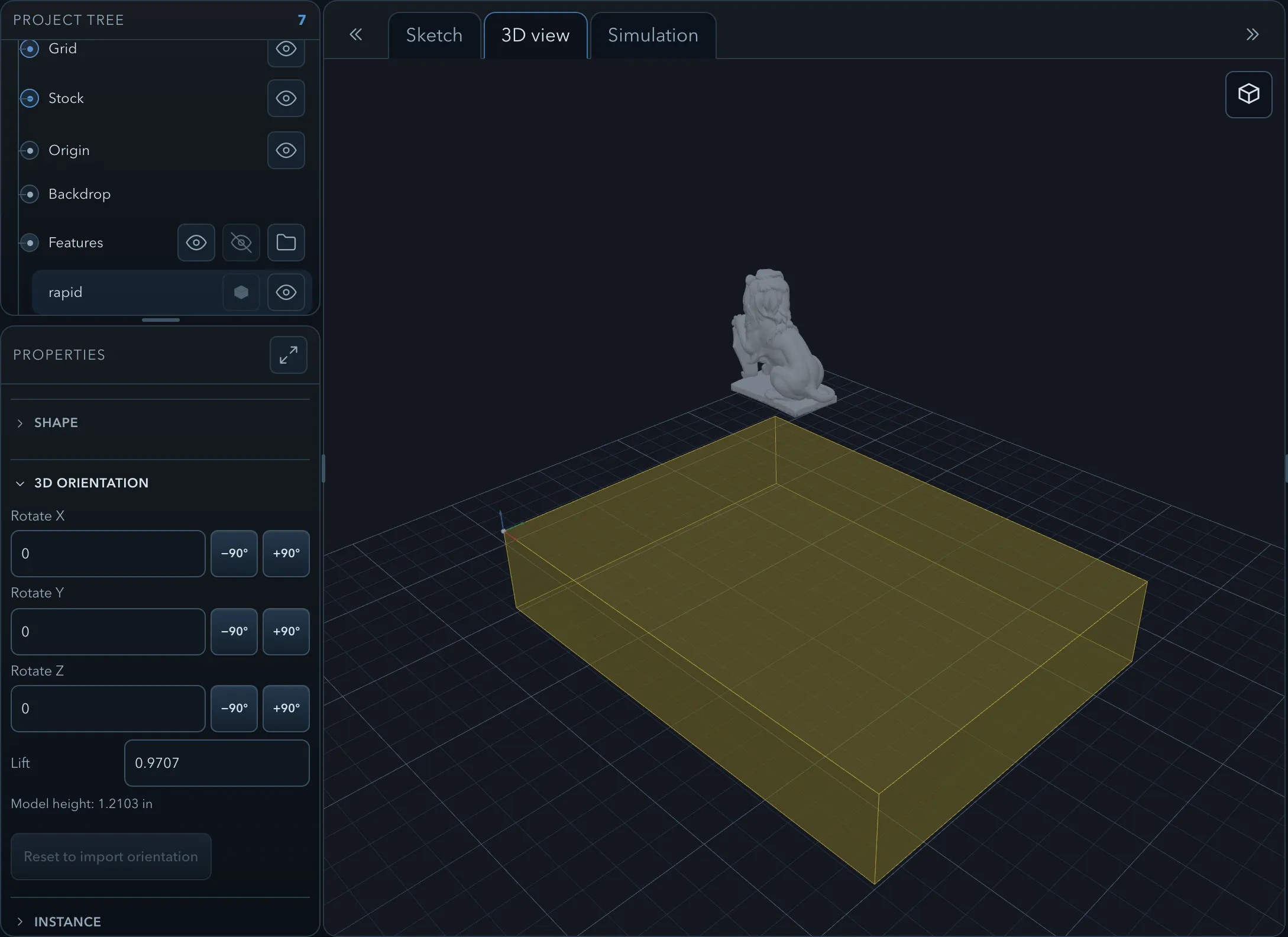
Select an imported model and open 3D orientation in its properties:
| Control | What it does |
|---|---|
| Rotate X, Rotate Y, Rotate Z | Type an angle, or use the buttons beside the field to turn a quarter turn each way. |
| Lift | Moves the model up or down without resizing it. Use it to sit the model on the stock surface or sink it into the material. |
| Reset to import orientation | Puts the model back as it came in. |
Rotating is rigid: the model is turned, not stretched, and its Z top and Z bottom are recalculated from the turned model. The panel shows the current Model height.
Orientation is part of the shared shape, so rotating one copy rotates every linked copy (Orientation is part of the shared shape, so all N copies rotate together. Use make unique to orient one on its own.). See Linked features.
Machining a model
Section titled “Machining a model”The 3D surface operations accept one or more imported models as targets. Select several models to machine them together as one surface:
- 3D surface rough clears the material down to the model in levels;
- 3D surface finish cuts the final surface;
- 3D surface cleanup tidies the steps a roughing pass leaves.
A model cannot be given another role, and the 2.5D operations do not accept it as a target, except where they accept add-or-model features, such as edge route outside and surface clean.
Related pages
Section titled “Related pages”- Features, roles, and depth: the model role.
- Exporting models and printing: exporting a model back out.
- Stock, origin, and units: fitting the model to the material.