Offset, join, and cut
These three commands make new shapes from existing ones. Each is one undo step. They work on the 2D profiles only: they do not change Z ranges, and the new features keep the role of the shapes they came from.
Before you start
Section titled “Before you start”- Open the Sketch view and select the features to work on. Locked features are left out.
- Text and imported models cannot be offset or joined. To change the outline of text, expand it first; see Text.
Offset
Section titled “Offset”Create offset feature makes a new outline at a fixed distance inside or outside the selected closed features. The originals stay as they are.
-
Select one or more closed features, then click Create offset feature in the tool rail.
-
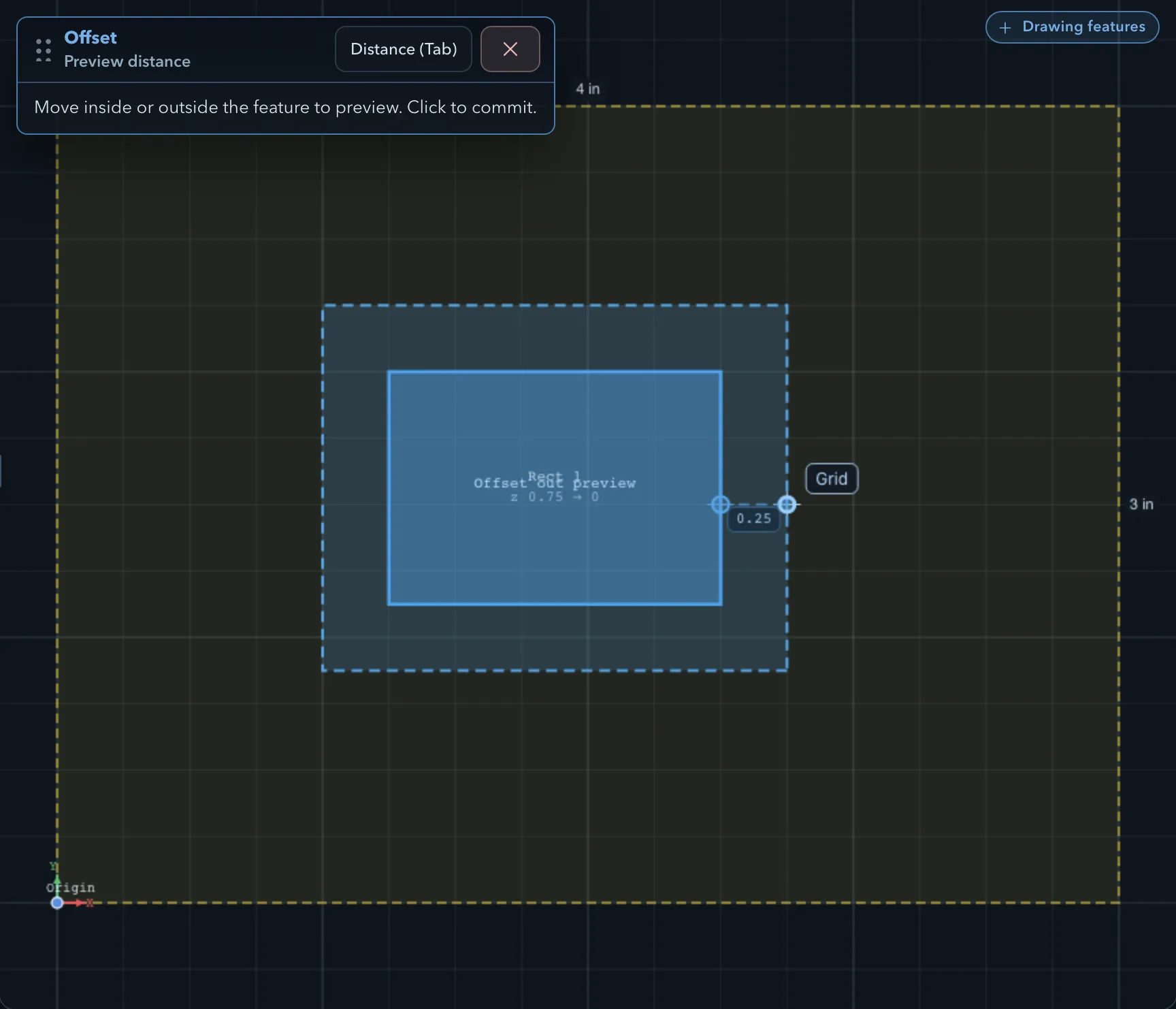
At Preview distance, move the pointer inside or outside a feature. The preview follows the pointer (Move inside or outside the feature to preview. Click to commit.).
-
Click to create the offset at the previewed distance. Or click Distance (Tab), type the distance, and click Confirm: a negative distance offsets inwards, a positive one outwards. The field starts with the distance under the pointer.
When several features are selected, they are offset as one combined outline: offsets of shapes that come close to each other merge. The new features are selected afterwards.
Join closed features merges overlapping closed shapes into one.
-
Select two or more closed features that overlap or share an edge, then click Join closed features.
-
If the selection is unambiguous, PureCutCNC joins it straight away. Otherwise the Join panel opens at Select features: click shapes to add them to the join, and Shift+click one to remove it. Only shapes that overlap or share an edge with the others can be added. The panel counts the closed features selected; a join needs at least two.
-
Set Keep originals (K) if you want to keep the separate shapes too, then click Confirm.
The join happens without the panel only when every selected feature is closed, unlocked, not text or a model, has the same role, and they all form one connected group. Shapes that touch only at a corner are not connected.
The joined feature takes the role of the first selected feature. Without Keep originals, it replaces the shapes that were joined.
To connect two open paths end to end, use sketch editing instead: drag an endpoint onto the other path’s endpoint. See Editing sketches.
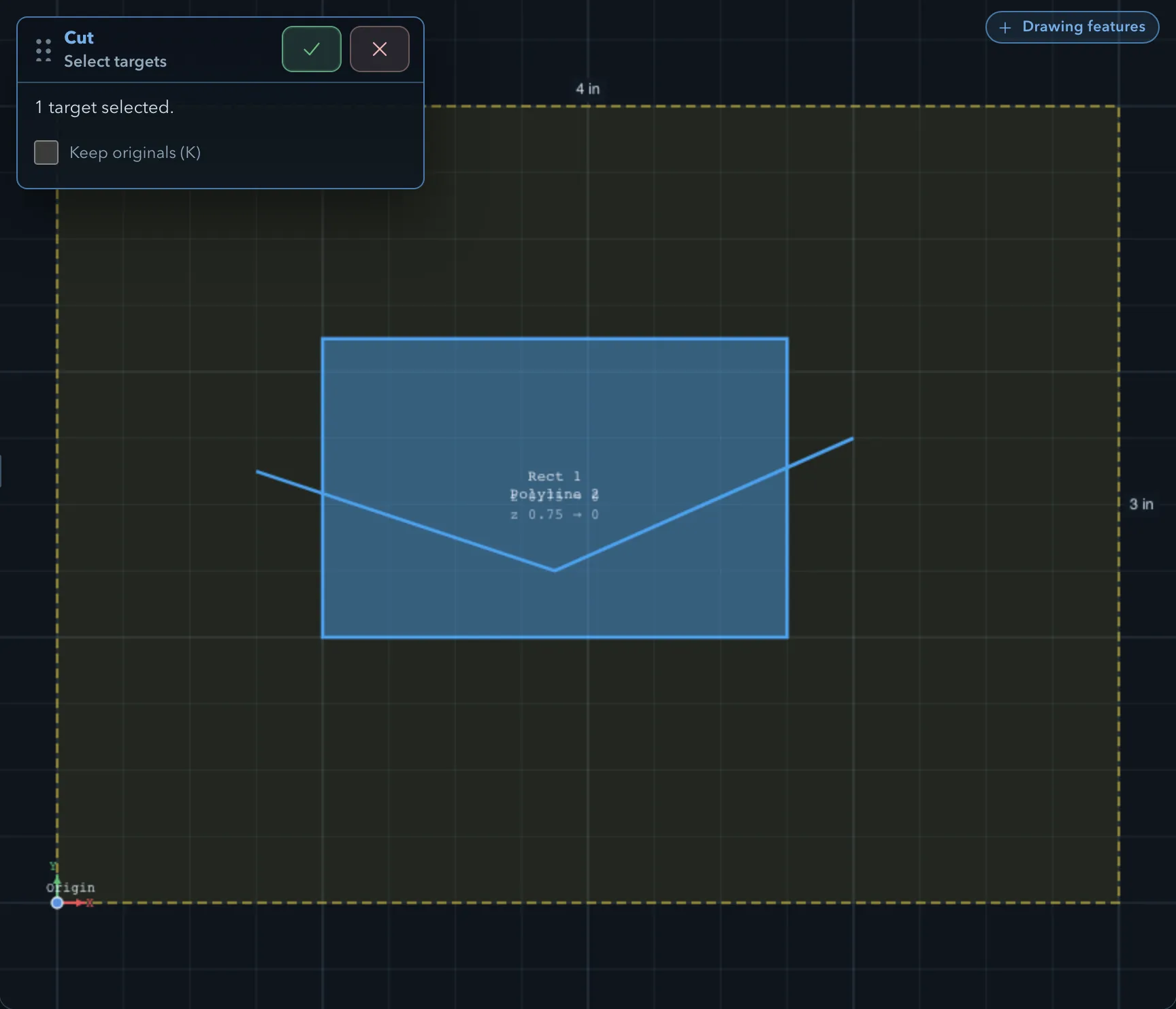
Cut features removes the area of one or more shapes, the cutters, from others, the targets, or splits the targets along open paths.
-
Click Cut features. If exactly one feature is selected, it becomes the cutter and the panel goes straight to step 3.
-
At Select cutters, click the shapes to cut with, then click Next (Tab).
-
At Select targets, click the shapes to cut.
-
Set Keep originals (K) if you want to keep the uncut targets, then click Confirm.
| Cutter | Closed target | Open target |
|---|---|---|
| Closed | The cutter’s area is removed; the rest may fall into several pieces. | The part of the path inside the cutter is removed. |
| Open | The target is split into pieces wherever the path crosses it completely. A path that does not cross it completely leaves it unchanged. | No change. |
The pieces keep the target’s role, Z range, and folder, and take its place in the feature tree unless Keep originals is on. The cutters are never removed.
Related pages
Section titled “Related pages”- Selecting and transforming: selecting the shapes to work on.
- Editing sketches: change points and segments, fillet corners, and join or split open paths.
- Features, roles, and depth: how add and subtract features combine in the model.
- Keyboard shortcuts: the keys these panels accept.