Features, roles, and depth
Every shape in a PureCutCNC project, drawn or imported, is a feature. A feature has a role, which says what the shape does, and a Z range, which says where it sits vertically. Together they build the 3D model and decide which machining operations can use the feature.
Main idea
Section titled “Main idea”The role is set when the feature is created and can be changed afterwards:
- The creation target in the tool rail decides the role of new shapes. See Drawing tools.
- To change it, select the feature and use Operation in the Shape section of its properties, or click the role badge on its row in the feature tree.
The properties panel calls the role Operation. It is not a machining operation: those are added in the CAM panel.
How features become toolpaths
Section titled “How features become toolpaths”Features describe the part; machining operations describe how a tool removes material from those features. An operation accepts only the roles and shapes it knows how to cut, then uses the feature’s Z range as its machining depth. This is why changing a feature from Add to Subtract, opening a profile, or changing Z bottom can change which operations are available and the toolpath they generate.
For example, a closed Subtract can be a pocket or an inside edge route, while a closed Add can become an outside edge route. A Line does not define material, so an engrave operation follows it instead. A Region mask modifies where a compatible operation can cut, but never becomes a cut on its own.
Use Choosing an operation to select a machining method after defining the features, or CAM Plan to review suggestions based on those feature roles, shapes, and depths.
| Role | What it is | How it is used |
|---|---|---|
| Add | Material that remains in the part. | Builds up the 3D model. Edge route outside and surface clean machine add features. |
| Subtract | A cavity: material removed from the part. | Cuts into the 3D model. Pocket, edge route inside, and V-carve machine subtract features. |
| Line | A path, open or closed, that adds no material. | Engrave follows any line. V-carve offset and V-carve medial accept closed lines. |
| Region mask | A machining-area filter. | Limits where an operation may cut. It is never cut itself. See Regions. |
| Construction | Reference geometry for drawing. | Snap, mirror, and dimension against it. It is never machined. See Construction geometry. |
| Model | An imported 3D model. | Machined by the 3D surface operations. Its role cannot be changed. See Importing 3D models. |
Some roles are only possible for some shapes:
- An open path can only be Line or Construction.
- The first solid feature in the project cannot be Subtract. To make it a subtract feature, first put an add feature before it, or change it to a non-solid role.
Regions and construction geometry have their own sections in the feature tree, and their folders stay separate from feature folders.
Z range
Section titled “Z range”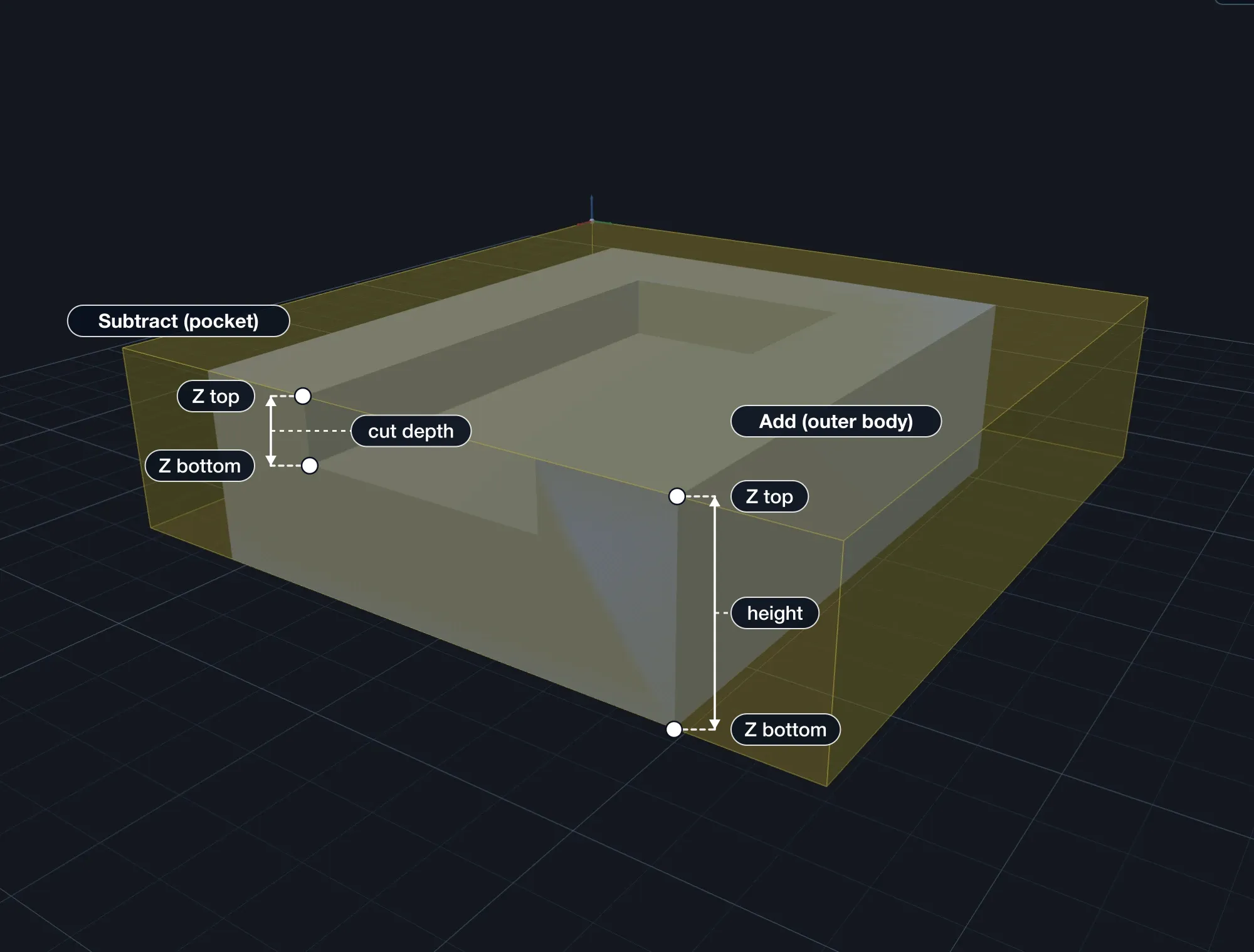
Z top and Z bottom are Z coordinates in the project, not a depth setting. They are in the Instance section of a feature’s properties, as two fields and a slider.
- For a subtract feature, Z top is where the cavity starts and Z bottom is its floor. The cut depth is Z top minus Z bottom.
- For an add feature, Z bottom positions the feature vertically inside the model, and the range is the height of the material it adds.
- For a line feature, Z top positions the line vertically in the model.
The operations that machine a feature cut to its Z range: there is no separate depth field to keep in step. Z values use the same coordinates as the stock, whose bottom is at Z 0 and top at the stock thickness; see Stock, origin, and units.
A new shape starts with Z bottom at 0 and Z top at the top of the stock. When the stock is thicker than 10 (in project units, so 10 mm or 10 in), Z top starts at 10 instead: check it on thick stock. Some roles work differently:
| Role | Z range |
|---|---|
| Region mask | Always follows the stock, from its thickness down to 0. The field reads Follows stock. |
| Construction | None. The field reads Not machined. |
| Line | A new line drawn inside a subtract feature starts at that feature’s floor; one drawn inside an add feature starts at its top, so an engraving begins on the surface it sits on. |
| Model | Comes from the model itself. Move it up or down with Lift. |
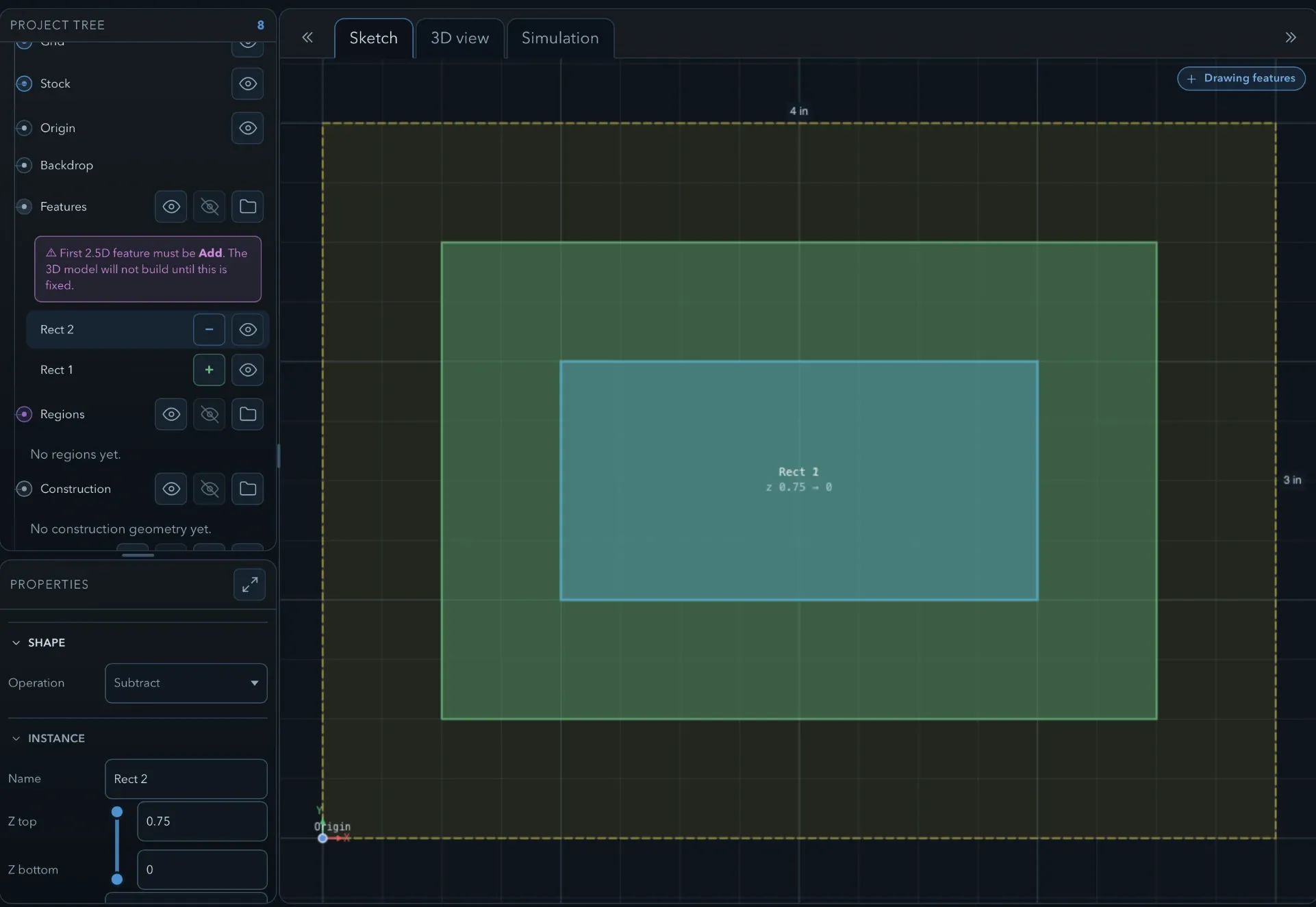
PureCutCNC builds the 3D model by applying visible add and subtract features in feature-tree order, from the top of the tree down:
- The first solid feature must be an add feature. It is the starting material. If the first 2.5D feature is not an add feature, the feature tree shows First 2.5D feature must be Add and the 3D model does not build until you fix it.
- Each later add feature joins material to the result; each later subtract feature removes material from it.
- Order matters where features overlap: an add feature placed after a subtract feature fills the cavity back in where they overlap.
Drag rows in the feature tree to change the order. Regions and construction geometry are not part of the model, so their position among the features does not change it.
Related pages
Section titled “Related pages”- Feature tree and properties: where roles, Z ranges, and order are edited.
- Drawing tools: the creation targets that set a new shape’s role.
- Stock, origin, and units: the coordinates that Z top and Z bottom use.
- Choosing an operation: which operations accept which roles.