Editing sketches
A sketch-editing session changes the points and segments of one feature. The session collects your edits; Finish editing keeps them and Cancel editing throws them away.
Before you start
Section titled “Before you start”- Text cannot be edited this way: Edit sketch is unavailable for text features. Expand the text first if you need to reshape letters; see Text.
- The feature must not be locked.
- Editing the shape of a linked feature changes every linked copy. Make the copy unique first if only this one should change; see Linked features.
Edit a sketch
Section titled “Edit a sketch”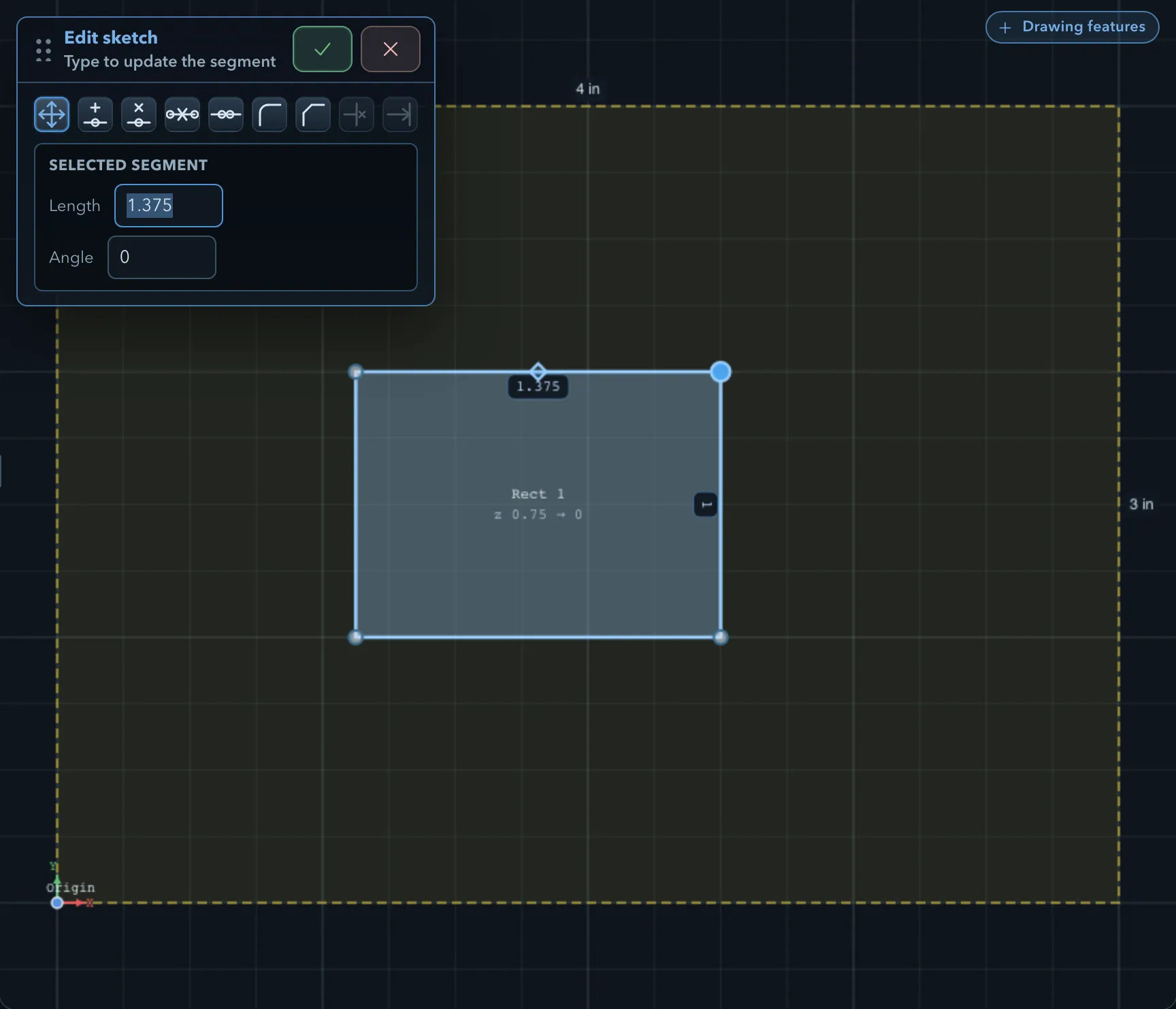
-
Double-click the feature on the canvas, or select it and click Edit sketch in its properties or context menu. The Edit sketch panel opens, and the feature’s points are shown.
-
Make your changes. With Move active (the default), the step reads Drag nodes, or click a segment to edit its dimensions:
- drag a point, or a curve handle, to move it;
- click a segment to show its Selected segment fields, Length and Angle, plus Radius for an arc. Type to update the segment as you go.
-
Pick a tool from the panel’s row for other edits (see below).
-
Click Finish editing, or press Enter when no tool is active. To discard all edits, click Cancel editing or press Esc when no tool is active.
Tab starts dimension entry for the segment under the pointer. Alt locks point dragging to the X or Y axis; see Snapping and the grid. C starts Add constraint for the feature.
The panel warns while you edit if the profile crosses itself (Self-intersecting profile) or reaches outside the stock (Extends outside stock). You can still finish, but toolpaths and the 3D model may be wrong for a self-intersecting profile.
Editing tools
Section titled “Editing tools”Choose a tool in the Edit sketch panel. The step line says what to click. A tool stays active until you choose Move or another tool; Esc or Enter leaves it and keeps what you did with it.
| Tool | Use |
|---|---|
| Add point | Click a segment to insert a point there, splitting the segment in two. |
| Delete point | Click points to remove them. The segments on either side are joined. |
| Delete segment | Click segments to remove them. Deleting a segment of a closed profile opens it. Deleting one from the middle of an open path splits it into two features; the second is named Split. |
| Disconnect point | Click a point to split the profile there (Click an anchor to split). A closed profile opens at that point; an open path is split into two features. |
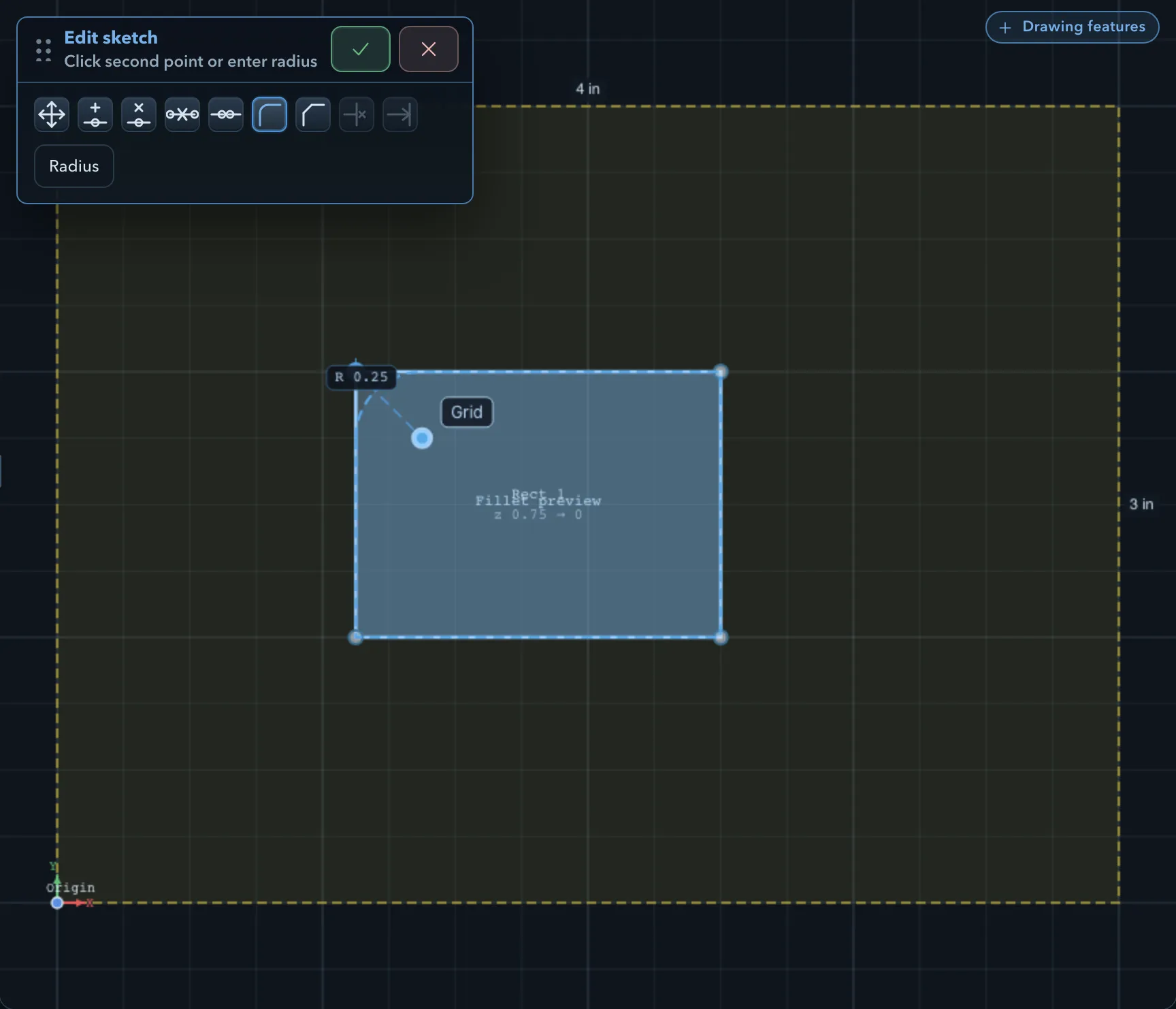
| Round corner / fillet | Click a corner, then click a second point or click Radius to type the radius. The corner becomes an arc. |
| Chamfer corner | Click a corner, then click a second point or click Distance to type it. The corner is cut off by a straight line, the same distance along both sides. |
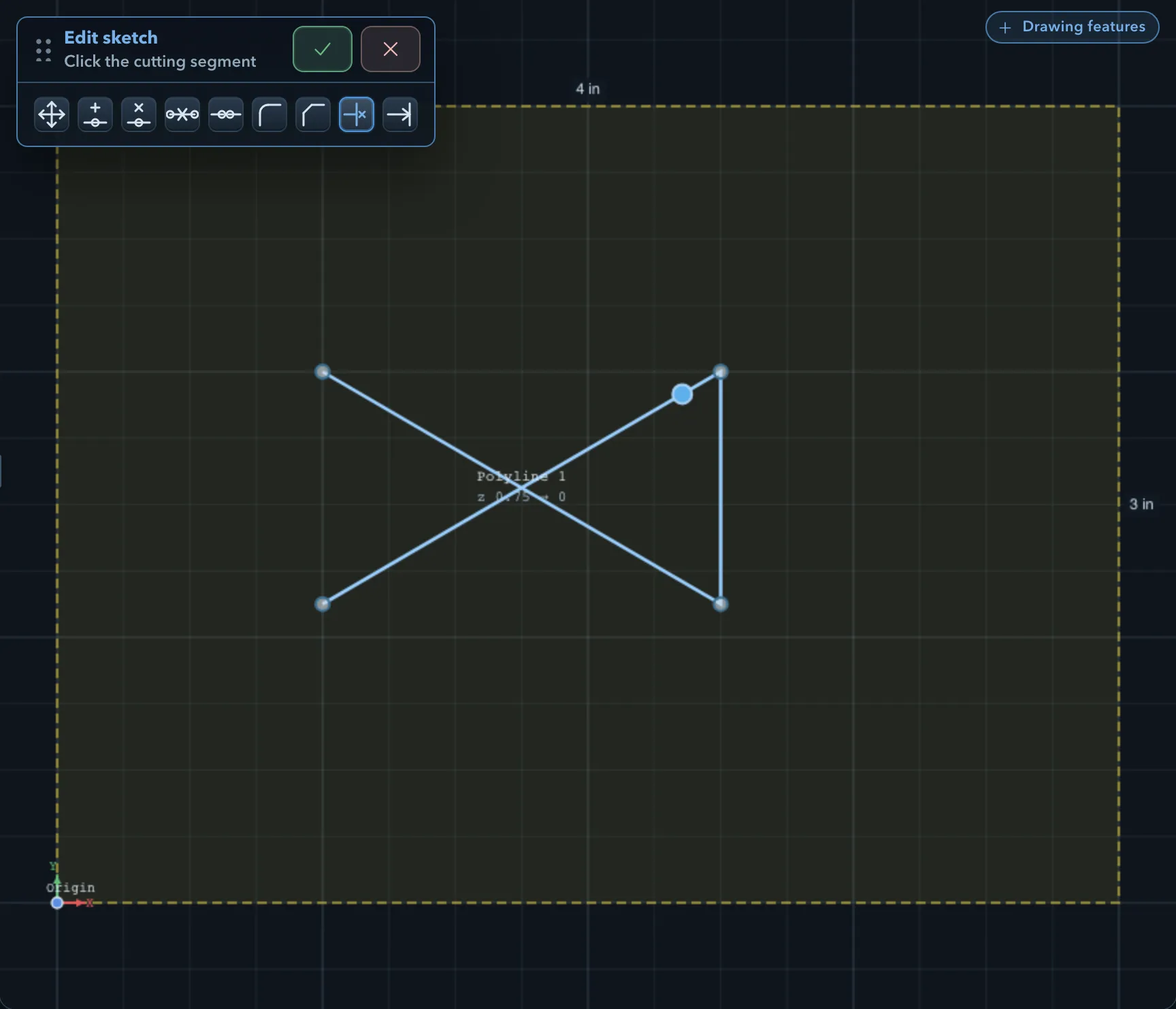
| Trim to cutting edge | Click the part of a segment to remove, then click the segment that cuts it. |
| Extend to target | Click near the open end of a segment, then click the segment it should reach. |
Some tools only work on some geometry:
- Fillet and chamfer need a corner between two straight segments.
- Trim and extend work on open paths only; while you edit a closed profile their buttons are unavailable.
- A circle cannot be split or have a segment deleted.
With trim and extend, the first Esc clears a segment you have picked without leaving the tool.
Join open paths
Section titled “Join open paths”To connect two open paths, drag an endpoint of the path you are editing onto an endpoint of another open path. The other path becomes part of this one. Dragging one end of a path onto its own other end closes it.
Related pages
Section titled “Related pages”- Drawing tools: the shapes you edit here.
- Offset, join, and cut: combine and split whole shapes.
- Dimensions and constraints: control sizes and positions with driving dimensions and constraints.
- Stock, origin, and units: the stock outline uses the same editing session.