Importing SVG, DXF, and projects
Import geometry brings shapes from other programs into the project as ordinary features, which you
can move, edit, and machine like drawn ones. This page covers 2D files and .camj projects; STL,
OBJ, and STEP models are on Importing 3D models.
Before you start
Section titled “Before you start”- Check the project units. Imported geometry is converted to them.
- For SVG, convert text to paths and expand clones and effects in the program you drew it in. PureCutCNC imports geometry only.
Import a file
Section titled “Import a file”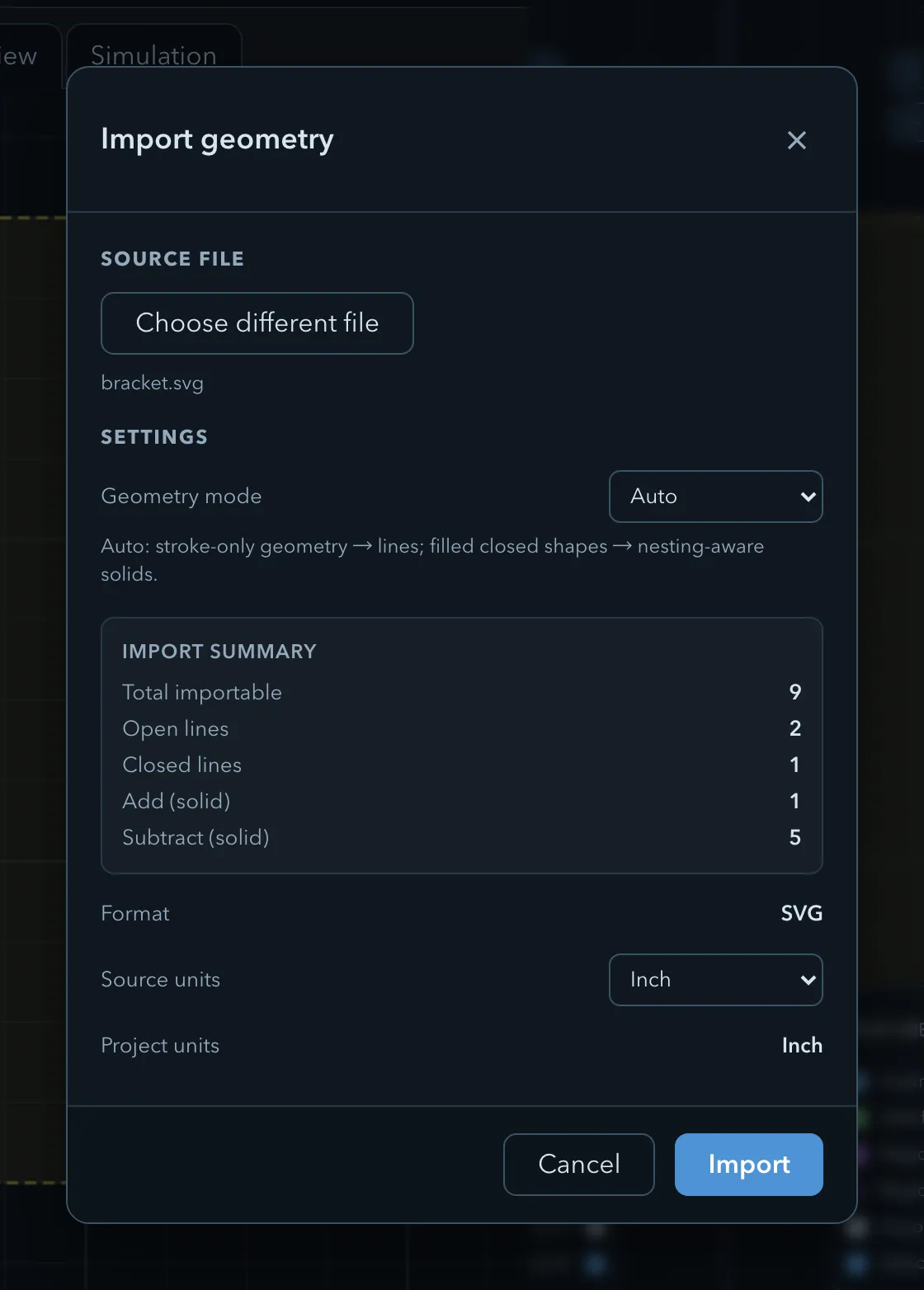
-
Click Import geometry in the top toolbar.
-
Under Source file, click Choose SVG, DXF, STL, OBJ, STEP, or .camj and pick the file. The dialog reads it and shows its Settings: the Format, the detected Source units, and the Project units.
-
If the dialog says Units not detected — choose the source units before importing., choose the units the file was drawn in.
-
Set the format’s options (see below).
-
Click Import. The dialog shows its progress, and lists any warnings when the import is done.
Imported features keep the positions they have in the file, converted to the project units. Each new feature starts with the full stock thickness as its Z range.
Geometry modes
Section titled “Geometry modes”For SVG and DXF files, Geometry mode decides what the shapes become. The Import summary counts the result before you import: Total importable, Open lines, Closed lines, Add (solid), and Subtract (solid).
| Mode | Result |
|---|---|
| Auto | SVG: shapes with only a stroke become lines, and filled closed shapes become solids. DXF: closed shapes become solids, and open shapes become lines. |
| Paths | Every shape becomes a line feature. No solids are created. |
| Solid regions | Every closed shape becomes an add or subtract feature. |
Solids are assigned by nesting: a shape that is not inside any other becomes an add feature, a shape inside it becomes a subtract feature, a shape inside that becomes an add feature again, and so on. Shapes whose relationship is unclear, because they touch, cross, or are duplicates, are imported as separate add features, with a warning naming them.
Use Paths when you only want to engrave or V-carve the drawing, and Solid regions when the drawing is the outline of a part with holes and pockets.
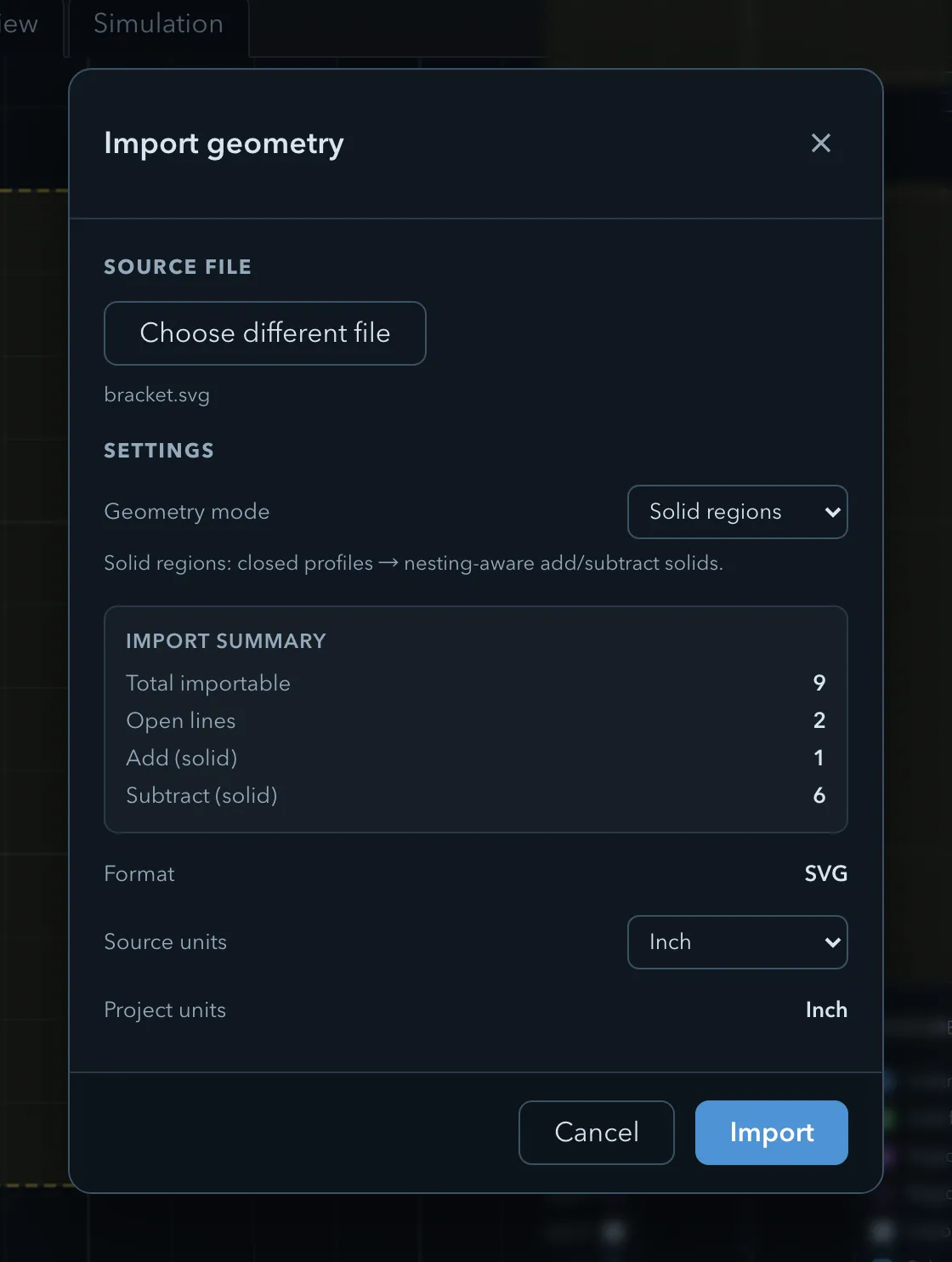
- Rectangles, circles, ellipses, lines, polylines, polygons, and paths are imported, including Bézier curves and arcs.
- Units come from the SVG’s
width,height, andviewBox. When the file does not state a physical size, choose the Source units. - The dialog warns about content it cannot import exactly: live text (imported with fallback outline fonts), text on a path, clipping and masks, filters, clones and symbols, and embedded images or patterns. Convert these to plain paths before exporting the SVG.
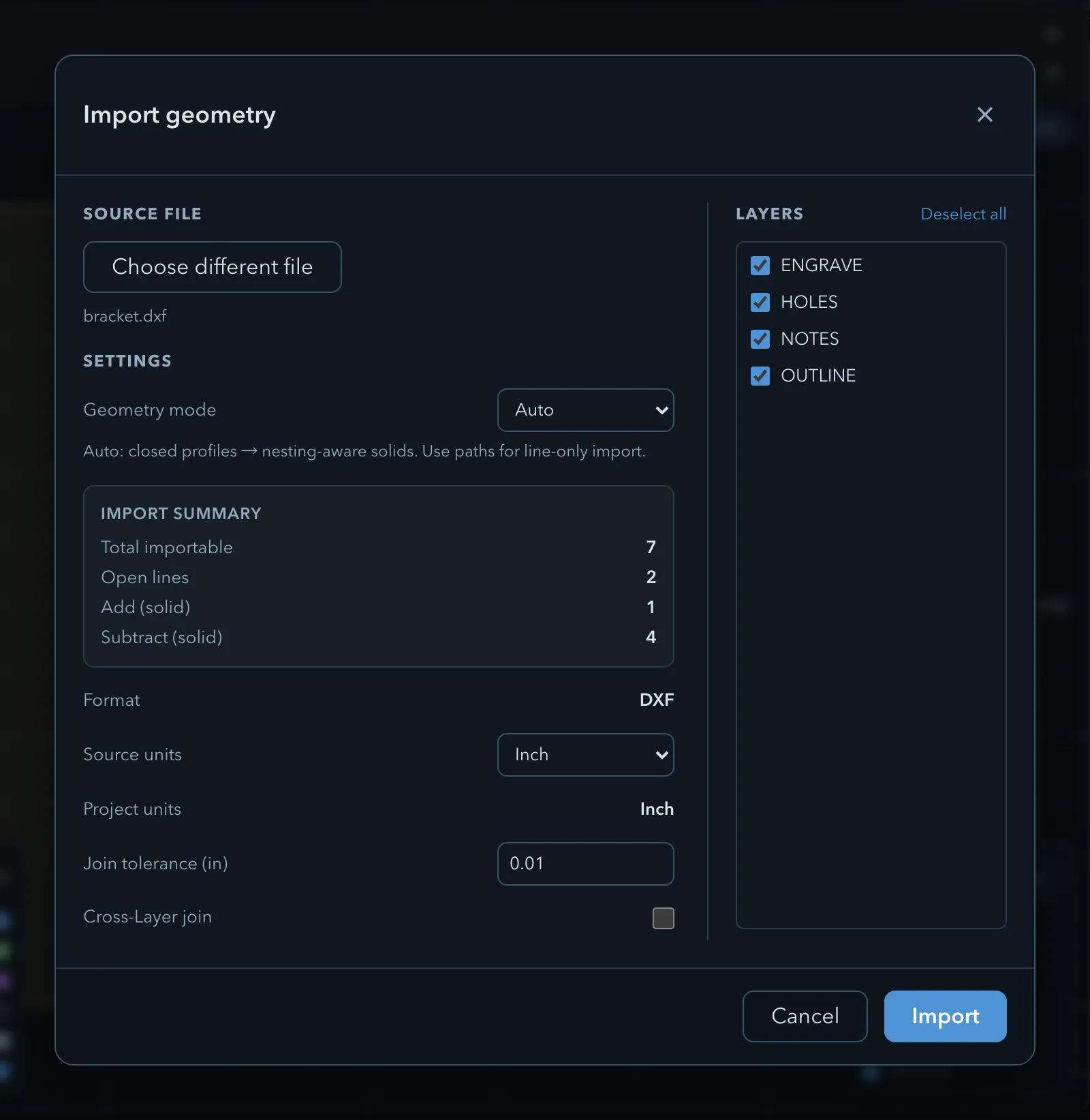
LINE,ARC,CIRCLE,LWPOLYLINE,POLYLINE, andSPLINEentities are imported, and block references (INSERT) are expanded. Text entities are ignored.- Units come from the file’s
$INSUNITSsetting. When it is missing, choose the Source units. - Layers lists the file’s layers: import all of them, or clear the ones you do not want (Select all, Deselect all). Each layer becomes a folder in the feature tree.
- Join tolerance joins separate segments whose ends are closer than this distance into one path. The default is 0.01 in or 0.25 mm.
- Cross-Layer join also joins segments that are on different layers.
Importing from another project
Section titled “Importing from another project”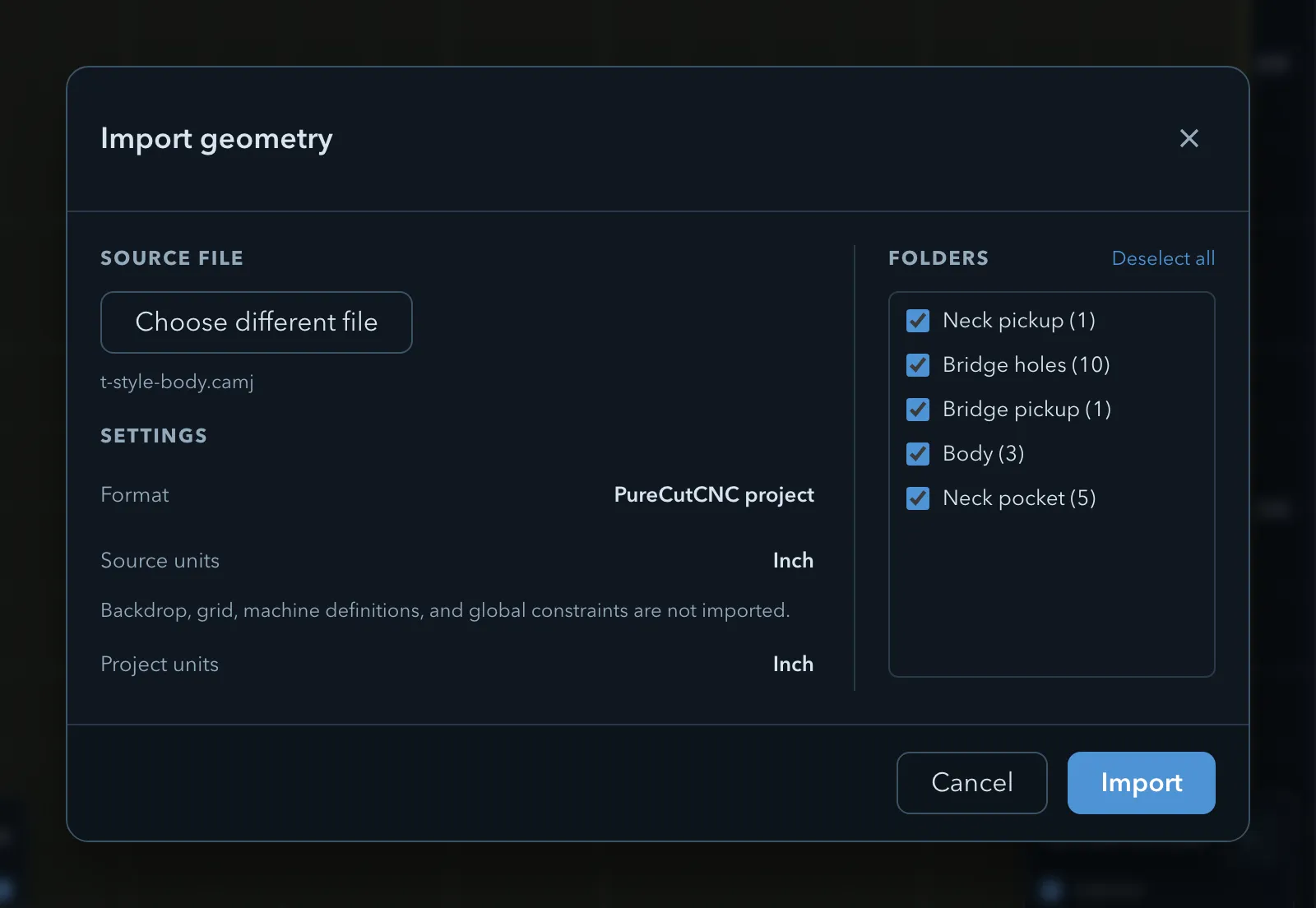
Choose a .camj file to copy folders from another PureCutCNC project into this one.
-
Choose the
.camjfile. Folders lists the source project’s feature folders. -
Select the folders to import.
-
If the source project’s stock comes from a feature, Import stock from source appears. Turn it on to use that stock here too (Current stock and origin will be replaced.).
-
Click Import.
The import brings in the features in those folders, the named dimensions they use, and every operation whose targets are all among the imported features, with the tools those operations use. An operation that also targets features you did not import is left out. Everything is converted to this project’s units, and names that are already in use get a number added.
The note in the dialog lists what is never imported: Backdrop, grid, machine definitions, and global constraints are not imported.
After import
Section titled “After import”-
Check that the geometry is the size you expect. If it is 25.4 times too big or too small, undo and import again with the right Source units.
-
Move the features onto the stock; see Selecting and transforming.
-
Check each feature’s role, and set Z top and Z bottom; see Features, roles, and depth.
-
Add operations.
Imported features can be edited in a sketch-editing session like drawn ones.
Related pages
Section titled “Related pages”- Importing 3D models: STL, OBJ, and STEP files.
- Backdrop images: trace over a picture instead of importing it.
- Text: machining lettering.
- Projects and files: opening a whole project.