3D view
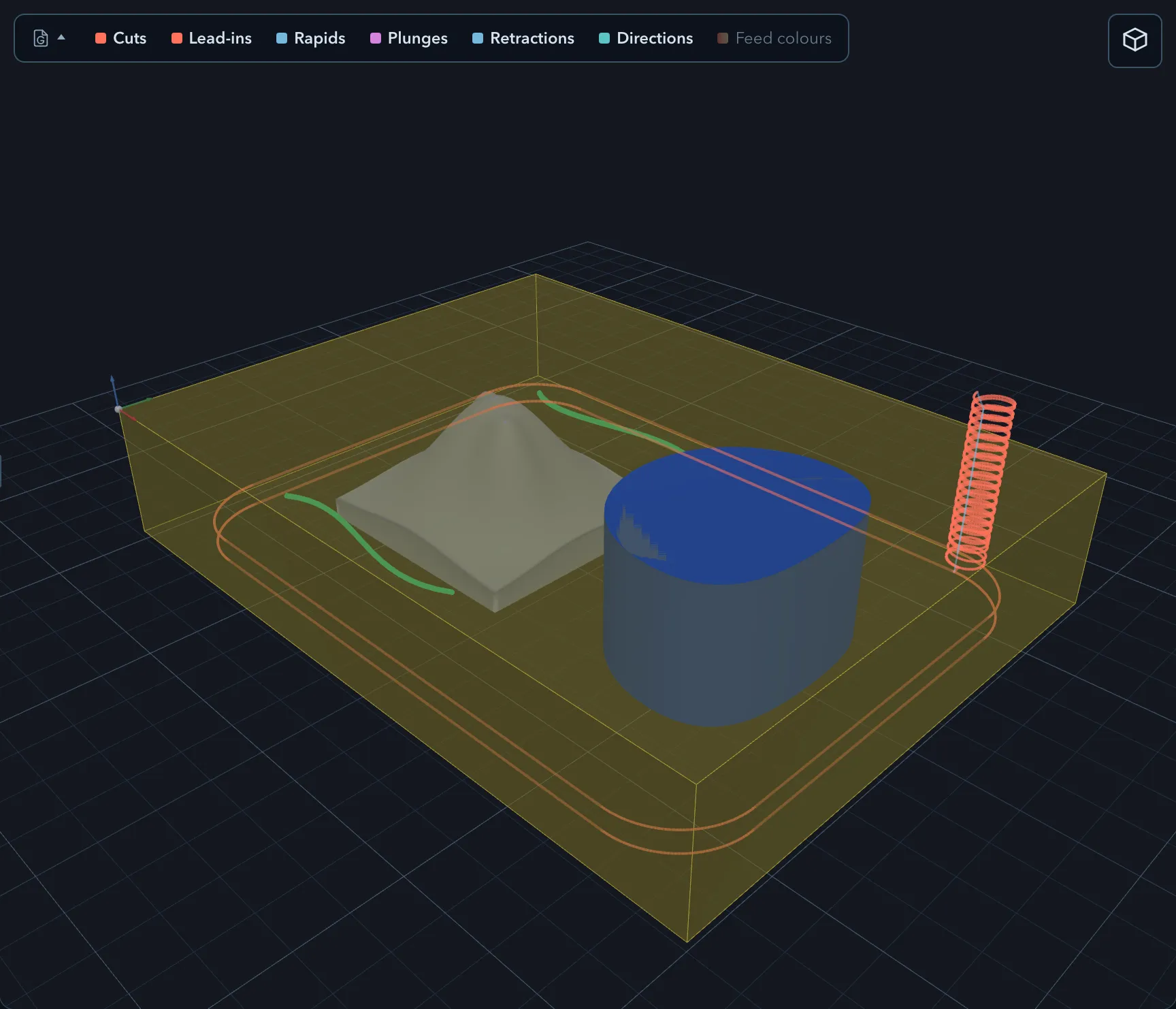
Open the 3D tab to examine the project as a solid. It is especially useful for checking depth, open features, imported models, and the relationship between the cutter path and the stock.
Navigation
Section titled “Navigation”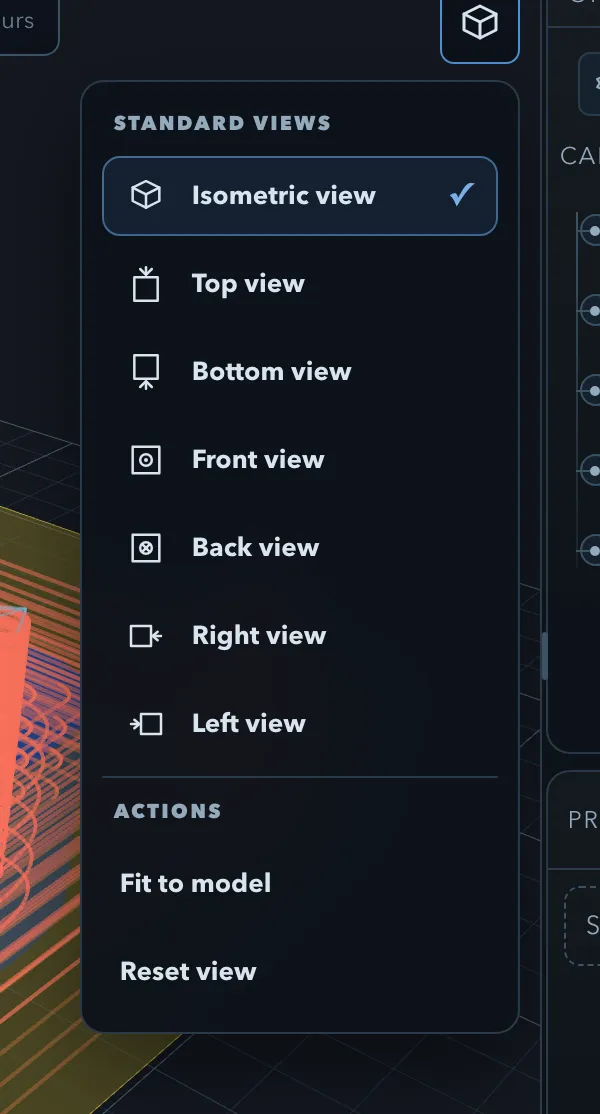
Drag to orbit, use the wheel or trackpad to zoom, and pan with the camera controls. Open the camera menu to choose a view preset, including isometric and orthographic directions such as top, front, and right. Use Reset view in that menu to return to the default isometric view; double-clicking the viewport does not reset the camera.
The 3D view combines visible project features into the model inside the stock. Use it to check that additive and subtractive features have the depth and orientation you intended. It is a preview of the project geometry, not a substitute for checking tooling, workholding, and generated motion.
Toolpaths
Section titled “Toolpaths”Toolpath overlays use the same display choices as the Sketch view. Open Show to isolate cuts, rapids, plunges, retractions, lead-ins, directions, or feed colours. Use the Toolpath preview page for the legend and level filter details.
Open features
Section titled “Open features”Open features are shown where a shape does not form a closed solid boundary. Inspect these carefully: a surface that looks open may not produce the solid or machining result you expect.
Imported models
Section titled “Imported models”Imported mesh models appear in the 3D view with the project geometry. They can help you position design work and inspect a combined scene. Their visibility and inclusion in STL export are controlled separately in Export model.
Related pages
Section titled “Related pages”- Toolpath preview: understand overlay controls and feed colours.
- Exporting models and printing: save an STL or SVG from the project.