Exporting G-code
G-code export prepares a controller program from the selected operation checklist and the active machine definition.
Before you start
Section titled “Before you start”- Generate and inspect the operations you intend to run.
- Select the intended machine and confirm the project origin and units.
- Review the setup and simulation; G-code is the point at which a planning mistake can become machine motion.
Export G-code
Section titled “Export G-code”-
Open Export G-code from the CAM controls.
-
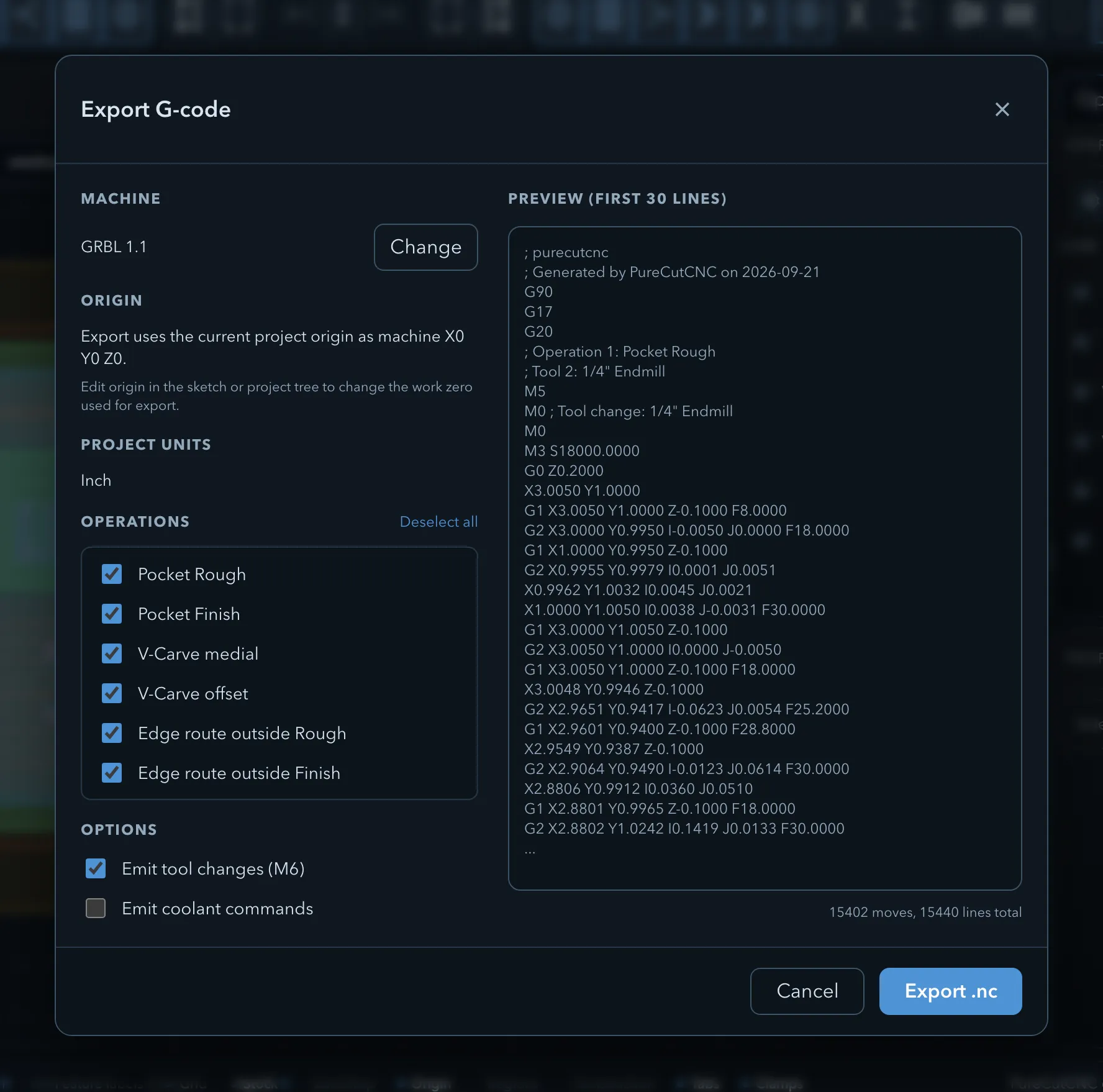
Confirm Machine, Origin, and Project units. Use Change to choose a different machine.
-
In Operations, review the per-operation checklist and select the operations to include.
-
In Options, choose whether to use Emit tool changes (M6) and Emit coolant commands for this program.
-
Read Errors, Warnings, and Preview (first 30 lines). When there are no export-blocking errors, select Export .ext and choose a save location.
Selection
Section titled “Selection”The checklist is the source of truth for this export. By default, it selects operations that are enabled, have a tool assigned, and have a visible toolpath. A hidden but otherwise eligible operation can still be checked manually; an operation that is off or has no tool is not eligible and displays its reason.
When Emit tool changes (M6) is not selected, PureCutCNC refuses an export that includes selected operations using different tools. Export those operations one at a time, or enable tool changes only when the machine and controller are set up to handle them safely.
Messages
Section titled “Messages”Errors stop the program from being exported until you resolve them. For example, choose a machine, select an operation, assign a tool, or reopen the dialog when its preview is out of date. A machine that cannot emit a requested tool change is also an export-blocking condition when tool changes are enabled.
Warnings identify behavior to review, such as a fallback or toolpath warning. They are not automatically export-blocking; read the message and decide whether the resulting program is appropriate for your machine.
Related pages
Section titled “Related pages”- Machines: select and configure the machine used for export.
- Exported motion inspector: compare one eligible planar operation with its prepared output.