Tablet and touch
PureCutCNC runs on iPad-class tablets in landscape orientation. On a tablet you use the same web app as on a desktop, in the browser: open the web app or the Preview Build. There is no tablet app to install — nothing to download from an app store, and no separate tablet build to keep up to date. It uses the tablet layout automatically on a touch screen or any device without hover. Phones are not supported: on a touch screen whose shorter side is under 500 pixels, the app shows PureCutCNC is not supported on phones. instead of the workspace.
Tablet workspace
Section titled “Tablet workspace”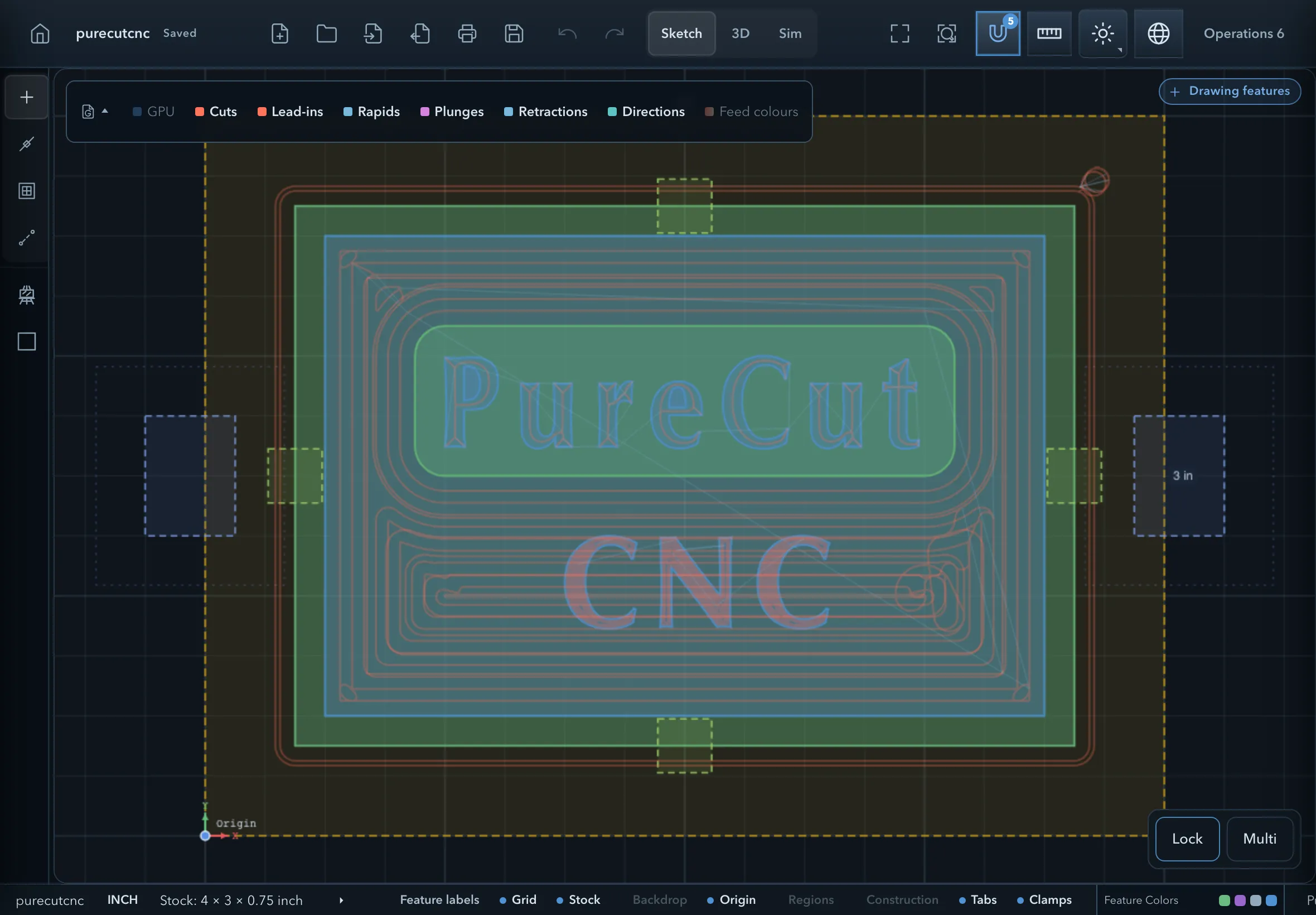
The tablet layout keeps the canvas as large as possible and moves the panels into drawers:
| Control | What it does |
|---|---|
| Open project panel | Opens the feature tree and properties as a drawer. |
| Open operations panel | Opens the CAM panel (Operations and Tools) as a drawer. |
| Sketch, 3D, Sim | The view tabs in the top bar. |
| Creation tools | Opens the drawing and editing tools. |
| Snap and measure buttons | Open popovers for the snap modes and the measuring tools. |
| Multi | Turns multi-select on or off, so that taps add features to the selection instead of replacing it. It is automatic for Join and Cut (Multi-select is automatic for join and cut). |
| Lock | Cycles the axis lock (Lock X, Lock Y, off), as Alt does on a keyboard. |
Held in portrait, the tablet shows Please rotate your device to landscape mode.
Every command has a visible control, so nothing depends on hover, right-click, or a keyboard. Workflow panels work as on the desktop: follow the step they show, and use their buttons where the desktop offers a key.
Touch navigation
Section titled “Touch navigation”In the Sketch view:
| Gesture | Result |
|---|---|
| Tap a feature | Select it. With Multi on, add it to the selection or remove it. |
| Drag on empty canvas | Pan. (A mouse drag on empty canvas draws a selection box instead.) |
| Pinch with two fingers | Zoom around the point between your fingers. Moving both fingers pans. |
| Long-press a feature | Open its context menu. |
| Drag a point while editing a sketch | Move the point. |
In the 3D view and the simulation:
| Gesture | Result |
|---|---|
| Drag with one finger | Orbit the view. |
| Pinch with two fingers | Zoom. Moving both fingers pans. |
Workflow panels and focus
Section titled “Workflow panels and focus”Workflow panels can be dragged by their handle so they do not cover the part of the sketch you need. When a panel asks for a number, tap its field to type; applying or cancelling returns you to the canvas for the next step. Opening a drawer or a dialog does not cancel a command in progress.
Related pages
Section titled “Related pages”- The workspace: the desktop layout the tablet layout rearranges.
- Selecting and transforming: selecting several features.
- Snapping and the grid: the axis lock.
- Keyboard shortcuts: the keyboard equivalents.