Working with operations
An operation connects selected features, a tool, and cutting settings to a toolpath. Use the CAM panel to add operations, then review their targets and settings before you generate or export anything.
Before you start
Section titled “Before you start”- Create the features and stock that you want to machine, and add the required tools to the project.
- Read Features, roles, and depth to understand why an operation accepts only particular feature roles and shapes.
- Read Working safely before preparing a job for a machine.
Adding
Section titled “Adding”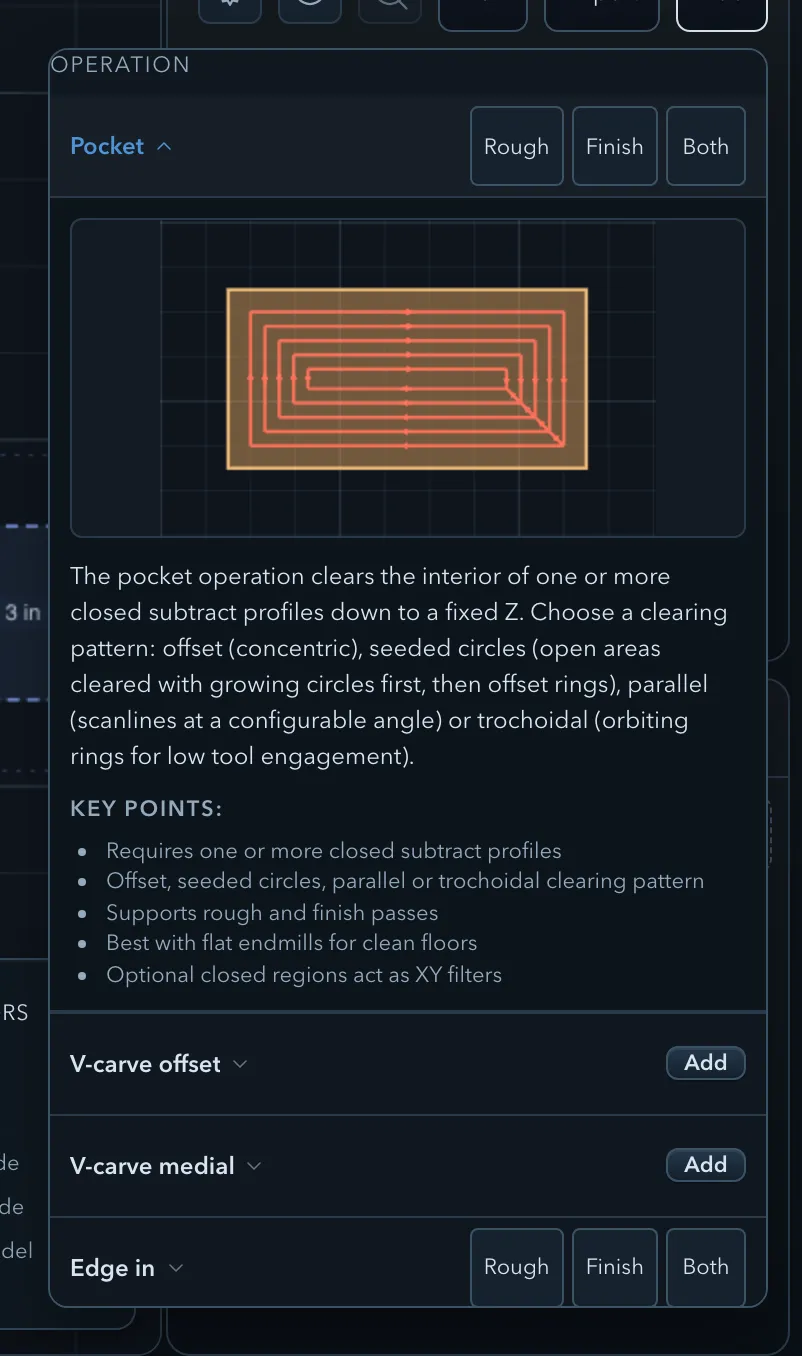
-
Open the CAM panel, select Operations, then select Add.
-
Review the compatible choices in the 2D or 3D group. The menu can offer Rough, Finish, or Both when an operation supports separate passes; it also identifies choices unavailable for the current selection.
Each information card explains the target requirement. Use Select all compatible when the current selection contains several valid features; review the separate unavailable section rather than treating it as an operation recommendation.
-
Select an operation and pass. It is added to the operations list with the current compatible selection as its target.
-
Select the new row to edit its properties. Use Choosing an operation when you need help matching the operation to the feature and intended cut.
When Add or a feature’s Create operation menu picks a tool for a new pocket, edge route, follow-line cut, or 3D roughing or finishing operation, it aims for a cutter no wider than 1/4 in (6.35 mm) and may choose a smaller one for a narrow target. It checks project tools before the bundled library. If none fits that size limit, it can choose the smallest compatible tool available, which may be wider than the limit. Inspect the selected tool, reach, and target before generating a toolpath. CAM Plan shows the reasoning for its proposed tool choices.
Context menu
Section titled “Context menu”Use a feature’s context menu to create a compatible operation, or to add that feature to and remove it from an existing operation. The menu offers Create operation, Add to operation, and Remove from operation only when the selected feature is compatible.
Targets
Section titled “Targets”You can also select an operation and use Use current selection in What it cuts to replace its target. A stock target is used only by operations that offer it; a region in a valid feature target limits where the operation may cut rather than becoming a cut itself.
If an option is unavailable, check the feature’s role, whether its profile is closed, and the operation’s requirements. A region can limit where an operation cuts, but it is not itself a shape to machine; see Regions.
The hint beside an unavailable target explains the failed requirement. Construction geometry cannot be a machining target. Drill needs machinable circles; 3D rough, finish, and cleanup need one or more imported models. Pocket and inside edge route need subtract geometry; surface clean and outside edge route need add or model geometry. Closed-profile operations also reject open shapes, and a region used as a filter must be closed. Correct the selection or choose an operation that accepts it before using Use current selection.
Outline text can qualify through the shapes of its letters: an Add text feature with counters can target Pocket or Edge route inside, and a Subtract text feature with islands can target Edge route outside. Use current selection, the Add menu, and the feature context menu accept these targets without expanding the text. See Machining text.
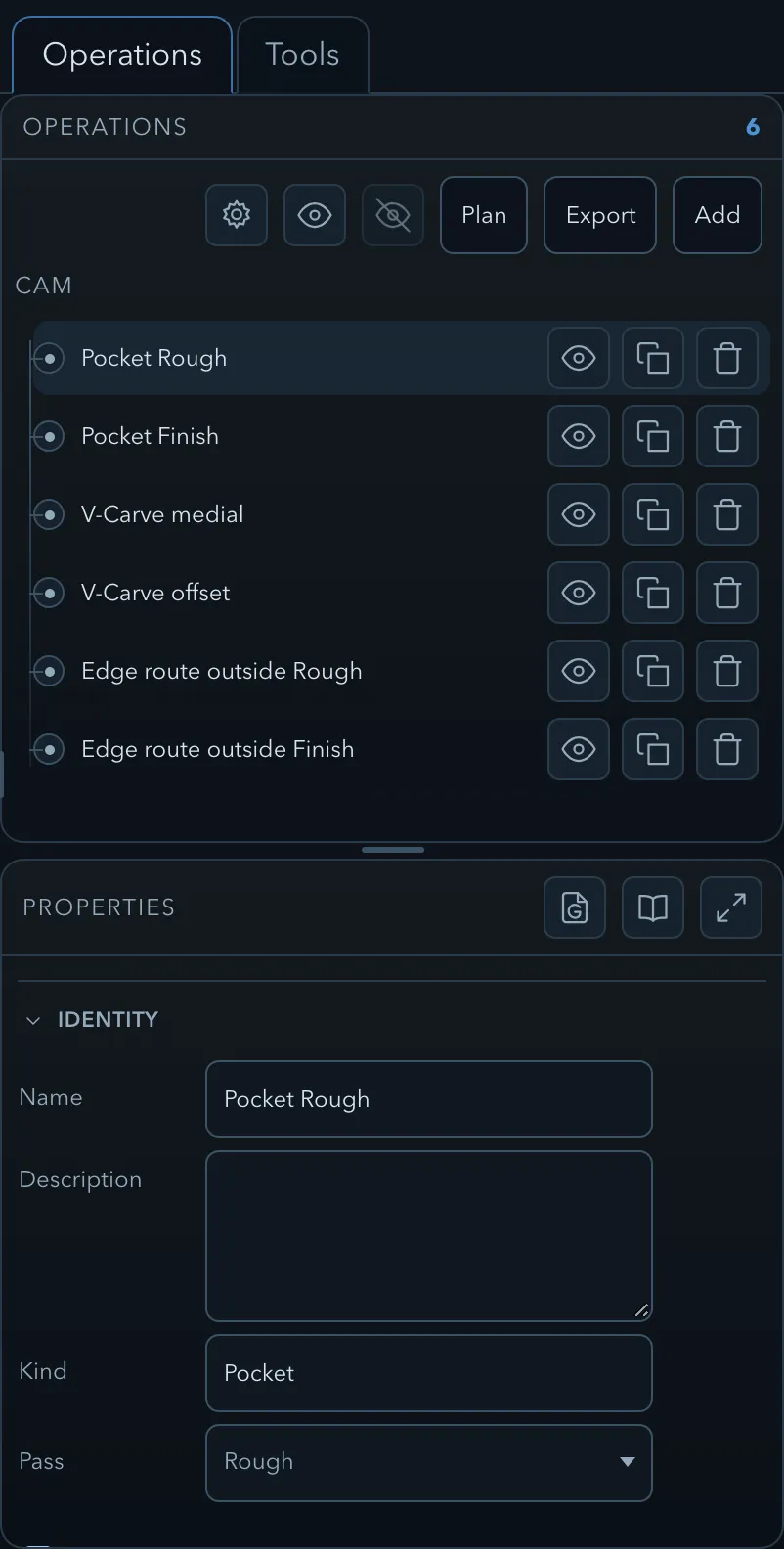
The Operations list is the machining order. Drag a row to reorder it, use its controls to enable or disable it, and show or hide its toolpath. The header’s Show all toolpaths and Hide all toolpaths controls change every operation at once. Duplicate an operation when you need a related variation, or delete one that is no longer part of the plan. The expanded view also provides per-operation G-code and setup-booklet exports.
Generation
Section titled “Generation”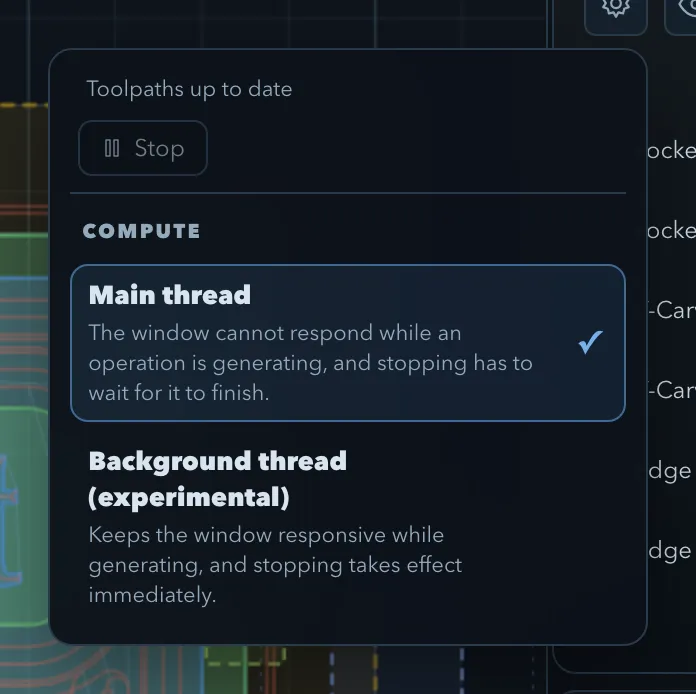
Toolpaths generate when an enabled operation is visible. A row reports whether its toolpath is up to date, generating, paused, or failed. Use the generation controls to stop, resume, or retry a calculation, and use the generation settings to choose the main-thread backend or the experimental background-thread backend.
Related pages
Section titled “Related pages”- CAM Plan: start from an editable set of suggested operations and tools.
- Tool library: add and maintain the tools operations can use.
- Common operation parameters: understand settings shared by operations.
- Choosing an operation: select the right operation for a feature.