Themes and appearance
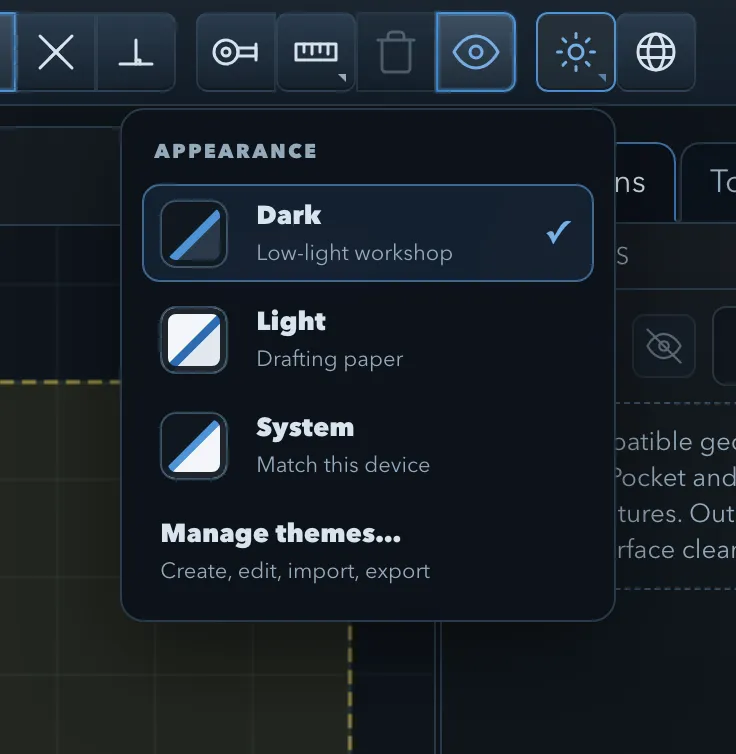
The Appearance control in the top toolbar sets the colours of PureCutCNC. It shows the active choice, for example Appearance: Dark. Appearance is a preference of the app on this device: it is not saved in projects, and changing it never marks a project as unsaved.
Appearance modes
Section titled “Appearance modes”Click Appearance to choose a mode.
| Mode | Description |
|---|---|
| Dark | Low-light workshop colours. This is the default. |
| Light | Drafting-paper colours for bright rooms. |
| System | Matches this device: Light or Dark, following the operating system setting, and switching when it changes. |
Custom themes you have made are listed under Custom themes, grouped into Dark family and Light family. Manage themes… opens the theme manager.
Theme manager
Section titled “Theme manager”Manage themes… lists the two built-in themes, Dark and Light, and your custom themes. Badges mark each theme Built-in or Custom, and the one in use Active. Select a theme to see its details and actions.
| Action | Available for | What it does |
|---|---|---|
| Use this theme | Any theme that is not active | Makes the theme active. |
| Duplicate to edit | Built-in themes | Makes an editable custom copy and opens it in the editor. Built-in themes are read-only. |
| Duplicate | Custom themes | Makes another copy and opens it in the editor. |
| Edit | Custom themes | Opens the theme editor. |
| Rename | Custom themes | Changes the Theme name. |
| Reset to base | Custom themes with changed colours | Returns every colour to the built-in theme it is based on. |
| Import theme | Always | Loads a theme file exported from PureCutCNC. |
| Export theme | Custom themes | Saves the theme as a file you can share or import on another device. |
| Delete theme | Custom themes | Removes the theme. |
A custom theme’s details show its Family (dark or light), the theme it is Based on, and how many colours it changes (Changed colors).
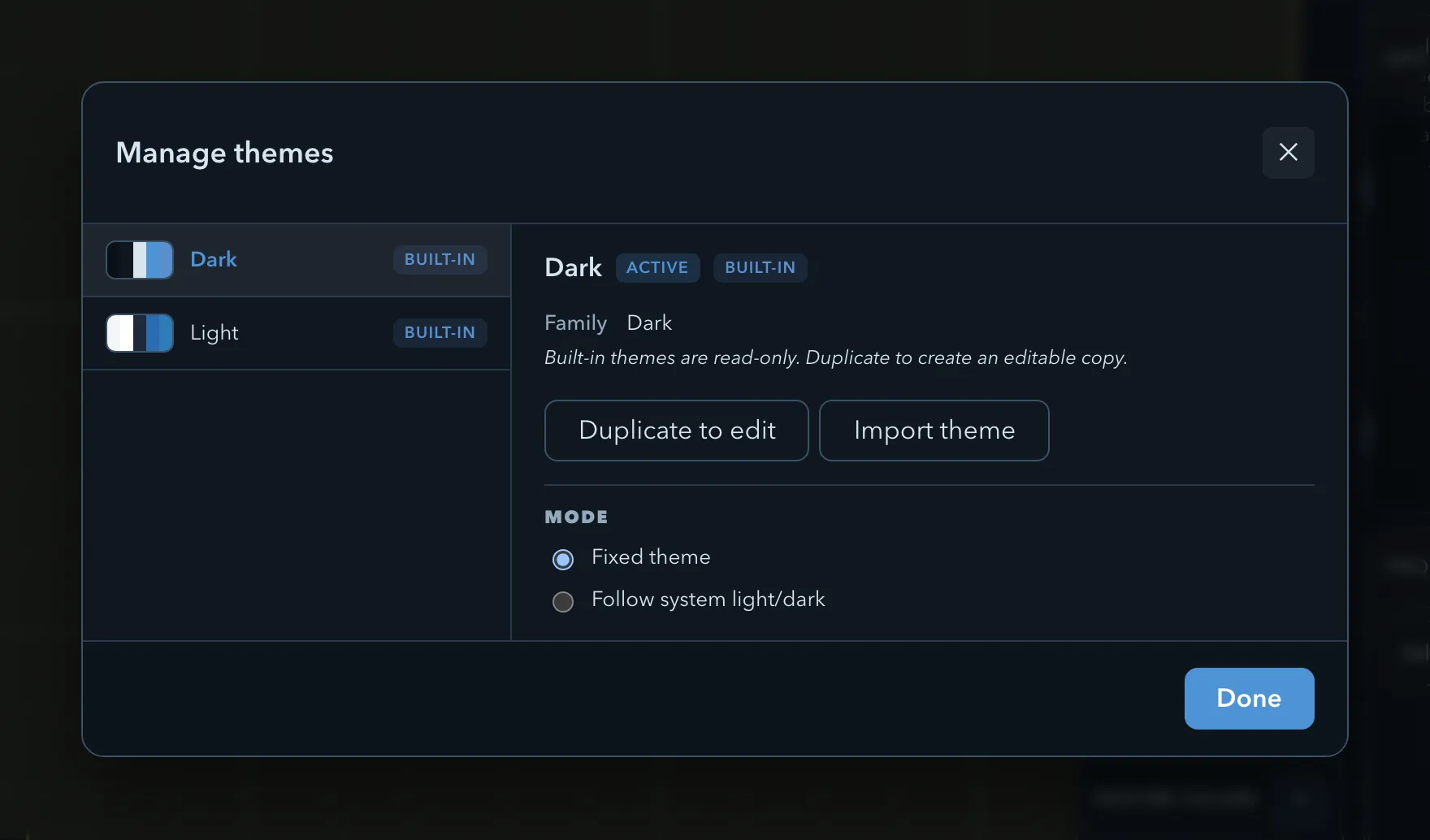
The Mode setting in the manager decides how the active theme is chosen:
- Fixed theme always uses the theme you choose.
- Follow system light/dark uses the Light theme while the device prefers light colours and the Dark theme while it prefers dark ones. Pick a built-in or custom theme for each. The manager shows which the device prefers at the moment.
Custom theme editor
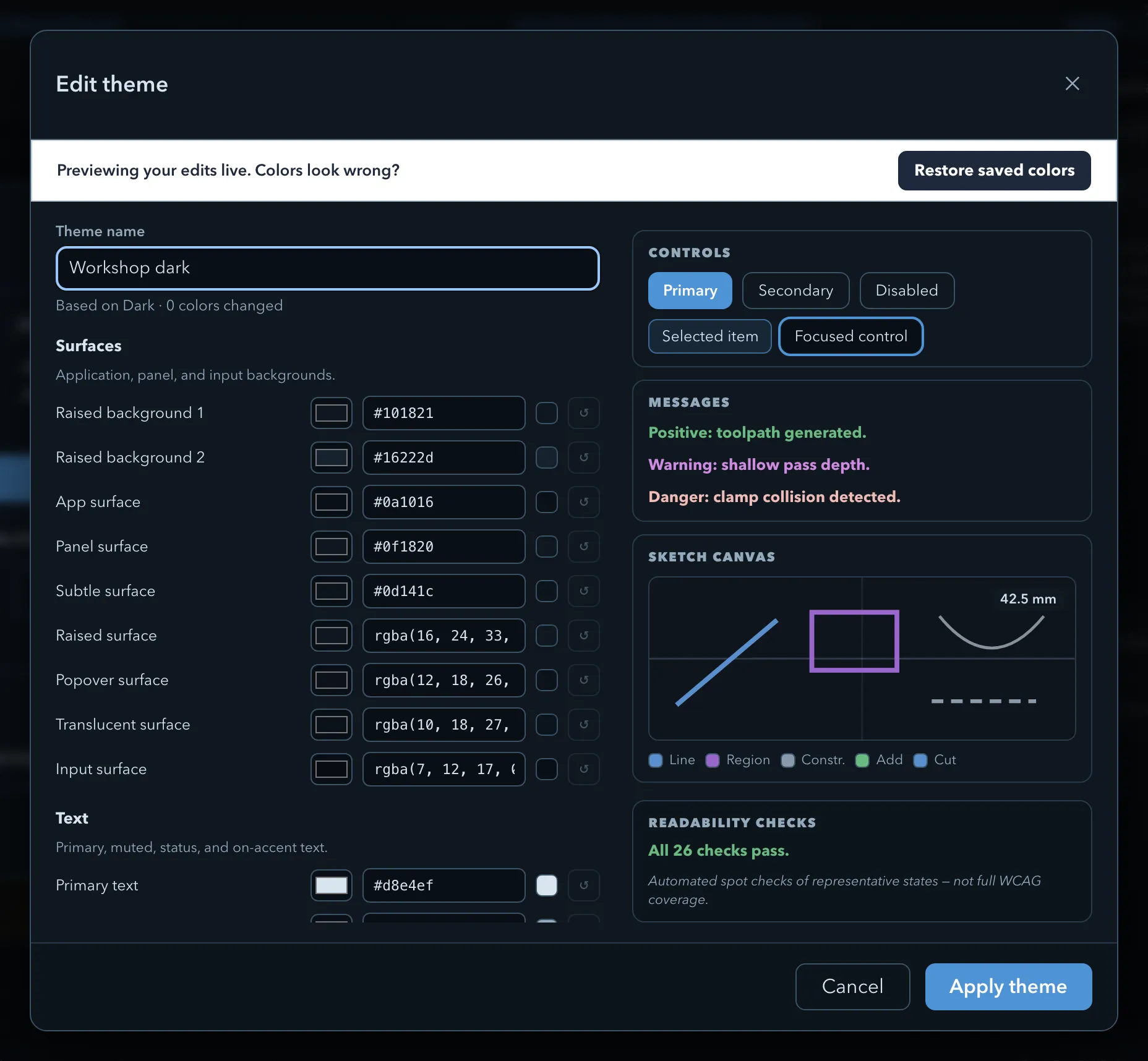
Section titled “Custom theme editor”Edit opens the Edit theme dialog for a custom theme. Changes preview live across the whole app while the dialog is open. If the colours become hard to read, Restore saved colors returns to the last saved version.
- Theme name names the theme. A theme needs a name before it can be applied.
- Under the name, a line shows the theme it is based on and how many colours you have changed.
- The colours are grouped by where they appear: Surfaces, Text, Borders & controls, Accent & status, Sketch roles, Sketch canvas, Canvas geometry, Canvas controls, Canvas toolpaths, Canvas annotations, and 3D & simulation. Each group has a short description.
- Each colour has a colour picker and a text field that accepts hex and
rgb()/rgba()values. Its reset button returns that one colour to the base theme’s value.
Next to the colours, a preview shows Panel & text, Controls, Messages, and a small Sketch canvas sample in the theme you are editing.
Apply theme saves the theme and makes it active. Cancel discards the changes.
Readability checks
Section titled “Readability checks”Readability checks, below the preview, test two things: the contrast of important text, controls, and focus markers against their backgrounds, and whether drawing colours that must look different, such as the feature and toolpath colours, are far enough apart. When everything passes, the panel says so; otherwise it lists each failing check with its measured and required value.
- Blocked: a contrast check below its minimum. Apply theme stays unavailable until it passes.
- Warning: a contrast check below its recommended value, or two drawing colours that are too similar. You can still apply the theme.
Where themes apply
Section titled “Where themes apply”A theme colours the whole application: panels, dialogs, the sketch canvas, the toolpath preview, the 3D view, and the simulation.
It does not change printed designs, setup booklets, exported files, or G-code. Printed output uses its own fixed colours so it reads the same on paper whatever theme you use.
Themes are stored in this browser or desktop app. To use a custom theme on another device, export it and import it there.
Related pages
Section titled “Related pages”- Interface languages: the language control next to Appearance, which works the same way.
- The workspace: where the colours appear.
- Exporting models and printing: the print colours that themes do not change.