Troubleshooting
Import and project files
Section titled “Import and project files”An imported file fails or has the wrong size
Section titled “An imported file fails or has the wrong size”Cause: The file type, units, or source geometry may not match the import path.
Fix: Confirm the format and units, then use the matching import workflow. See Importing SVG, DXF, and projects or Importing 3D models.
For STEP, a file over 64 MB cannot be imported. If tessellation exceeds the triangle limit or the importer runs out of memory, increase Surface tolerance or simplify the source model; see the STEP limits and messages.
Generation and export
Section titled “Generation and export”Generation is paused, fails, or produces an error
Section titled “Generation is paused, fails, or produces an error”Cause: An operation can be invalid, missing a tool, blocked by its geometry, or superseded after an edit.
Fix: Read the operation message, correct the named setting, and generate again. Inspect the toolpath and simulation before export.
A clamp or tab warning appears
Section titled “A clamp or tab warning appears”Cause: Clamp avoidance can leave material uncut or skip drilling beneath a clamp; tabs can block final depth, lie outside a route, or overlap after repeated placement.
Fix: Match the recorded clamps and clearances to the real setup, then inspect what was left uncut. Move or replace invalid tabs and regenerate. See Clamps and clearances and Tabs.
Export is unavailable
Section titled “Export is unavailable”Cause: The active machine, selection, tool assignment, preview, or required output capability is invalid.
Fix: Review Errors in Export G-code, then reopen the dialog after correcting the project. See Exporting G-code.
Graphics and simulation
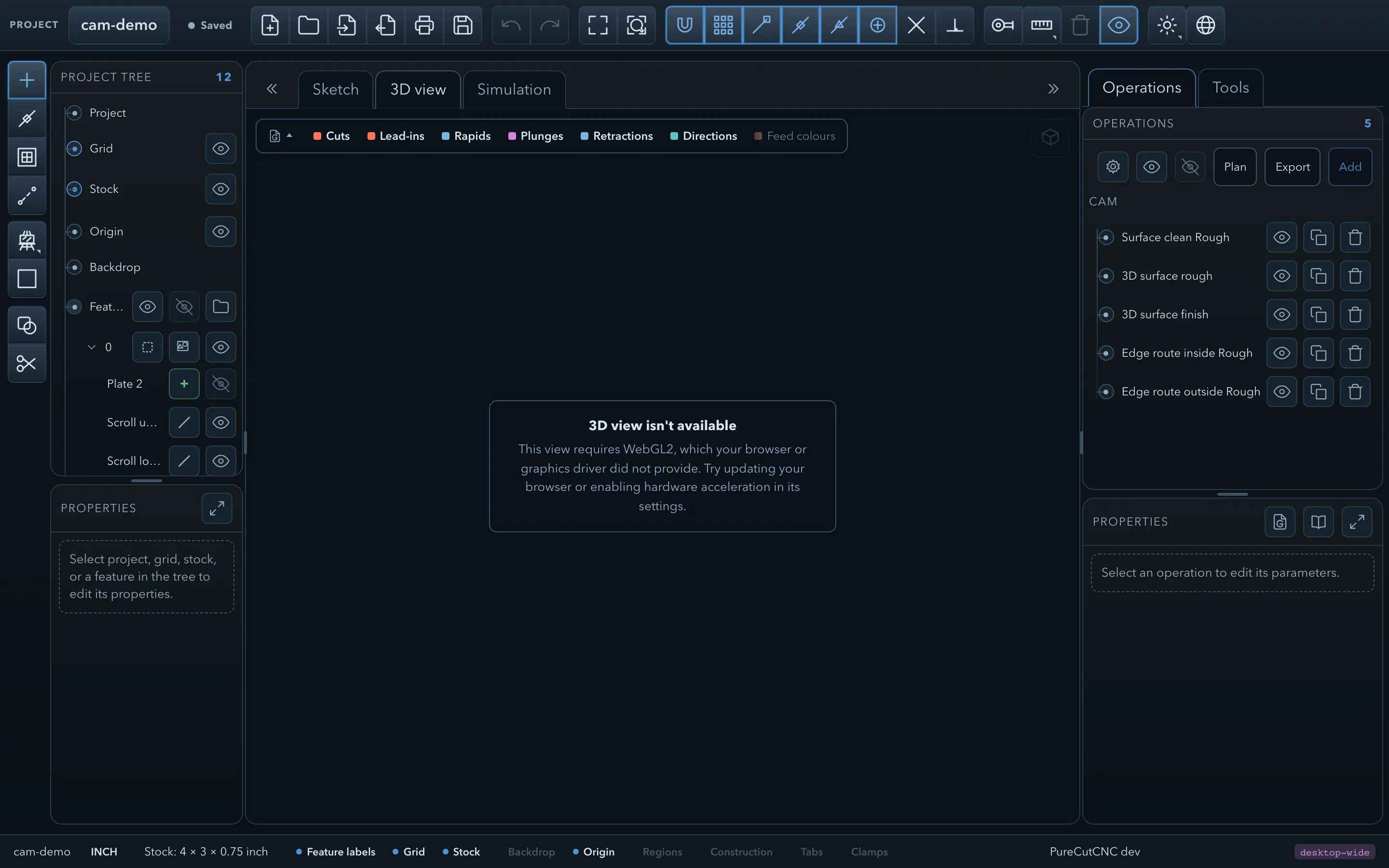
Section titled “Graphics and simulation”The 3D or Sim view reports that WebGL is unavailable
Section titled “The 3D or Sim view reports that WebGL is unavailable”Cause: WebGL2 is unavailable or its graphics context was lost.
Fix: The 2D workspace remains usable. Try closing competing graphics-heavy apps, updating graphics drivers or the browser, and reopening the view. If it persists, use the Sketch toolpath preview and report the environment details with the warning.
A 3D mesh is too dense to work with
Section titled “A 3D mesh is too dense to work with”Cause: The imported mesh exceeds a practical detail limit for the current device.
Fix: Simplify or split the source mesh, then import it again. Use a smaller or lower-detail model when the imported mesh is only a reference.
Related pages
Section titled “Related pages”- Warnings and messages: understand messages at their source.
- Working safely: verify the machine setup before cutting.