Stock, origin, and units
The stock is the material the job starts from, the origin is the point that becomes X0 Y0 Z0 on the machine, and the units decide how every number in the project is read. Set all three before you add operations, and check them again before you export.
In project coordinates, the bottom of the stock is at Z 0 and its top is at the stock thickness. Z top and Z bottom of every feature use these coordinates.
-
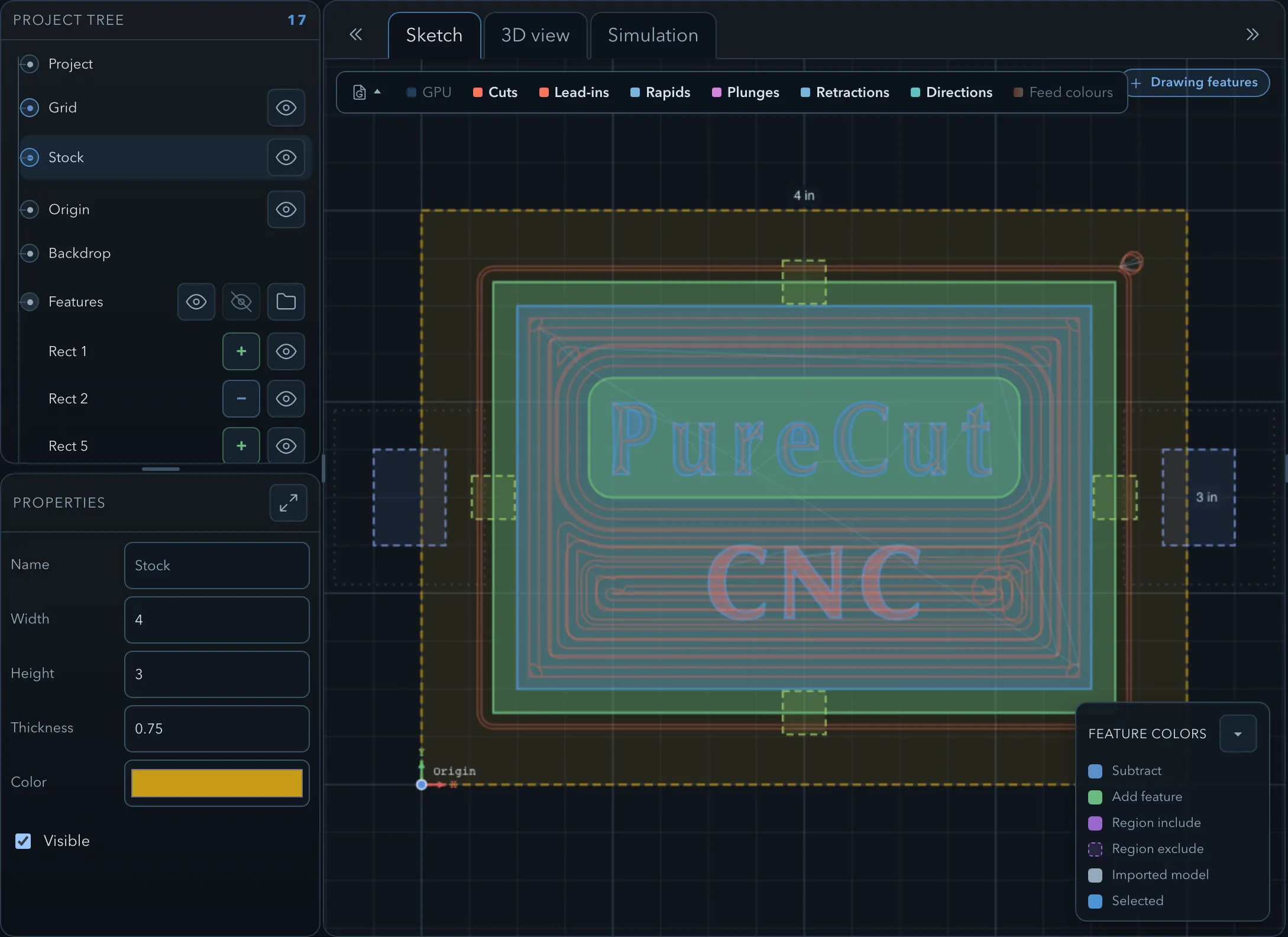
Select Stock in the feature tree.
-
For rectangular stock, set Width, Height, and Thickness. Color and Visible only change how it is drawn.
-
To resize the stock from the canvas instead, click one of its dimension labels (for example 4 in). In the Resize stock panel, type the new value. The panel says which side stays in place, for example Holding left side; Flip held point holds the opposite side instead. Click Apply.
Stock does not have to be a rectangle. To use a shape as the stock outline:
-
Draw the outline as a closed add feature.
-
Right-click it and choose Use as stock. The feature leaves the feature tree and becomes the stock outline, and the stock thickness is set to the feature’s Z top.
-
Select Stock. Its properties show the Source feature, and Thickness is still editable. Use Edit sketch to change the outline, or Reset to rectangle to go back to rectangular stock.
The stock has no material setting. Clamps are separate objects; see Clamps and clearances.
Origin
Section titled “Origin”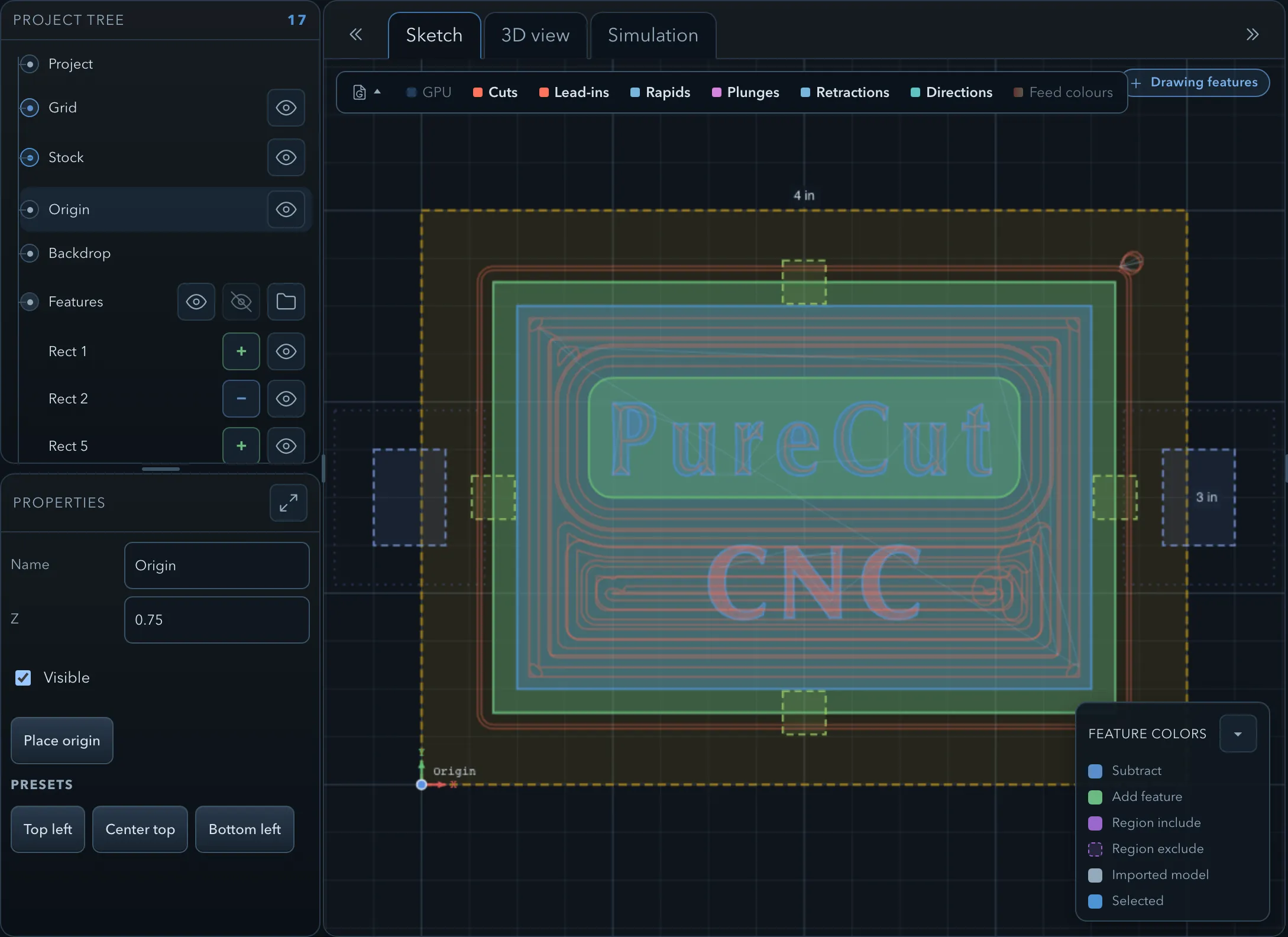
The origin is the work zero: export writes every coordinate relative to it (Export uses the current project origin as machine X0 Y0 Z0.). A new project puts it at the bottom-left corner of the stock, as seen in the Sketch view, on the top surface.
-
Select Origin in the feature tree.
-
Set the XY position:
-
click Place origin, then click the sketch (Click the sketch to place machine X0 Y0.);
-
or click a preset:
Preset Origin Top left The top-left corner of the stock in the Sketch view, on its top surface. Center top The centre of the stock, on its top surface. Bottom left The bottom-left corner of the stock in the Sketch view, on its bottom surface (Z 0).
-
-
Check Z. Place origin does not change it, and the presets set it to the top or bottom of the stock. Set Z to match where you will touch off the tool on the machine.
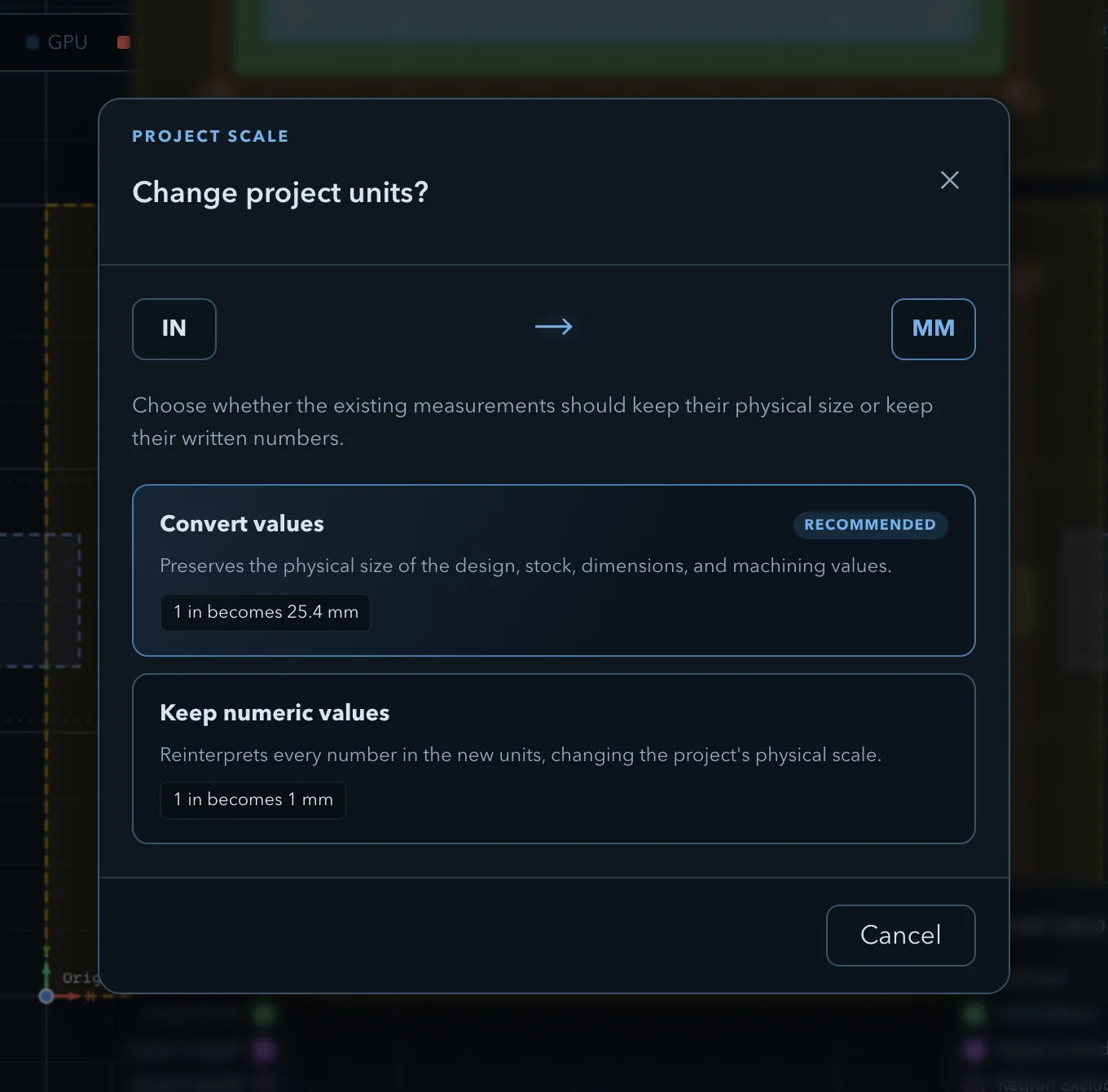
A project is in millimetres or inches. To change it, click the units button in the status bar (for example INCH) or change Units in the Project properties. The Change project units? dialog asks how to treat the existing numbers:
| Choice | Result |
|---|---|
| Convert values (Recommended) | Keeps the physical size. Every length in the design, stock, dimensions, and operations is converted, so 1 in becomes 25.4 mm. |
| Keep numeric values | Keeps the numbers and reads them in the new units, so 1 in becomes 1 mm. The project’s physical size changes. |
Tools keep their own units: a 1/4″ endmill stays a 1/4″ endmill in a metric project. Each tool’s Units is shown in its properties.
Related pages
Section titled “Related pages”- Features, roles, and depth: the Z range of features in these coordinates.
- Exporting G-code: how the origin and units appear in the exported program.
- Clamps and clearances: the other half of the physical setup.
- Working safely: the checks to make at the machine.