Quick Start
This walkthrough takes a blank project to exported G-code: a rectangular part with a circular pocket, cut with a 1/4″ endmill. It takes about ten minutes. You need PureCutCNC open in a desktop or tablet browser, or the desktop app; see Install and open PureCutCNC.
The screenshots on this page come from an earlier version of the app, so some labels and panels differ from what you see. The steps describe the app as it is.
How it works
Section titled “How it works”The Quick Start explains only what its steps need. Three ideas carry it:
- Every shape you draw is a feature. Its role, add or subtract, says whether it is material or a cavity, and its Z top and Z bottom say where it starts and ends vertically.
- An operation turns selected features into a toolpath, using a tool from the project’s tool list.
- The stock, origin, units, tools, machine, and operations are all saved in the project file.
Features, roles, and depth and Stock, origin, and units explain these in full.
Create a new project
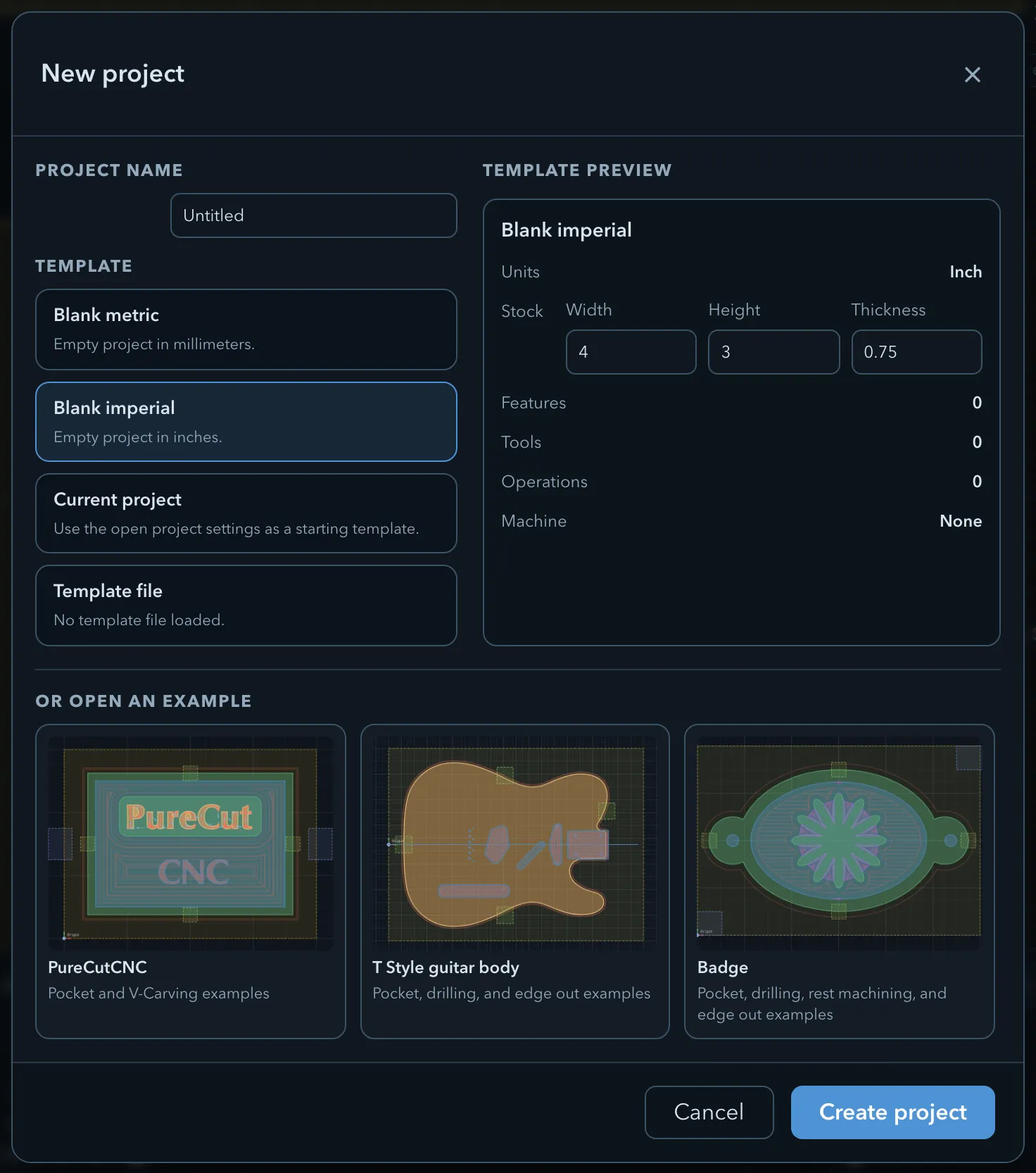
Section titled “Create a new project”Click New project in the top toolbar. In the New project dialog, select the Blank imperial template (“Empty project in inches.”). The Template preview lists inch units and no machine, and its Stock fields read Width 4, Height 3, and Thickness 0.75. Leave them as they are: the tutorial uses this 4 × 3 × 0.75 in stock. Click Create project.
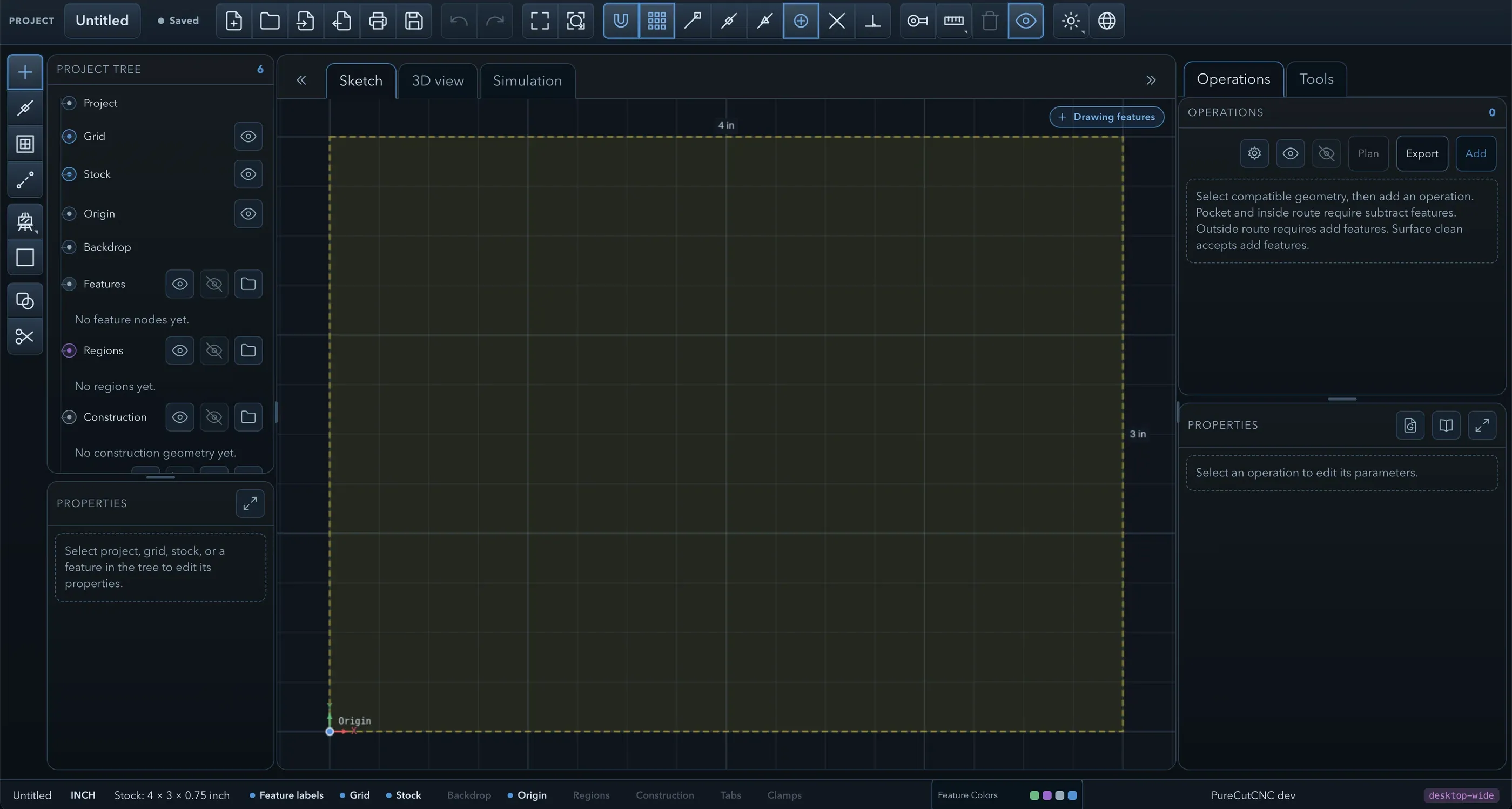
The workspace opens in Sketch with an empty canvas. The origin sits at the lower-left corner of the stock, on its top surface.
Add the outer boundary rectangle
Section titled “Add the outer boundary rectangle”In the tool rail, choose the creation target that makes features (its tooltip reads Create features), then choose Rectangle in the shape drawer. When the workflow panel asks you to Click first corner, click about 0.5 in inside the top-left corner of the stock. At Click opposite corner or enter dimensions, click Dimensions and enter a Width of 3 and a Height of 2.
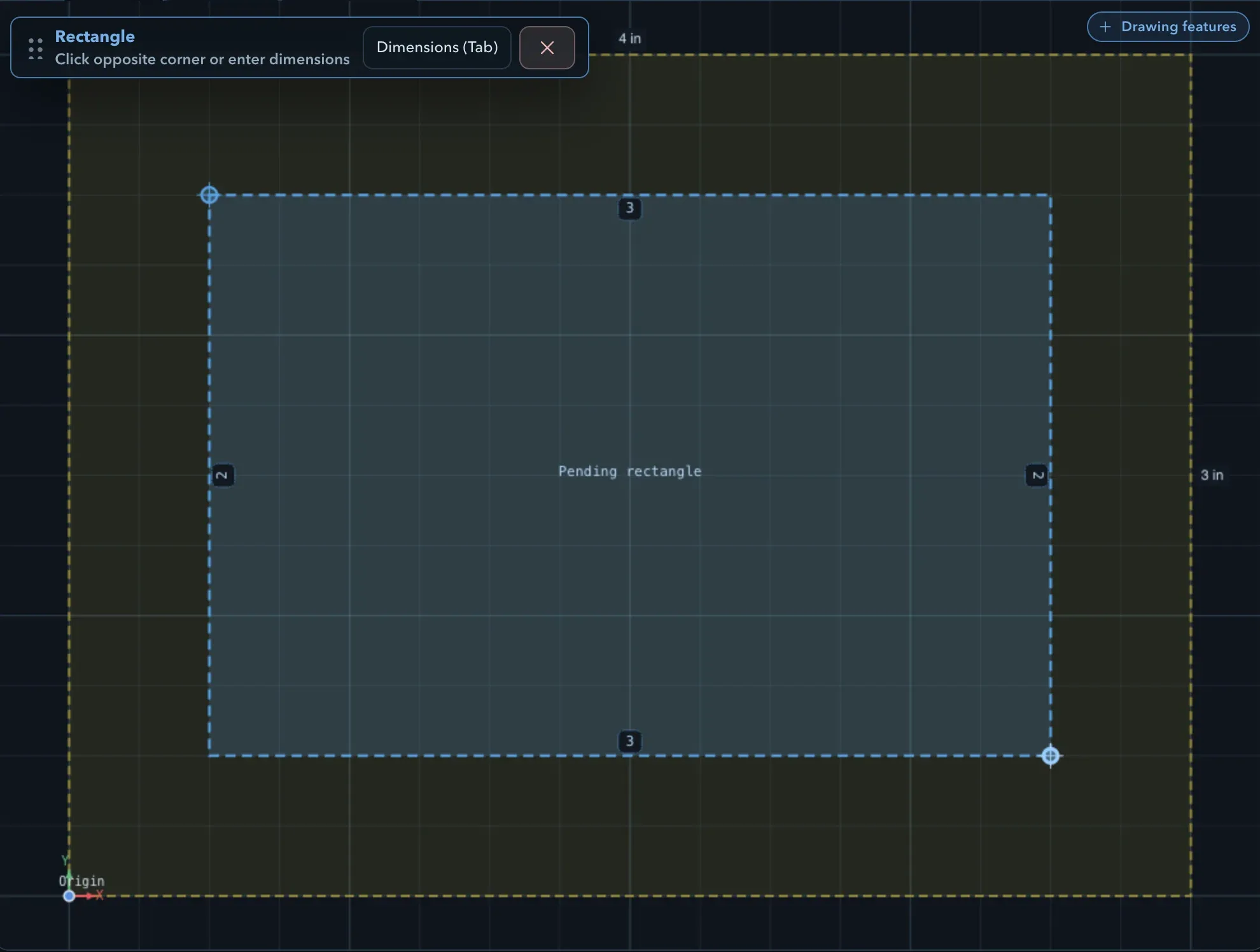
The rectangle appears in the feature tree. As the first solid in the project it is always an add feature: the material that remains. The stock around it is what an outside edge route would cut away later.
Add a circle inside the rectangle
Section titled “Add a circle inside the rectangle”Choose Circle. At Click center point, click the centre of the rectangle. At Click to set radius or enter dimensions, click Dimensions and enter a Radius of 0.75.
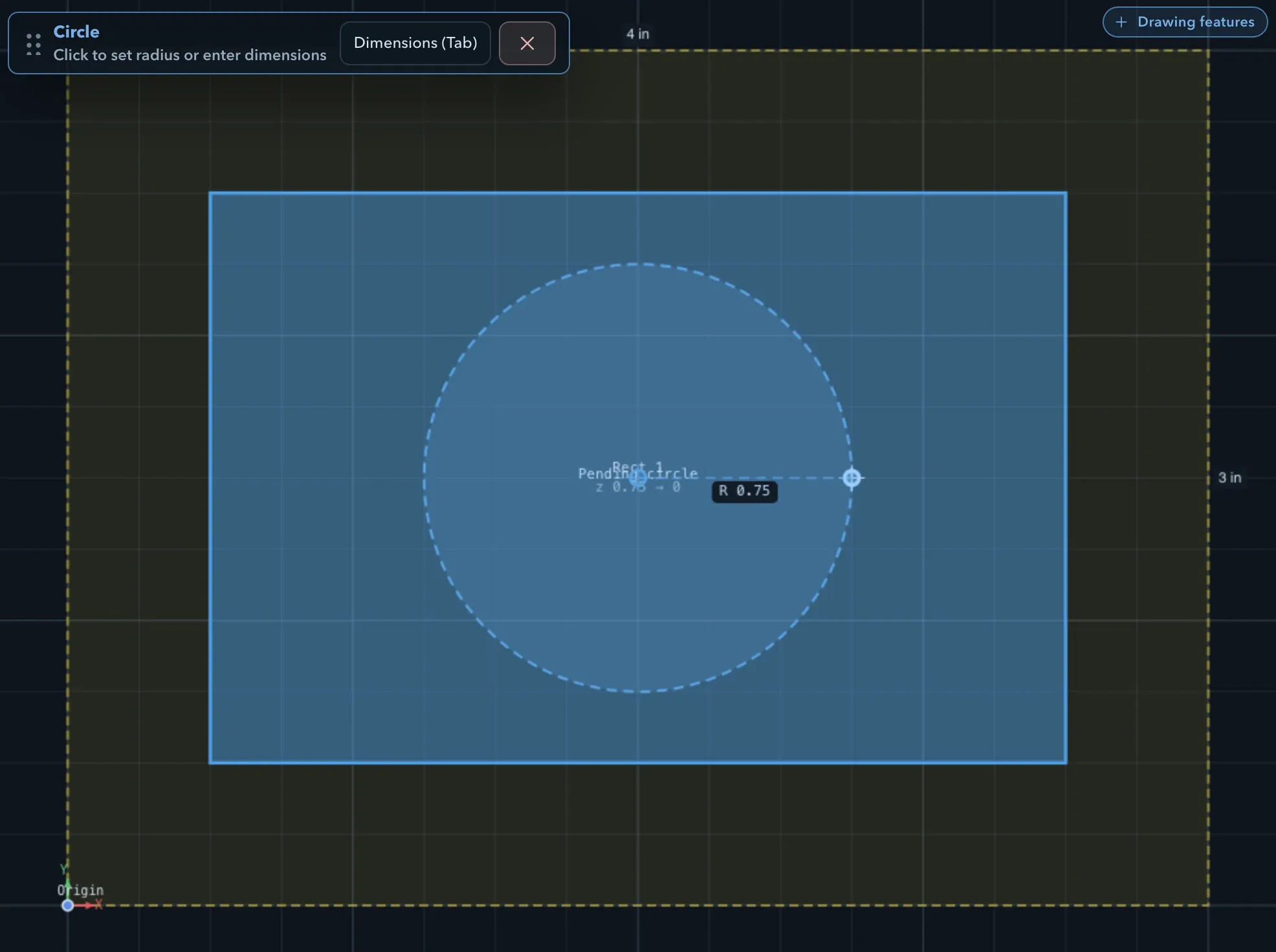
Because the circle lies inside an add feature, PureCutCNC makes it a subtract feature; its row in the feature tree shows a minus badge. Press Esc to put the circle tool away, then select the circle. In the properties panel, expand Shape: Operation reads Subtract. Expand Instance: Z top is 0.75, the top of the stock. Set Z bottom to 0.5. The pocket floor is then 0.5 in above the bottom of the stock, so the pocket is 0.25 in deep.
Import a 1/4″ endmill from the tool library
Section titled “Import a 1/4″ endmill from the tool library”Open the Tools tab in the CAM panel and click Import from library…. The Import tools
from library dialog lists the bundled tools, filtered to your project’s units. Type 1/4 in the
search box,
tick 1/4” Endmill, and click Import tool. Tools already in the project are marked In
project, so you do not import them twice.
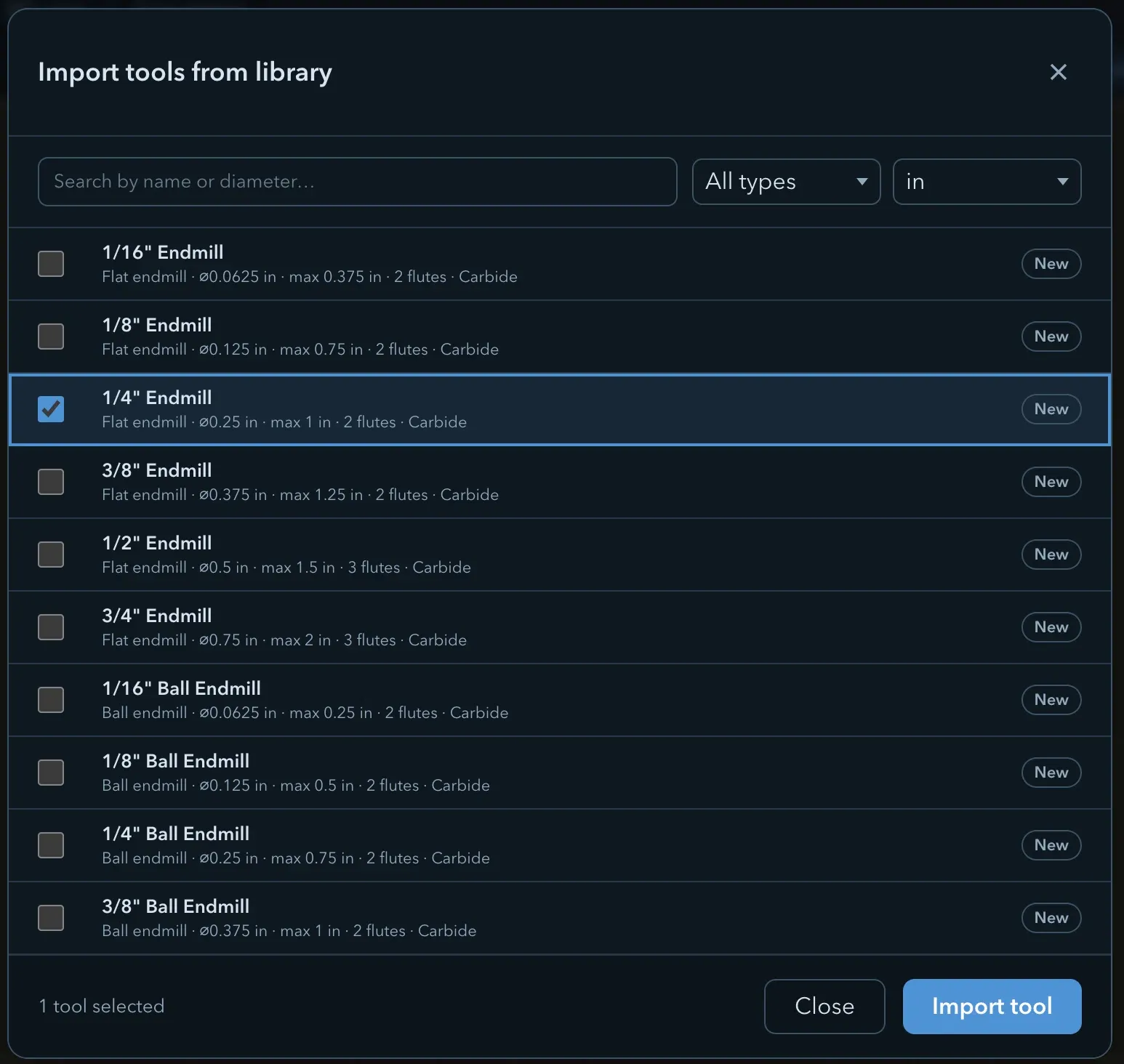
Check that the tool’s diameter and type match the cutter you will put in the spindle. Library values are a starting point, not a measurement of your tool. The Tool library page covers the dialog in detail.
Create a rough pocket operation
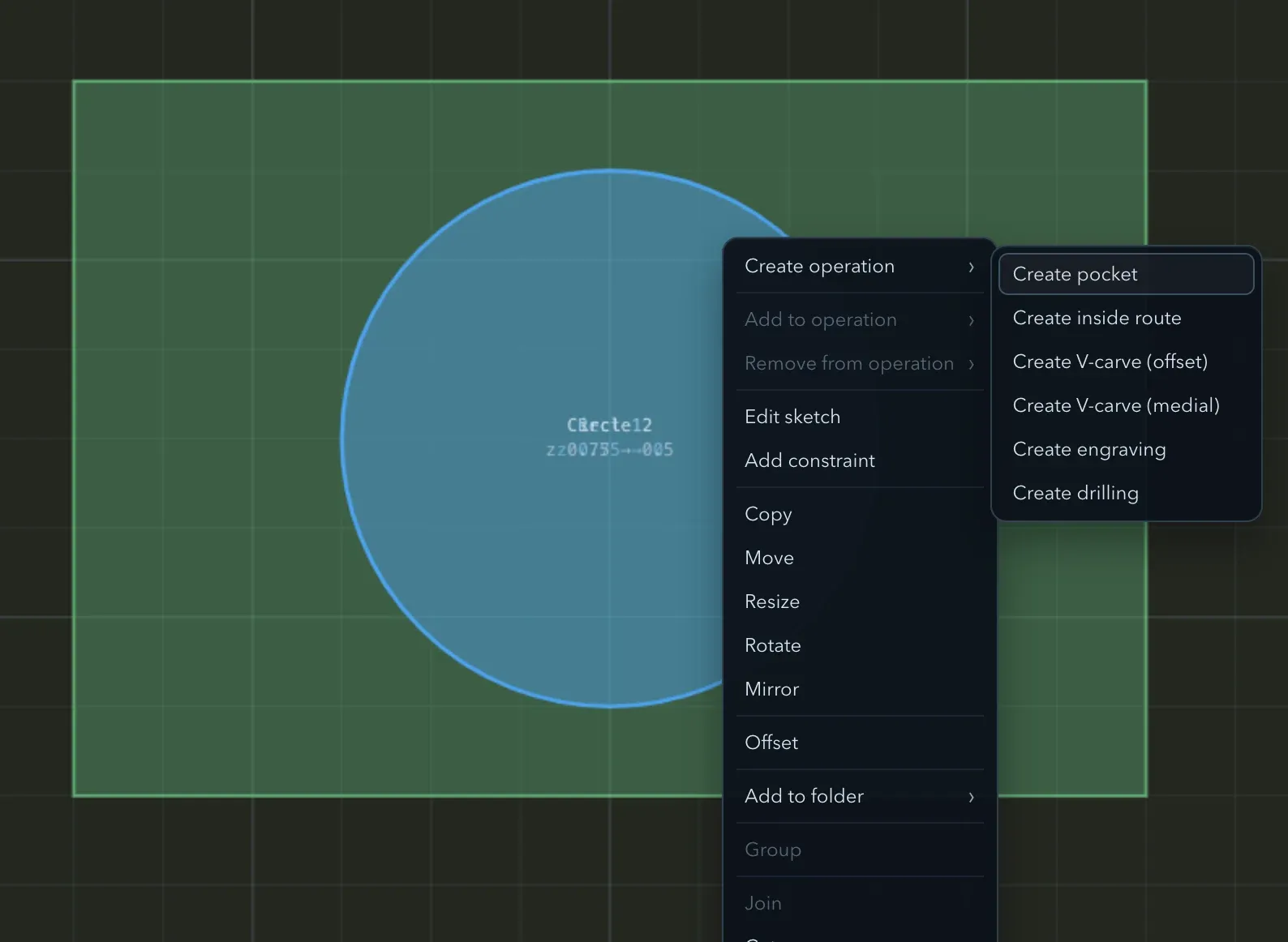
Section titled “Create a rough pocket operation”Right-click the circle on the canvas (or its row in the feature tree) and choose Create operation › Create pocket. PureCutCNC adds a rough pocket using a suitable tool from the project — for this tutorial it picks the 1/4″ Endmill you imported. The operations menu also offers Create inside route, Create V-carve (offset / medial), Create engraving, and Create drilling, each appropriate for different feature shapes.
The older route still works: select the circle, open the Operations tab, click Add, and on the Pocket row click Rough (or Finish / Both). The context menu above is the faster path when the feature is already selected.
The new Pocket Rough operation appears in the operations list, selected, with its settings below. PureCutCNC chooses a suitable tool from the project; check that Tool shows 1/4” Endmill. Then look at Stepdown under Depth, at Feed, Plunge feed, and RPM under Speeds & feeds, and at Stepover ratio under Strategy, which starts collapsed. These values start from the tool’s defaults, which are not a recommendation for your material or machine. For this walkthrough you can leave them as they are.
A new operation’s toolpath is generated and shown straight away. The eye button on the operation’s row hides and shows it.
Preview the toolpath
Section titled “Preview the toolpath”Switch between the Sketch, 3D view, and Simulation tabs above the canvas at any time.
- Sketch draws the toolpath over the features. You can still change any feature or operation here.
- 3D view draws the toolpath over the stock and the model. Drag to orbit and scroll to zoom at the pointer; the camera menu has the standard views.
- Simulation removes material from the stock along the toolpath. In Selected mode, with the operation selected, turn on Play tool and use the play button to run the tool through the cut.
The toolpath display controls choose which moves are drawn: Cuts, Lead-ins, Rapids, Plunges, Retractions, and Directions. Turn off the cuts, for example, to look at just the entry moves.
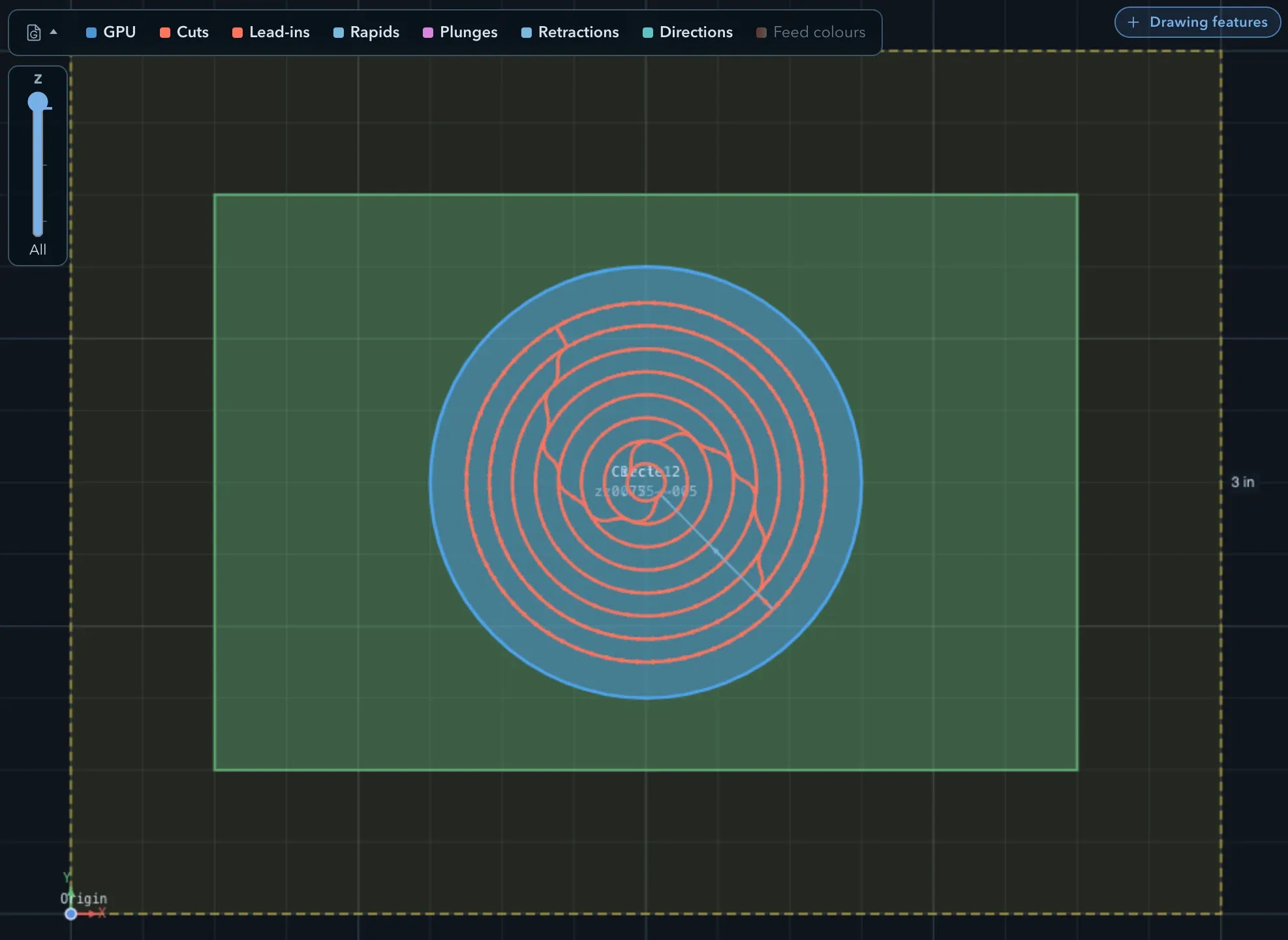
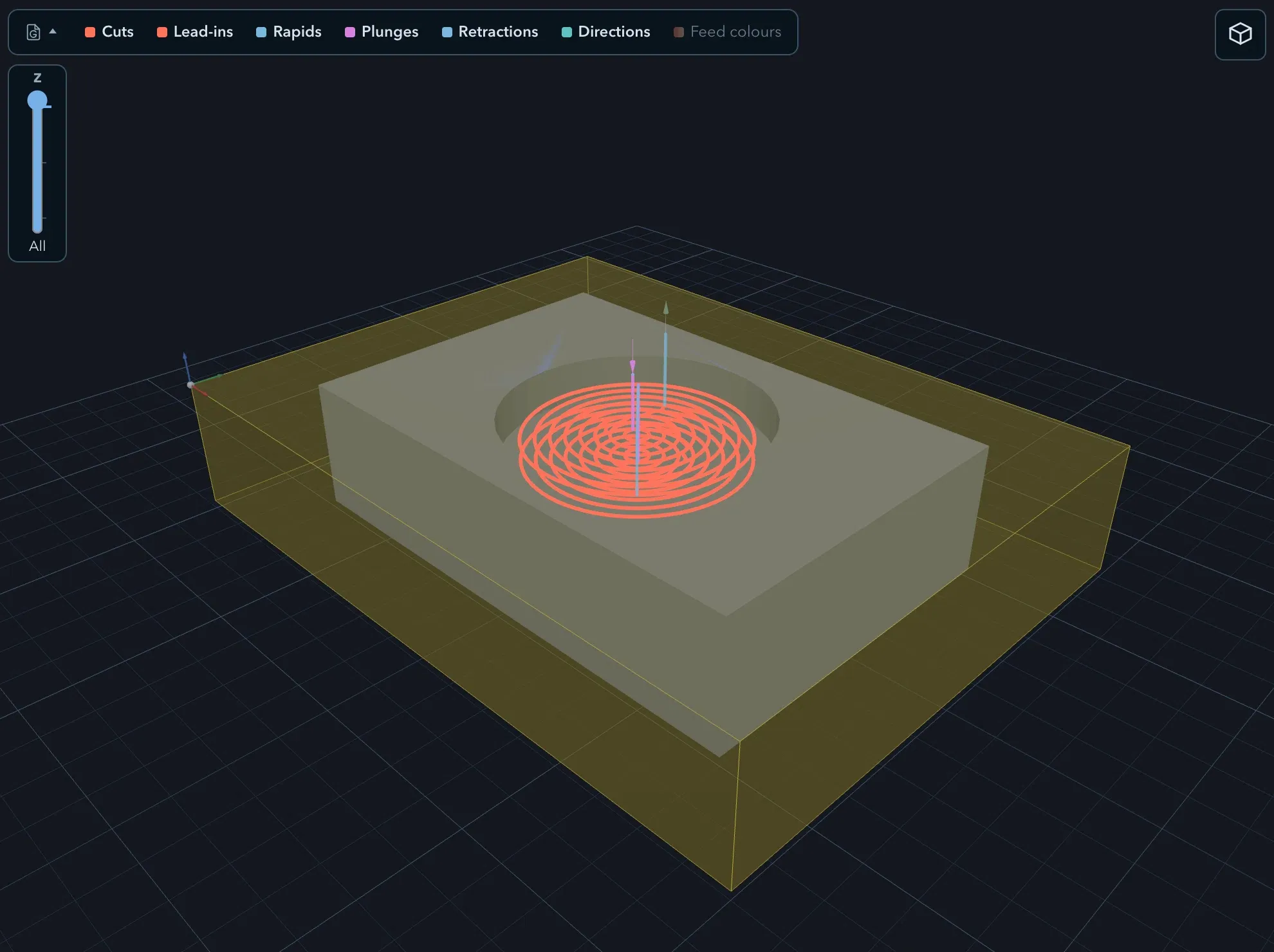
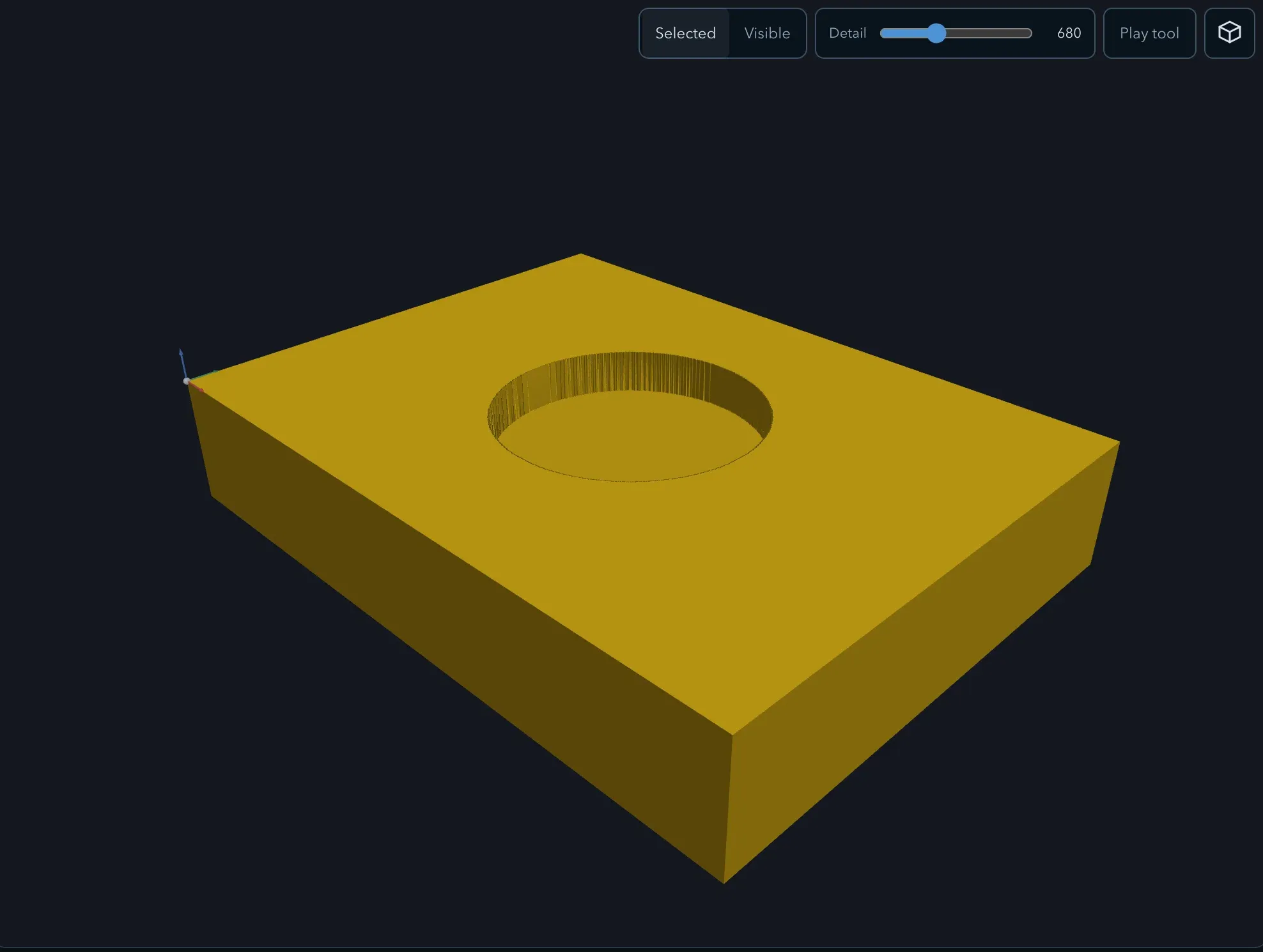
Use the preview to answer specific questions. Does the pocket stop at the floor you set? Does the toolpath stay inside the circle? Does the tool enter and leave where you expect? If anything looks wrong, go back to Sketch, change the feature or operation, and look again. The toolpath is generated again after each change.
Select a machine and export G-code
Section titled “Select a machine and export G-code”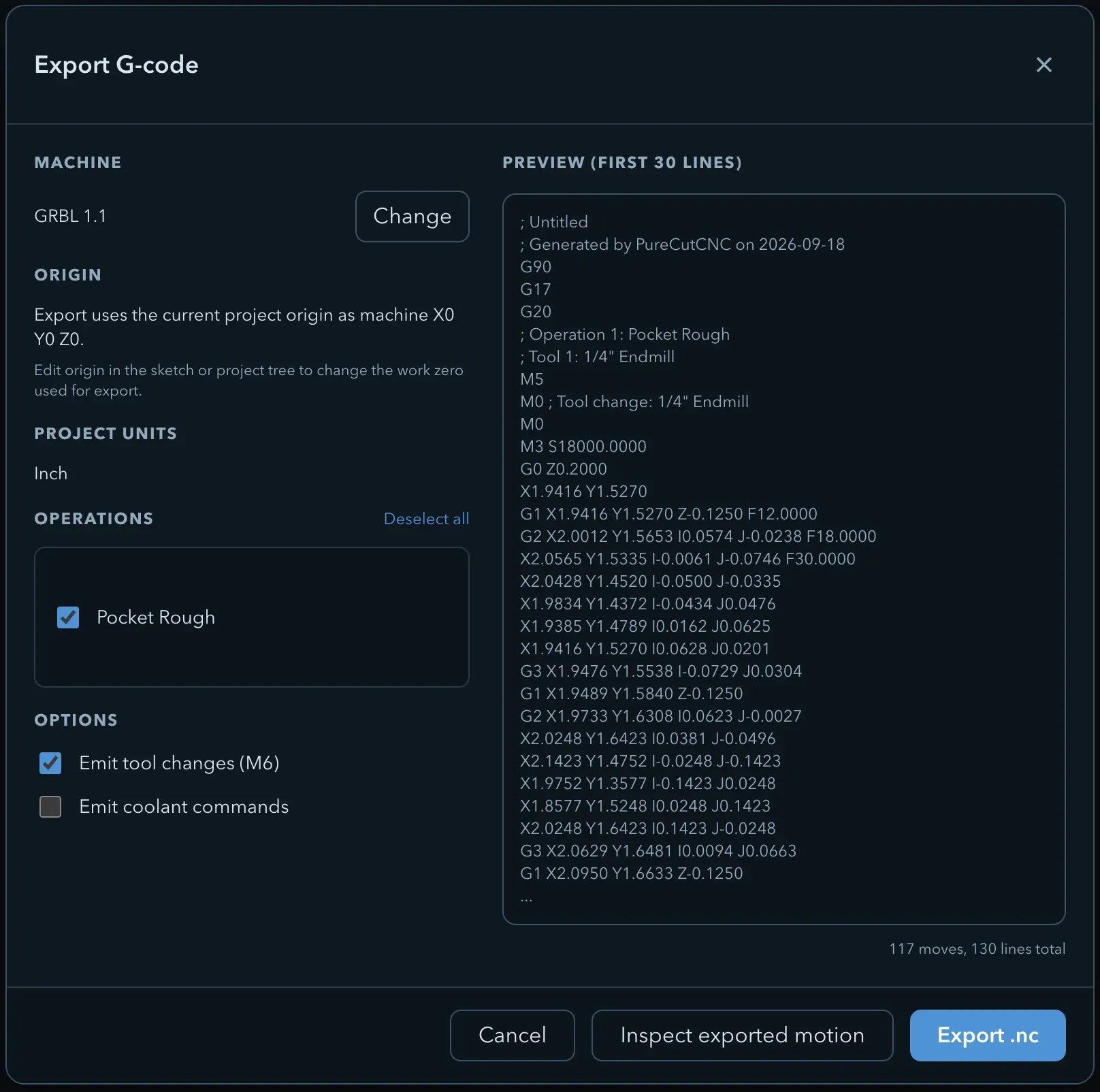
A new project has no machine. Select Project at the top of the feature tree and set Machine to the definition for your controller, for example GRBL 1.1. The machine sets the G-code dialect, the units commands, and the file extension.
In the CAM panel, click Export. The Export G-code dialog shows:
- Machine, with Change to choose a different one;
- Origin: export uses the current project origin as machine X0 Y0 Z0;
- Project units;
- Operations: the operations to export. An operation that is off or has no tool cannot be ticked. Pocket Rough starts ticked because its toolpath is shown;
- Options, any Errors and Warnings, and Preview (first 30 lines) of the program.
Check each of them, then click the export button (Export .nc for GRBL 1.1) and save the file. Open the file in your controller or a G-code viewer and compare it with your setup.
Your turn
Section titled “Your turn”You have a project with a rough pocket in a rectangular part. Each of these builds on it:
- Leave material for a finish pass. In Pocket Rough, set Stock to leave radial and Stock to leave axial so a later pass has something to clean up.
- Add a finish pass. Select the circle again and add Pocket > Finish.
- Rough the outside. Select the rectangle and, in the Add menu, click Rough on the Edge out row. This creates an Edge route outside operation.
- Finish the outside. Add Edge out > Finish on the same rectangle.
- Hold the part with tabs. Select the outside route and click Auto place tabs in its settings. See Tabs.
- Add clamps. Under Clamps in the feature tree, use Add clamp to place a clamp on each side of the stock, then check that the toolpaths clear them. See Clamps and clearances.
- Try trochoidal roughing. In the outside rough route, set Strategy to Trochoidal. See Trochoidal cutting.
- Relieve square corners. Draw a square pocket instead of the circle, add a pocket, and set Corner relief to Dogbone so a square-cornered part fits into it. See Corner rounding and relief.
Next steps
Section titled “Next steps”- Working safely: the checks that remain before any cut.
- The workspace: the views, panels, and navigation used here.
- Features, roles, and depth: how roles and Z values build the model.
- Tool library: importing and editing tools.
- Pocket: every pocket setting and pattern.