The workspace
The PureCutCNC window keeps the design, the machining setup, and the checks in one workspace. This page names its parts and explains how to move around in it.
Main idea
Section titled “Main idea”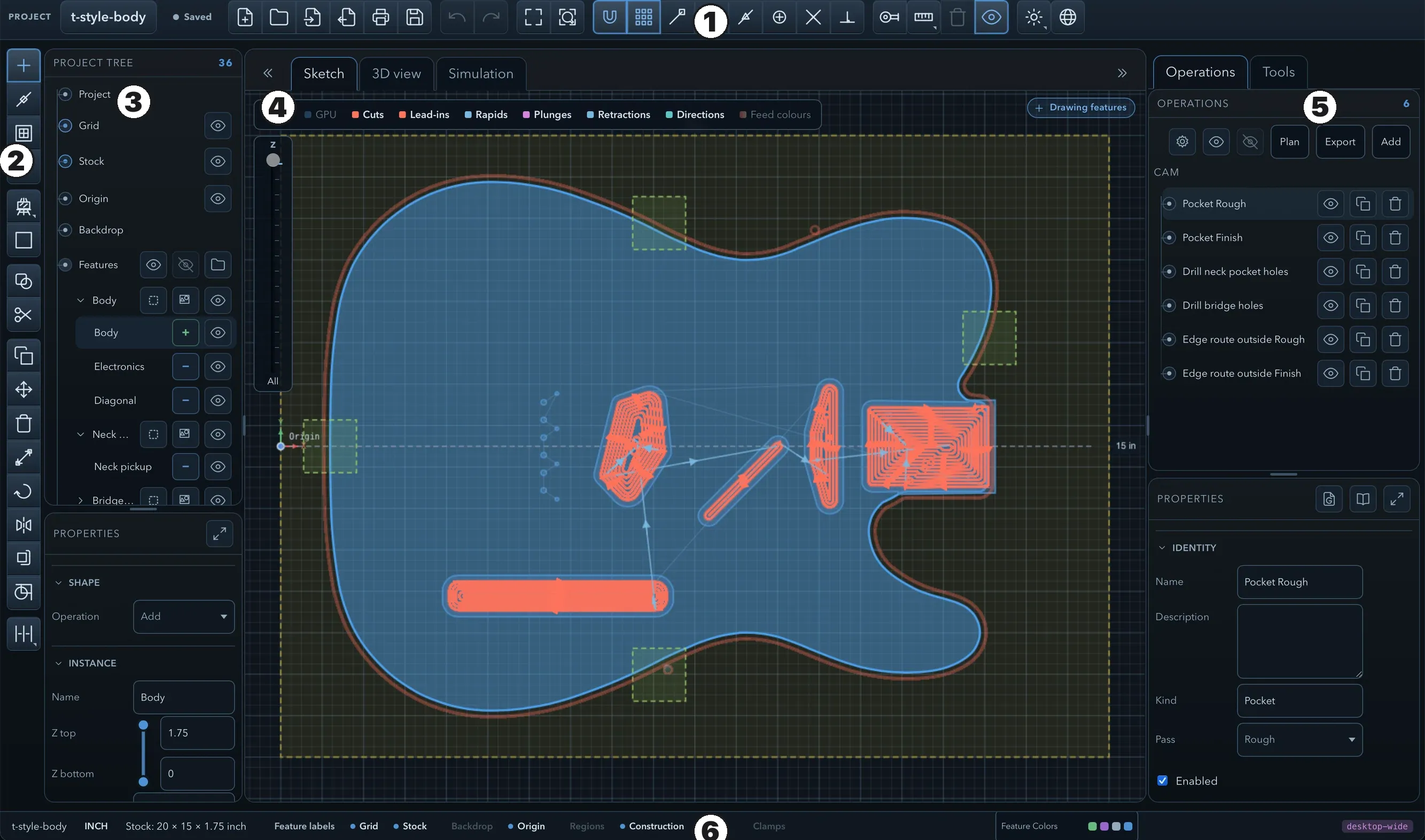
| № | Area | Where | What it holds |
|---|---|---|---|
| 1 | Top toolbar | Top | Project, history, zoom, snapping, measuring, appearance, and language controls. |
| 2 | Tool rail | Left edge | The drawing, arranging, and editing tools. |
| 3 | Project panel | Left | The Project tree and the Properties of the selection. |
| 4 | Centre | Middle | The Sketch, 3D view, and Simulation tabs. |
| 5 | CAM panel | Right | The Operations and Tools tabs, with the properties of the selected operation or tool. |
| 6 | Status bar | Bottom | Units, stock size, view toggles, and the app version. |
The buttons at either end of the tab row, Hide project panel and Hide CAM panel, fold the side panels away to give the centre more room; the same buttons show them again. The divider in each side panel changes how much height the list and the properties get. On a tablet the side panels become drawers; see Tablet and touch.
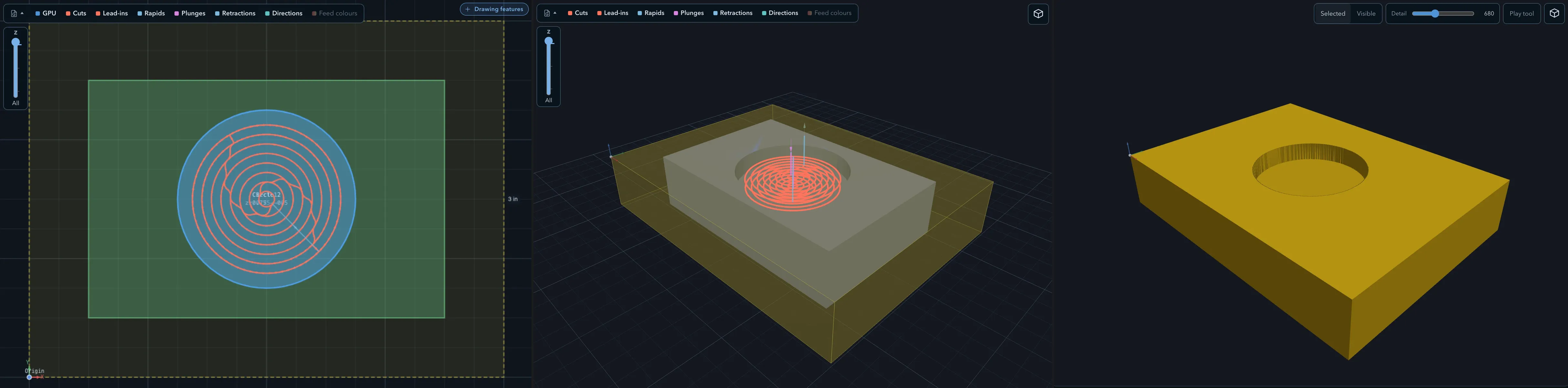
Switch views with the tabs above the centre area, or with ←, →, Home, and End once a tab has focus.
- Sketch is the 2D drawing view. Draw and edit features here, and see the toolpaths drawn over them.
- 3D view shows the stock, the solid model built from the features, imported models, and the toolpaths in 3D.
- Simulation removes material from the stock along the toolpaths, so you can see what the job will leave.
Each view answers different questions about the same project, and switching views changes nothing in it. None of them replaces checking the machine setup and the exported G-code; see Working safely.
Sketch overlays
Section titled “Sketch overlays”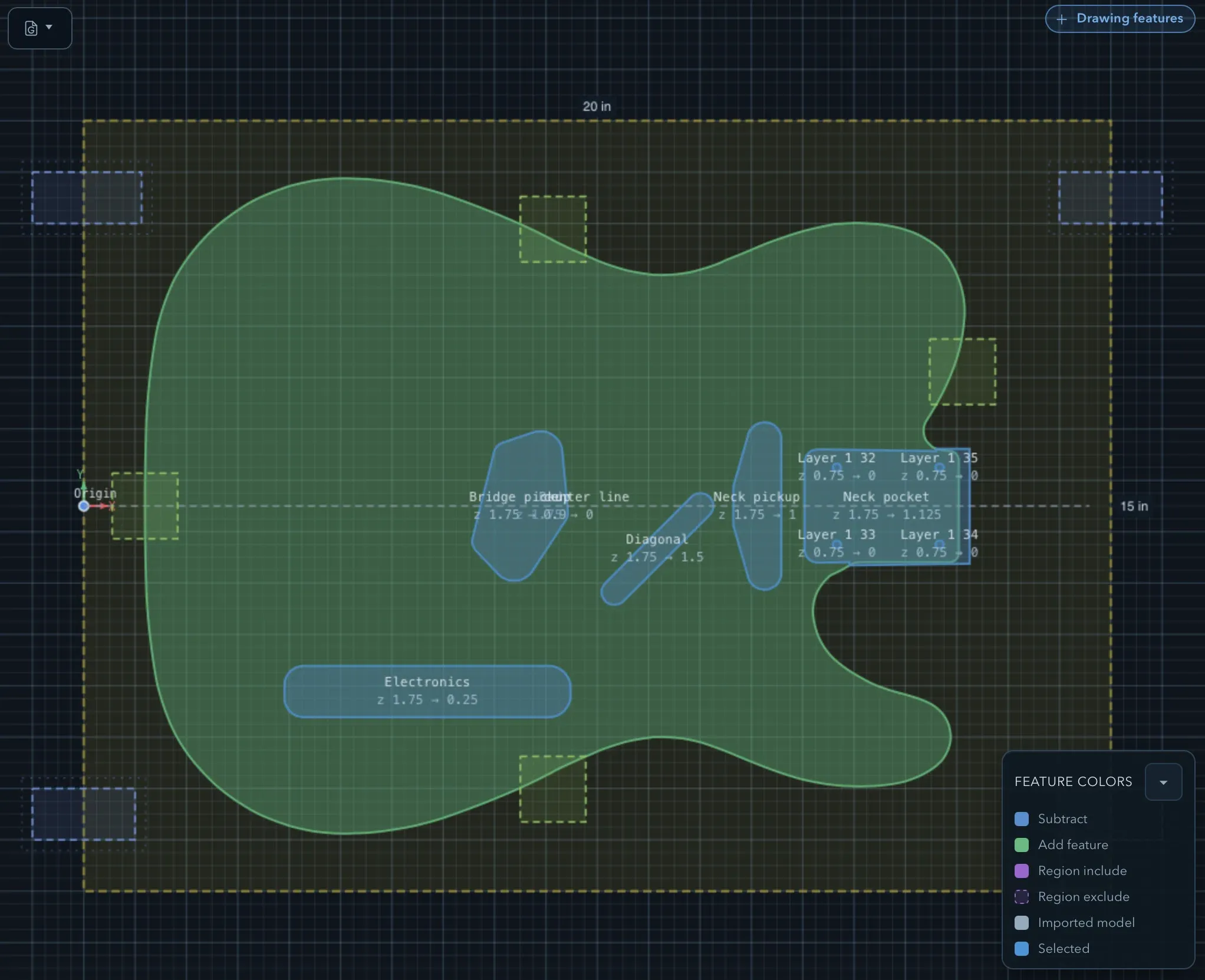
Besides your features, the Sketch view shows:
- the stock outline, with its width and height labels (click a label to resize the stock);
- the origin, marked Origin with its X and Y axes;
- the grid;
- each feature’s name and Z range, when Feature labels is on in the status bar (the same setting as Show feature info in sketch in the Project properties);
- tabs and clamps, and the toolpaths of operations whose toolpath is shown.
Features are coloured by role. The Feature colors legend on the canvas names the colours: Subtract, Add feature, Region include, Region exclude, Imported model, and Selected. Collapse the legend with Collapse legend; it then waits in the status bar.
A feature that reaches outside the stock, or whose outline crosses itself, is flagged with a warning in its properties and while you edit it (Extends outside stock, Self-intersecting profile). Clamps that a shown toolpath runs into are highlighted.
Top toolbar
Section titled “Top toolbar”From left to right:
- the project name (click it to rename the project) and the Saved or Unsaved badge;
- New project, Open project, Import geometry, Export model, Print design, and Save project;
- Undo and Redo;
- Zoom to model and Zoom selected;
- the snapping controls: Enable snapping or Disable snapping, and a button for each snap mode;
- the measuring controls: Tape measure, Add dimension, Delete dimension, and Show/hide dimensions;
- Appearance and Language.
See Projects and files, Snapping and the grid, Dimensions and constraints, Themes and appearance, and Interface languages.
Tool rail
Section titled “Tool rail”The tool rail is used in the Sketch view:
- At the top are the four creation targets ( Create features, Create lines, Create regions, Create construction geometry), the shape drawer, and a button for the last shape you used. See Drawing tools.
- Join closed features and Cut features combine and split shapes. See Offset, join, and cut.
- With features selected, the transform tools appear: copy, move, delete, resize, rotate, mirror, and offset, plus Add constraint and the Align selected features and Distribute selected features menus. See Selecting and transforming and Aligning and distributing.
- With a backdrop image selected, its move, resize, rotate, and delete tools appear instead. See Backdrop images.
The point-editing tools are not in the rail: they are in the Edit sketch panel that opens when you edit a feature. See Editing sketches.
Status bar
Section titled “Status bar”From left to right, the status bar shows:
- the project name;
- the project units (for example INCH): click to change them, see Stock, origin, and units;
- the stock size (Stock: 4 × 3 × 0.75 inch);
- the View visibility toggles: Feature labels, Grid, Stock, Backdrop, Origin, Regions, Construction, Tabs, and Clamps (a toggle is unavailable when the project has none of that item);
- the collapsed feature colour legend, when you have collapsed it;
- in the web app, the version (PureCutCNC and the version number), which opens About PureCutCNC.
These settings are saved with the project. Most only change what is drawn, but hiding clamps also removes them from clamp checking; see Feature tree and properties.
Workflow panels
Section titled “Workflow panels”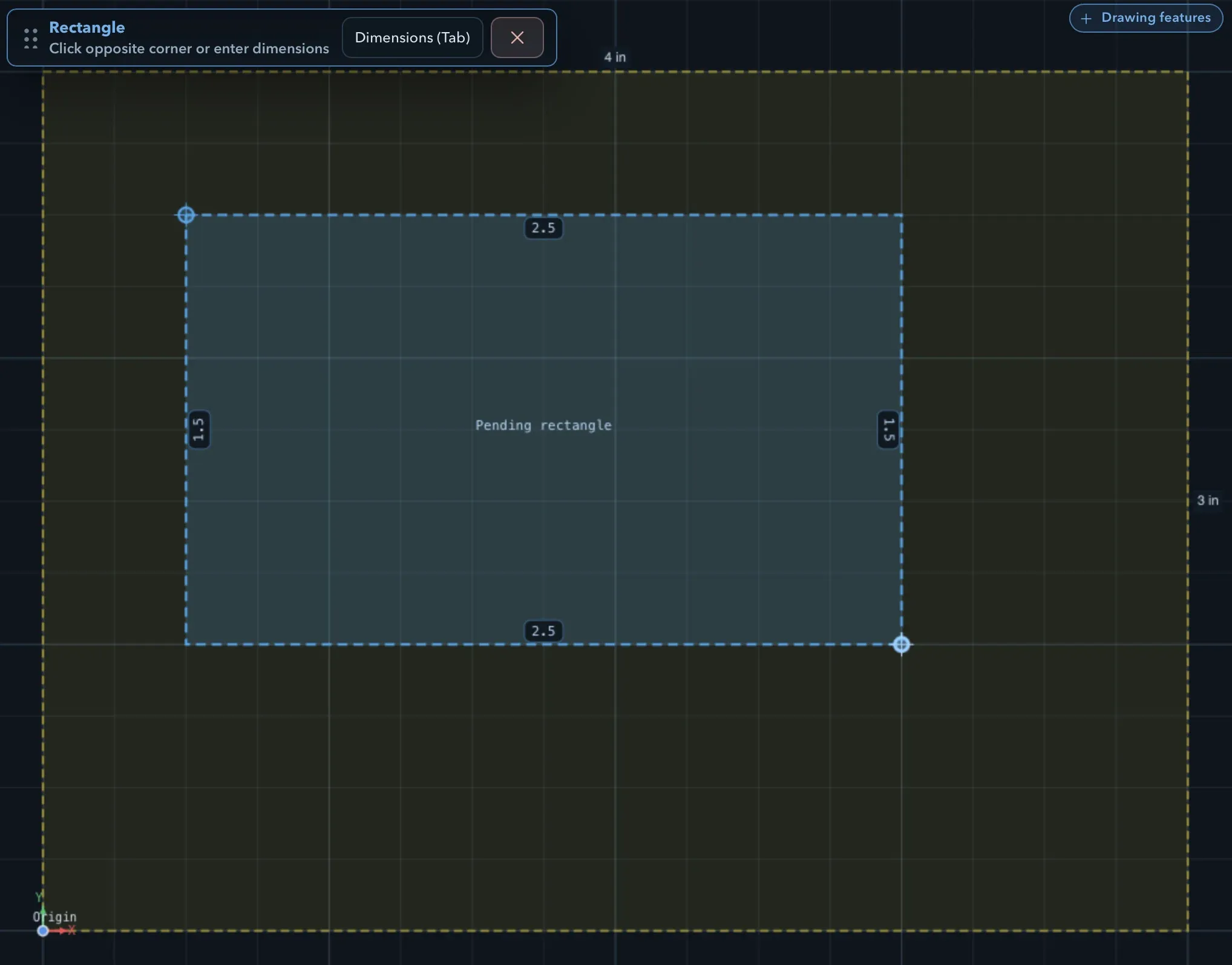
Commands that need several steps, such as drawing a shape, moving features, or joining them, show a workflow panel on the canvas. Its title names the command, a line below says what to do next (for example Click opposite corner or enter dimensions), and its buttons offer the choices for that step. Drag the panel by its handle if it covers the part of the sketch you need.
The panel’s buttons show their keys:
- Tab opens numeric entry, such as Dimensions, Distance, Scale, or Angle;
- Enter confirms, or finishes an open path;
- Esc cancels the step or the command;
- Backspace removes the last point while drawing a polygon, spline, or composite path;
- L, A, and S switch a composite path’s next segment to a line, an arc, or a spline;
- K turns Keep originals on or off.
All keys are listed on Keyboard shortcuts.
Undo and redo
Section titled “Undo and redo”Undo and Redo (Ctrl+Z and Ctrl+Shift+Z, or Cmd on macOS) step through changes to the project, such as drawing and editing features, changing properties, and adding operations or tools. A multi-step command such as a move is one undo step.
They do not cover application preferences, which are not part of the project: the appearance, the interface language, and your machine library. Zooming and panning are not undoable either.
Navigation
Section titled “Navigation”In the Sketch view:
| Action | Mouse and keyboard |
|---|---|
| Pan | Drag with the middle or right button, or Shift+drag. |
| Zoom | Scroll; the view zooms around the pointer. |
| Frame the whole project | Zoom to model. |
| Zoom to an area | Zoom selected, then drag a box around the area. Esc cancels. |
| Select | Click a feature, or drag a box on empty canvas. See Selecting and transforming. |
| Edit a feature’s points | Double-click it. Double-clicking a tab or clamp edits it. |
In the 3D view and the simulation:
| Action | Mouse and keyboard |
|---|---|
| Orbit | Drag with the left button. |
| Pan | Drag with the middle or right button, or Shift+drag. |
| Zoom | Scroll. |
| Standard views | The Camera view menu: Top view, Bottom view, Front view, Back view, Right view, Left view, Isometric view, Fit to model, and Reset view. |
Touch gestures are on Tablet and touch.
Related pages
Section titled “Related pages”- Quick Start: a first project that uses each part of the workspace.
- Features, roles, and depth: what the shapes in the Sketch view mean.
- Feature tree and properties: the project panel in detail.
- Working with operations: the CAM panel in detail.