Toolpath preview
Use the toolpath preview in the Sketch and 3D views to check the moves PureCutCNC has generated. It is a visual aid: use it with Simulation and the operation warnings before you cut.
Toolpath legend
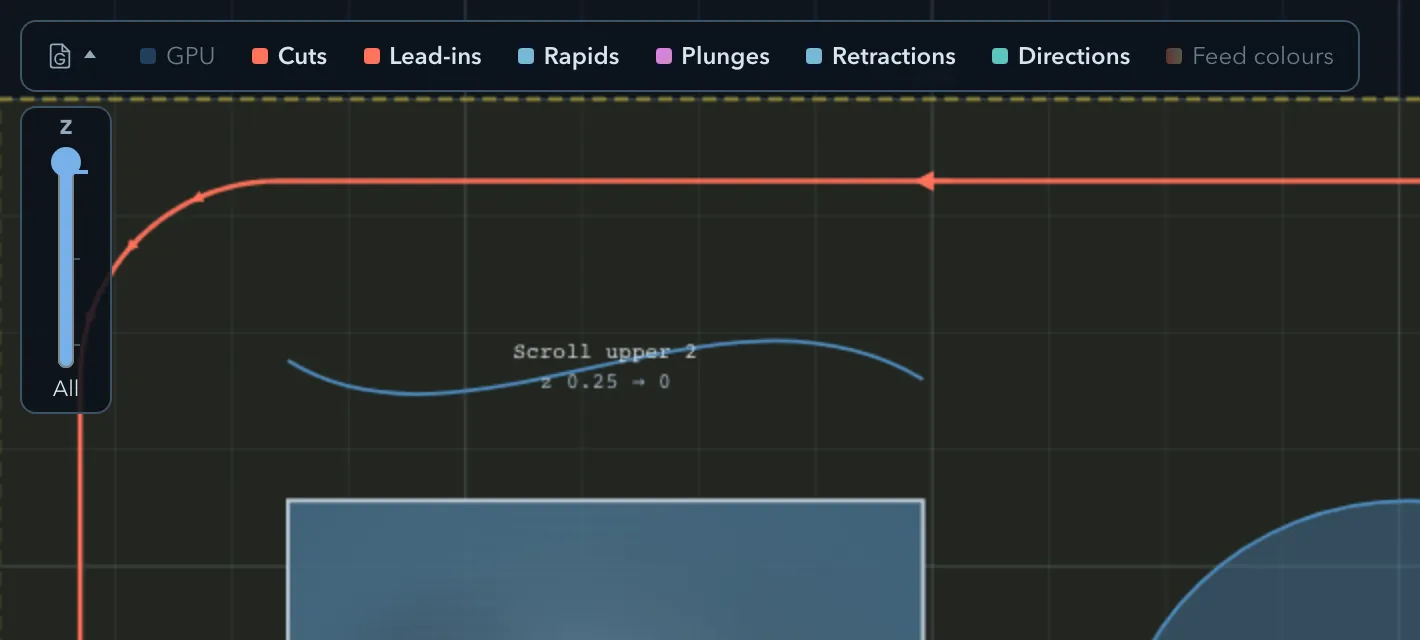
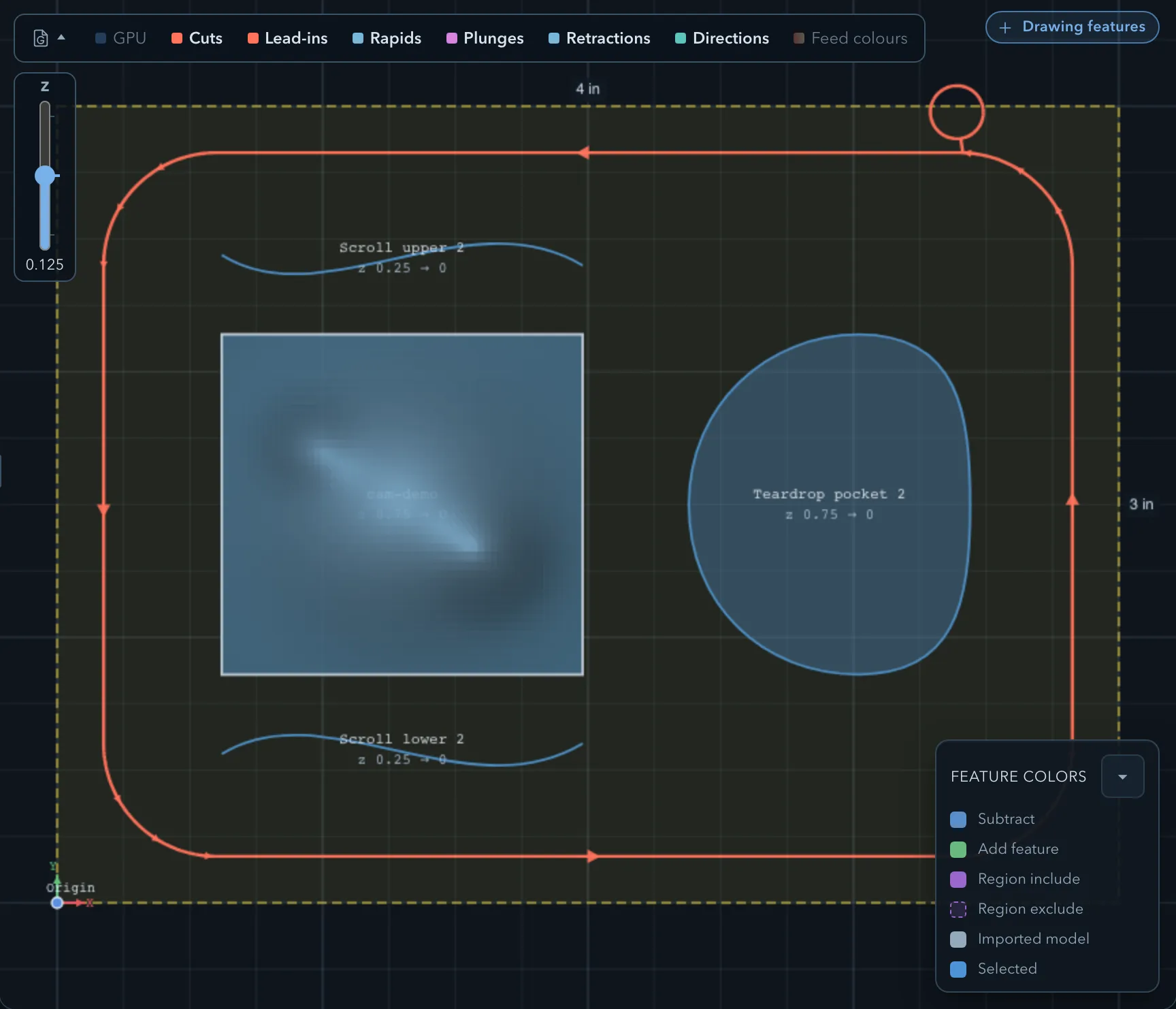
Section titled “Toolpath legend”Open the Show control in the viewport corner to choose which overlays are visible. You can independently show Cuts, Lead-ins, Rapids, Plunges, Retractions, and Directions. The same visibility choices are shared by the Sketch and 3D views. An amber overlay calls attention to a clamp collision.
Feed colours
Section titled “Feed colours”Turn on Feed colours in the legend to colour cutting moves by their programmed feed percentage. The Feed percentage key explains the colour scale. It is a quick way to find feed reductions; it does not prove that a feed is safe for your material, cutter, or machine.
Levels
Section titled “Levels”For 2.5D operations, use the vertical Toolpath level rail to isolate a cutting Z level. Choose All to restore every level. The same level filter is available in the 3D view, so you can inspect that one pass from another angle. This filter changes only the preview, not the generated toolpath or exported G-code.
Renderer
Section titled “Renderer”The 2D renderer control switches between Canvas and GPU rendering. If panning or zooming a dense preview is slow, the app can offer Enable GPU. If GPU rendering cannot start, it reports GPU unavailable; using Canvas. and leaves the Canvas preview available; use Retry GPU after the underlying issue is resolved.
Warnings
Section titled “Warnings”Read warnings in the operation properties and in the export dialog before relying on a preview. A warning identifies something to inspect; it does not necessarily prevent export. Errors are shown separately and can disable export until the underlying problem is corrected. See Warnings and messages when that reference page is available.
Related pages
Section titled “Related pages”- 3D view: inspect the stock, model, and toolpaths in three dimensions.
- Simulation: replay material removal before making a part.