Projects and files
A project holds everything about one job: the stock, origin, and units, the features, the tools,
the operations, the selected machine, and the tabs and clamps. It is saved as a single .camj file.
Create a new project
Section titled “Create a new project”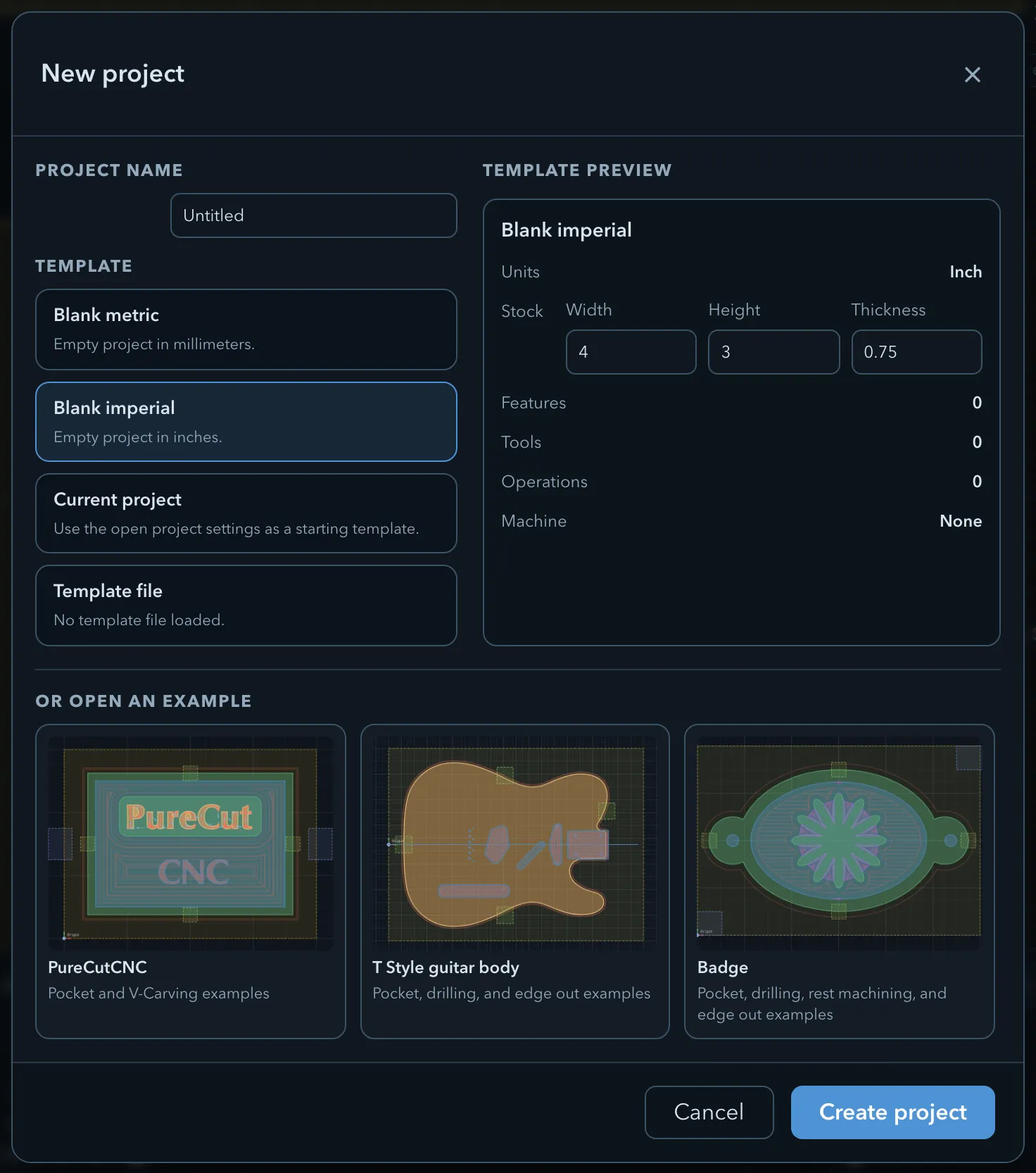
-
Click New project in the top toolbar.
-
Enter a Project name, then choose a Template:
Template Starts with Blank metric An empty project in millimetres. The stock defaults to 100 × 80 × 20 mm. Blank imperial An empty project in inches. The stock defaults to 4 × 3 × 0.75 in. Current project The open project’s setup (units, stock, origin, grid, tools, and machine) without its features, operations, tabs, or clamps. Template file The same setup, taken from a .camjfile you load. -
Check the Template preview. It lists the Units, Stock, Features, Tools, Operations, and Machine the new project starts with. For a blank template, enter the stock Width, Height, and Thickness in the template’s units. Each must be greater than zero. The other templates take the stock from the project or file they copy.
-
Click Create project.
Then check the stock, origin, and units; see Stock, origin, and units.
If the open project has unsaved changes, PureCutCNC asks You have unsaved changes. Discard them and continue? before it replaces the project. Cancel and save first if you want to keep them.
Examples
Section titled “Examples”The New project dialog also lists bundled examples under Or open an example:
| Example | Shows |
|---|---|
| PureCutCNC | Pocket and V-carving |
| T Style guitar body | Pocket, drilling, and edge route outside |
| Badge | Pocket, drilling, rest machining, and edge route outside |
The same examples appear on the Start your part card that an empty workspace shows, next to Draw a shape and Import a file. An opened example is an ordinary project: save it under a new name if you want to keep the original unchanged.
Open and save
Section titled “Open and save”-
To open a project, click Open project and choose a
.camjfile. -
To save, click Save project. The button is highlighted while there are unsaved changes.
-
In the desktop app, File > Save writes to the file you opened or last saved, and File > Save As… saves under a new name or location.
In a browser, every save asks where to save the file, or downloads it if the browser cannot show a save dialog. The browser does not remember the file you opened, so choose the same file to replace it.
On a tablet, projects are saved with the extension .camj.json, because tablet file pickers do not
recognise .camj. PureCutCNC opens both.
Project name and format
Section titled “Project name and format”The project name is shown at the left of the top toolbar, followed by Saved or Unsaved. Click the name to rename the project. The name is also the suggested file name when you save and when you export G-code.
A .camj file contains the whole job, including the machining setup and a copy of the selected
machine definition, so another PureCutCNC user can open it and export the same G-code. Your
appearance, language, and machine library are not part of the project. The file contents are
described on File formats.
Related pages
Section titled “Related pages”- Stock, origin, and units: set up the job after you create the project.
- Install and open PureCutCNC: the desktop menus and the Start your part card.
- Importing SVG, DXF, and projects: bring features in from another project.
- Quick Start: a first project from a blank template to G-code.