Exporting models and printing
Use Export model to save a 3D STL or 2D SVG, and Print design to make a paper reference from the sketch.
Before you start
Section titled “Before you start”- Ensure the visible features represent the geometry you want to share.
- Check project units and dimensions before sending a model or printed plan to another workflow.
Export a model
Section titled “Export a model”-
Open Export model.
-
Choose a Format, enter a File name, and set the format-specific options.
-
Read Summary, Warnings, or Error messages. Resolve No solid geometry to export — add visible features first. before exporting an STL.
-
Choose Export .stl or Export .svg, then choose a location.
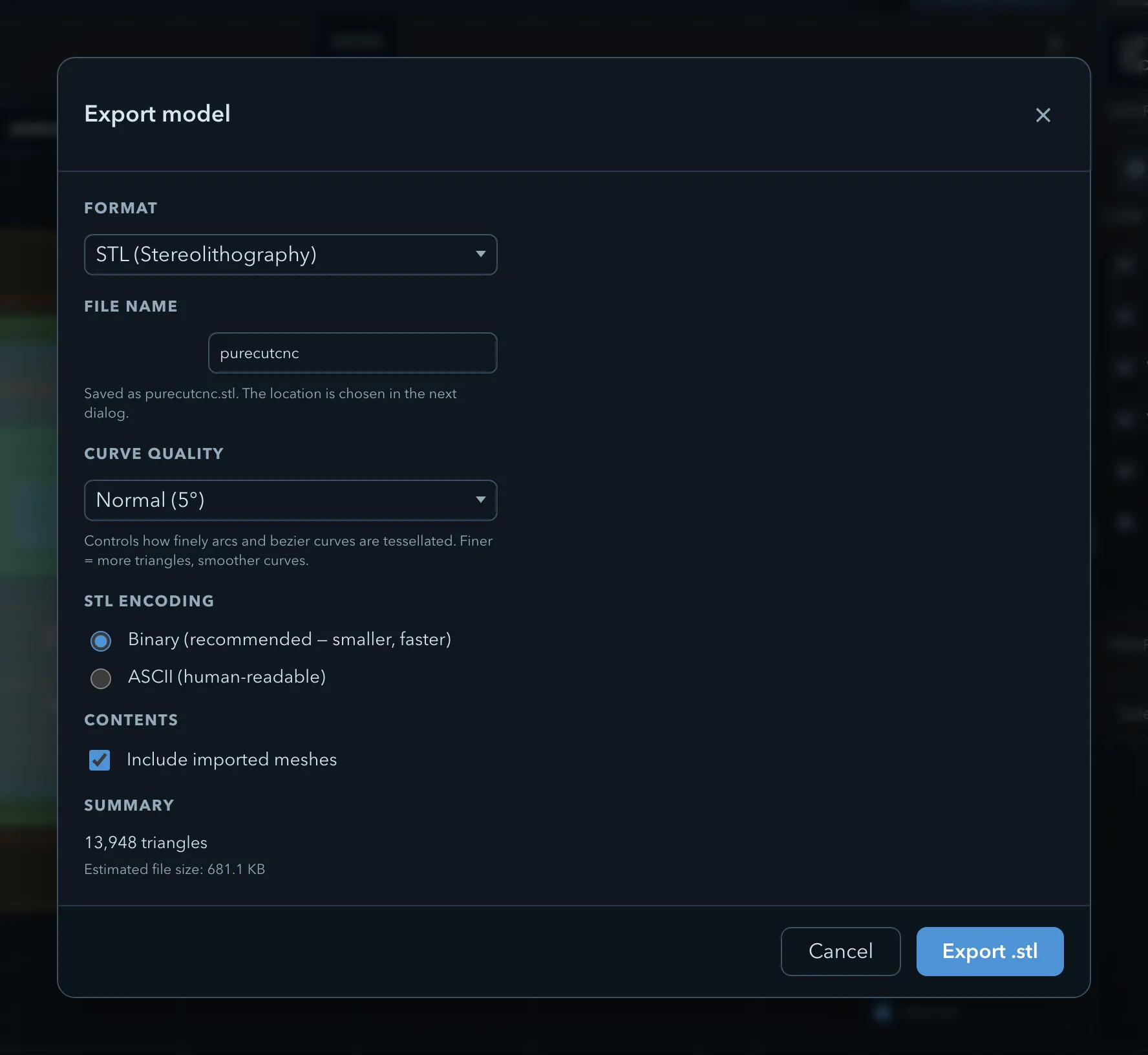
Choose STL encoding as Binary (recommended — smaller, faster) or ASCII (human-readable). Set Curve quality to control how finely curves are tessellated; finer settings create more triangles. Use Include imported meshes only when those meshes belong in the output.
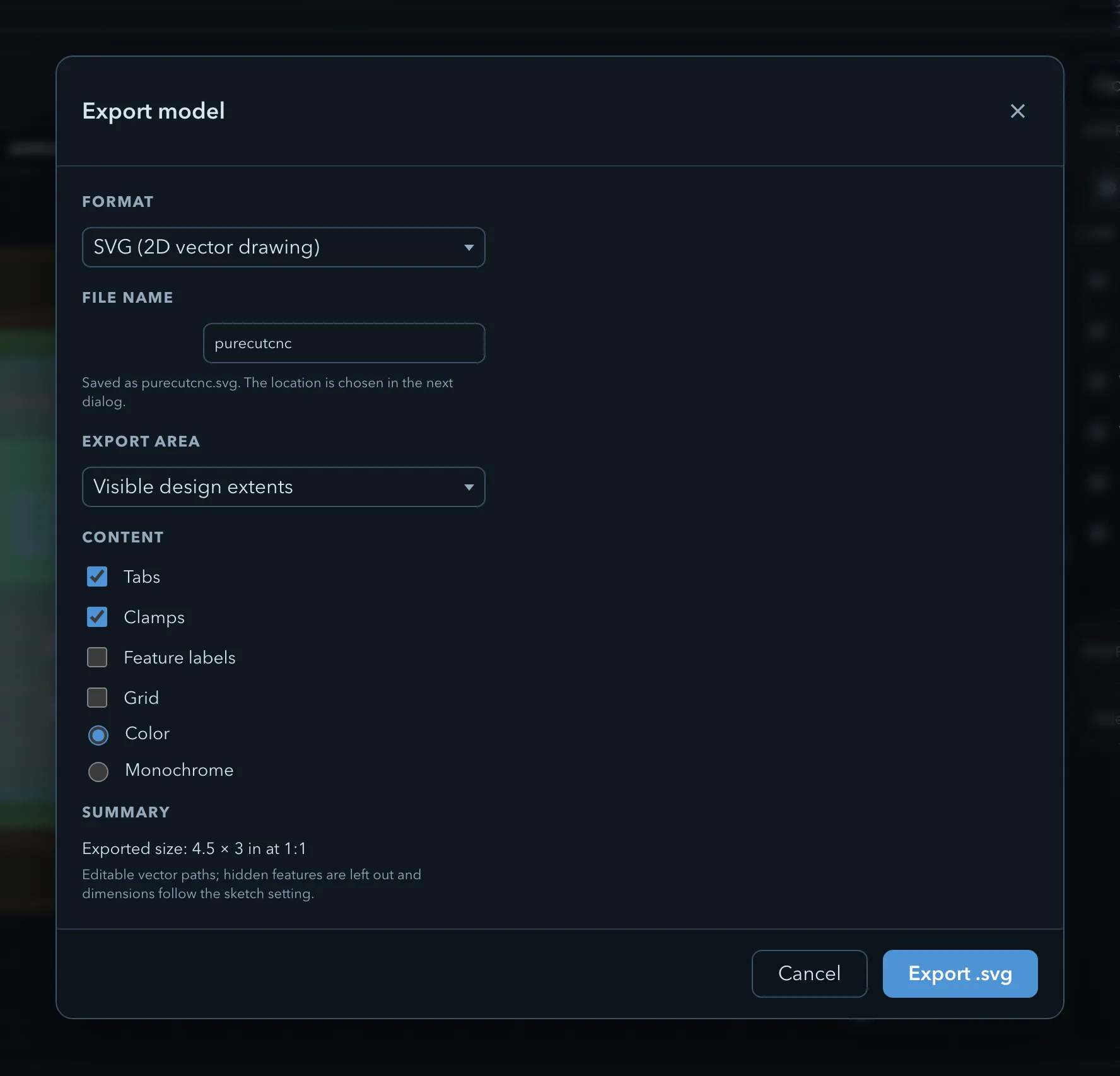
SVG is a 2D vector export. Choose the Export area, then select the required Content such as Tabs, Clamps, Feature labels, Grid, and Color or Monochrome. The summary reports the exported size at 1:1.
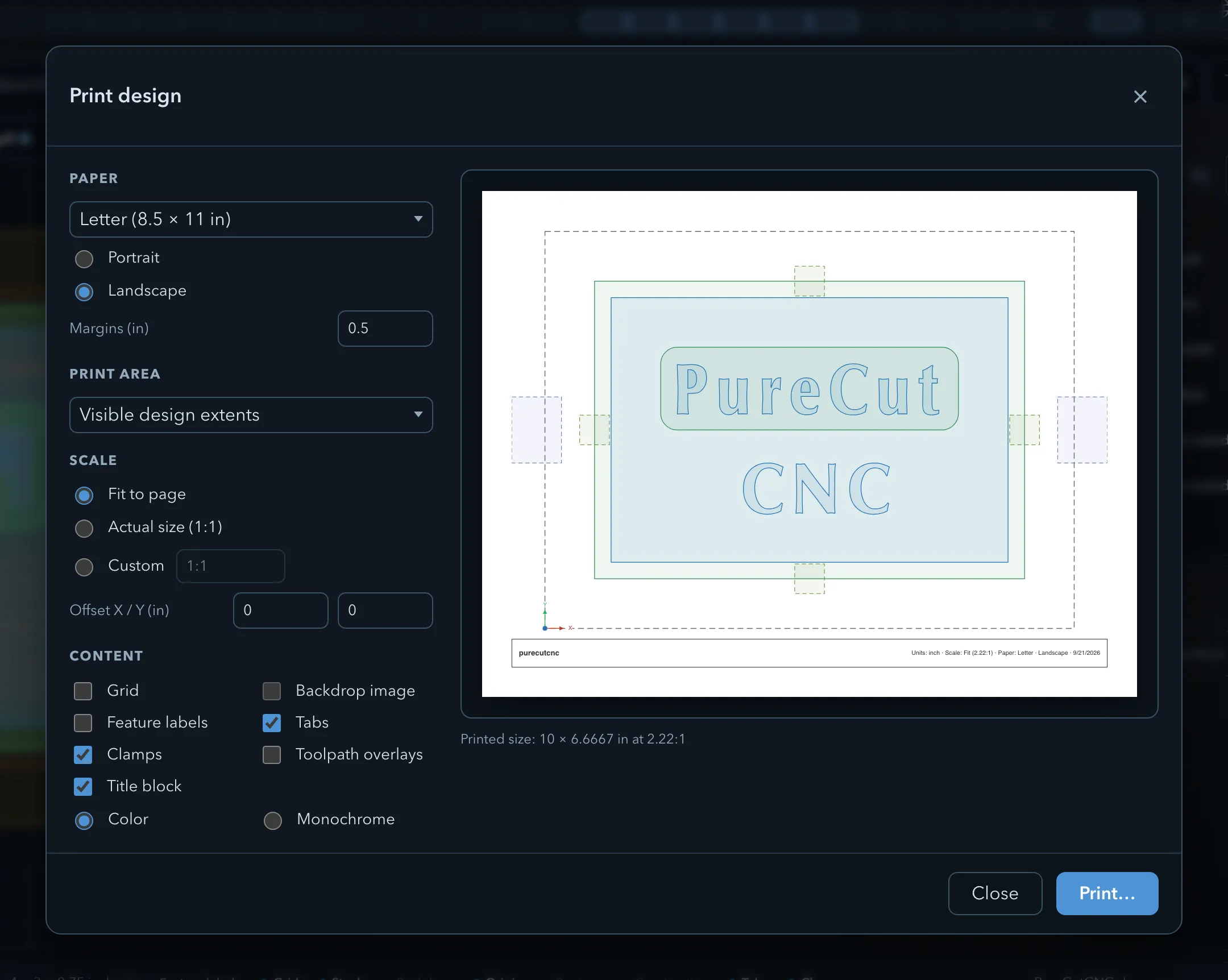
Open Print design to choose Paper, orientation, margins, Print area, Scale, and X/Y offsets. Its Content options include Grid, Backdrop image, Feature labels, Tabs, Clamps, Toolpath overlays, Title block, and Color or Monochrome. Use Print… only after checking the reported printed size and any clipping warning.
Related pages
Section titled “Related pages”- Importing 3D models: bring supported models into a project.
- 3D view: inspect the model before exporting it.