CAM Plan
Use CAM Plan to make a starting set of operations from the features already in your project. It proposes compatible operations and tools, but does not create or change operations until you review the plan and choose Create operations.
Before you start
Section titled “Before you start”- Set up the stock and create the features you intend to machine. CAM Plan bases its recommendations on their role, closed shape, depth, and whether they reach the stock bottom.
- See How features become toolpaths for why those feature properties affect the available recommendations.
- Add suitable tools to the project or keep the bundled tool library available. A proposed operation needs a compatible tool with enough cutting depth before it can be created.
- Read Working safely before preparing a job for a real machine.
Create a CAM Plan
Section titled “Create a CAM Plan”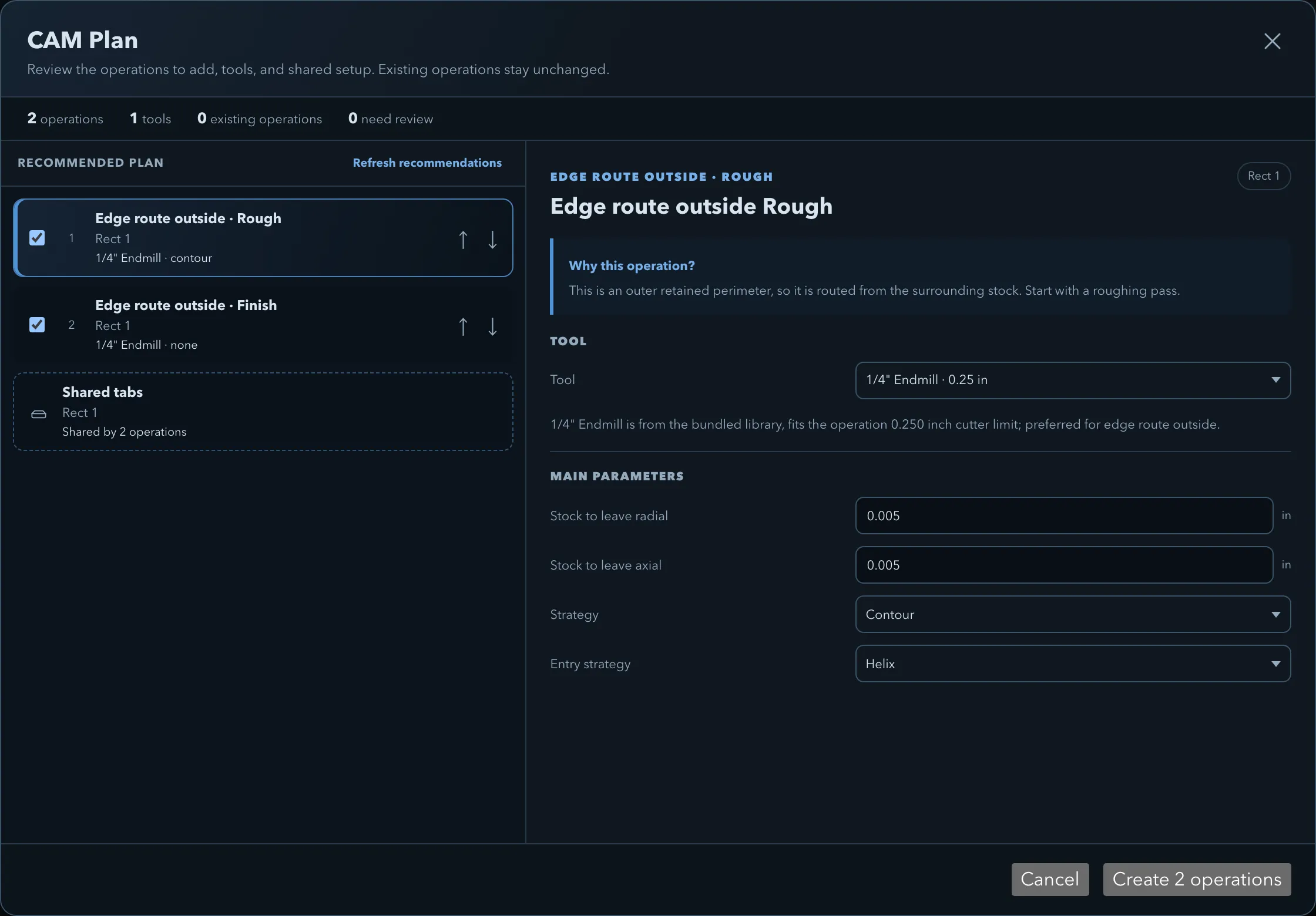
-
Open the CAM panel and select Plan. The CAM Plan dialog opens with a summary of proposed operations, tools, existing operations, and features that need review.
-
Read each item in Recommended plan. CAM Plan can suggest rough and finish passes for pockets and edge routes, drilling for matching circular subtracts, surface operations for supported imported models, and shared tabs for matching separating edge cuts. Existing operations stay unchanged.
-
Select a proposed operation to inspect its reason, tool choice, target, and main parameters. Change values where the proposal does not match your material, cutter, machine, or intended result.
For pockets, edge routes, follow-line cuts, and 3D roughing and finishing, automatic tool choices aim to stay within 1/4 in (6.35 mm) and may use a smaller cutter based on the target’s size. A 6 mm cutter fits under this ceiling in a metric project. Outside edge routes use up to 15% of the target’s shorter side; the other listed operations use up to 20%. CAM Plan also checks tool type and cutting depth. A tool already in the project is preferred when suitable; otherwise CAM Plan can propose one from the bundled library. The tool explanation shows the limit used for that proposal.
For circular subtracts, a matching drill follows the hole size. If no matching drill is available, CAM Plan can recommend helical drilling with a flat endmill no larger than 1/4 in (6.35 mm), provided the cutter can orbit inside the hole and the hole diameter is no more than twice the cutter diameter. A larger circle is recommended as a Pocket when blind, or an Edge route inside when it reaches the stock bottom, subject to a suitable tool being available.
This is a recommendation, not a safe-cut guarantee. CAM Plan filters out tools that exceed its calculated size limit and may leave a feature for explicit review if none qualifies. Operations created directly through Add or a feature’s Create operation menu can instead fall back to the smallest compatible available tool, even if it is larger than 1/4 in. V-carving and surface cleaning do not use this diameter ceiling. Always check the actual tool and whether it can enter the target before creating or machining the operation.
-
Clear an operation’s inclusion checkbox to leave it out. If the plan lists a feature under Needs explicit review, either enable an operation that covers it or confirm that no created operation will cover that feature.
-
Use Refresh recommendations after changing the project or when an operation’s rest pass is marked stale. Move an operation only when its dependencies still allow the order; the dialog prevents moves that would place an operation before one it depends on.
-
Check shared tab dimensions and whether tabs are enabled for every separating edge cut. Then select Create operations to add the included, valid operations together.
Related pages
Section titled “Related pages”- Tool library: add or inspect the tools CAM Plan can choose from.
- Working with operations: adjust operations after creating them from a plan.
- Tabs: decide where separating cuts need tabs and how to configure them.
- Choosing an operation: learn which operation fits each feature and machining goal.