Aligning and distributing
The Align selected features and Distribute selected features menus in the tool rail line up and space existing features. The distribute menu also creates patterns of new copies with Feature distribution, nests parts on the stock, and holds Text layout (see Text).
Before you start
Section titled “Before you start”- Select the features to arrange. Locked features are left out of aligning and distributing, and a selection that includes a locked feature cannot be used for feature distribution.
- Distribute selected features appears in the tool rail once features are selected, and Align selected features once two or more are.
Select two or more unlocked features, open Align selected features, and choose:
| Command | Moves each feature so that |
|---|---|
| Align left | its left edge is on the leftmost edge of the selection. |
| Align center horizontally | its centre is on the horizontal centre of the selection. |
| Align right | its right edge is on the rightmost edge of the selection. |
| Align top | its top edge is on the topmost edge of the selection. |
| Align center vertically | its centre is on the vertical centre of the selection. |
| Align bottom | its bottom edge is on the lowest edge of the selection. |
Edges are the features’ bounding boxes. The reference is the box around the whole selection, so the outermost feature does not move.
Distribute evenly
Section titled “Distribute evenly”Select three or more unlocked features, open Distribute selected features, and choose:
| Command | Result |
|---|---|
| Distribute horizontally (equal gaps) | Equal space between the features, left to right. |
| Distribute horizontally (equal centers) | Equal distance between the features’ centres, left to right. |
| Distribute vertically (equal gaps) | Equal space between the features, top to bottom. |
| Distribute vertically (equal centers) | Equal distance between the centres, top to bottom. |
The first and last feature stay where they are; the ones between them move.
Feature distribution
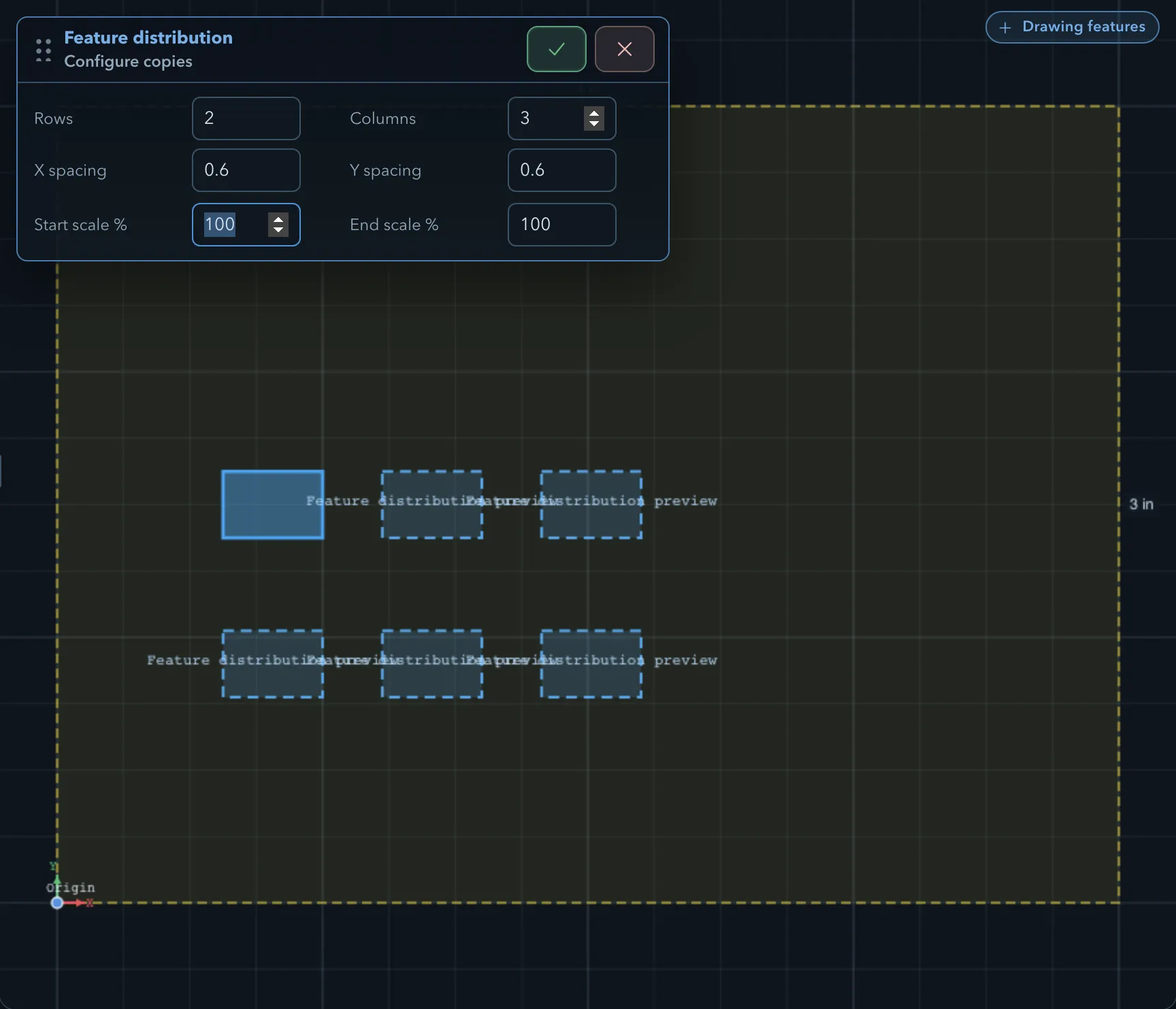
Section titled “Feature distribution”Feature distribution makes a pattern of copies of the selected features in one step: a grid, a circle, or a row along a path. The copies are ordinary linked copies, not a pattern that updates later, and the whole distribution is one undo step. The selected features and any guide are not changed. Imported models cannot be distributed.
-
Select the features to copy.
-
Open Distribute selected features and choose Grid, Radial, or Along path.
-
Set the pattern in the Feature distribution panel (see below). The canvas previews the copies, and the panel reports anything that stops the pattern.
-
Click Create copies.
| Setting | Description |
|---|---|
| Rows, Columns | The grid size, counting the original, which is the top-left cell. At least two cells. Default 1 row and 2 columns. |
| X spacing, Y spacing | The distance between neighbouring cells, to the right and downwards in the Sketch view. Default 2 in or 20 mm. |
Radial
Section titled “Radial”| Setting | Description |
|---|---|
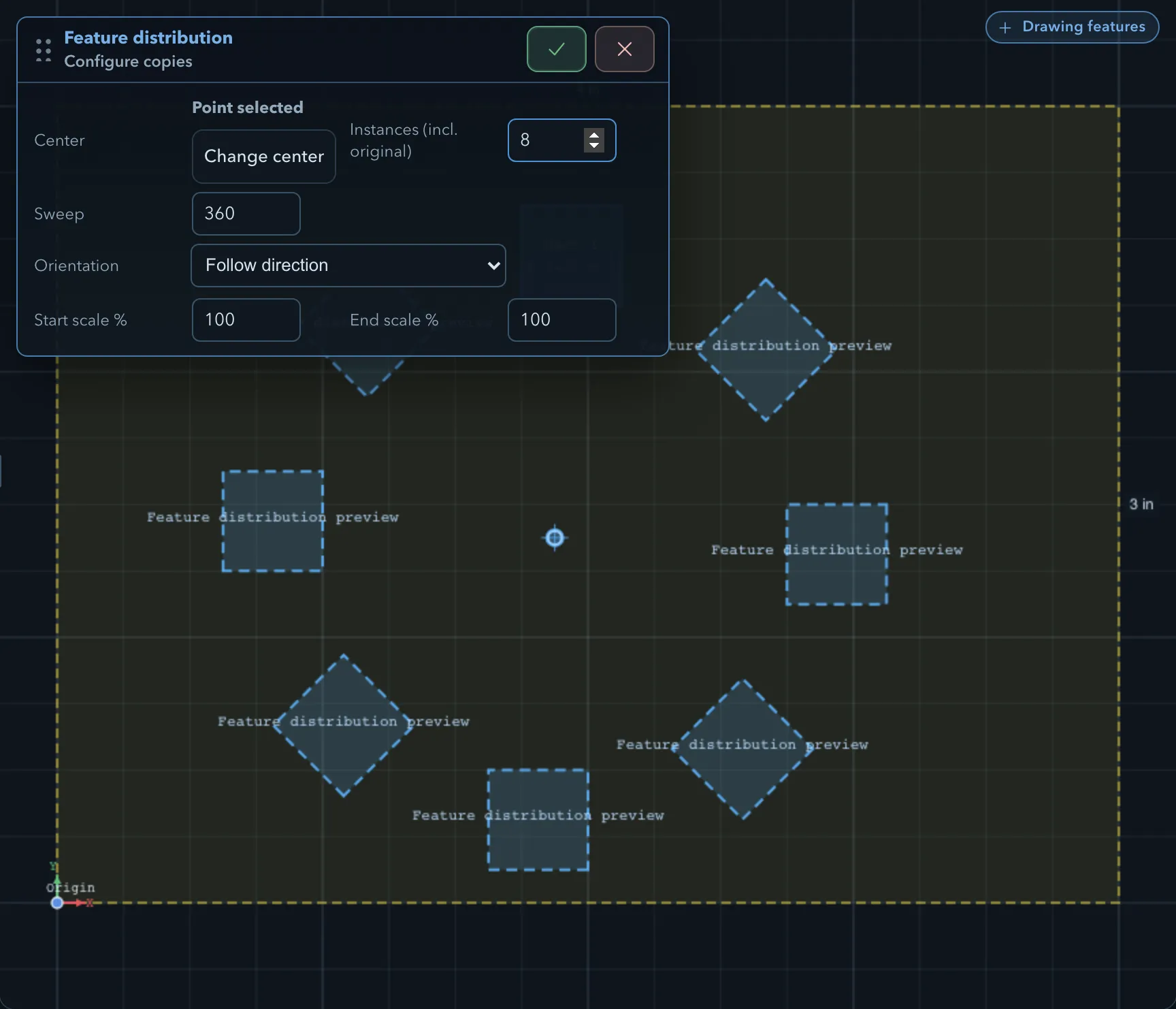
| Center | Click Pick center, then click the centre on the sketch. Required, and it cannot be the centre of the selection itself. |
| Instances (incl. original) | The number of positions, counting the original. Default 4. |
| Sweep | The angle the pattern covers, in degrees. Default 360. |
| Orientation | Follow direction turns each copy with the circle (the default); Fixed keeps the original’s rotation. |
The radius and start angle come from where the selection sits relative to the centre. A full 360° sweep spaces the instances evenly around the circle; a smaller sweep puts the first and last instances at its ends.
Along path
Section titled “Along path”| Setting | Description |
|---|---|
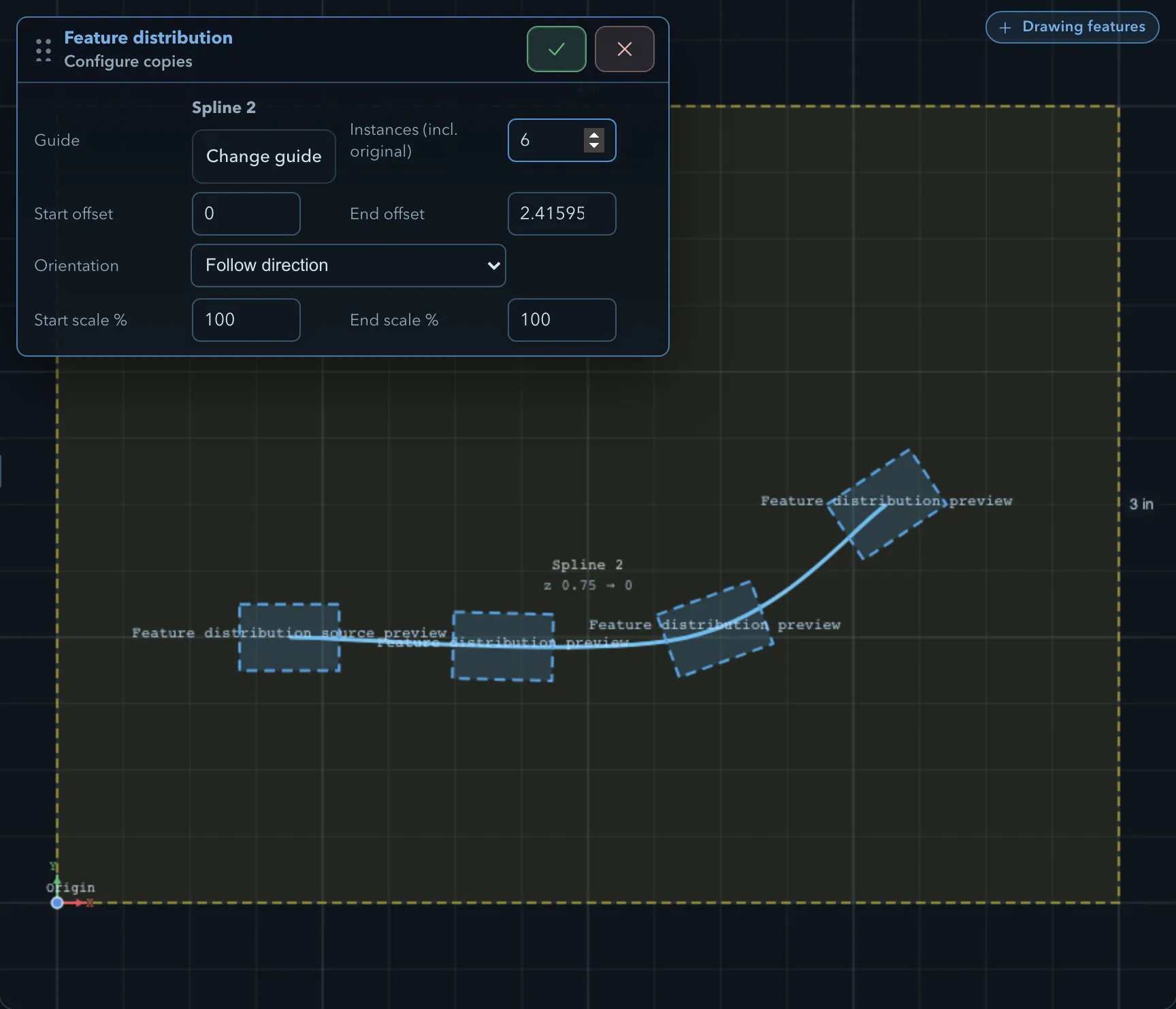
| Guide | Click Pick guide, then click a separate outline on the sketch: a line, arc, spline, composite path, or closed shape. |
| Instances (incl. original) | The number of positions along the guide. Default 4. |
| Start offset, End offset | How much of the guide to leave unused at each end. |
| Orientation | Follow direction turns each copy with the guide (the default); Fixed keeps the original’s rotation. |
Copies are placed at equal distances along the guide. Construction geometry works well as a guide.
Scale taper
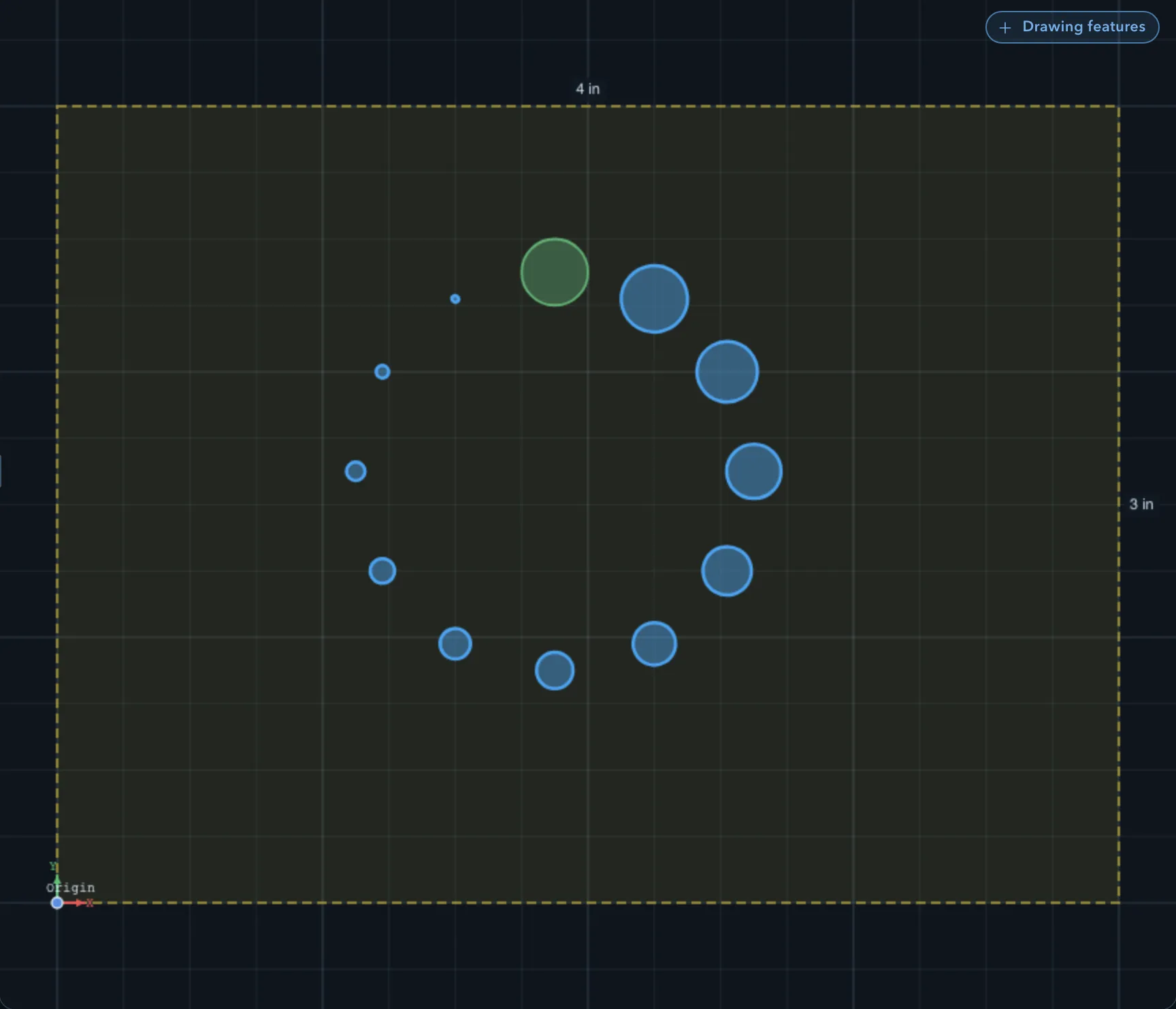
Section titled “Scale taper”All three types have Start scale % and End scale %. With values other than 100, the copies grow or shrink evenly from the first copy (at the start value) to the last (at the end value). The original keeps its size.
Nest on stock
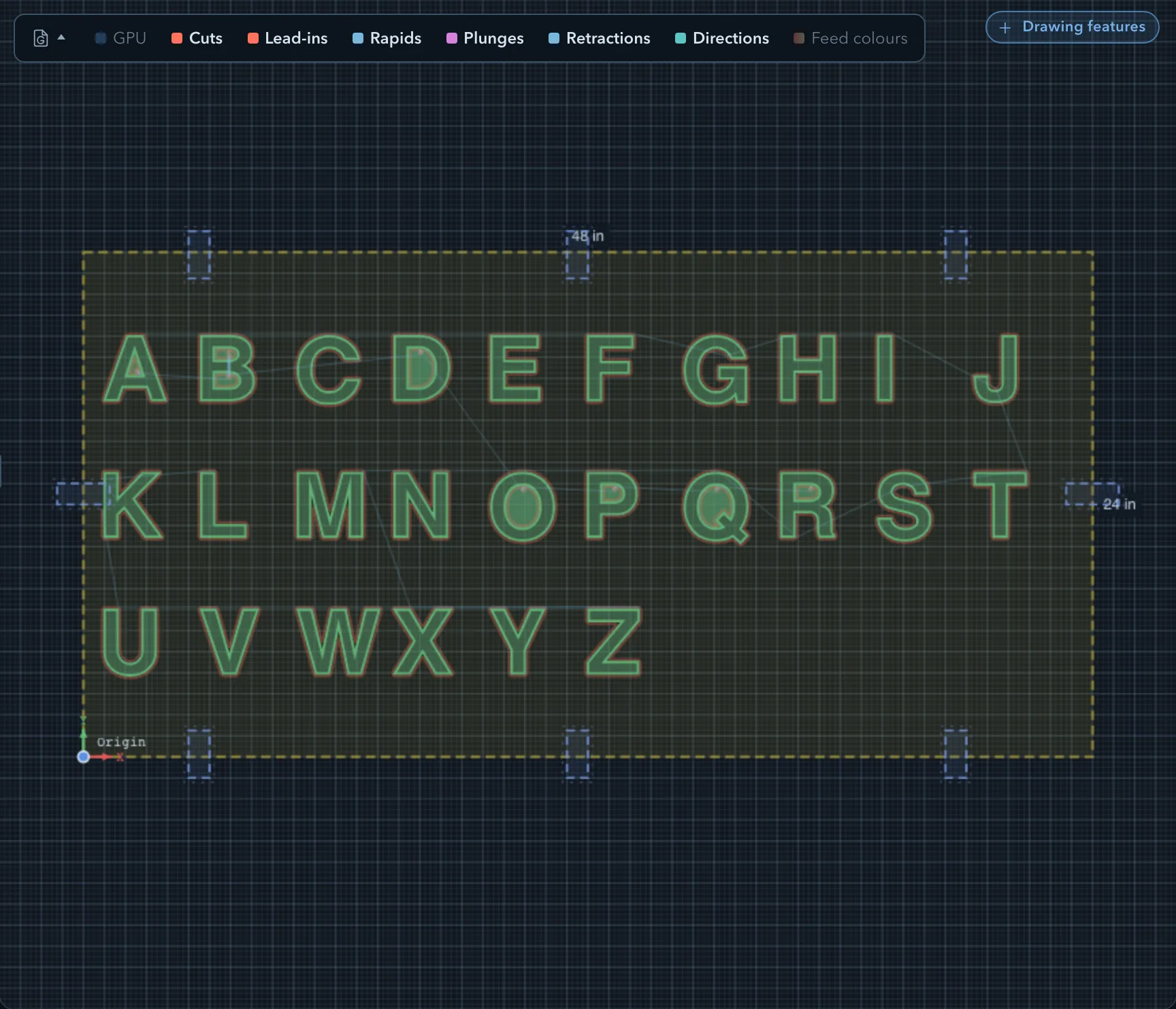
Section titled “Nest on stock”Nest on stock arranges one or more part types on the current stock. It places as many requested parts as fit on one sheet and reports any that did not fit; it does not create another sheet. A grouped folder is one part, or you can select a closed outer outline. Features inside an outline travel with that part, so holes and pockets keep their positions relative to it.
-
Set the stock size and place the real clamps. Create and configure operations for all source parts before nesting, including Edge Route Inside or Outside operations for the contours you intend to cut. Assign the tools and check the toolpaths.
-
Select the part outlines or grouped parts. Open Distribute selected features and choose Nest on stock. The tablet tool rail has the same command.
-
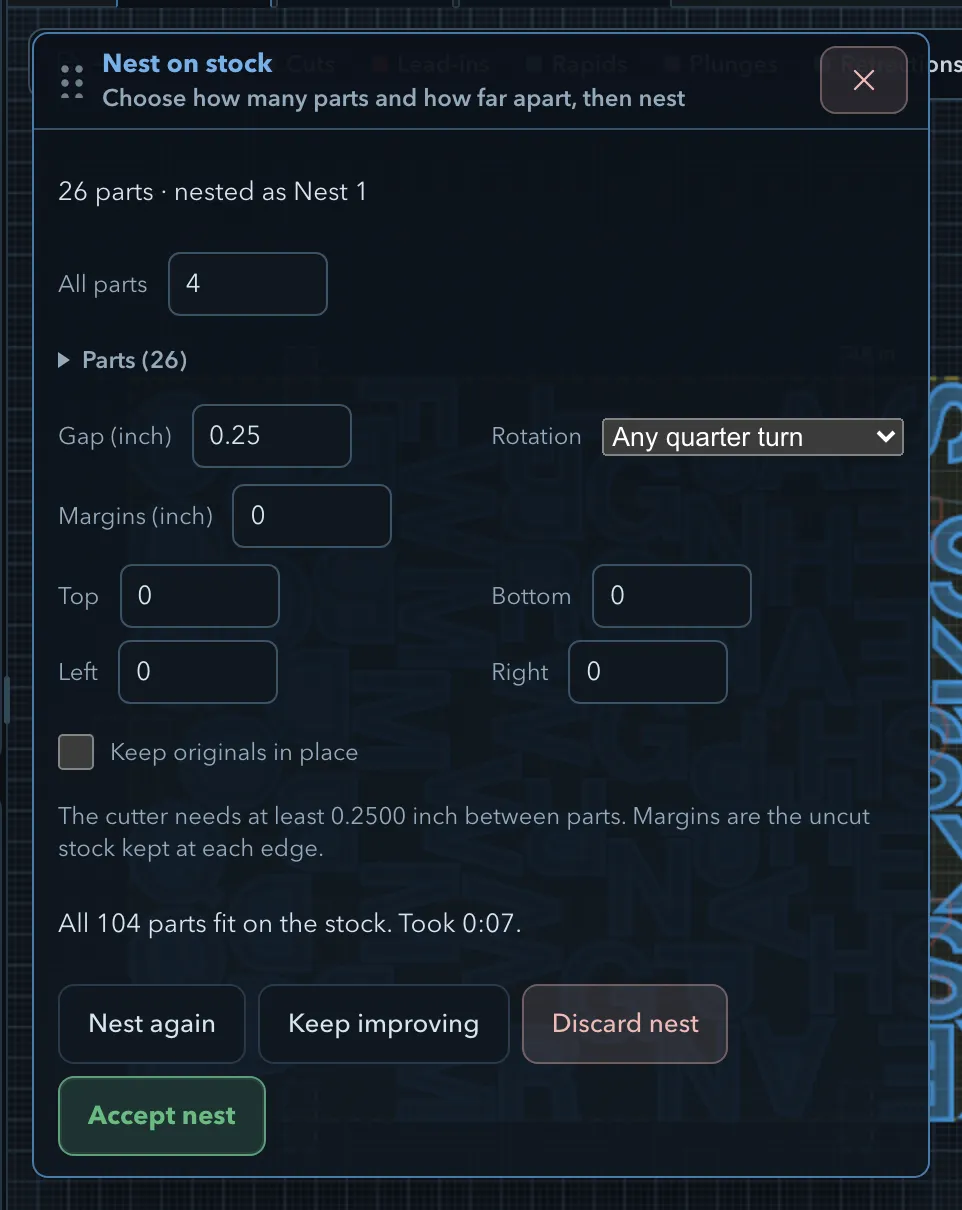
Set the Nest panel controls below, then click Nest. Read the placed and unplaced counts. Use Nest again to try another layout or Keep improving to search further; Stop ends that search.
-
Inspect the placed parts, the Nest N folder, the updated operation targets, and regenerated toolpaths. Choose Accept nest only after checking the layout and machining plan.
-
After accepting, add tabs to the nested contours from their Edge Route Inside or Edge Route Outside operations, then check the toolpaths and simulation again.
Nest panel controls
Section titled “Nest panel controls”- Parts / Quantity: Set the number of instances wanted for each selected part. With several parts, All parts sets the same quantity for every part; expand Parts to override a particular part. For example, 4 of each of 26 letters requests 104 placements on one sheet.
- Gap: The minimum distance between cut parts. The panel starts at the minimum required by the assigned outside-route tools and will not accept a smaller value. Increase it for more clearance; if no outside-route tool sets a minimum, enter the gap yourself.
- Rotation: Choose whether parts may stay at their original angle, turn by 180° for grain direction, turn in quarter turns, or use 45°, 30°, or 15° steps. More allowed angles can help parts fit, but check grain and appearance before cutting.
- Margins: Leave an uncut strip at the stock edge. Plain rectangular stock offers one value for all sides or separate Top, Bottom, Left, and Right values. Custom stock, including rotated or rounded rectangles, shows only one Margins field. That margin is measured inward from the real outline all the way around, rather than from its bounding box. If a reopened nest has different saved side margins, custom stock shows and uses the largest. Nesting also accounts for cutter clearance and recorded clamp clearance.
- Keep originals in place: Leave the selected originals where they are and place new copies. When off, a placed original may move into the nest and the remaining instances are copies.
The quantities are requests: the result reports how many fit and names any that did not. Nesting adds copied feature instances to operations that target their source features, so configuring those operations first saves you from targeting each new copy by hand. Check the updated targets and regenerated toolpaths before accepting.
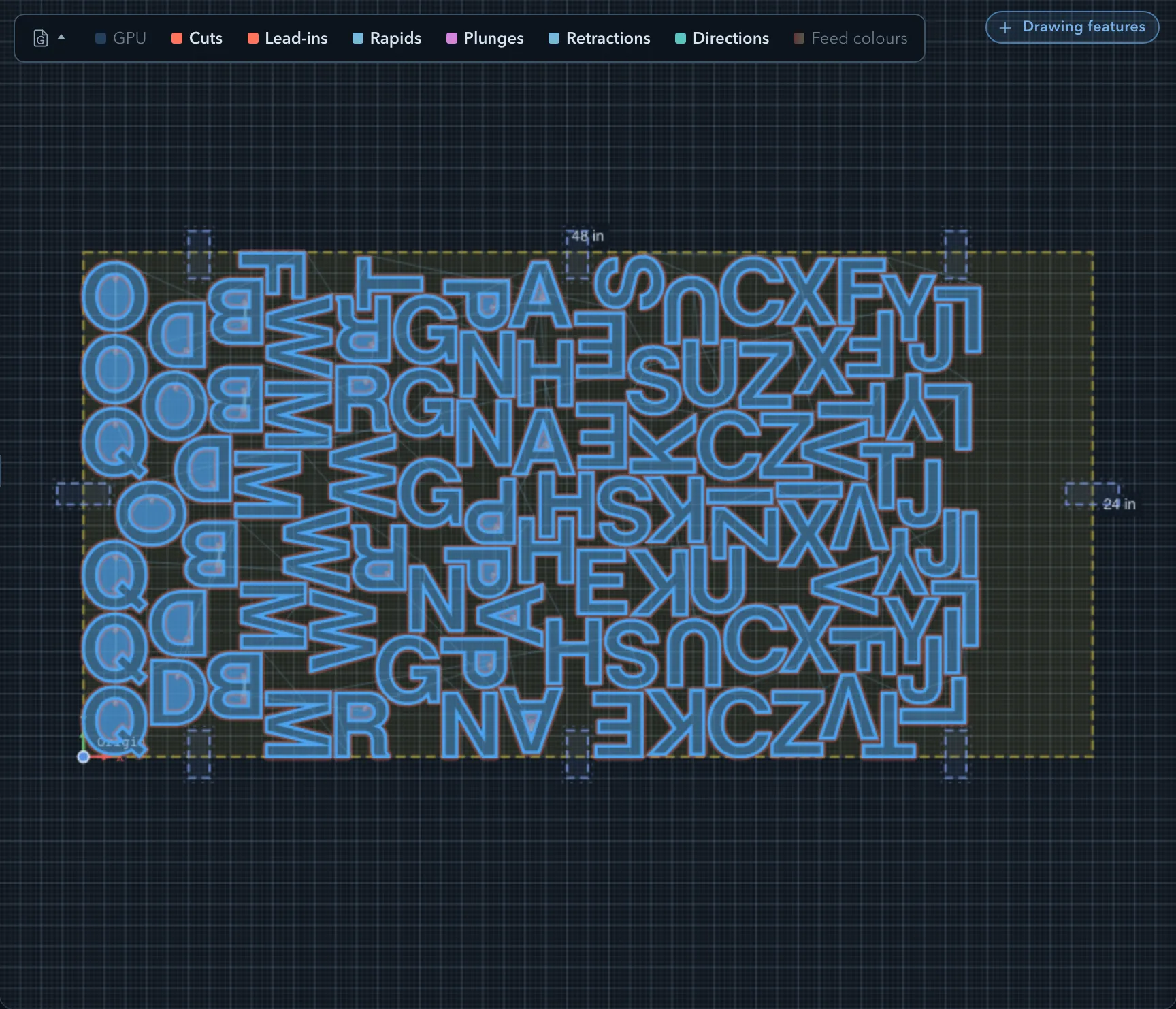
Nesting keeps the chosen margins plus cutter clearance from the stock edges and avoids recorded clamps with their XY clearance. It also avoids other parts already on the stock. A small part may fit in a larger part’s through-cut hole only when no other operation machines inside that hole. This includes an enclosed opening in outline text, such as the counter of an A. An outside edge route can cut the smaller part while keeping clear of the surrounding part’s material, provided the cutter fits. Inspect each route and its entry after nesting; a warning that part of an outline is left uncut means the layout has not produced a complete separating cut there.
Nest again, Keep improving, and Discard nest act on the nest in the panel that made it. After Accept nest, the copies remain as ordinary features in their Nest N folder in the project tree. Select that folder’s copies to delete them together, or select an individual copy to delete it alone. Deleting copies does not automatically return any originals that the nest moved to their earlier positions; that restore command is not available in this version. Use Undo while that history is still available in the open project to take back the whole nest, or reposition the originals yourself. Selecting a nested copy later starts a new nest. Saving keeps the copied features and folder, but does not save the nest’s settings or the originals’ earlier positions.
The command refuses a part with a locked feature, an imported model, a constraint tied to geometry outside the part, or no closed outline. Fix the selection or the constraint before running it again.
Related pages
Section titled “Related pages”- Selecting and transforming: single copies, rotated copies, and mirrored copies.
- Linked features: what the copies share.
- Text: the Text layout entry in the same menu.
- Construction geometry: guides and centres for patterns.
- Clamps and clearances: stock-edge and workholding clearances for a nest.
- Tabs: replace tabs after nesting.