Slots, polygons, and gears
The second row of the shape drawer holds shapes that are defined by a few numbers: slots, regular polygons, gears, and rectangles with rounded or chamfered corners. They are drawn with the same creation targets and the same sticky behaviour as the basic shapes on Drawing tools.
Once placed, each of these shapes is an ordinary closed profile. Its parameters are not kept, so to change it afterwards, edit its points in a sketch-editing session (see Editing sketches) or draw it again.
Before you start
Section titled “Before you start”- Open the Sketch view and choose a creation target.
- Open the shape drawer. The shapes on this page are in its second row; their tooltips read, for example, Add feature slot.
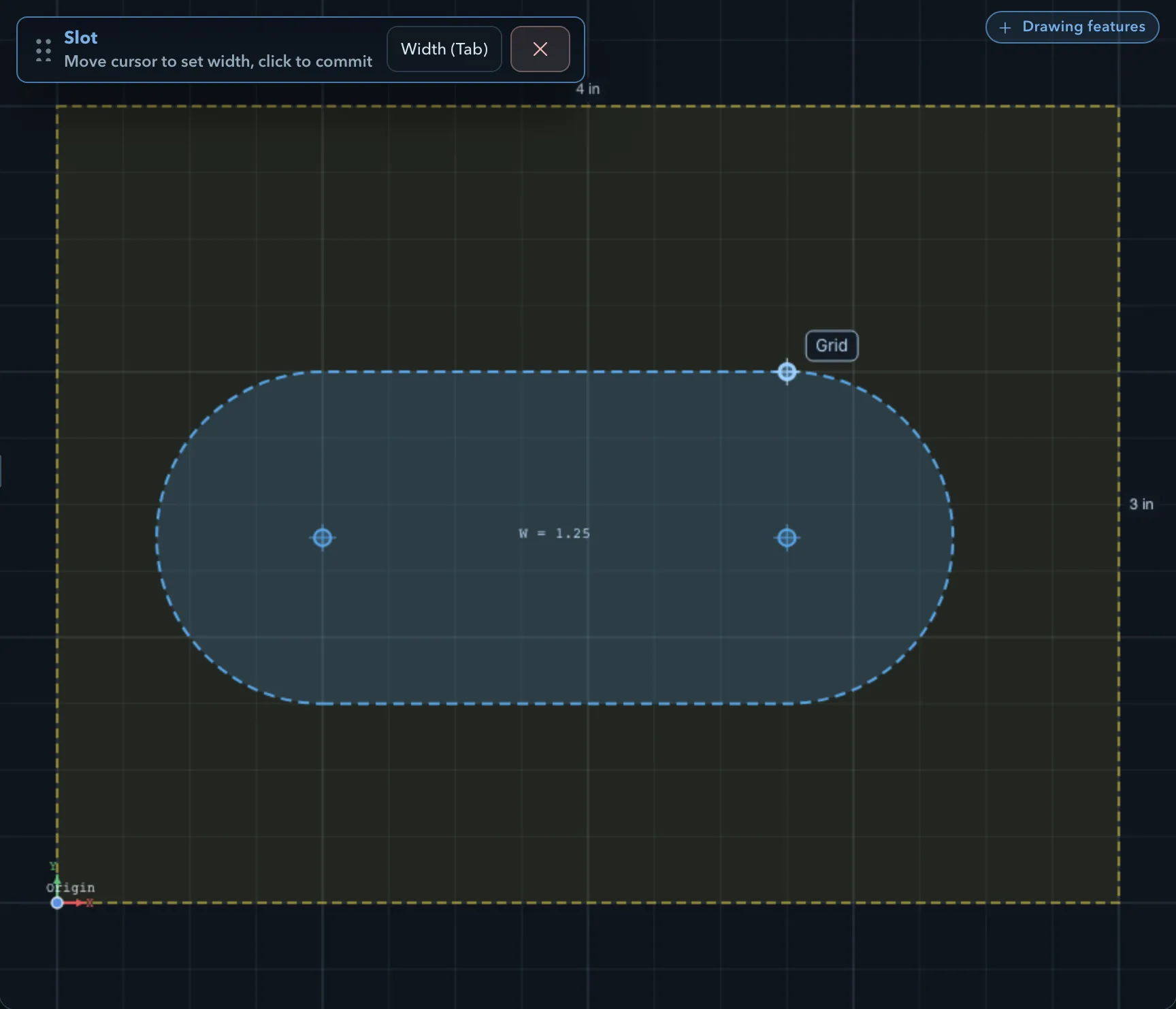
A slot is a straight groove with semicircular ends, drawn along its centreline.
-
Choose the slot in the shape drawer.
-
At Click first end center, click the centre of one end.
-
At Click second end center or enter dimensions, click the centre of the other end, or click Dimensions and enter the centreline Length and Angle °.
-
At Move cursor to set width, click to commit, move the pointer to set the width and click, or click Width and type it.
Regular polygon
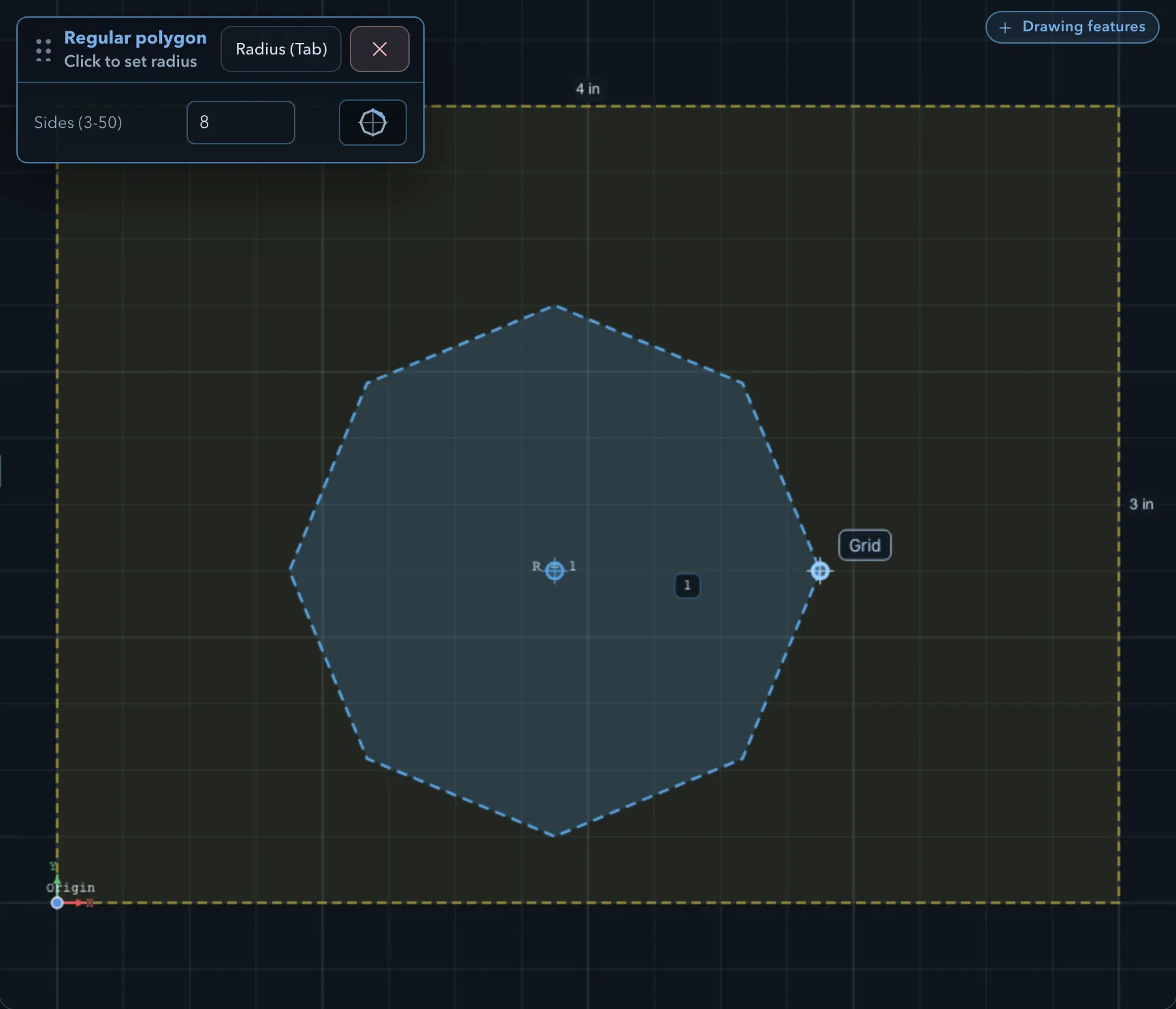
Section titled “Regular polygon”A regular polygon has equal sides and equal angles.
-
Choose the regular polygon in the shape drawer.
-
In the workflow panel, set Sides (3-50). The default is 6.
-
At Click center point, click the centre.
-
At Click to set radius, click a point to set the radius and rotation, or click Radius and type the radius.
The radius is measured from the centre to a corner. The side count carries over to the next polygon you draw.
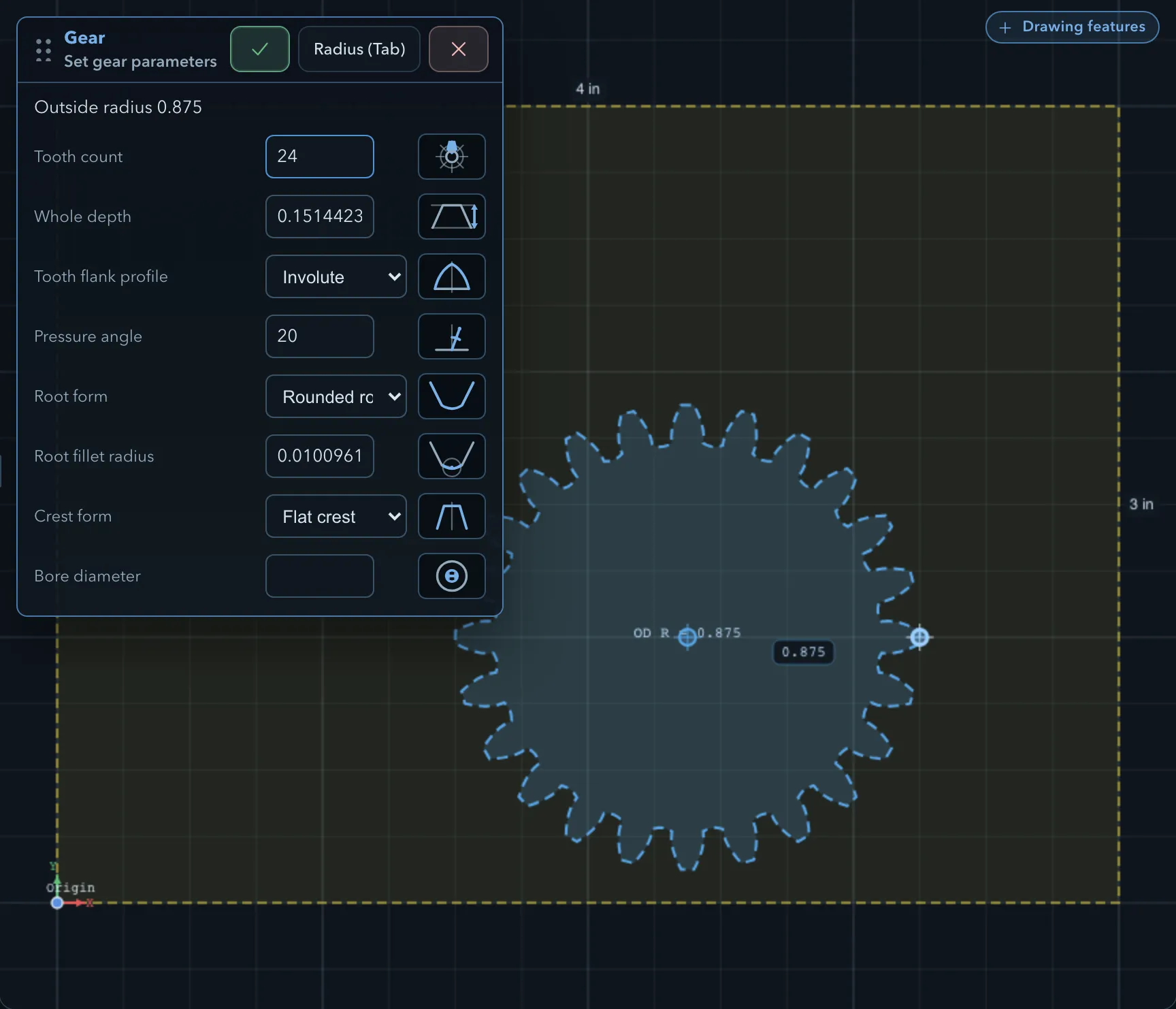
The gear tool draws a spur gear as one closed profile, with an optional bore.
-
Choose the gear in the shape drawer.
-
At Click center point, click the centre.
-
At Click to set outside radius or enter radius, click to set the outside radius, or click Radius and type it.
-
At Set gear parameters, adjust the settings below. The panel shows the outside radius, and the preview updates as you type.
-
Click Confirm.
| Setting | Description |
|---|---|
| Tooth count | 6 to 200 teeth. Default 24. |
| Whole depth | Tooth height, from the root to the outside radius. The default is 2.25 times the module. |
| Tooth flank profile | Involute (the standard gear tooth) or Straight-sided. |
| Pressure angle | 10° to 35°, for involute teeth only. Default 20°. |
| Root form | Rounded root fillet, Flat root, or Sharp root. |
| Root fillet radius | For a rounded root. The default is 0.15 times the module, and the size is limited so the fillet fits. |
| Crest form | Flat crest or Rounded crest. |
| Crest radius | For a rounded crest. The default is 0.2 times the module, and the size is limited to fit. |
| Bore diameter | Leave empty for no bore. |
There is no module setting: PureCutCNC derives the module from the outside radius and the tooth count, as outside diameter ÷ (tooth count + 2). To make a gear with a given module, set the outside radius to module × (tooth count + 2) ÷ 2.
The gear is placed in a group named Gear with a number. When you set a bore, the group also holds a subtract circle named Gear Bore, with the same Z range as the gear.
Rounded and chamfered rectangles
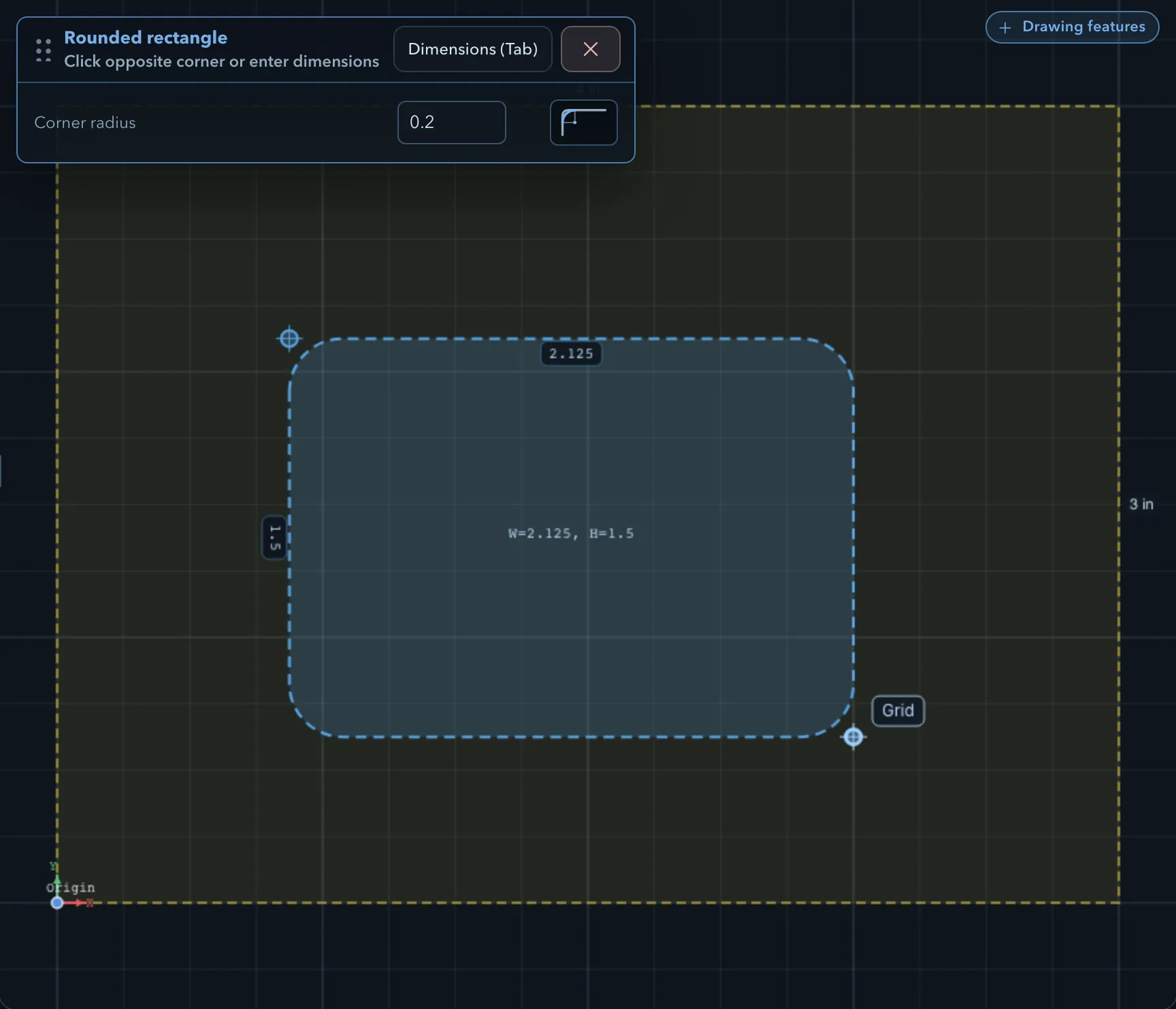
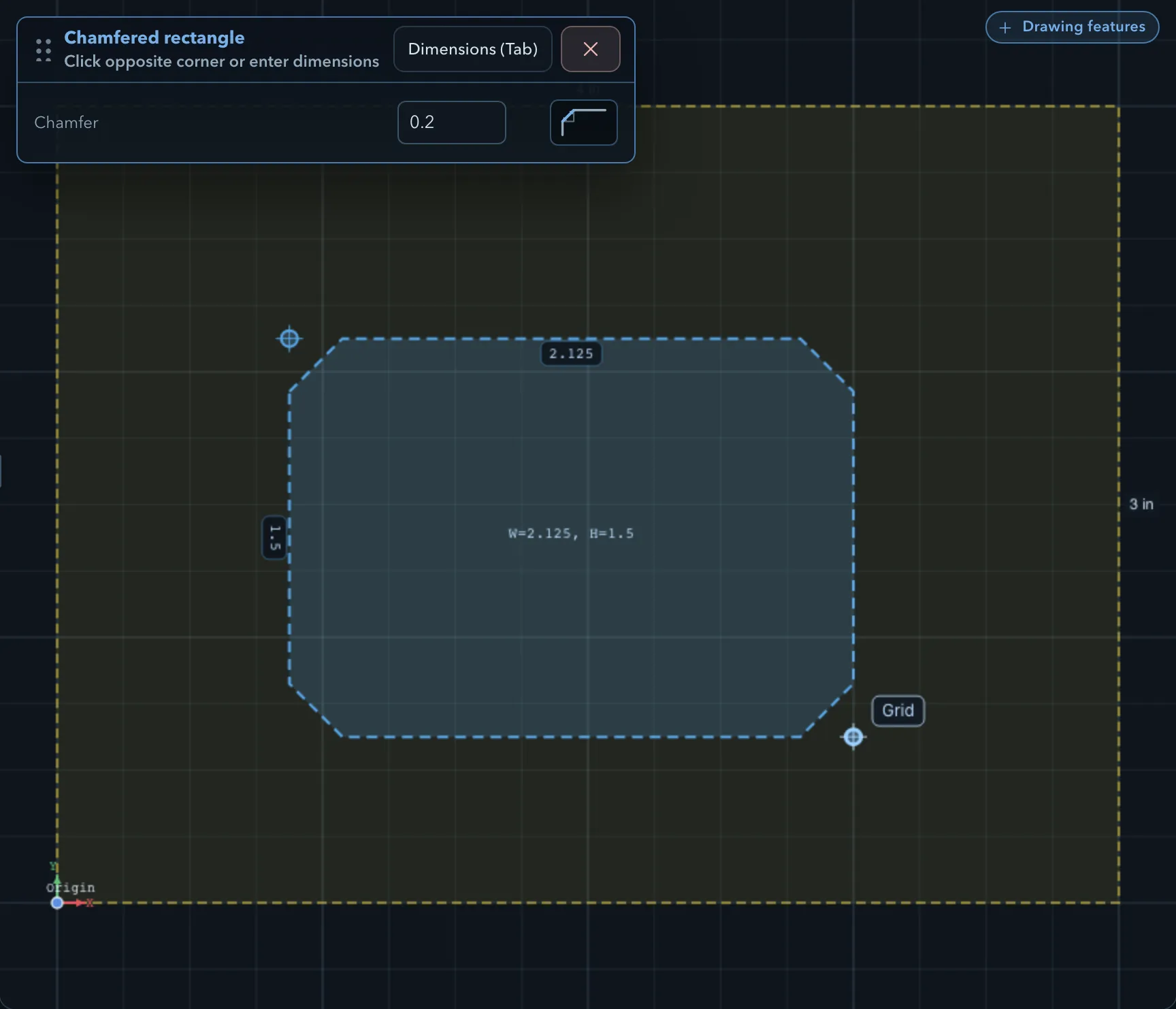
Section titled “Rounded and chamfered rectangles”These are rectangles with shaped corners. Draw them like a rectangle, with one extra setting in the workflow panel.
-
Choose the rounded rectangle or the chamfered rectangle in the shape drawer.
-
Set Corner radius (rounded) or Chamfer (chamfered). The default is 0.2 in or 5 mm.
-
At Click first corner, click one corner.
-
At Click opposite corner or enter dimensions, click the opposite corner, or click Dimensions and enter the Width and Height.
Related pages
Section titled “Related pages”- Drawing tools: creation targets and the basic shapes.
- Editing sketches: change a placed shape’s points and segments.
- Feature tree and properties: groups such as the one a gear is placed in.
- Corner rounding and relief: machining inside corners that a cutter cannot reach.