Snapping and the grid
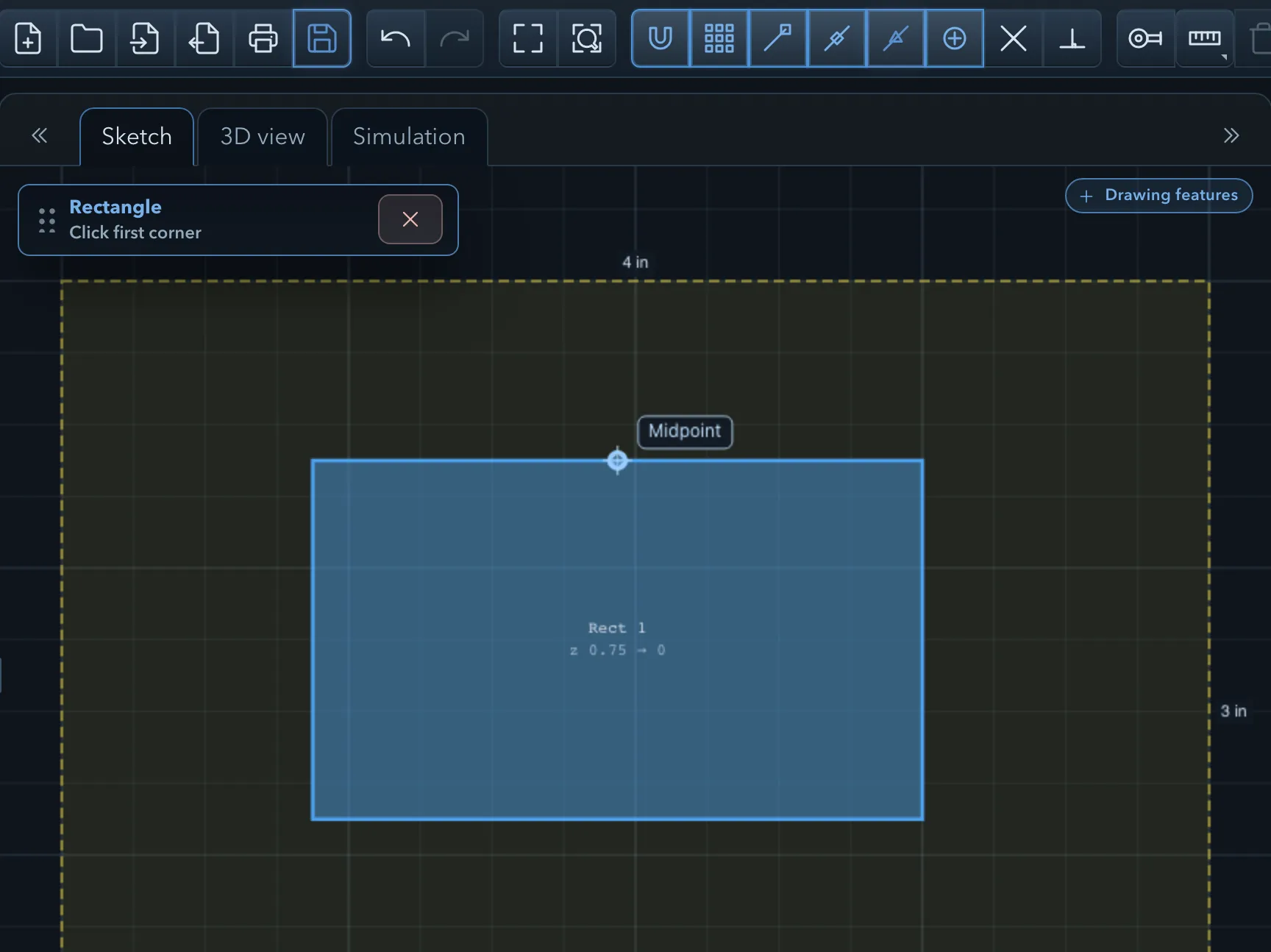
Snapping pulls the pointer to exact positions while you draw, move, measure, or edit: grid points, corners, midpoints, centres, and intersections. It applies to every click a command asks for, not just to drawing.
Snap modes
Section titled “Snap modes”The snapping controls are in the top toolbar: one button turns snapping on or off ( Enable snapping / Disable snapping), and one button per mode turns that mode on or off. On a tablet the same controls are in the Snap settings popover.
| Mode | Snaps to | On by default |
|---|---|---|
| Snap to grid | The nearest multiple of the grid’s Snap increment. | Yes |
| Snap to point | Corners and end points of features, the stock, tabs, and clamps, and the origin. | Yes |
| Snap to line | The nearest point on any segment. | Yes |
| Snap to midpoint | The middle of segments. | Yes |
| Snap to center | The centre of circles and arcs. | Yes |
| Snap to intersection | Points where two segments cross, even where there is no corner. | No |
| Snap perpendicular | The point on a segment that makes a right angle with the previous point of the command. | No |
Snapping considers visible features, including construction geometry and regions, and visible tabs and clamps. When the pointer is within reach of several candidates, a point, midpoint, centre, or intersection wins over a perpendicular point, which wins over a point on a line, which wins over the grid. A small label next to the pointer names the snap that will be used, so you can check it before you click.
Your snap settings are a preference of the app on this device, not part of the project.
Select Grid in the feature tree to change the grid:
| Setting | Description | Default (inch / mm) |
|---|---|---|
| Grid extent | The size of the drawn grid. | 8 in / 200 mm |
| Major lines | The spacing of the heavier grid lines. | 1 in / 10 mm |
| Minor lines | The spacing of the lighter lines between them. | 0.25 in / 2 mm |
| Snap increment | The step that Snap to grid uses. It can be finer than the minor lines. | 0.125 in / 1 mm |
| Visible | Shows or hides the grid. Grid snapping still works while it is hidden. | On |
The Grid toggle in the status bar also shows or hides the grid. Grid settings are saved with the project.
Axis lock
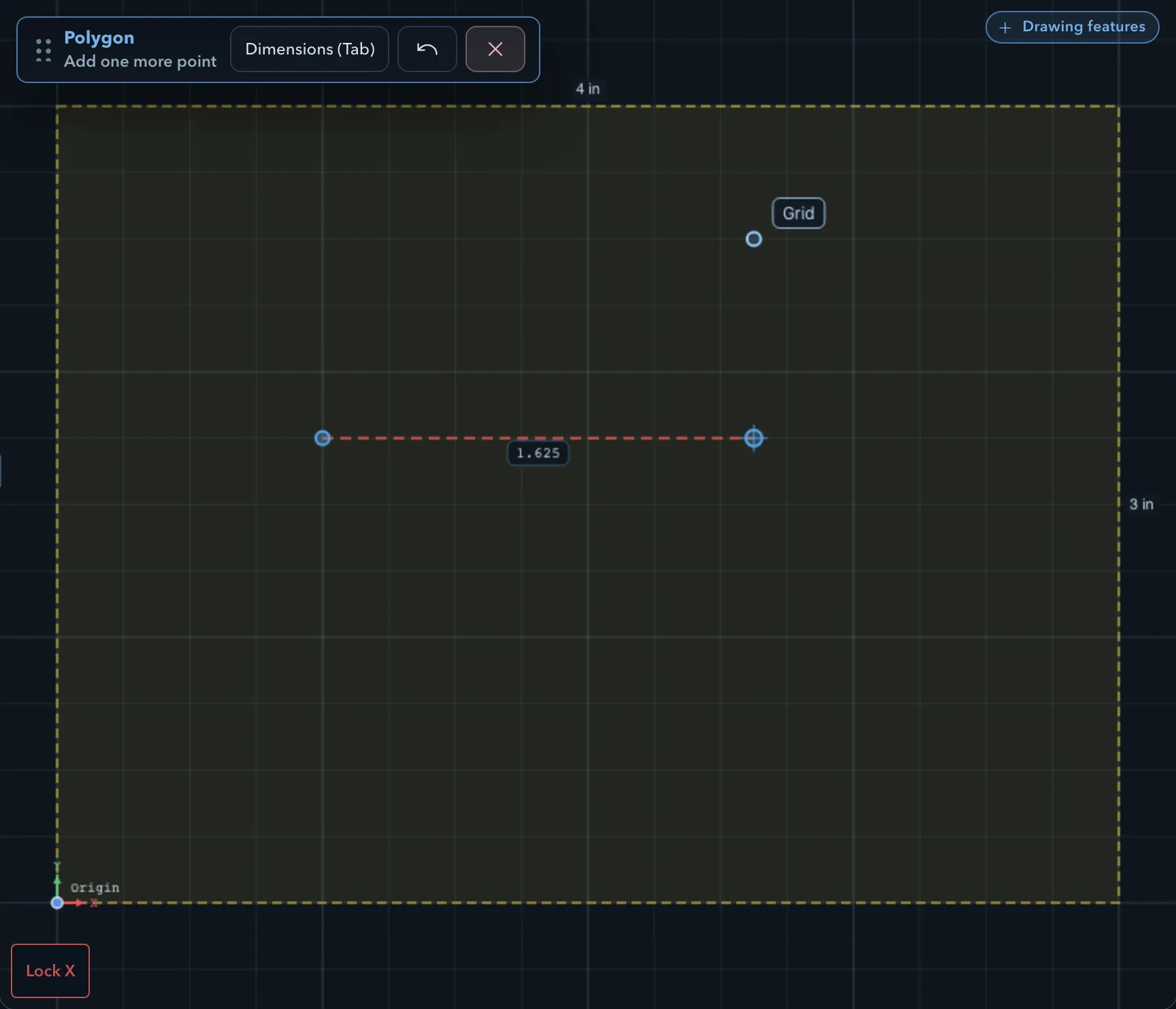
Section titled “Axis lock”The axis lock keeps a point on a horizontal or vertical line through the point you started from, while you draw, move, or drag points.
- Press Alt (Option on macOS) to cycle the lock: first Lock X, then Lock Y, then off.
- While a lock is on, a Lock X or Lock Y chip shows in the corner of the canvas, in that axis’s colour; click it to cycle.
- On a tablet, use the Lock button.
The locked point follows the pointer along the locked direction only. The pointer can be well off that line, as below: the distance it has moved sideways is used, and the offset is ignored.
The lock is released when the command ends.
Related pages
Section titled “Related pages”- Drawing tools: the commands snapping helps most.
- Dimensions and constraints: the tape measure and dimensions use the same snaps.
- Construction geometry: reference geometry to snap to.
- Keyboard shortcuts: the axis lock key.