Install and open PureCutCNC
PureCutCNC runs in a browser and as a desktop app for macOS, Windows, and Linux. Both use the
same workspace and the same .camj project files, so you can start in one and continue in the
other. No account is needed.
Choose how to run it
Section titled “Choose how to run it”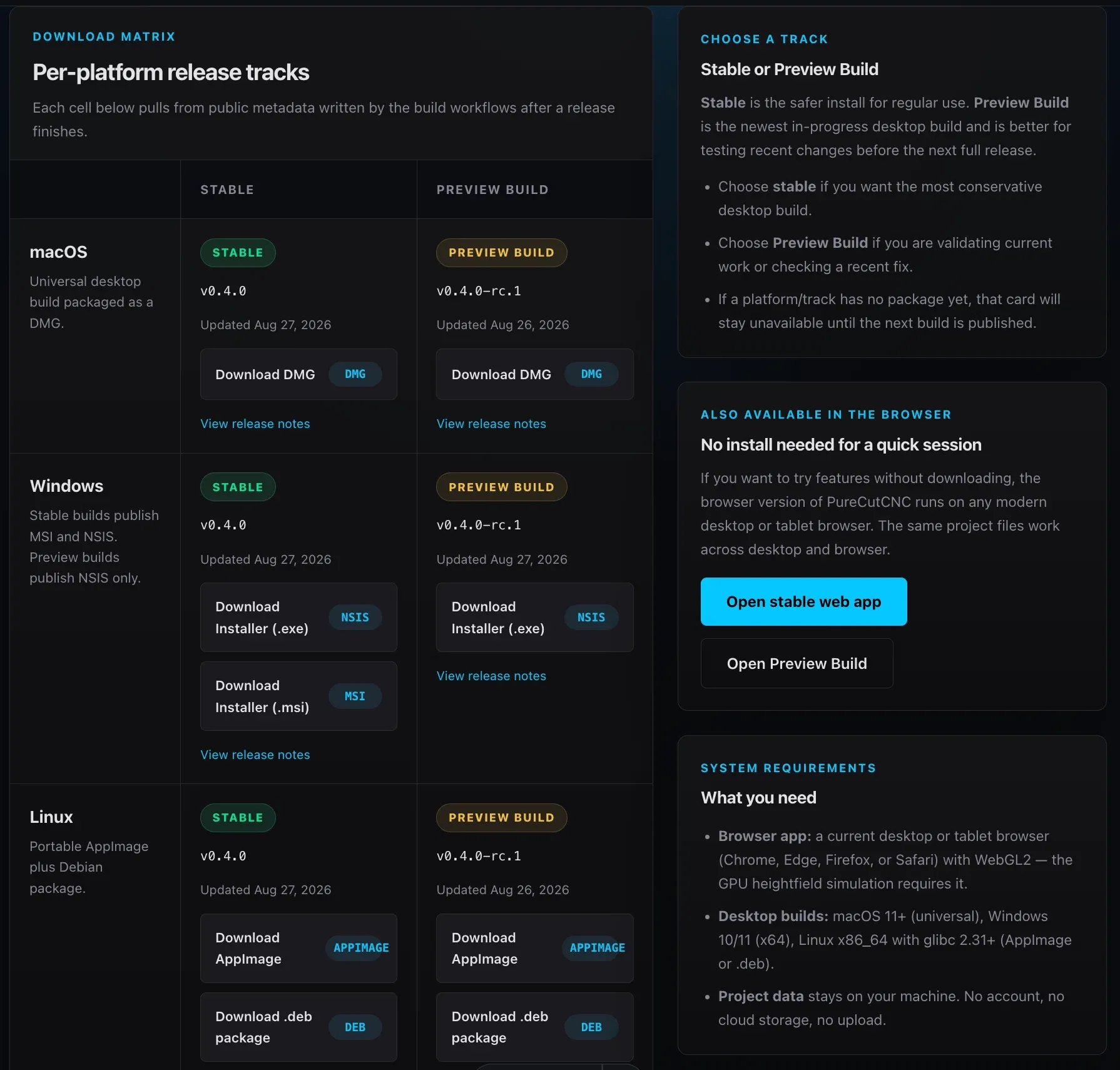
| Option | Use it when | How to start |
|---|---|---|
| Web app | You want to start straight away in a desktop or tablet browser. | Open the web app. |
| Web Preview Build | You want to try features that are not in a stable release yet. | Open the Preview Build. |
| Desktop app | You want native file dialogs, a native menu, and an app that works like other desktop programs. | Download a build from Downloads. |
Pages and sections of this guide marked Preview Build describe features that are only in the Preview Build so far.
PureCutCNC supports iPad-class tablets in landscape orientation. It does not run on phones: on a phone-sized screen it shows PureCutCNC is not supported on phones. with links to the desktop downloads instead of the workspace.
Check the requirements
Section titled “Check the requirements”- Browser app: a current desktop or tablet version of Chrome, Edge, Firefox, or Safari with WebGL2.
- Desktop app: macOS 11 or later (universal build, DMG); Windows 10 or 11 on x64 (MSI or NSIS installer; Preview Builds are NSIS only); Linux x86_64 with glibc 2.31 or later (AppImage or Debian package).
The 3D view and Simulation need WebGL2. If the browser or graphics driver does not provide it, the Sketch workspace still opens, and those views show 3D view isn’t available instead. Updating the browser or turning on hardware acceleration in its settings usually fixes this.
Open a project
Section titled “Open a project”-
Open the web app, or start the desktop app.
-
On an empty workspace, Start your part offers to draw a shape, import a file, or open a finished example. To choose the units and stock first, click New project in the top toolbar instead.
-
In the New project dialog, choose a Template: Blank metric (millimeters), Blank imperial (inches), Current project (the open project’s settings), or Template file (the settings of a
.camjfile you load). The Template preview lists the units, stock, tools, operations, and machine the new project starts with. Click Create project.To open a bundled example instead, choose one under Or open an example.
-
To continue an existing project, click Open project and choose its
.camjfile.
Before you draw, check the stock, origin, and units; see Stock, origin, and units. Saving and file handling are on Projects and files.
Desktop menus
Section titled “Desktop menus”The desktop app has a native menu with the same project commands as the top toolbar:
- File: New, Open…, Save, Save As…, Export G-code…, and Print Design….
- Edit: Undo, Redo, Copy, Cut, Paste, and Select All.
- The PureCutCNC menu: About PureCutCNC, Check for Updates…, Update Channel, and Quit PureCutCNC.
Their keyboard shortcuts are listed on Keyboard shortcuts.
Desktop updates
Section titled “Desktop updates”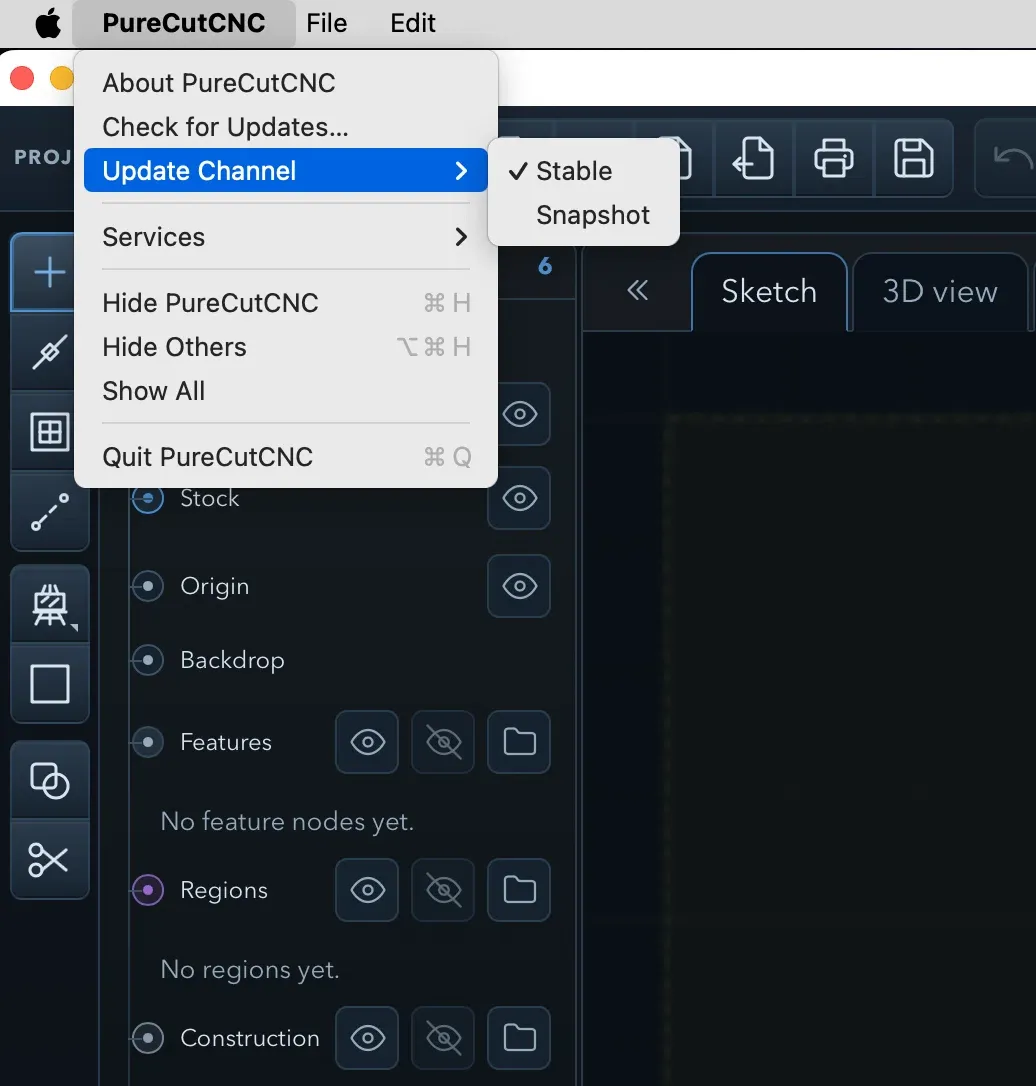
The desktop app does not update itself and does not check for updates in the background. To check, choose Check for Updates… from the PureCutCNC menu. The app compares its version with the latest build on the selected channel and tells you whether you are up to date. If a newer version exists, it asks whether to open the download page; download and install the new build from there.
Update Channel chooses which builds the check looks at:
- Stable: published releases. This is the default.
- Preview Build: builds made from the app’s main branch between releases.
The checks and the channel choice are described on Privacy and data.
In the web app, click the version at the right end of the status bar (PureCutCNC followed by the version number); its tooltip reads About PureCutCNC. In the desktop app, choose About PureCutCNC from the PureCutCNC menu. The About dialog shows the version and release, with links to the website, the source code, the releases, and the license.
Related pages
Section titled “Related pages”- Quick Start: make a first project, from a blank canvas to G-code.
- Working safely: the checks that remain before any cut.
- Projects and files: opening, saving, and naming projects.
- Tablet and touch: the tablet layout and gestures.