Backdrop images
A backdrop image is a visual reference behind the Sketch canvas. Use one to trace a scanned drawing, a photograph, or a template. It is not a feature: it does not add material, restrict an operation, or produce a toolpath.
Before you start
Section titled “Before you start”- Start with a PNG or JPEG that you are allowed to use.
- If the image is meant to be true size, identify one known measurement in it before loading it.
- Open the Sketch view. Backdrops are aligned and traced there.
Load and align a backdrop
Section titled “Load and align a backdrop”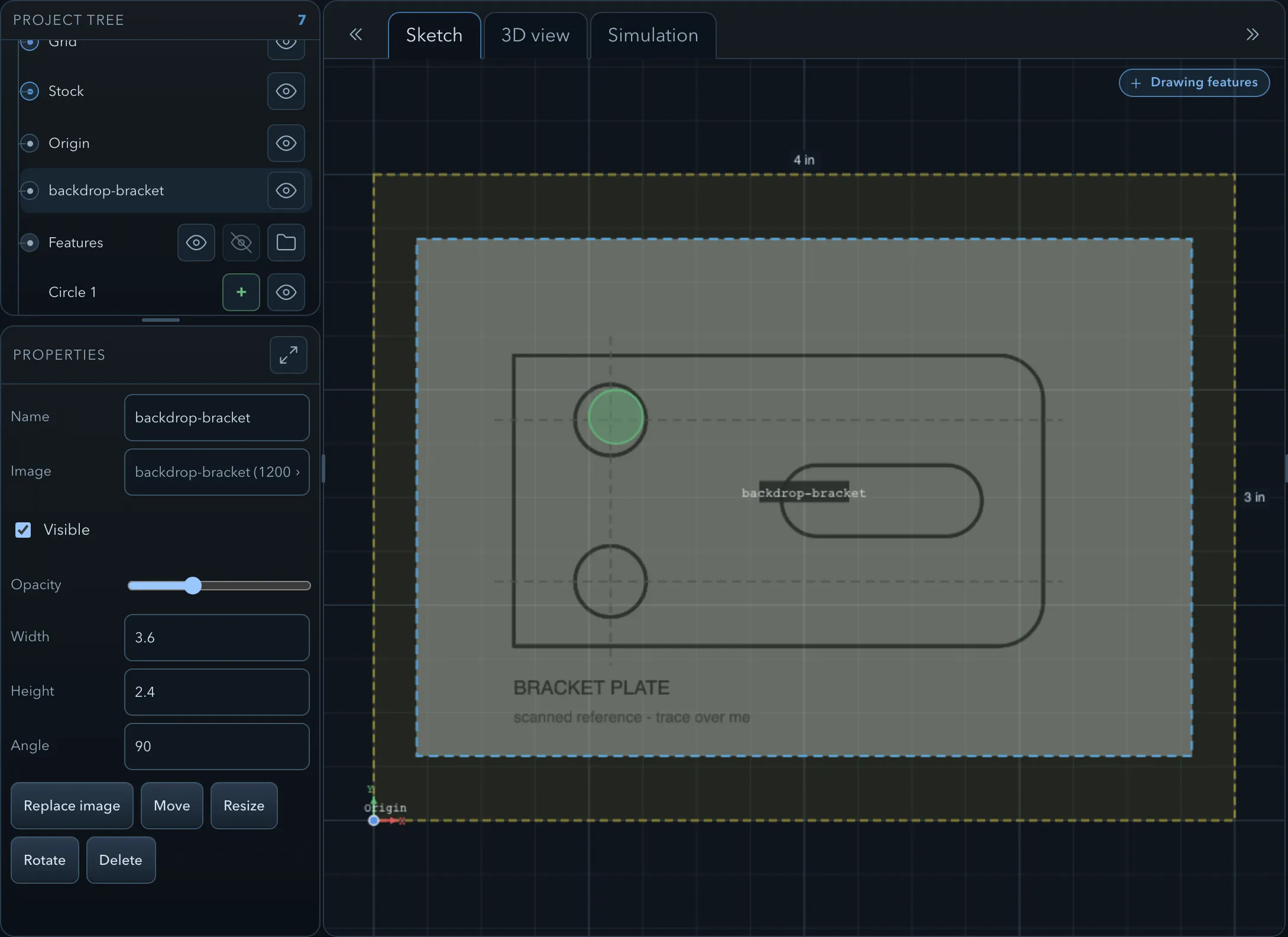
-
In the feature tree, select Backdrop. Click Load image, then choose the image file.
PureCutCNC centres the new image in the stock and fits it inside the stock while keeping its original proportions. The image name and its pixel dimensions appear in the properties panel.
-
Set Opacity low enough that new sketch geometry is easy to see over the image. Use Visible to hide it temporarily without removing it.
-
Calibrate the reference. Enter a known real-world value for Width or Height, then adjust the other dimension if the reference itself is not proportionate. The dimensions use the project units.
-
Position it on the canvas. With Backdrop selected, click Move, Resize, or Rotate in the properties panel or tool rail, then follow the canvas prompt. Angle also accepts a numeric rotation in degrees.
-
Draw or edit the features you need over the image. Use snapping, dimensions, and constraints to make the traced geometry deliberate instead of relying on the image alone.
Replace or remove the image
Section titled “Replace or remove the image”Select Backdrop again and choose Replace image to keep the backdrop node but load another file. Choose Delete to remove the reference. Neither action deletes the sketch features you traced from it.
What the backdrop affects
Section titled “What the backdrop affects”The backdrop is saved with the project as a visual reference. It appears only in the Sketch canvas: it is not part of the 3D model, an operation target, a toolpath, or exported G-code. Once the traced features are accurate, you can hide or delete the backdrop without changing those features or their operations.
Related pages
Section titled “Related pages”- Features, roles, and depth: how traced shapes become material, cavities, lines, or regions.
- Snapping and the grid: place traced points precisely.
- Dimensions and constraints: verify and drive the geometry after tracing.
- Importing SVG, DXF, and projects: import usable vector geometry instead of tracing it when a source drawing is available.