Clamps and clearances
Clearances establish safe travel heights and distances. Clamps mark physical workholding so the app can highlight conflicts and keep generated cuts clear of the clamped area.
Before you start
Section titled “Before you start”- Measure the real stock, workholding, cutter stick-out, and machine travel.
- Set the project origin and stock correctly before entering clearance values.
Clearances
Section titled “Clearances”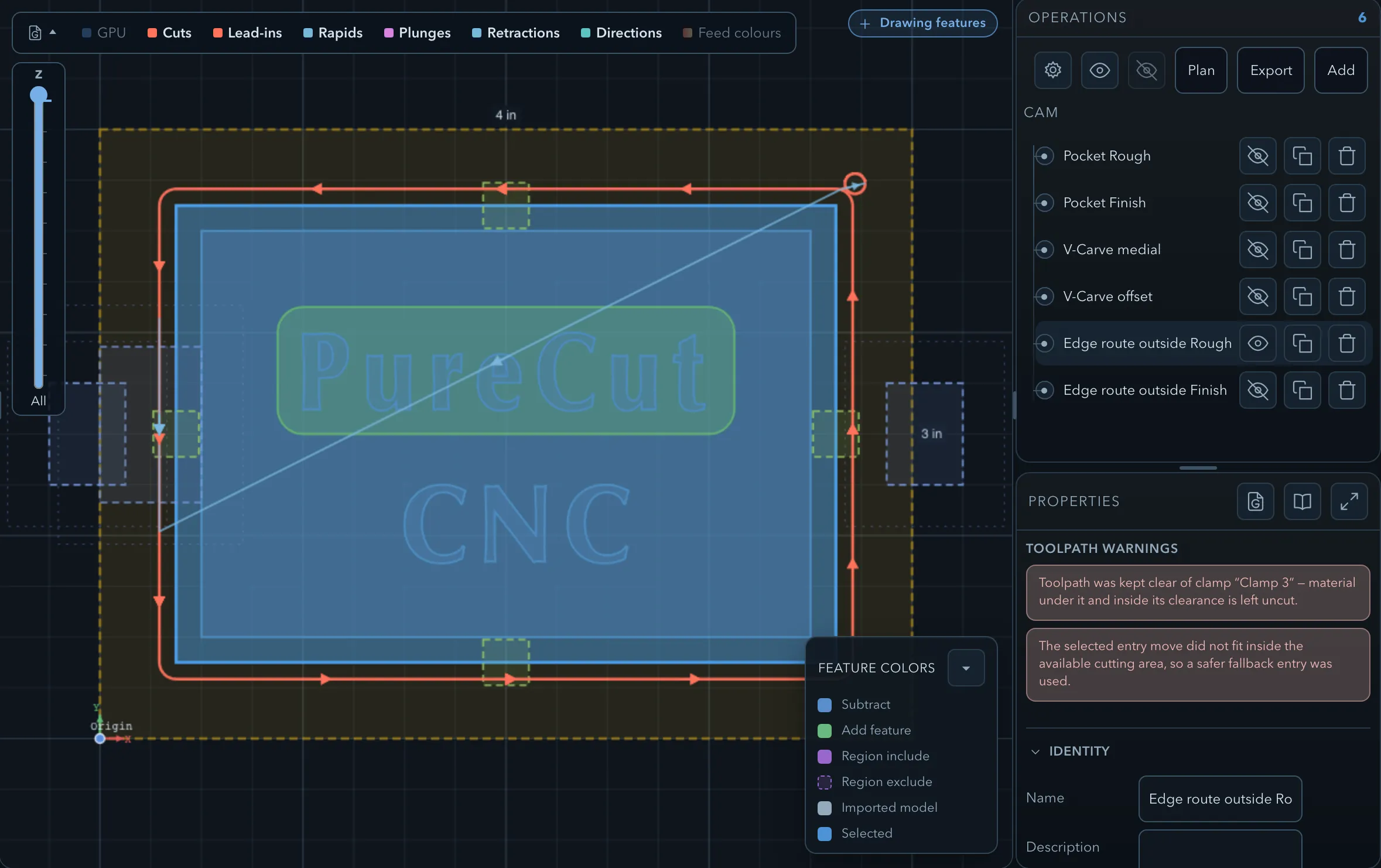
-
Select the Project node in the feature tree.
-
Set Safe Z for travel above the workholding, and Op clear Z for operation-level moves.
-
Set Clamp clear XY and Clamp clear Z to the physical clearance your setup requires.
-
Add clamps on the Clamps node and place them where the real clamps sit.
-
Regenerate, inspect warnings, and simulate every enabled operation.
Nesting around clamps
Section titled “Nesting around clamps”Nest on stock treats recorded clamps and their Clamp clear XY distance as placement obstacles. It also leaves the chosen stock margins plus cutter clearance at each edge. Set the stock, clamp positions, and XY clearance to match the physical setup before nesting; a layout based on incorrect measurements cannot protect the cut.
After accepting a nest, inspect the generated toolpaths and warnings. Clamp avoidance during toolpath generation can still leave material uncut or skip drilling beneath a clamp. Confirm the real workholding and part support, then simulate and dry-run the intended operations.
Related pages
Section titled “Related pages”- Tabs: retain a routed part after cutting.
- Nest on stock: arrange parts around the stock and clamps.
- Working safely: dry-run and machine setup guidance.