Linked features
Copies of a feature in PureCutCNC are linked: they share one shape, so changing the shape of one copy changes all of them. This keeps repeated details, such as a row of identical holes, identical as the design changes. When one copy needs to be different, make it unique.
Definitions and instances
Section titled “Definitions and instances”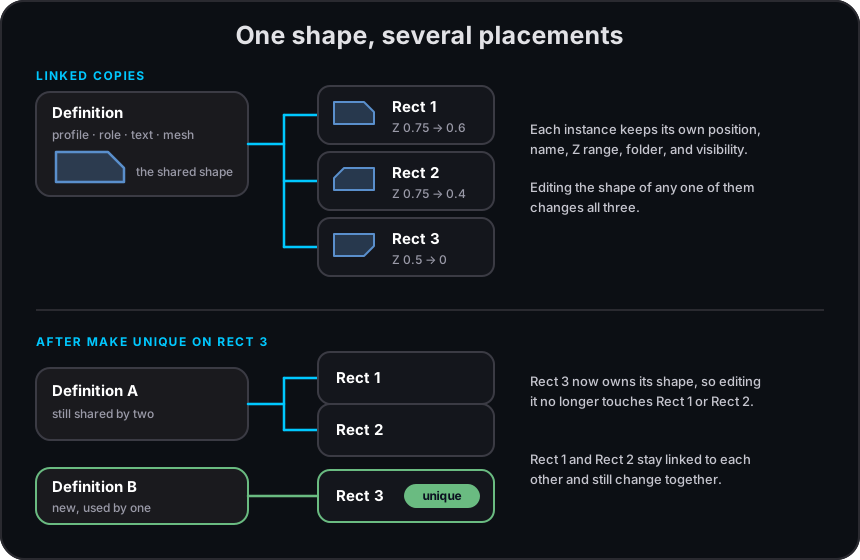
Each feature is an instance of a definition. The definition is the shared part; the instance is one placed copy of it.
| Shared by all linked copies (Shape) | Kept by each copy (Instance) |
|---|---|
| The profile: its points, segments, and curves | Position, rotation, and scale |
| The role (Operation) and a region’s Mask mode | Name |
| Text content, style, and font | Z top and Z bottom |
| An imported model’s mesh and 3D orientation | Folder, Visible, and Locked |
| A text feature’s layout on a circle or path |
The properties panel follows the same split. When a feature has linked copies, the Shape section is titled Shape (shared with N instances), and the feature’s row in the tree shows a link badge (Linked — N instances share this definition).
So moving, rotating, or resizing one copy leaves the others where they are, but editing its points in a sketch-editing session, filleting a corner, or changing its role changes every copy.
Copy mode
Section titled “Copy mode”These actions create linked copies:
- the Copy tool, including copies made by rotate and mirror with Keep originals;
- pasting copied or cut features;
- Feature distribution (grid, radial, and along-a-path copies).
There is no setting in the app to make these copies independent instead, and no “duplicate independent” command. Projects store a copy mode, which is set to linked copies in new projects, and the app gives no way to change it. See app issue #801.
Make one instance independent
Section titled “Make one instance independent”-
Select the copy that needs its own shape.
-
Choose Make unique, either in the context menu or in the Shape section of its properties.
-
Edit it. The other copies keep the original shape.
To find every copy that shares a shape, right-click one and choose Select linked instances.
An imported model’s orientation is part of its shared shape: rotating one copy with 3D orientation rotates all of them. Make the copy unique first to orient it on its own.
Related pages
Section titled “Related pages”- Feature tree and properties: the Shape and Instance sections and the link badge.
- Selecting and transforming: copying, pasting, and the transforms that change one instance.
- Aligning and distributing: patterns of linked copies.
- Editing sketches: edits that change every linked copy.