Feature tree and properties
The project panel, on the left of the workspace, has two parts: the Project tree lists everything in the project, and Properties below it shows the settings of what is selected. Expand properties panel opens the properties in a larger panel; Esc closes it.
The tree
Section titled “The tree”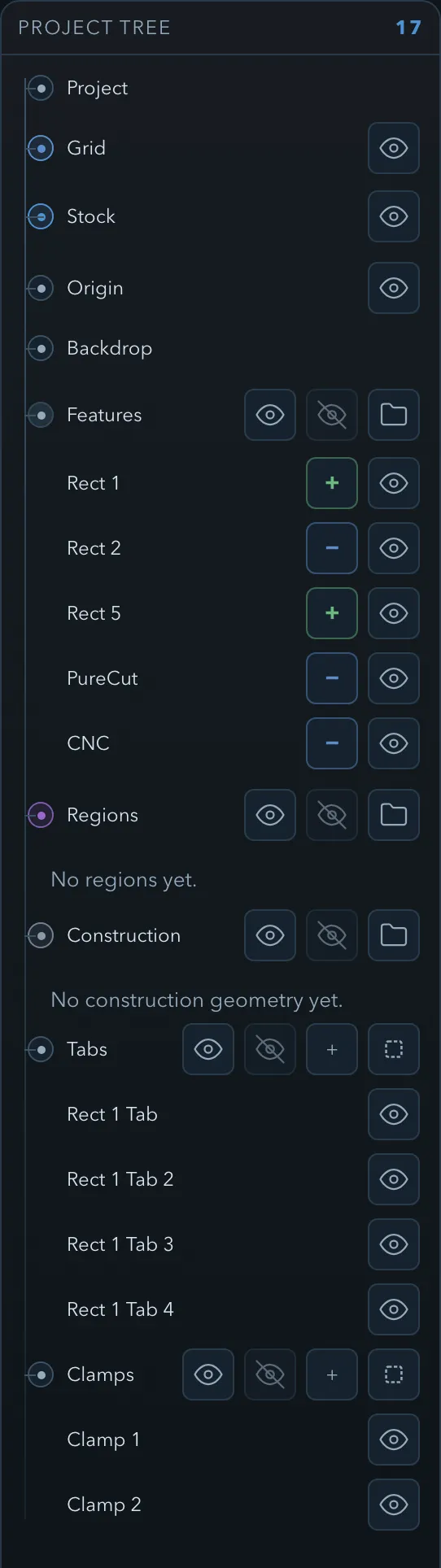
| Row | What it holds | Row actions |
|---|---|---|
| Project | Project-wide settings. | None. |
| Grid | The sketch grid. | Show or hide. |
| Stock | The material the job starts from. | Show or hide. |
| Origin | The work zero used for export. | Show or hide. |
| Backdrop | A reference image, if the project has one. | Show or hide, once an image is loaded. |
| Features | Add, subtract, line, and model features, and their folders. | Show all features, Hide all features, Add folder. |
| Regions | Region masks and their folders. | Show all regions, Hide all regions, Add region folder. |
| Construction | Construction geometry and its folders. | Show all construction geometry, Hide all construction geometry, Add construction folder. |
| Tabs | Tabs for edge routes. | Show all tabs, Hide all tabs, Add tab, Select all tabs. |
| Clamps | Clamps the toolpaths must clear. | Show all clamps, Hide all clamps, Add clamp, Select all clamps. |
Each feature row has a role badge (click it to change the role), a show or hide button, and a grip for dragging the row (Drag to reorder). Badges also mark linked features (Linked — N instances share this definition), include and exclude regions, and construction geometry (ref).
Properties
Section titled “Properties”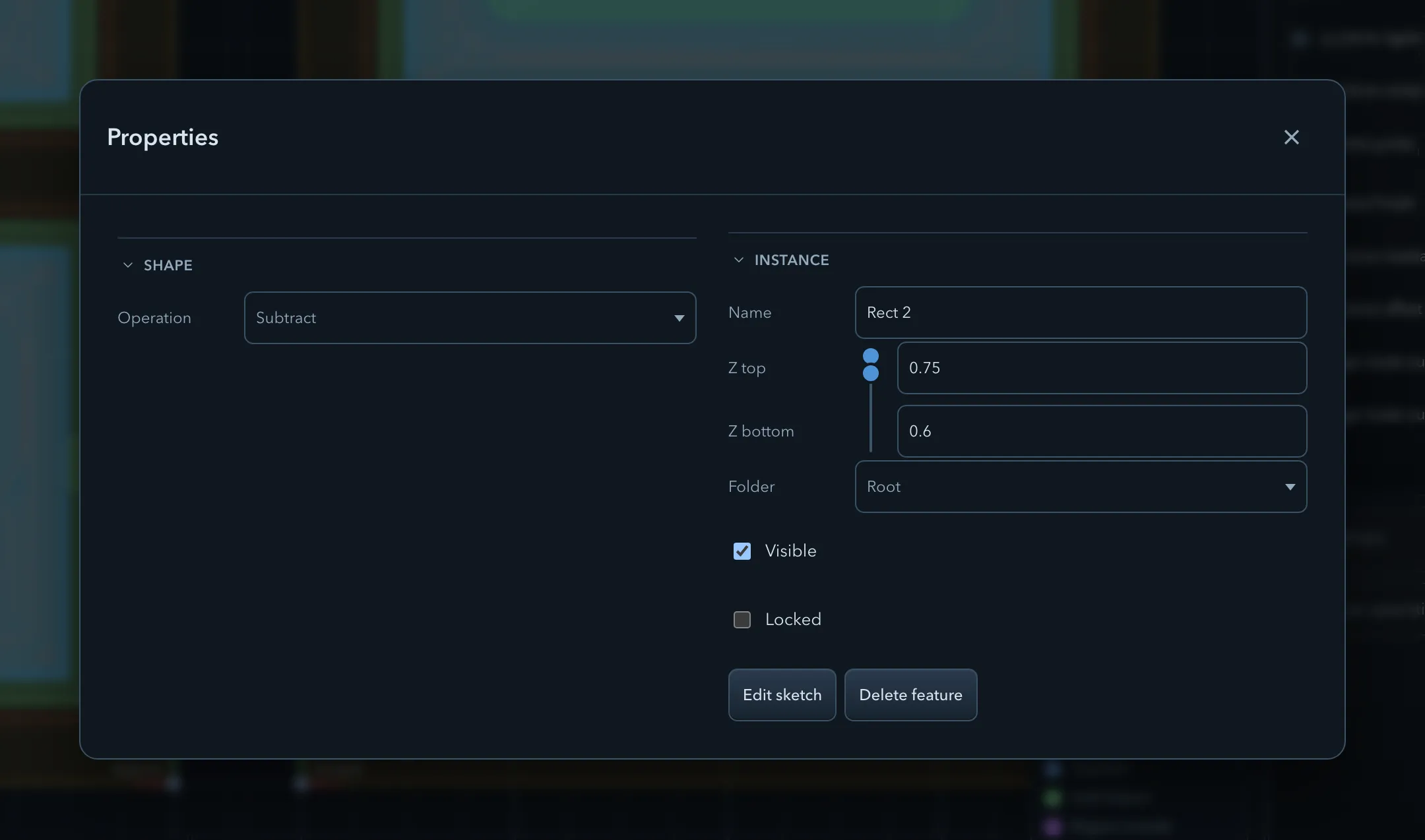
What the panel shows depends on the selection.
| Selection | Properties |
|---|---|
| Project | Name; Units (Millimeters or Inches); Show feature info in sketch; the clearance heights Safe Z and Op clear Z; the clamp clearances Clamp clear XY and Clamp clear Z; Machine, with Manage machines…. |
| Grid | Grid extent, Major lines, Minor lines, Snap increment, Visible. |
| Stock (rectangular) | Width, Height, Thickness, Color, Visible. |
| Stock (from a feature) | Source feature, Thickness, Color, Visible, Edit sketch, Reset to rectangle. |
| Origin | Name, Z, Visible, Place origin, and the Presets Top left, Center top, and Bottom left. |
| Backdrop | Image (Load image or Replace image), Visible, Opacity, Width, Height, Angle, and Move, Resize, Rotate, and Delete. |
| A feature | Shape: Operation (the role), plus Mask mode for a region, the text settings for text, and 3D orientation for a model. Instance: Name, Z top and Z bottom, Folder, Visible, Locked. Then Edit sketch, Delete feature, and any constraints. |
| Several features | The same fields, showing Mixed values where the features differ, plus Group or Ungroup and Delete selected. |
| Tabs or clamps | Their size, position, and height, for one or several at a time. See Tabs and Clamps and clearances. |
The Shape section holds what linked copies share; when a feature has linked copies, its title reads Shape (shared with N instances), and Make unique appears there. The Instance section holds what belongs to this copy alone. See Linked features.
A feature’s properties also show a warning when its profile crosses itself (This profile self-intersects. 3D/CAM results may be invalid.) or reaches past the stock (This profile extends outside the stock boundary.).
Folders and groups
Section titled “Folders and groups”Folders organize the tree. Features, regions, and construction geometry each have their own folders, and a folder only holds its own kind.
- Create a folder with Add folder (or Add region folder, Add construction folder) on the section row, or choose Add to folder > Create new… in the context menu.
- Move a feature into a folder with Add to folder, the Folder property, or by dragging it.
- Select all features in folder on a folder row selects its contents.
A group is a folder whose members act as one: clicking any member on the canvas or in the tree selects the whole group, and members cannot be dragged out of it. Select two or more features of the same kind and choose Group (or Group features on the folder row); Ungroup turns the group back into a plain folder. Groups do not change any feature’s role.
Visibility
Section titled “Visibility”The show or hide button on a row, the section-row actions, and the toggles in the status bar change an item’s visibility. Visibility is saved in the project, and it changes more than what you see:
| Hidden item | Effect |
|---|---|
| Feature | Not drawn, and left out of the 3D model and of exported models. Operations that target it still generate toolpaths. |
| Tab | Not drawn. Edge routes still leave the tab; 3D surface operations ignore it. |
| Clamp | Not drawn, and ignored by the clamp clearance and collision checks. |
| Stock, grid, origin | Not drawn. |
Locked protects a feature from accidental changes. While a locked feature is selected, the transform tools in the tool rail are unavailable; its points cannot be edited; and join, offset, align, and distribute leave it out.
Context menu
Section titled “Context menu”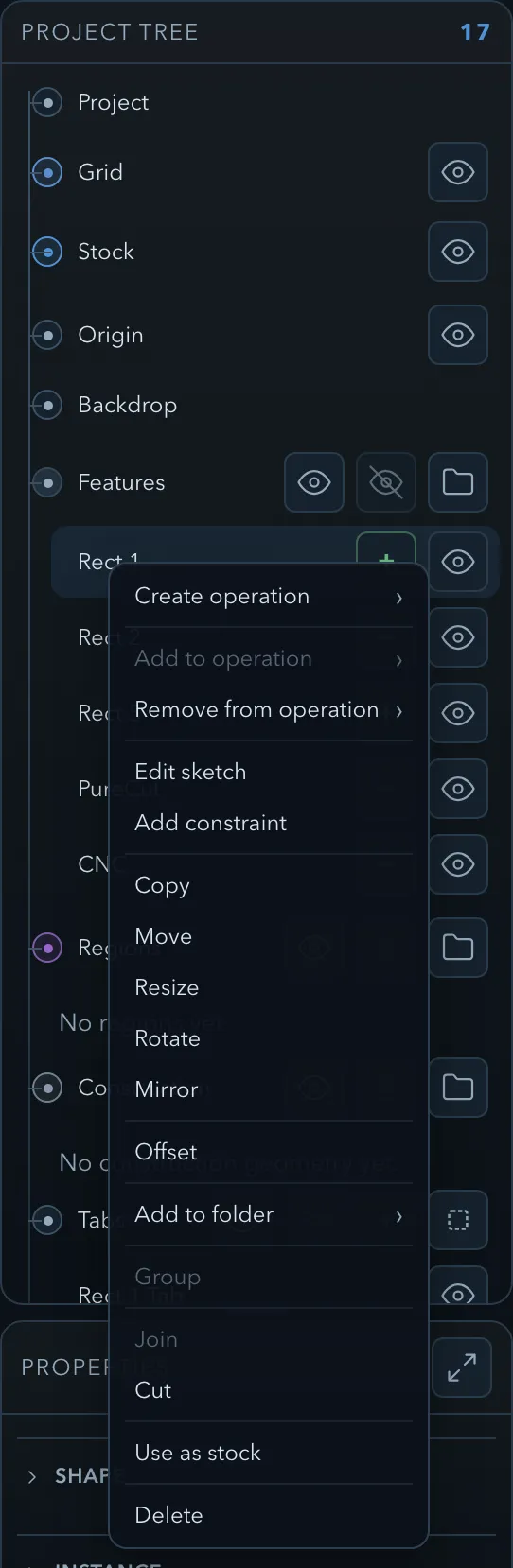
Right-click a feature on the canvas or in the tree, or long-press it on a touch screen. The menu offers what applies to the selection:
- Make unique and Select linked instances, for linked features;
- Create operation, Add to operation, and Remove from operation;
- Edit sketch and Add constraint;
- Copy, Move, Resize, Rotate, Mirror, and Offset (their names change to Copy selected, Move selected, or Copy group and so on for several features or a group);
- Add to folder, Group, Join, and Cut;
- Use as stock, for a closed add feature;
- Delete (Delete selected, Delete group).
Unavailable items are greyed out, and their tooltip says why, for example Locked features cannot be moved or Select two or more features to join.
Related pages
Section titled “Related pages”- Features, roles, and depth: roles, Z ranges, and why tree order matters.
- Linked features: Make unique and linked copies.
- Stock, origin, and units: the Stock, Origin, and Project settings in use.
- Clamps and clearances: what Safe Z, Op clear Z, and the clamp clearances do.