Selecting and transforming
Most editing starts with a selection. Once features are selected, the transform tools appear in the tool rail, and the same commands are in the context menu. Transforms change where a feature is, not its shape definition, so they affect only the selected copies of a linked feature; see Linked features.
Before you start
Section titled “Before you start”- Open the Sketch view.
- Unlock the features you want to change. While a locked feature is selected, the transform tools are unavailable.
Select features
Section titled “Select features”| To select | Do this |
|---|---|
| One feature | Click its outline or inside it, or click its row in the feature tree. |
| More features | Shift+click or Ctrl+click (on macOS, Cmd+click). Clicking a selected feature this way removes it from the selection. On a tablet, turn on Multi and tap. |
| Features in an area | Drag a box on empty canvas. Every visible feature that lies completely inside the box is added to the selection. |
| All visible features | Ctrl+A (Cmd+A). |
| A whole folder | Select all features in folder on the folder’s row. |
| Nothing | Click empty canvas. |
Clicking a member of a group selects the whole group. See Feature tree and properties.
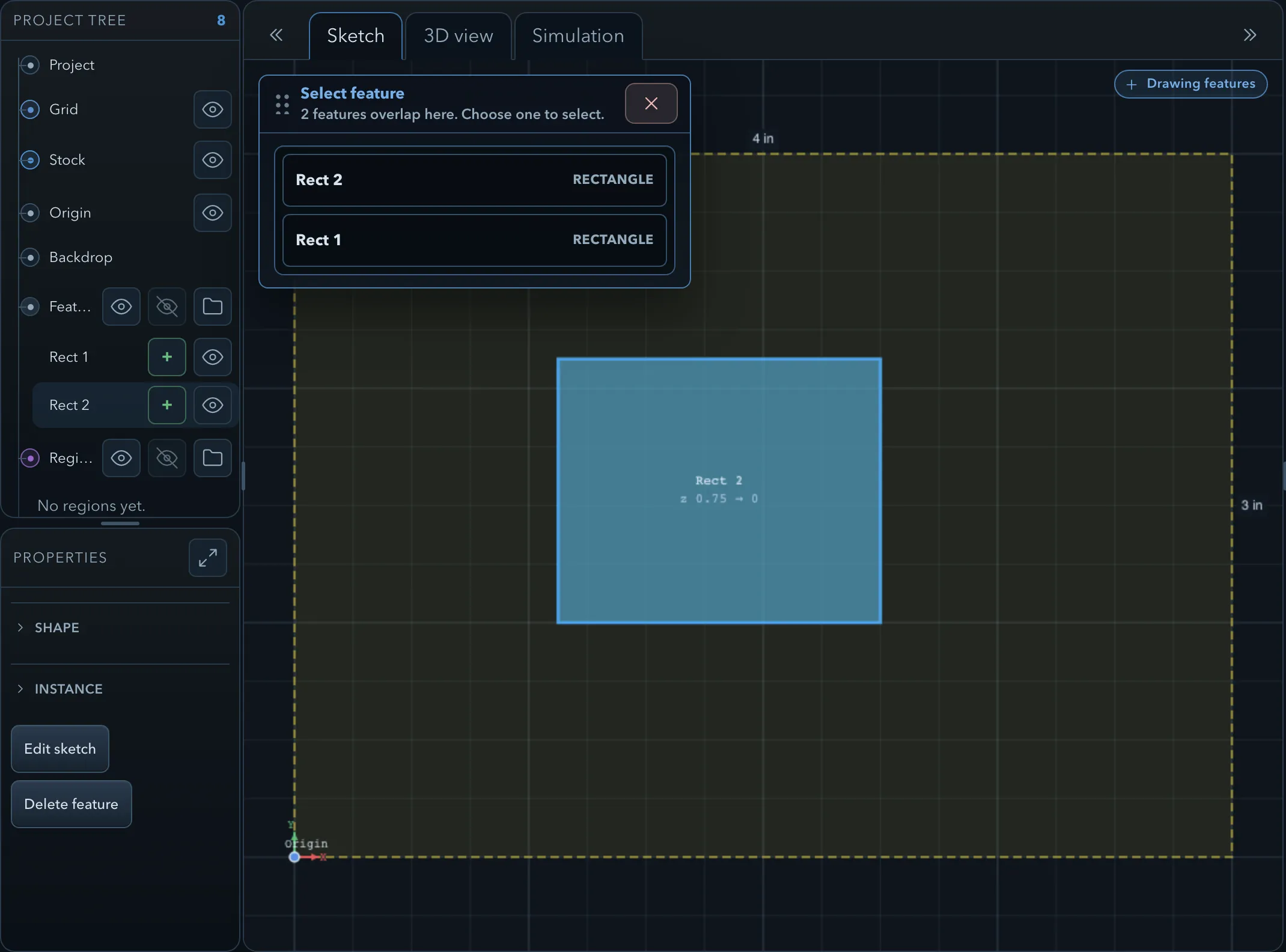
When shapes overlap, a click inside them selects the innermost shape, the one completely enclosed by the others, or else the topmost. When you click where two or more outlines lie on top of each other, the Select feature panel lists them (N features overlap here. Choose one to select.); choose the one you mean.
Transforms
Section titled “Transforms”The transform tools work on the selected features. Each opens a workflow panel on the canvas; Cancel or Esc ends it without changing anything, and the tool’s button in the rail cancels it too.
-
Click Move selected features.
-
At Select from point, click a reference point, for example a corner of the feature.
-
At Select target point, click where that point should go. The features move by the difference.
To move by an exact distance, press Tab after the first point: point in the direction to move, type the Distance, and click Confirm.
Copy works like move, but leaves the originals in place.
-
Click Copy selected features.
-
Click the reference point, then the target point, or press Tab to type the Distance.
-
At Set copy count, enter the number of Copies and click Confirm. With 3 copies, the copies are placed one, two, and three times the distance from the original.
Copies are linked to the original. Copying a whole group creates a new group.
Resize
Section titled “Resize”Resize scales along a reference line that you draw.
-
Click Resize selected features.
-
At Select first reference, click the point that stays fixed.
-
At Select second reference, click a second point. The distance between the two points is the original size.
-
At Scale to commit, move the pointer along the reference line to preview, and click to finish. Or click Scale (Tab) and type a factor, such as 2 to double the size.
The direction of the reference line decides what is scaled:
- a line within 12° of a feature’s width or height direction scales only that direction;
- any other line scales both directions, each by its own ratio;
- imported models always scale evenly, including their height.
Draw the reference line along the dimension you want to change, and use a diagonal line only when you mean to scale both.
Rotate
Section titled “Rotate”-
Click Rotate selected features.
-
At Select origin, click the centre of rotation.
-
At Select reference direction, click a point that sets the starting angle.
-
At Rotate to commit, move the pointer to preview and click to finish. Or click Angle (Tab) and type the angle in degrees.
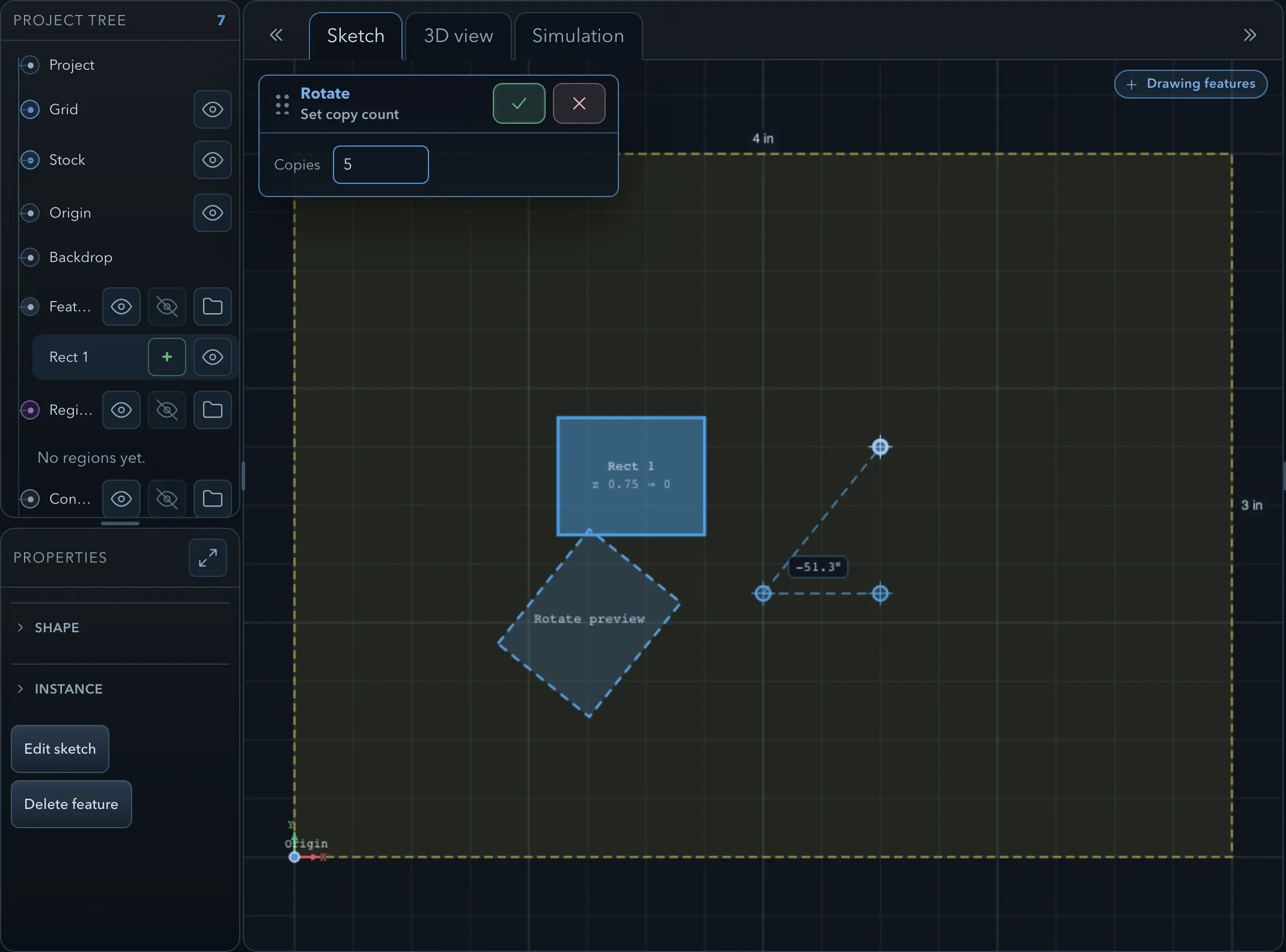
Turn on Keep originals (K) to rotate copies instead: after you click to set the angle, enter the number of Copies. Each copy is rotated one more step, so 5 copies at 60° fill the rest of a circle around the original.
Mirror
Section titled “Mirror”-
Click Mirror selected features.
-
At Select first line point and Select second line point, click two points on the mirror line. The preview follows the pointer until the second click.
With Keep originals (K) on, the mirrored features are copies and the originals stay. Construction geometry makes a good mirror line: snap to it; see Construction geometry.
Delete
Section titled “Delete”Delete selected features removes the selection. Undo brings it back.
Clipboard
Section titled “Clipboard”The clipboard copies whole features: their shape, role, Z range, and properties.
| Shortcut | Action |
|---|---|
| Ctrl+C | Copy the selected visible features. |
| Ctrl+X | Copy the selected features and remove them. |
| Ctrl+V | Paste. |
After you paste, the Paste features panel asks you to Click in the sketch to place the features. They follow the pointer, keeping their arrangement, and snapping applies to the click.
The clipboard belongs to PureCutCNC, not to the system: you cannot paste features into another program. It is kept while you open or create another project in the same window, so you can copy features from one project into another. On macOS use Cmd; the desktop app’s Edit menu has the same commands.
Related pages
Section titled “Related pages”- Aligning and distributing: line features up, space them evenly, and create patterns of copies.
- Offset, join, and cut: the other shape commands in the tool rail.
- Snapping and the grid: pick exact reference points, and lock an axis while moving.
- Linked features: what copies share.