Tabs
Tabs leave small bridges of material so an edge-routed part stays attached to its stock until you remove it safely after machining.
Before you start
Section titled “Before you start”- Create an Edge route inside or Edge route outside operation for the intended contour.
- Decide how the stock will remain supported after the final contour is cut.
Add and adjust tabs
Section titled “Add and adjust tabs”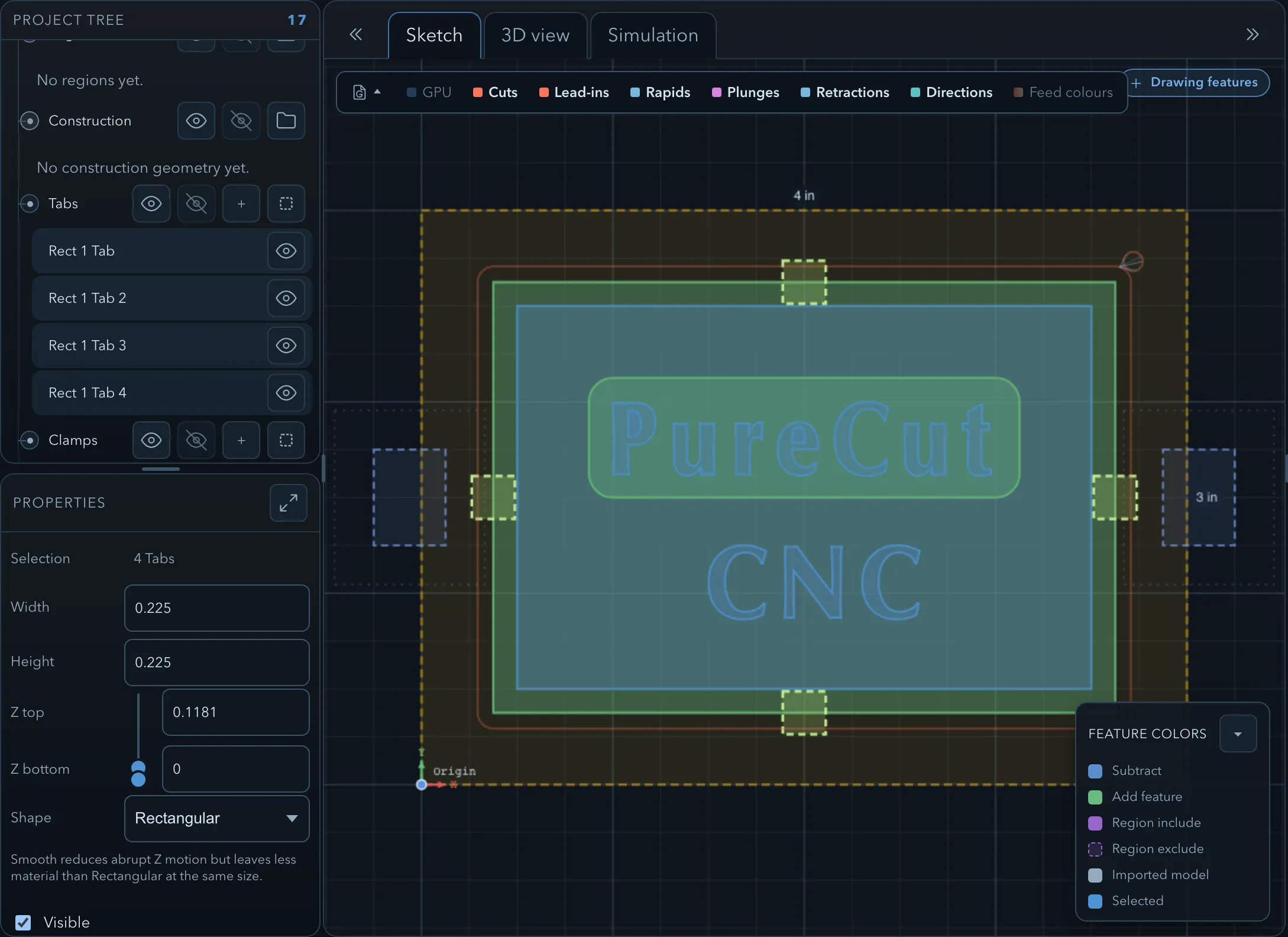
-
Place the tabs: either select the Tabs node and add them on the contour yourself, or open the edge-route operation and use Auto place tabs (see below).
-
Choose a rectangular or smooth tab shape and set its dimensions.
-
Select the edge-route operation and confirm that its Tabs setting uses the intended tab set.
-
Inspect the toolpath and simulation before exporting.
Auto place tabs
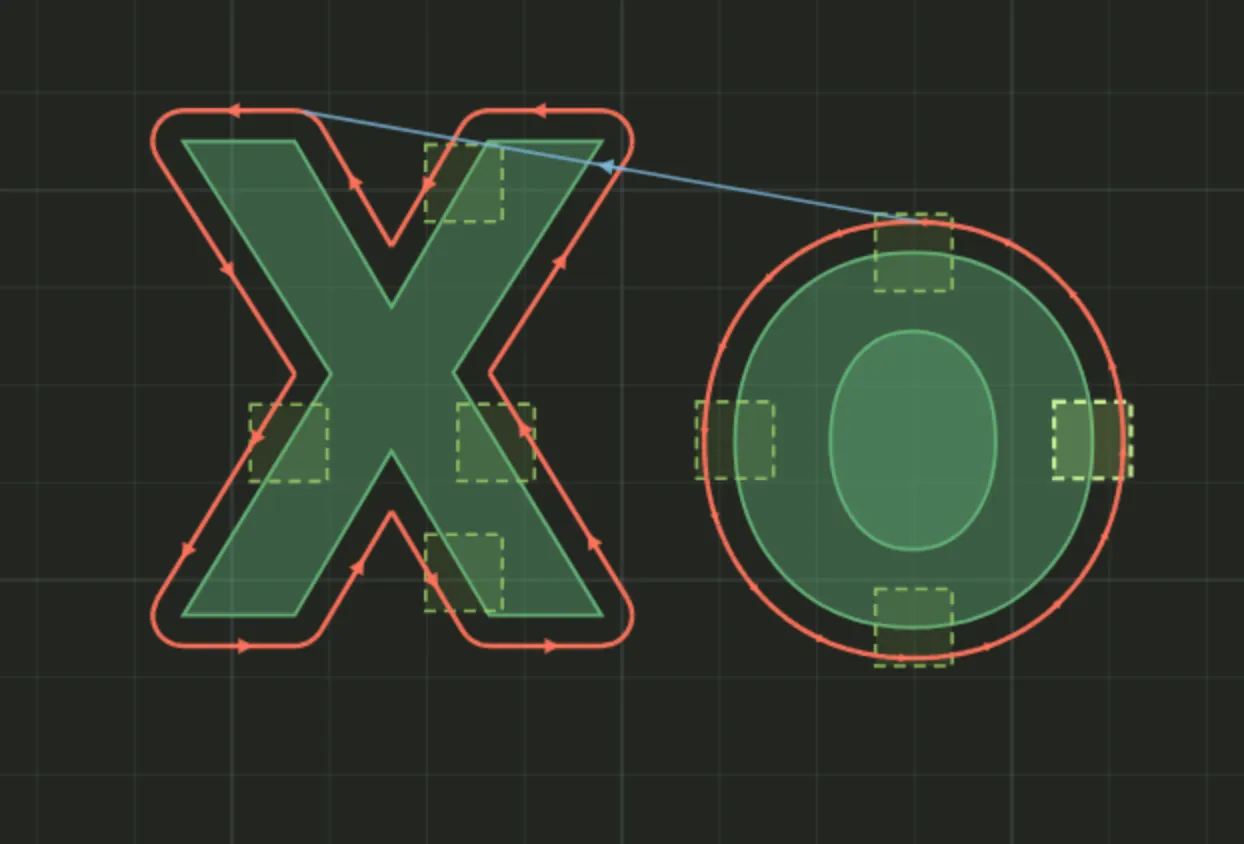
Section titled “Auto place tabs”An edge-route operation can space a set of tabs around its own contour for you. Select the operation, and in its properties click Auto place tabs in the Tabs row. There is no dialog: the tabs appear on the contour straight away, and you can then move or resize them like any others.
Auto place tabs adds to the tabs already on that contour rather than replacing them, so running it a second time leaves the two sets overlapping. Overlapping rectangular tabs with matching Z top and Z bottom cut as one combined bridge and do not produce an ambiguous-overlap warning. Overlaps involving smooth tabs or different Z ranges can produce that warning. Remove unwanted duplicates before placing another set, and inspect the resulting bridges even when there is no warning.
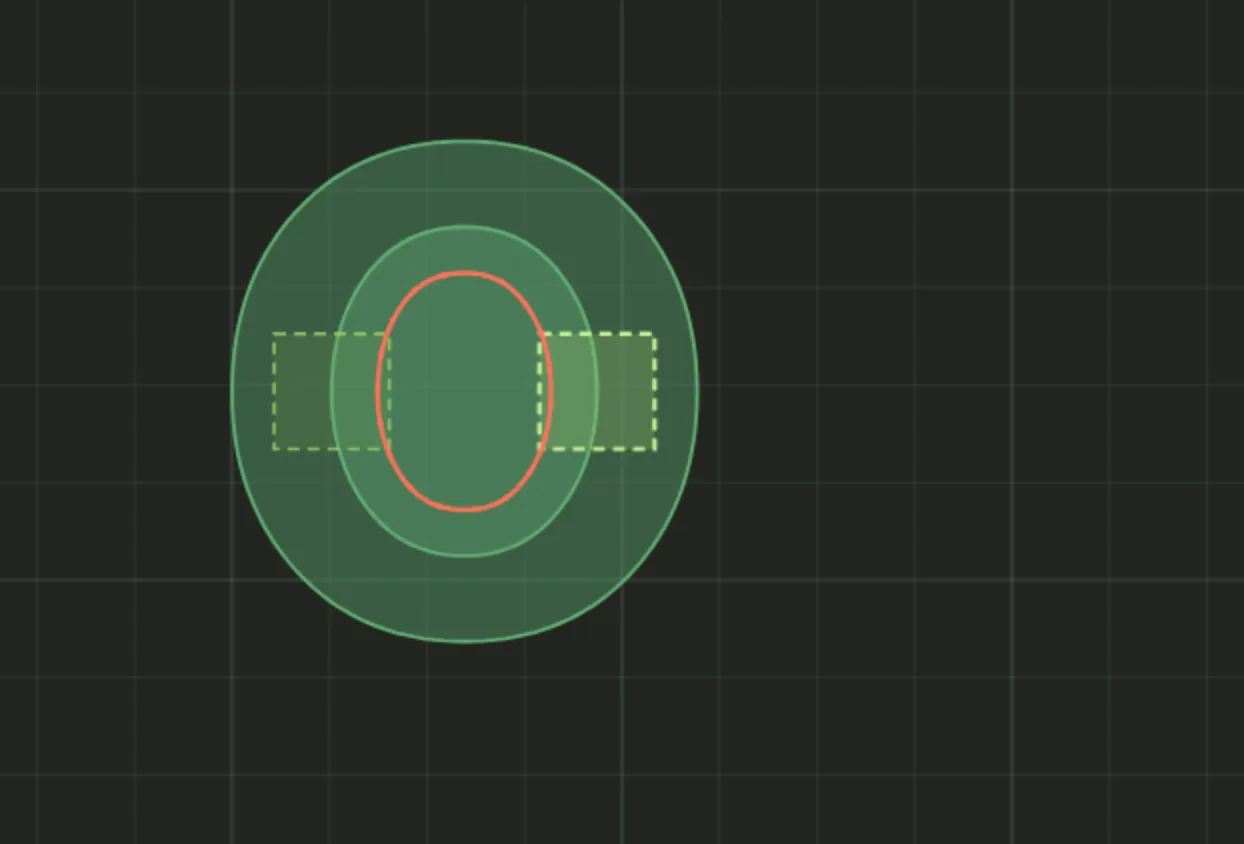
For outline text, automatic placement follows the letter shapes the edge route actually cuts, not the rectangle around the text feature. An outside route places tabs on each cut glyph outline; an inside route on Add text places them on the enclosed counters. A long run of text can receive up to four tabs per letter.
Bulk edit changes matching tabs together. Use manual placement when automatic placement would put a tab near a clamp, a corner, or a feature that needs a clean edge.
After nesting
Section titled “After nesting”Configure the Edge Route Inside or Edge Route Outside operations for all source parts before nesting. Nesting adds copied instances to operations that target those source features, but it does not move existing tabs with a part, and copied parts receive no tabs. Accept the nest first, then remove any tabs left at old positions and use Auto place tabs from the Edge Route Inside or Edge Route Outside operations that cut the nested contours. You can also place tabs manually. Automatic placement adds tabs rather than replacing them, so clear old tabs first to avoid overlap. Inspect every nested part’s tab positions and the regenerated toolpaths before export.
Tab warnings
Section titled “Tab warnings”An inside or outside edge route checks tabs on the walls it targets, and any tabs its cutting path crosses. An inside route through a letter counter does not report unrelated tabs on the letter’s outside contour.
Tab “…” does not intersect the selected operation toolpath. means a tab on a wall targeted by that operation is not crossed by its generated route. Check the tab position, selected contours, and any region or neighbouring part that might have limited the cut. See Warnings and messages for overlap warnings.
Related pages
Section titled “Related pages”- Edge route outside: cut a part free while keeping tabs.
- Clamps and clearances: keep tabs and contours clear of workholding.